Trio Drive Setup
Programming
Download Motion Perfect (Motion Program Development System) from Trio's website (https://www.triomotion.com/system/downloadPage.php?location=%2Fsoftware) .
Install on your control.
Open the software.
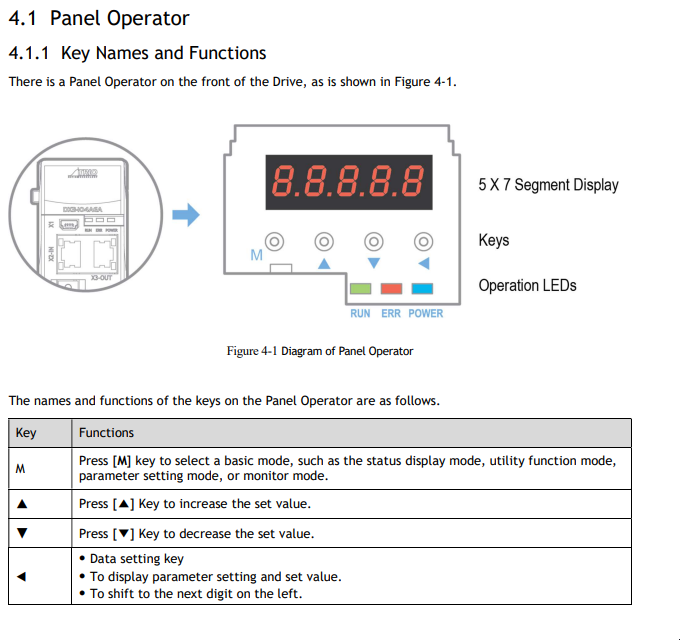
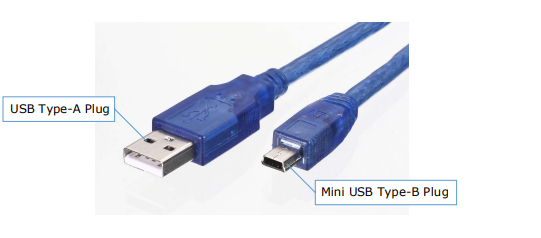
Select the type of interface you're going to program with (standard is USB Mini on X1 port of the DX3 drives).
To set up the USB connection, select the external device or network option on the Motion Perfect
connection screen. Then select the USB in the connection parameters dropdown menu.
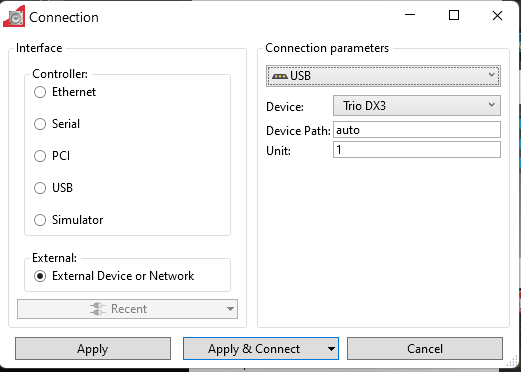
Press Apply & Connect.
The first time you connect through USB on a computer, Motion Perfect will need to install the necessary
drivers through a pop up if it detects they are not yet installed.
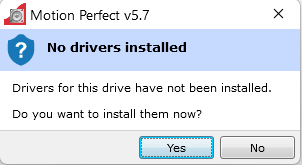
Answer ‘Yes’ to the USB driver installation, then Motion Perfect will install the USB drivers for the device.
Once the drive is connected the display will appear and the commissioning screen can be used. Double click on the external device you want to modify.
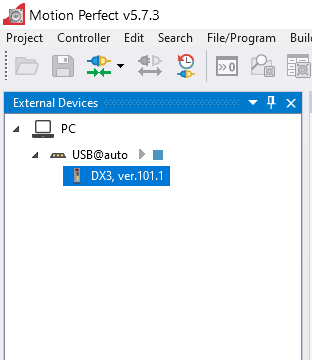
Program with default parameters.
Main used parameters:
| Parameter | MachMotion Default | Notes |
| Pn007.1 |
1 |
Set to 0 for single phase.
|
| Pn002.2 |
0 |
0 [Default] Use the encoder as an absolute encoder (requires encoder battery) |
| Pn511.0 | 4 |
Set to 4: X4-6 X4-7 The /BK signal is output from X4-6 and X4-7. |
| Pn536 | Input the exact number of watts your resistor for the drive is |
Setting resistor watt |
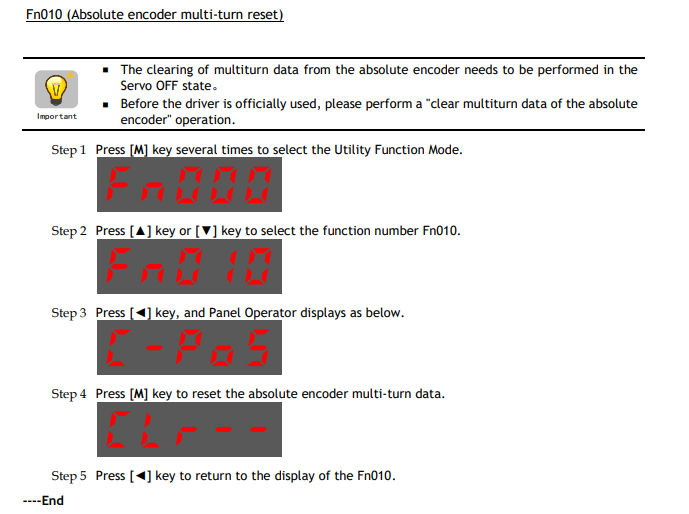
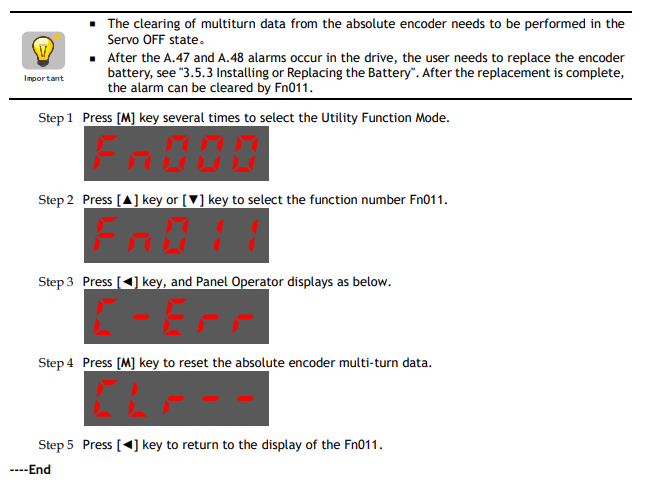
Reset Absolute Encoders
Follow the procedures below when powering up an absolute encoder system. A47 alarm or an A48 alarm will occur when the Drive is first powered up if absolute encoders are enabled.

Remote EtherCAT IO
To remotely control the IO of the drive from EtherCAT, setup PN511 as shown below:

Operator Panel