
Laser Controller Settings
Keyence LK-G5001 Laser Controller
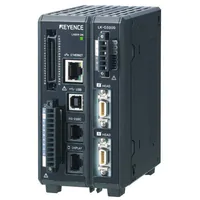
Hardware
The Keyence LK-G5001 is a laser controller that can handle as many as two "heads" (measurement lasers). It has two "outs" (measured values).
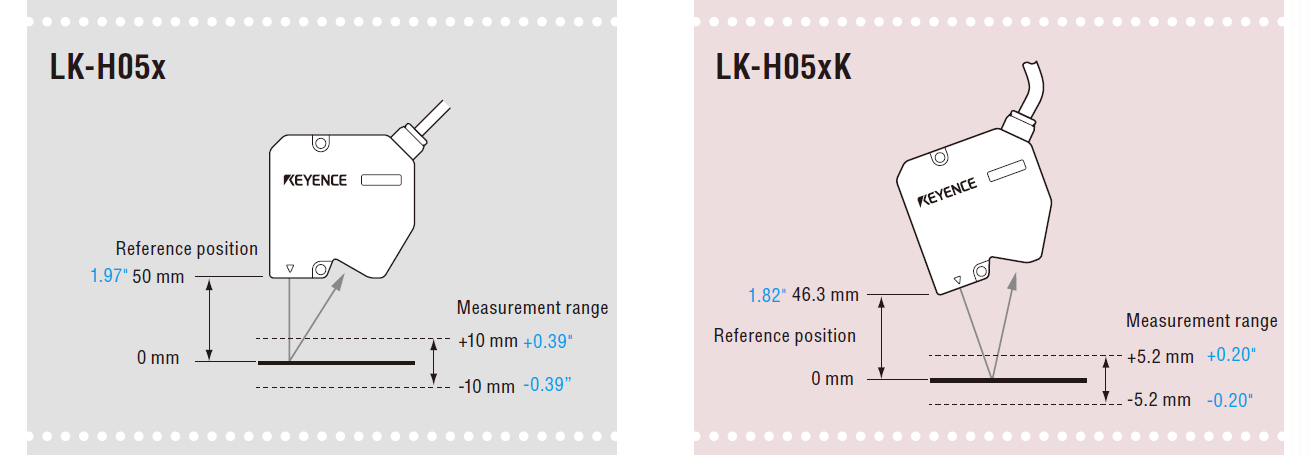
Lasers
This machine uses two LK-H507 lasers.
Software
Keyence ships a desktop application that can be used to configure the laser controller: LK Navigator 2. It should be installed as a Windows application. Keyence does not provide public downloads for standalone installers. They only provide publicly downloadable updates. They only provide a clean installer to their customers. The version from the old control was 1.03.00. The latest update is version 1.04.00.
The saved configuration is available here.
Configuration
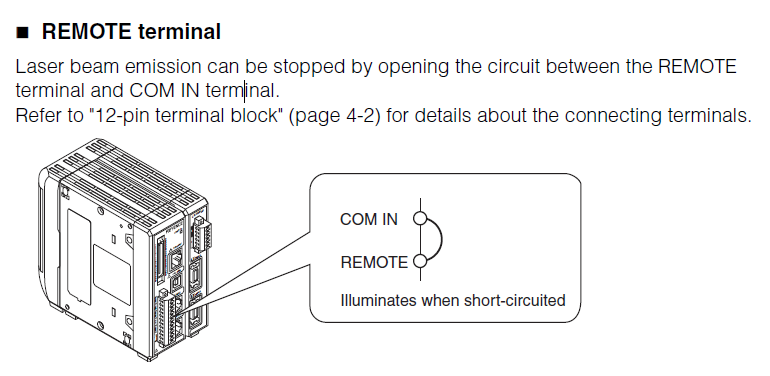
Safety Circuit
The device has a safety mechanism where pin 1 (REMOTE) must be wired to pin 0 (COM IN) on the 12-pin terminal block.
Device Access
We access this device via the Machine Network. The IP address we use for it is 192.168.208.70/24.
It's (factory) default IP address is 192.168.10.10/16.
If the device gets factory reset, you will not be able to connect to it without (temporarily) reconfiguring the Machine Network NIC in Windows first.
Communication to the laser controller uses TCP:24687 exclusively.
The device can also be accessed via USB, though we did not ship a USB application cable with the system.
Settings
Most of the settings for this device are saved in the controller.
-
- We use the default program (Program 0).
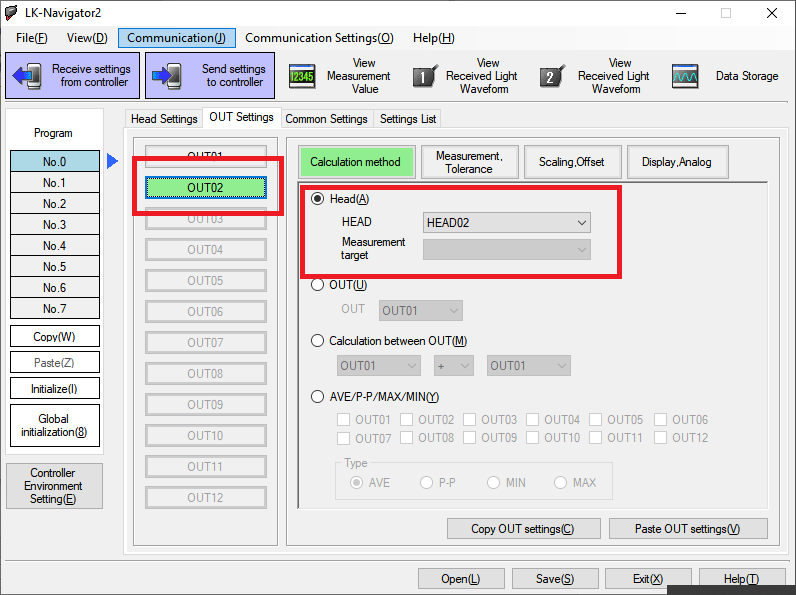
- Head0 -> Out0
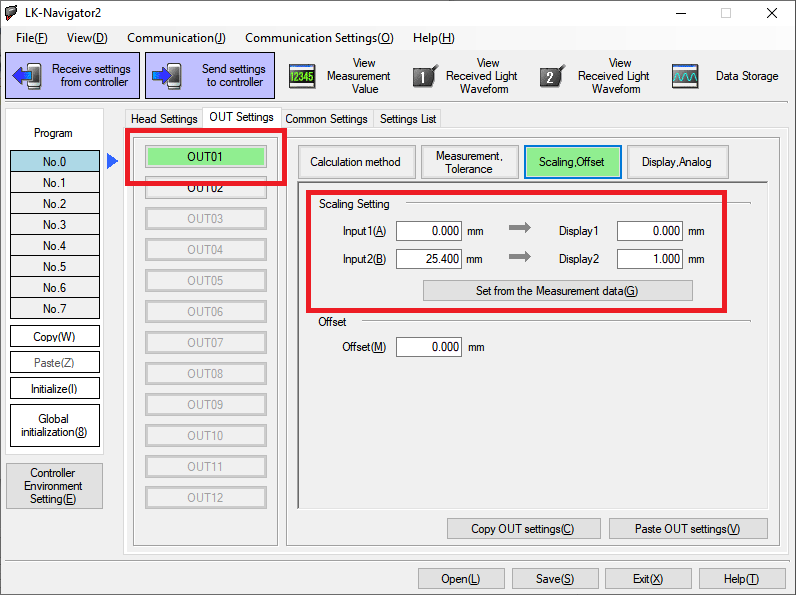
- Units: convert mm -> inches
- Head1 -> Out1
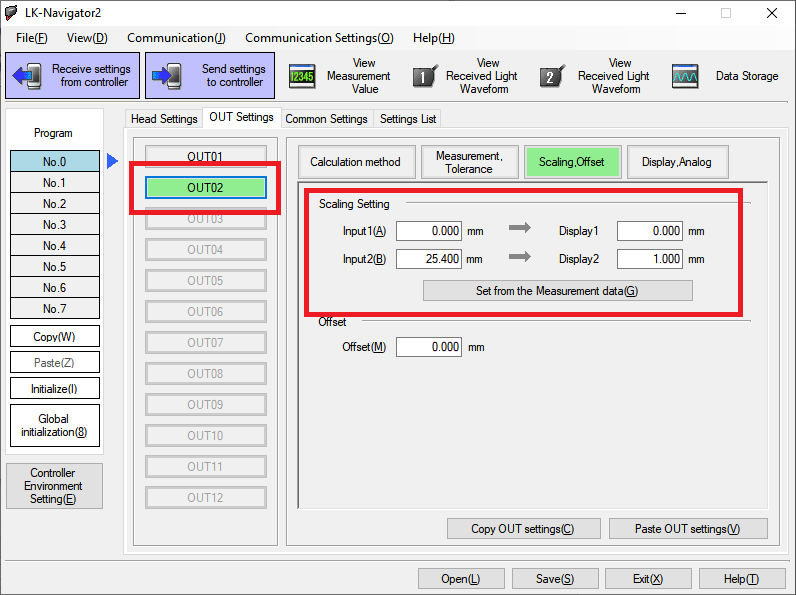
- Units: convert mm -> inches
Head/Out
| Head | a laser input |
| Out | a measured value (output) |
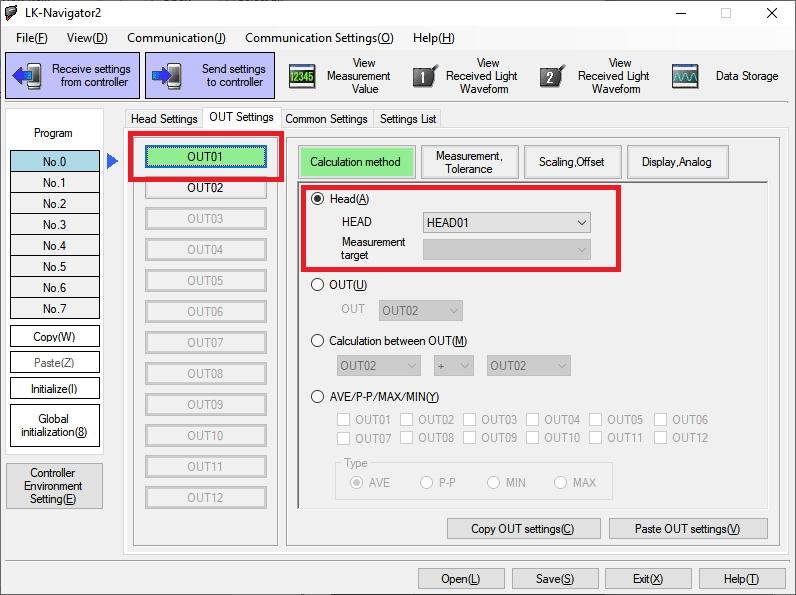
The default settings for the device have both outs using Head0. We want each out to use a different head.
We also configured the scaling for each output so that the measurements were in inches. Scaling takes two "points," (native_units, xform_units). To convert from mm (native units) to inches, use these points (0,0) -> (25.4,1).
| Head -> Out Configuration | |
 |
 |
| Units Configuration | |
 |
 |