
MachPro Mill and Router Operating Manual

Introduction
Overview
This manual gives an overview for the basic operation of the MachPro Mill and Router software. The screen is shown below, followed by a brief summary of the different features of the screen. The numbers shown in the screenshot refers to a brief description below the image.
Control Startup
To open the control software, double-click on the profile icon on the desktop.

Languages
| MachPro Version | 2026.5.13.1 and greater |
You may change the display language for the MachPro screen labels and buttons. This is an English-to-target-language word mapping feature, and you may freely switch between available languages. We will add more languages as there is a need. If you see something in your language that would be better translated with a different word or phrase, please submit a ticket so we can update it. support@mach-labs.com
If your CNC experience and training was primarily in English, it may be easier to configure MachPro while it is running in English. When the system is ready for daily operations, switch to an appropriate language for the operators. Be thoughtful in changing the display language. Use it as a tool to simplify your operations.
- From the main MachPro screen, pull down the Operator menu and click Select Language
- You need to restart MachPro after selecting a new language

Gcode Tab

Toolpath Screen
Below are the controls to manipulate the tool path screen:
- Zoom – Right click with the mouse and move mouse up/down or using the scroll wheel on the mouse
- Rotate – Left click with the mouse and rotate the part by moving the mouse
- Pan – Press and hold [Ctrl] on the keyboard and left click with the mouse, then pan by moving the mouse (one-hand control option is to use left and right mouse click and move the mouse. No [Ctrl] press needed)
- Tool Path
- Regen ToolPath - Refresh the toolpath of the gcode
- View Top - Top view of the part
- View ISO - Side view of the part
- File
- Recent - Load a recently loaded gcode program
- Load - Load a program from the computer or flash drive
- Edit - Edit the code that is loaded into the software
- Close - Close the gcode that is currently loaded in the software
- Control
- Cycle Start - Starts the gcode from from the beginning of the part
- Feed Hold - Pauses the gcode program and keeps the spindle running
- Cycle Stop - Stops the gcode program from running
- Reset - Resets the alarm and also enables the machine
- Disable - Disables the control for software configuration changes
- Status
- Status - Displays any current messages (Home All Pressed, Cycle Start Pressed, etc.)
- State - Displays the current state of the machine (Run, Feedhold, etc)
- Cycle Time - Displays how long the gcode has been running
- Date - Date and time of the timezone of the control
- DROs (Axis Digital Readouts)
- MDI - Opens up a window that allows for gcode commands
- Viewing Part - Shows the part coordinates or machine coordinates of the machine
- The buttons across the bottom of the DRO section can be customized by right-clicking on them. See Dashboard configuration and configuring GoTo positions for detailed options. The transform functions can be particularly useful on shape cutting systems.
- Active Modals
- Active Offset - Shows the current active fixture offset (G54, G55, etc)
- Tool Display
- T - The current tool number selected
- Next Tool - The next tool that the gcode will need
- Diameter - Diameter of the tool
- Length - Length of the tool
- Feedrate Display
- F - The current feedrate commanded
- Feed OV - The current Feedrate Override utilizing the Feedrate Override knob on the operating panel (0-200%)
- Rapid OV - The current Rapid Override utilizing the Rapid Override knob on the operating panel (0-200%)
- Spindle Display
- S - The current spindle speed
- TSpeed - The current spindle speed feedback
- FWD - Turns on if the spindle is moving Forward, yellow initially and green when commanded RPM is reached
- REV - Turns on if the spindle is moving in Reverse, yellow initially and green when commanded RPM is reached
- Spindle OV - The current spindle override utilizing the spindle override (0-200%)
- Spindle Load - The current spindle load utilizing the spindle speed feedback
- Range - Displays the current spindle range (spindle pulley)
- Advanced
- Single Block - If active the software will go line by line through the gcode when you press the cycle start button
- Block Delete
- Part Counter - Displays the number of parts that the machine has produced
- M1 OPT Stop - If active the software will stop at any M1 commands in the gcode program and waits for cycle start
- Alexsys - Opens up the conversational assistant Alexsys in another window
- Dry Run - If active the software will ignore all mist or flood commands
- M-S-T Lock - If active the software will ignore all Macro codes, Spindle codes and Tool commands
- File Resume
- Collapse v - If selected this will minimize the Advanced buttons
- Dashboard
- There is an extensive collection of widgets that can be used on the dashboards in MachPro. This doc: MachPro Widgets, Dashboard, Commands, and Function Buttons provides the details for selecting, configuring and using the available widgets.
- MachPro Modify GoTo Positions
Tools Tab

- Edit
- Edit Offsets - No offset changes can be made unless this value is yellow. It also displays or hides the zero buttons near the DROs to the right.
- Tools
- Tool Table - View and edit tool table. See the Tool X and Y Offsets below.
- Pockets
- Register Tools - Register and save tools
- Setters
- Tool Setters - Select this to add or remove a tool setter. See Creating a Tool Setter below.
- Park Tool - Park the currently loaded tool and leave the spindle empty
- Jump to Tool Number
- 1,2,3,4 etc. - Tool number (Tool change). Just press the button and the tool will change.
For 7-13 see the [Gcode Tab] above for more details
MachPro Tool Offset Table Customization
Fixtures Tab
Manual Setup

- Edit
- Edit Offsets - View and edit fixture offsets, hide and reveal DRO zero buttons to the right
- Fixtures
- Fixtures Table - View and edit fixture table (G54, G55, G56, etc.)
- X/Y Edge Finder Offset
- X+ - Zeros the X + offset
- X- - Zeros the X - offset
- Y+ - Zeros the X+ offset
- Y- - Zeros the Y- offset
- Edge Finder Diameter - This is the diameter of the edge finder used to calculate the new offset based on the zero button pressed above.
- Fixture Offsets
- X, Y, Z, etc. - Shows the currently loaded offsets
- Rotary Axis Tool Path
- X,Y, Z -
Details on work and head offsets
For 6-13 see the [Gcode Tab] above for more details
Edge Finding
MachPro Probing Wizard
| MachPro Version | less than 2026.5.13.1 |
Edge and Angle Finding
The Edge Finding tools are available on the Fixtures Tab -> Edge Finding.

Edge Finding Settings
Edges have two options for when the probe makes contact. The work offset can be zeroed at the edge or the position where the edge is found can be reported without zeroing. This selection is made in the 'Settings' group on the edge finding page. The following settings apply to edge finding of either type.
X/Y Reposition Distance: This is the distance used for the X and Y axes to travel in free space during corner findings. It should be a large enough distance for both axes to clear the edge of the corner. These moves will be made as protected moves.
Z Reposition Distance: This is the distance the Z will move in free space during corner findings. It should be greater than your retract distance, in order for the Z axis to reach the side of the material. This move will be made as a protected move.
Approach Distance: All axes will use this value when doing a probe move for both edges and corners. It is the maximum distance the probe will move while searching for material. If the probe is not activated before this distance is consumed, then an error will occur and the operation will be stopped.
Retract Distance: This distance is used after a probe touch to remove the probe from the side of the material. It should be a sufficient distance to deactivate the probe. This distance is also used during the probe double-touch if that feature is activated.

Angle Finding Settings
Angles have two methods of being measured. For small pieces with no movement interference, there are four canned functionalities. These options will probe the side of the part, then move a specified distance along the part, and probe the side again. If the part is large or the user wants more control over measuring the angle, they can enter Jog Mode. Once they activate this mode, they can probe a side of the material, then jog the machine to a new position and probe the side again. This is useful to expedite travel from one end of a part to another.
Angle Measure Options: There are five options for the user to choose from here. This selection will determine how the machine operates during an angle probing operation.
X--: The probe will move in the negative X direction. This means it will be touching the east side of the part.
X++: The probe will move in the positive X direction. This means that it will be touching the west side of the part.
Y--: The probe will move in the negative Y direction. This means it will be touching the north side of the part.
Y++: The probe will move in the positive Y direction. This means it will be touching the south side of the part.
Jog Mode: The probe will move in the direction that the user chooses later.
Reposition Distance: This is the distance that the probe will move between the two probing operations of an angle probe. It can be positive or negative. It is only used when not in Jog Mode. This move will be done in as a protected move at the 'First Touch' feed rate.
Approach Distance: This is the distance that the probe will attempt to move in order to probe the material. If the material is not reached before this distance is consumed, then an error will occur and the operation will stop. This value should be a positive value.
Retract Distance: This distance is used after a probe touch to remove the probe from the side of the material. It should be a sufficient distance to deactivate the probe. This distance is also used during the probe double-touch if that feature is activated.

Probe Configuration Settings
The following options can be set on the 'Settings' page of the wizard and will be applied across both edge finding operations and angle finding operations.
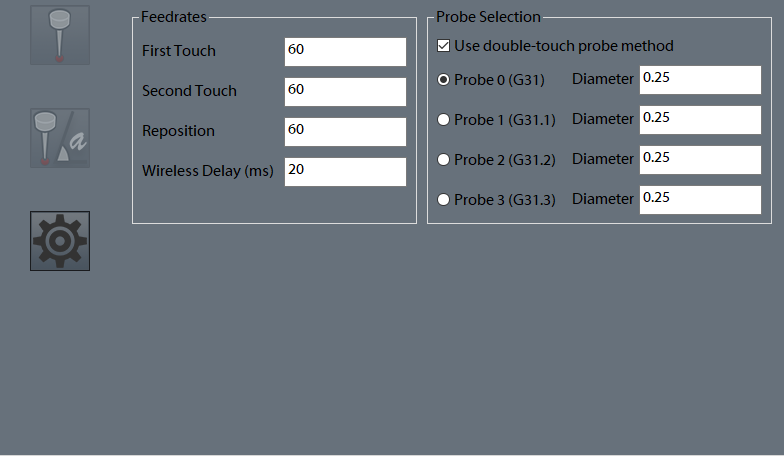
First Touch: This is the first field in the 'Feedrates' section of the settings. This value is the feed rate that the probe will use for the first touch of each probe operation. It is required to be positive.
Second Touch: This is the second field in the 'Feedrates' section of the settings. This value is the feed rate that the probe will use for the second touch of each probe operation, if the double-touch feature is enabled. It is required to be positive. This is typically a slower feed rate for a more accurate reading.
Reposition: This is the third field in the 'Feedrates' section of the settings. This is the distance that the probe will retract from the part after each touch.
Wireless Delay (ms): If the configured probe is wireless, an optional number of milliseconds here can be added as a delay during probe arming, in order to allow the probe to complete the arm sequence before checking for errors.
Double-touch: Check this box to use two probe touches during all probe moves. If this box is unchecked, all probes will use only one touch and will do their touch at the 'First Touch' feed rate.
Probe Diameter: This is the diameter of the probe stylus being used. This must be an accurate number in order to get an accurate fixture offset.
Probe Code Options: The user can specify which probe signal to watch for while running a probe operation. In Mach, G31 corresponds to the “Probe” input signal, G31.1 is the “Probe 1” input signal, G31.2 is the “Probe 2” input signal, and G31.3 is the “Probe 3” input signal. The probe must be wired and mapped correctly to the selected signal for these operations to work.
Status
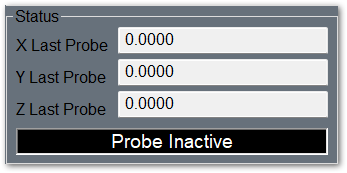
There are two sections to the Status column that appears on all pages other than 'Settings'. The first section shows the last probed position for the X, Y, and Z axes. The positions will be shown in work coordinates, unless the "Machine Coordinates" signal is active, in which case they will be shown in machine coordinates.
The second section is an LED that indicates if the currently selected probe is active or not. If in the settings, the user has G31 selected, then the LED will correspond to the input signal “Probe”. If they have selected G31.1, then the LED will indicated that status of the input signal “Probe 1”. The LED will mark the state of the input signal “Probe 2” if the user has selected G31.2 in the settings, and the LED will correlate with the “Probe 3” input signal if the user selected G31.3.
Functions
There are fourteen functions that the probing wizard can do. There are four operations that find a single edge of the part, four operations for finding a corner of the part, one operation to find the center of a circle, one operation to find material top (Z axis), and four operations to find the angle of a part.
When commanding any probe motions, be sure that your ‘Probe Code Options’ field is set to the correct probe.
Edge Finder

Corner Finder

 The first button, which will zero on the top left corner, will start by moving downwards and locating the top of the part. It will do a full two-touch routine (if enabled) and then zero the Z axis. Next, it will move in the positive Y axis the distance specified in your ‘X/Y Reposition Distance’ field. It is important that the distance is correct in order to properly be clear of the part. After this move, Z will descend by the 'Z Reposition' distance. Once the Z has been lowered, the probe will move in the negative Y direction and probe the top edge of the part. This is the same routine as the corresponding edge finder. After probing Y, the Y axis will be zeroed and the Z will raise up. The Y axis will return back to its starting position over the part. Then X axis will move in the negative X direction the reposition distance so that it will be clear of the part. The Z will again descend the same Z reposition distance. At this point, the X axis will perform a full probe routine in the positive X direction. After probing the X edge and setting the zero, the Z axis will raise up, the both X and Y will move to zero. At the end of the routine, X and Y will be at zero and the Z axis will be at the retract distance away from its zero point.
 The second button, which will zero on the top right corner, will start by moving downwards and locating the top of the part. It will do a full two-touch routine (if enabled) and then zero the Z axis. Next, it will move in the positive Y axis the distance specified in your ‘X/Y Reposition Distance’ field. It is important that the distance is correct in order to properly be clear of the part. After this move, Z will descend the 'Z Reposition' distance. Once the Z has been lowered, the probe will move in the negative Y direction and probe the top edge of the part. This is the same routine as the corresponding edge finder. After probing Y, the Y axis will be zeroed and the Z will raise up. The Y axis will return back to its starting position, over the part. Then X axis will move in the positive X direction the reposition distance so that it will be clear of the part. The Z will again descend the same Z reposition distance. At this point, the X axis will perform a full probe routine in the negative X direction. After probing the X edge and setting the zero, the Z axis will raise up, the both X and Y will move to zero. At the end of the routine, X and Y will be at zero and the Z axis will be at the retract distance away from its zero point.
 The third button, which will zero on the bottom left corner, will start by moving downwards and locating the top of the part. It will do a full two-touch routine (if enabled) and then zero the Z axis. Next, it will move in the negative Y axis the distance specified in your ‘X/Y RepositionDistance’ field. It is important that the distance is correct in order to properly be clear of the part. After this move, Z will descend the 'Z Reposition' distance. Once the Z has been lowered, the probe will move in the positive Y direction and probe the bottom edge of the part. This is the same routine as the corresponding edge finder. After probing Y, the Y axis will be zeroed and the Z will raise up. The Y axis will return back to its starting position, over the part. Then X axis will move in the negative X direction the reposition distance so that it will be clear of the part. The Z will again descend the same Z reposition distance. At this point, the X axis will perform a full probe routine in the positive X direction. After probing the X edge and setting the zero, the Z axis will raise up, the both X and Y will move to zero. At the end of the routine, X and Y will be at zero and the Z axis will be at the retract distance away from its zero point.
 The fourth button, which will zero on the bottom right corner, will start by moving downwards and locating the top of the part. It will do a full two-touch routine (if enabled) and then zero the Z axis. Next, it will move in the negative Y axis the distance specified in your ‘X/Y RepositionDistance’ field. It is important that the distance is correct in order to properly be clear of the part. After this move, Z will descend the 'Z Reposition' distance. Once the Z has been lowered, the probe will move in the positive Y direction and probe the bottom edge of the part. This is the same routine as the corresponding edge finder. After probing Y, the Y axis will be zeroed and the Z will raise up. The Y axis will return back to its starting position, over the part. Then X axis will move in the positive X direction the reposition distance so that it will be clear of the part. The Z will again descend the same Z reposition distance. At this point, the X axis will perform a full probe routine in the negative X direction. After probing the X edge and setting the zero, the Z axis will raise up, the both X and Y will move to zero. At the end of the routine, X and Y will be at zero and the Z axis will be at the retract distance away from its zero point.
Circle Center
 This function will find the center of a circle and zero there. It will only work with holes, not posts. The probe must start already lowered into the hole. The probe will first move in the negative X direction and probe the side of the circle, and then return to its starting position. All probe operations will do two full touches of the part, if the double-touch feature is enabled. After the first edge, the probe will then probe in the positive X direction, then return to the starting position. You should be sure the approach distance will reach both sides of the circle. After the second X axis probe, the operation will be repeated in the Y axis. The probe will first move in the positive Y direction and probe an edge of the circle and return to start. Then the probe will move in the negative Y direction and find the edge there. At this point, the machine will calculate the center of the circle, and move to position. Upon arrival, it will zero both the X and Y axes.
Zero Z Axis
 This function will probe the part in the negative Z direction. The Z axis will move the approach distance while trying to find the part top. If the double-touch feature is enabled, then the Z axis will probe twice. After finding the top of the part, the probe will zero its position and retract the specified retract distance.
Measure Angle

There are five methods to measure the angle that a part sits at. You can probe using one of the four canned probing functions or you can manually probe the angle using Jog Mode. Each function requires two probe routines to complete. The probe will touch the side once, move a certain distance, and then touch the side again. The canned functions use the ‘Reposition Distance’ parameter as the distance to move along the part. This parameter specifies both direction and distance between the two probe operations. If it is positive, then the probe will move in a positive direction up the side of the part before doing the next probing operation. If it is negative, then the probe will move in a negative direction down the side of the part before doing the next probing operation.
 The first function will move the probe in the positive X direction, thereby probing the left edge of the part. The probe will do one full probe operation against the side of the part. Then it will retract. After retracting, it will move the Y axis the distance specified in the ‘Reposition Distance’ field. For instance, if ‘Reposition Distance’ is set to 1, then the Y axis will move positive 1 unit (inches or millimeters). If ‘Reposition Distance’ is set to -1, then the Y axis will move 1 unit in the negative direction. After this move, there will be a second probe operation in the positive X direction. When it is complete, the probe will retract from the part and set the appropriate angle.
 The second function will move the probe in the negative X direction, thereby probing the right edge of the part. The probe will do one full probe operation against the side of the part. Then it will retract. After retracting, it will move the Y axis the distance specified in the ‘Reposition Distance’ field. For instance, if ‘Reposition Distance’ is set to 1, then the Y axis will move positive 1 unit (inches or millimeters). If ‘Reposition Distance’ is set to -1, then the Y axis will move 1 unit in the negative direction. After this move, there will be a second probe operation in the negative X direction. When it is complete, the probe will retract from the part and set the appropriate angle.
 The third function will move the probe in the positive Y direction, thereby probing the bottom edge of the part. The probe will do one full probe operation against the side of the part. Then it will retract. After retracting, it will move the X axis the distance specified in the ‘Reposition Distance’ field. For instance, if ‘Reposition Distance’ is set to 1, then the X axis will move positive 1 unit (inches or millimeters). If ‘Reposition Distance’ is set to -1, then the X axis will move 1 unit in the negative direction. After this move, there will be a second probe operation in the positive Y direction. When it is complete, the probe will retract from the part and set the appropriate angle.
 The fourth function will move the probe in the negative Y direction, thereby probing the top edge of the part. The probe will do one full probe operation against the side of the part. Then it will retract. After retracting, it will move the X axis the distance specified in the ‘Reposition Distance’ field. For instance, if ‘Reposition Distance’ is set to 1, then the X axis will move positive 1 unit (inches or millimeters). If ‘Reposition Distance’ is set to -1, then the X axis will move 1 unit in the negative direction. After this move, there will be a second probe operation in the negative Y direction. When it is complete, the probe will retract from the part and set the appropriate angle.

Using Jog Mode allows the user to fully select where to probe the part for both positions. To activate it, select ‘Jog Mode’ from the Measure Angle Options, the press the angle button. It will be green while Jog Mode is active. To cancel Jog Mode, which will discard any points it has probed, press the button again to return it to its normal state. While Jog Mode is active, the user can jog to any position around the part and probe it using one of the four standard edge finding probe operations. The selected function will perform the same routine that it would under normal conditions, completing a full probe routine. After the routine is completed, the user is free to jog the machine wherever they desire in order to probe again. The only restriction is that both probe operations must be of the same type (i.e. probing positive X and then negative Y is not allowed). After two probe positions have been collected, the angle will be set appropriately and Jog Mode will turn itself off.
MachPro Blum Probing Routines
| MachPro Version | 2026.5.13.1 and greater |
Prerequisites
- Install and configure your probe according to the manufacturer's documentation
- Map the inputs to the appropriate MachPro signals
MachPro incorporates the Blum Edge Finding macros to provide the advanced probe features.
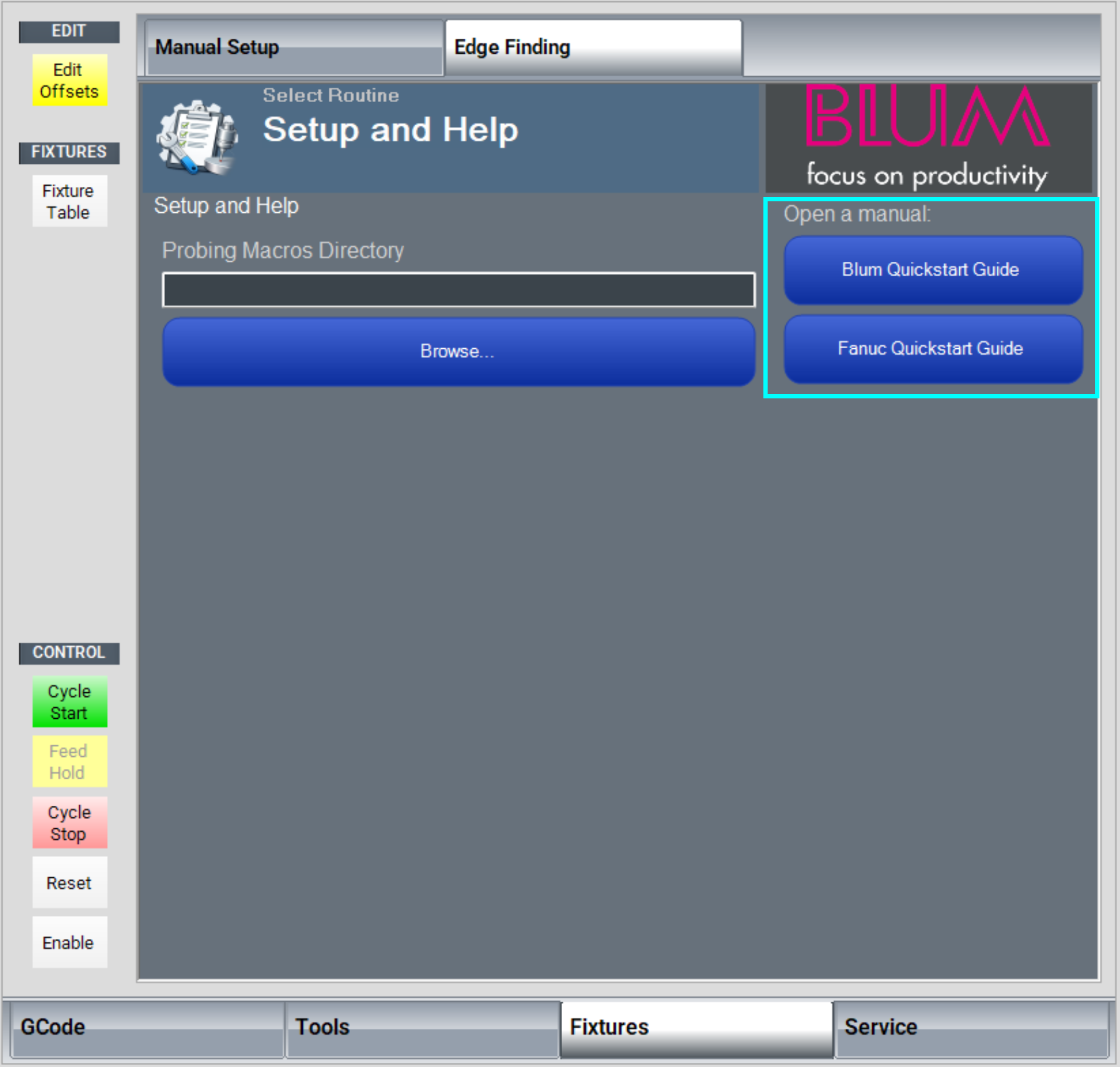
- Click the Fixtures tab at the bottom of the screen
- Click the Edge Finding tab at the top of the screen
Clicking on the top left corner of the screen toggles between selecting the probing routine to use, and running that routine.

Full documentation for all routines and settings is provided by Blum.
Scroll to the bottom of the routine selection window and click Setup and Help.
Both of the Guide buttons will open PDF Blum documents.
|
|
|

Service Tab
Maintenance Tab

- Limits
- Soft Limits - Toggles software limits on or off
- Limit Override - Toggles to allow for the machine to move off a limit switch
- PLC
- Reset Pocket - Only used for tool changers.
- PLC Sequence -
- Control
- Cycle Start - Starts the gcode from from the beginning of the part
- Feed Hold - Pauses the gcode program and keeps the spindle running
- Cycle Stop - Stops the gcode program from running
- Reset - Resets the alarm and also enables the machine
- Disable - Disables the control for software configuration changes
- Settings
- Interface Config -
- Motion Controller - Opens the plugin for the Motion Controller
- Screen Config - Edit the screen layout
- Industrial Theme -
- Toggle Menu - Turns the menu on or off
- Compile Scripts - Refreshes (recompiles) programming scripts
- Homing
- Home X - Homes the X axis
- Home Y - Homes the Y axis
- Home Z - Homes the Z axis
- Home All - Homes all axes
- Support
- Remote Support - Starts a remote support session with MachMotion Technical Support
- Support - Opens up the online MachMotion Support Library
- Updates - Checks for updates for MachMotion Software
- History - Views status history and alarms
- User
- Logout - Logs out of the Windows username
- Power - Closes the MachPro software properly, and runs the Windows shutdown procedure.
For 7-13 see the [Gcode Tab] above for more details
Dashboard Tab

The Dashboard is used to make the control just the way you want it! For more information, see the Dashboard documentation under the GCode tab above.
Machine I/O Tab

This tab is used for diagnostics and shows all your machine IO.
Homing
To home the machine, begin by pressing the [Reset] button. Then navigate to the [Service/Maintenance] tab and press [Home All]. There is an optional parameter to prompt the user to home the machine on startup. If your system is configured with absolute encoders you do not need to home it after the initial configuration.

Programmed Movement
MDI
To command a movement using the MDI feature, press the [MDI] button.
Enter the desired gcode command into the field and press [Cycle Start] to execute the command(s). The up/down arrow buttons will scroll through the history of cycled commands. Click the [X] or the [MDI] button to close the MDI window.

Gcode
The primary method of commanding motion is using gcode files. Gcode files can be hand written, generated by a wizard, or generated from CAD files using a CAM program.
Spindle Control
Gcode Spindle Control
The spindle is controlled through gcode using the M-Codes M3 (Clockwise), M4 (Counterclockwise), and M5 (Off). To control the spindle speed in RPMs an S word is added.
For example, M3 S2000 would turn the spindle on in the clockwise direction at 2000 RPM.
Manual Spindle Control
To control the spindle separately from gcode use the spindle control on the operating panel. The [Spindle FWD] turns the spindle on clockwise and the [Spindle REV] turns the spindle on counterclockwise.

The following spindle settings are also shown on the Spindle tab located in Configure -> Control -> Spindle:
- G50 Speed Limit – the maximum RPM the spindle can move with the current G50 setting
- Range – Pulley number selected and speed range
Spindle Display
The current spindle settings are shown in the main Spindle Display.

- S – Commanded Speed
- Spindle OV – Spindle Override Percentage
- Spindle Load – % of the load of the spindle.
- Range – Current Pulley Selected
Spindle Warm Up
A spindle warm up cycle is important for all CNC machines, and especially important for machines that are not in a temperature controlled building.
- The cycle lubricates spindle bearings.
- It stabilizes spindle and machine temperature.
- It reduces thermal expansion changes during startup.
- It helps maintain machining accuracy.
- It reduces premature bearing wear.
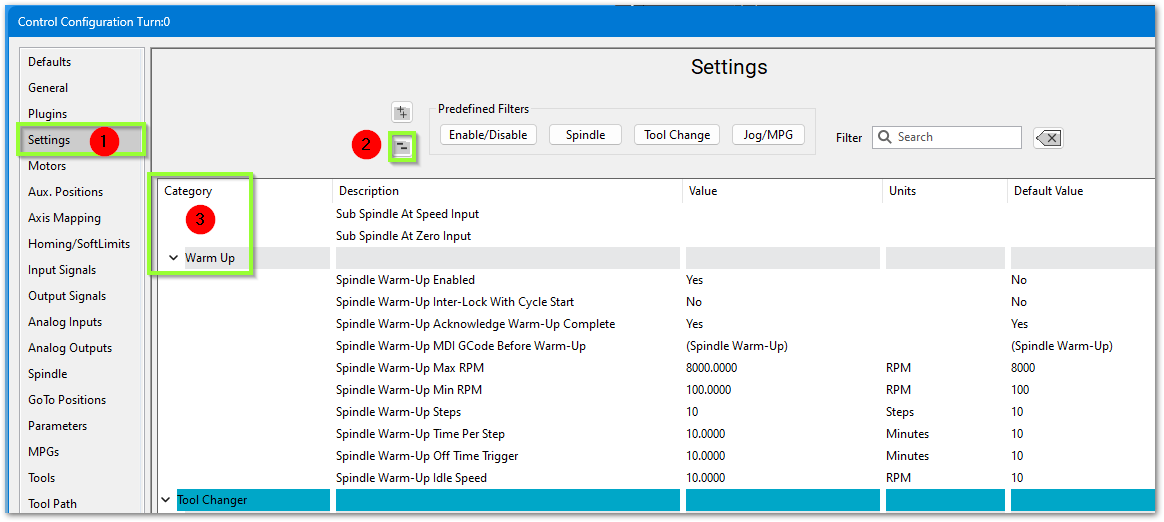
To configure a warm up cycle go to Configure ->Control->Settings tab.
- Collapse all of the settings with the
 button
 - Expand the Spindle section and scroll down to the Warm Up portion

Below are the default settings for the Spindle Warm Up.
| Parameter | Description |
| Spindle Warm Up Enabled | Warm Up Cycle On or Off |
| Spindle Warm Up Inter-Lock with Cycle Start | Yes or No |
| Spindle Warm UP Acknowledge Warm-Up Complete | The operator will need to acknowledge that the warm up cycle completed |
| Spindle Warm Up MDI GCode Before Warm UP | Provides an MDI field to enter GCode that will run before the Warm Up cycle begins |
| Spindle War Up Max RPM | Max (finishing) speed for the warm up cycle. This should be the Max RPM of the spindle |
| Spindle Warm Up Min RPM | Minimum (starting) speed for the warm up cycle (see note below). Set this to 1 |
| Spindle Warm Up Steps | How many steps will it take to get the spindle up to Warmed Up status - from Minimum to Maximum RPM |
| Spindle Warm Up Time Per Step | How long it will stay in each Spindle Warm Up Step |
| Spindle Warm Up Off Time Trigger in minutes |
How long do want the spindle to be off before the spindle will need to run the Warm Up cycle |
| Spindle Warm Up Idle Speed | Speed the spindle will idle at after the warm up is complete. Some spindles will not idle below 1500 RPM |
Example:
- Locate the manufacturer's warm up instructions. If you do not have those instructions, then set 2 minutes at each step, 3 steps, ending 1 step below max spindle RPM.
- For the Spindle Warm Up Min RPM, enter 1. It will start at the correct RPM and run each step and time as you specified.
- High speed spindle example: max warm up RPM of 18000, 3 steps, 2 minutes at each step (18000/3 = 6000)
- Standard Spindle example: Max warm up RPM of 2000, 3 steps, 2 minutes at each step (2000/3 = 667)
| Setting | High Speed Spindle | Standard Spindle |
| Max RPM | 18000 | 2000 |
| Min RPM | 1 | 1 |
| Steps | 3 | 3 |
| Time per step |
2 | 2 |
| system actions |
2 min at 6000 2 min at 12000 2 min at 18000 run at the spindle warm-up idle speed |
2 min at 667 2 min at 1333 2 min at 2000 run at the spindle warm-up idle speed |
Fixture Offsets
All gcode files have their own coordinate system. In order to allow parts to be located on the table at any desired location, the part offset can be defined to adjust the actual location of the part on the table.
Part offsets can be defined and saved using G54-G59P120. The functionality is designed to allow different tooling setups to have predefined zero points to allow for streamlined setup.
You can view the fixture table and change the values directly by clicking the [Fixtures] tab. The values can also be set by using the MDI command to select the gcode number for the fixture offsets to be stored in. Once the machine is at the desired zero position, zero Z by pressing the [Zero Z] button.

Appendix
Router Dual Table
Dual Table is a feature that can used on machines with an overhead axis that normally holds the spindle and Z axis. The machines have the capability to run a program on ether table or link both tables together to make one large table. There is a second feature Table Auto-Switching that can be used to select two programs one for the right table and one for the left table and at the end of the program the control will park the table that was just being used and auto load the program for the other table.

Table Layout
The control supports three configurations for the tables, Table 1, Table 2 and Table 3. Each mode will reconfigure the motors so that the same axis will control all three configurations. Most commonly the Y axis is used for the table, the example below uses the Y axis for all three options.

Table 1 and Table 3 use Work Offset G54, Table 2 uses G55. The Work Offsets are activated along with the tables.
Enable and Setup Dual Table
On Mach builds older than 5431 the MotionFilter plugin must be enabled for dual table to function properly.
This document is expecting that the two tables axes have been setup with Limits, Homing and Units calibrated. The motors should be mapped to two different axes with Software limits turned on.
Setup Machine Parameters
Turn on the Dual table feature from the Machine Parameters. Search for 'dual' and set the following parameters:
- Dual Table Enabled = Yes
- Dual Table Master Axis ID = 0-5 This is the Axis that you plan to use in the program to move the tables. (X = 0, Y = 1 ect.)
- Dual Table Slave Axis ID = 0-11 This is a un-used axis that the machine needs when aligning the tables. (A = 3, B = 4, OB1 = 6, etc.)
- Dual Table Master Motor ID = 0-31 This is the motor that controls Table 1. See Table Layout.
- Dual Table Slave Motor ID = 0-31 This is the motor that controls Table 2. See Table Layout.
When the control switches from Table 1 to Table 2 the tables need to move to a park position before swapping the motors around. Enter the Machine Coordinate position for this park position into the Dual Table Axis Park Position parameter.

Work Offset Setup
We need to make sure that when reset is pressed we are not activating a work offset. When Dual Table is enabled we want to allow the Table selection to select G54 for Table 1 and Table 3 and G55 for Table 2.

When done press Save to close the window.
You will still need to setup Work Offset G54 and Work Offset G55 by first selecting a table and then going to the Fixtures page at the bottom of the screen and jogging the machine to the corner you want to use as zero and zeroing there.
Dashboard Setup
We are ready to add the Dual Table widget to the Side Bar Dashboard. To learn more about dashboards see Dashboards.
Now we should have the Dual Table widget displayed.

Operation
When Table Auto-Switching mode is off, operating a Dual Table machine is very similar to a single table machine with the option of selecting to run a part on the right table, left table or one large table.
What happens when a table is activated:
| Table Name | Work Offset | Axis Controlling Table | Description |
| Table 1 | G54 | *Master Axis ID | The table on the right moves with the GCode program |
| Table 2 | G55 | *Master Axis ID | The table on the left moves with the GCode program |
| Table 3 | G54 | *Master Axis ID | The right and left tables are slaved together to make one large table, and they move with the GCode program |
*Master Axis - The axis ID assigned to the Dual Table Master Axis ID parameter. See Setup Machine Parameters.
You can modify what happens in Setup Machine Parameters if you want different functionality than this. For example, you can use G52 Y60 to do a global shift (shift all offsets) by 60".
Activating Tables
To select a table click on the small icon buttons for table 1-3.

You will get a window that will confirm you want to activate a table. Press the Cycle Start button to continue.

When a table is active the Label below the button should be green.

Table Auto-Switching
Table Auto-Switching is a feature that will allow you to select two GCode files and when the file ends on a M30 the control will move the tables to the park position swap motors and load the next file. Running this way allows the operator to load parts on the idle table while the machine is running on the other table. Table Auto-Switching is not allowed when Table 3 is active.
To Activate Table Auto-Switching press the button at the bottom of the widget. When the button is green Table Auto-Switching is on.

To select GCode files to run on Table 1 or Table 2 press the folder icon buttons. The first row is the file that will run on Table 1, and the second row is for Table 2. The LED indicator to the left of the file name shows the file that will be run when you press Cycle Start.

This is how the widget should look when everything is setup and ready to run. In this example Table 2 is Active and the GCode program that is loaded matches the one assigned to Table 2.

Activating Tables Inside a Program
To activate a Table inside a GCode program call M233 T with the table number. This can only be done when Table Auto-Switching is turned off.
Example:
M233 T2 (Activate Table 2)
| http://www.mach-labs.com | MachLabs Documentation | support@mach-labs.com |
The MachLabs Team
14518 County Road 7240, Newburg, MO 65550
support@mach-labs.com