
PRIVATE M31 Motion Control Setup Manual
{{@2007#bkmrk--1}}
The M31 is an industrial-grade motion controller for MachPro CNC systems. It serves as a stable hardware bridge between your Windows PC and machine drives, communicating over Ethernet to ensure synchronized, precise motion.
Key Features
-
Axis
Support:Base support forsupport: 6 axes, withscalablelicense upgrades to 12 axes. -
Control Flexibility: Supports both high-end EtherCAT and traditional step-and-direction protocols.
-
Expandability:Expansion:Allows you to connectcompatible EtherCAT input/output (I/OO) modules, absolute encoders, andservosservoso the machine never loses position.drives.
WARNING: Incorrect installation can cause death, injury, or equipment damage. Do not attempt to installRead this controllermanual untilbefore thoroughlyinstallation. readingMake andsure understandingthat thisyou manual.understand the instructions.
1 Introduction
Links to Portable Document Format (PDF) versions of the wiring diagrams are below the diagrams. Some PDF files contain three-dimensional (3D) models. These files have 3D.pdf at the end of the file name. Open a 3D PDF with Acrobat Reader or Foxit PDF Reader . You can rotate the 3D model to examine the wiring and components from different views. The 3D function uses additional features in the PDF reader. When you open a 3D PDF, click Trust to enable these features.
SectionsUse sections 2 through 7 arefor designed to get most systems up and running with a minimum of custominitial configuration. IfUse yoursections system8 hasthrough 11 for features not described in these sections, please check sections 8 through 11. Thethere. Application notesNotes have configurationgive information forabout less common features, and more discussion onother configuration options.
Use the M31 image below as a reference throughout the manual.
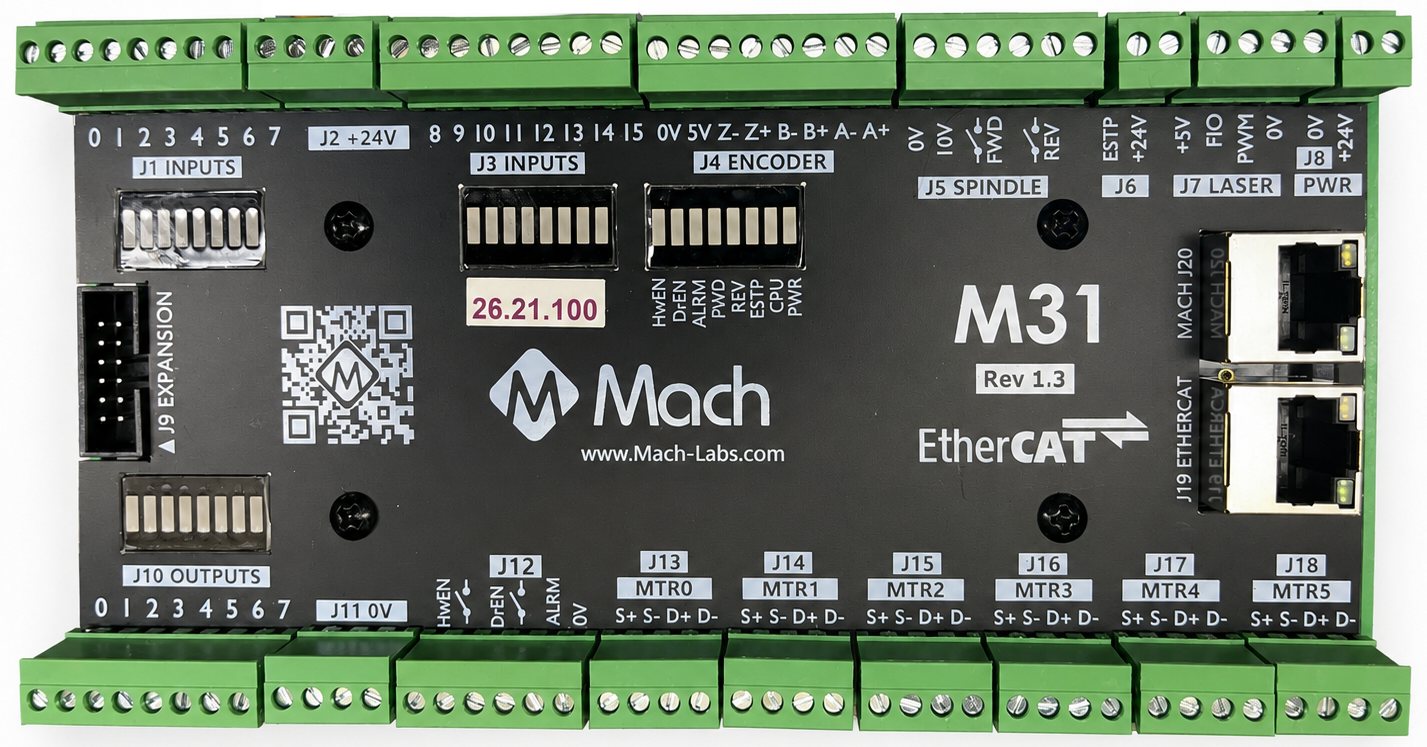
Status LEDs
Each LED has a single color.
| LED | ON | OFF |
|---|---|---|
| Power | Green - M31 is powered | No Power |
| CPU | Blue blinking - M31 CPU is active Standby (slightly more than one blink/s) |
CPU is not enabled |
| E-Stop | Red - E-Stop pressed, or the E-Stop circuit is incomplete | E-Stop is not active |
| Hardware Enable | Orange - Hardware Enable is on | No Hardware Enable signal |
| Drive Enable | Orange - Drive Enable is on | No Drive Enable signal |
| Spindle FWD | Green when spinning forward | |
| Spindle REV | Green when spinning in reverse | |
| Drive Alarm | Red - One or more drives are in alarm state | All drives report good |
Tools Required
AUse small,a flatsmall flat-head screwdriver is needed for the I/O terminals.
Hardware Startup (J8)
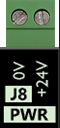
You must supply 24 VDC to the power connection located at the top right of the board as shown below. The LED labeled PWR will be green when 24 VDC is supplied.
Emergency Stop (E-Stop Circuit J6)
The J6 Emergency Stop devices(E-Stop) toinput the J6 E-Stop circuit. This isuses a normally closed circuit with 24 VDC runningcircuit. inLoss it. Whenof the 24 VDC signal isturns lost,on the red E-Stop LED willand turndisables onthe system. E-Stop disables all drives at the MachPro software level.
Use a safety relay for E-Stop protection to stop all motion safely. The J6 input reports the E-Stop condition. Software drive disable alone does not replace the safety-relay implementation. Have a qualified person design the machine-specific circuit and thedo systemits willsafety disable immediatelytests.
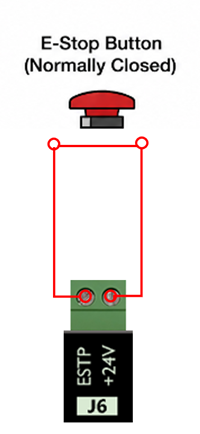
Important:The TheE-Stop input must be closed before the M31 motioncan controllerenable. willA notjumper operateholds unlessthis theinput Emergencyclosed. It gives no hardware E-Stop (E-Stop) button is released or the circuit is jumpered.protection.
IfFor youa aremachine notoperated goingwithout to use any Emergency E-Stop devices, placeconnect a jumper between the ESTP and +24V terminals on J6. SeeThis holds the applicationinput notes atin the endstate ofthat thislets documentthe forM31 informationenable. aboutIt othercannot show when an E-Stop button is pushed.
See E-Stop variations for implementation limits and theM31 signalE-Stop Input Mapping for software mapping.
Hardware and drive enable (J12)
-
The M31 includes hardware enable and drive enable circuits.
-
These circuits
remainstay inactive until theemergencyE-Stopstop (E-stop) buttoninput isreleased,closedorandthe circuit is jumpered.healthy. -
The default settings will work for most systems.
Hardware Enable is activated when the control is powered up and all the components in the control enclosure are powered. The drives are not yet controlling the motors. Unless the motors have mechanical holding brakes, the axes can be moved by hand.
Drive Enable is activated when the Enable button on the control is clicked. The drives are now actively controlling the motors with holding torque or motion commands.
See the Application notes at the end for additionalmore settings.

Connect your control's dedicated network interface to M31 (J20)
The M31 motion controller connects to the control computer through a **static IP Ethernet connection**.Connect a shielded CAT 5 cable from J20 on the M31 to the dedicated network port on your control.
The M31 IP address (192.168.208.35) and the computer adapter IP (192.168.208.10) are pre-configured if you purchased both a CNC control and the M31
FollowUse the Microsoft guide below to manually set your network adapter to communicate with the M31: Microsoft Instructions: Manually Configure IPv4 Settings: Microsoft Instructions: Manually Configure IPv4 Settings
Scroll to the bottom and expand the section titled “To specify IPv4 settings manually.”
Then performdo the followingthese steps:
- Set IP address to:
192.168.208.10 - Set Subnet mask to:
255.255.255.0 - Save the settings and close the window.
- Connect the Mach J20 port to the dedicated network port on the control computer using a shielded CAT 5 cable.
First Startup
On the desktop of your control, there is a MachPro shortcut for your machine type. If you are missing this icon, please run the MachPro installer: MachPro installer

- Double click on your MachPro shortcut
- A window will come up asking to Press Cycle Start to Enable Mach and Home All Axes .
- Click Cancel to prevent the system from enabling before you have configured it.

Firmware Update
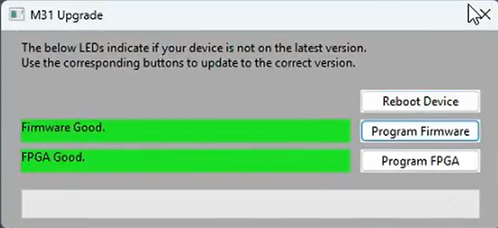
OnAt yourthe first start of thestartup, MachPro software, it will check to ensure that you have the latest firmware forcompares the M31 motionfirmware controller.with the available version. If not,an youupdate willis seenecessary, anMachPro shows the update screen.

The field-programmable gate array (FPGA) is the programmable hardware updated with the firmware.
FollowUse the prompts to update the M31 firmware.- When
itthehasupdatecompletedis completed, click OK at theprocess, it will prompt torebootthe M31. Click OK to reboot the M31.prompt. - Close the M31 Upgrade window when
boththe Firmware and FPGA bars are green. - Restart the MachPro
software to ensure smooth operation.software.
If the Firmwarefirmware or FPGAfield-programmable gate array (FPGA) do not upgrade correctly, followuse the instructionsmanual forupdate manuallyinstructions. updating.MachPro Manual Upgrade of M31 Firmware and FPGA: MachPro Manual Upgrade of M31 Firmware and FPGA
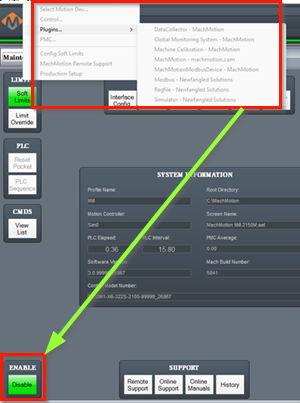
The configuration menus are locked if the system is enabled, and all the menu options will be grayed out.
Disable the system before making configuration changes.
2 Drive and Motor Setup
All of the drives and external I/O will be wired into the M31. The M31 motion controller uses EtherCAT and step and direction to control the axes.
-
All axis drives and motors will be wired, configured, and calibrated for accurate motion in this Axis Setup section.
-
MachineConfigure input signals in Wiring and Mapping Inputs. Configure machine zero, limits,homing,andfixtures will be configuredhoming intheAxisInputs and Homing Setupsection.. -
The M31
willcansupportcontrolboth Step and Direction,step-and-direction and EtherCAT devicessimultaneously.at the same time. -
Carefully label all motors, drives, and cables at the connection points before you install them.
2.1 Step and Direction Connection and Configuration (J13 - J18)
The M31 supportshas differential orand single-ended outputs. For differential outputs there are two signals for step (step + and step -) and two signals for direction (direction + and direction -). For single-ended there is only one signal for step and one signal for direction.
Note: The M31 does not supportsupply poweringpower and controllingto motors or control them directly. It is designed to supplysupplies control signals to a drive,drive. whichThe willdrive supplies power and controlto the motor.motor and controls it.

If using step and direction:
-
wire the drives to J13-J18.
-
Use J11 for 0 VDC
-
Use J7 for +5 VDC
-
Use J2 for +24 VDC
- Use
yourthe drive manual todetermine ifThe drive supports differential wiring, which is always preferredIffind thedrivecompatiblehasinput+type: differential, 0 VDC common, or-+5terminalsVDCforcommon.STEPTerminalandsignsDIR,alonewhichdowouldnotalsoidentifyindicatethethatinputit uses a singled ended control cable
- Remove power from the motion controller and drive
Connection summary
| Drive input type | Common connection | Step connection | Direction connection | Unused outputs |
|---|---|---|---|---|
| 0 VDC common | Controller 0V |
S+ |
D+ |
S- and D- |
| +5 VDC common | Controller +5V |
S- |
D- |
S+ and D+ |
| Differential | Optional controller 0V to drive signal ground, only when specified |
S+ and S- |
D+ and D- |
None |
0 VDC Common, Connect to a single-ended drive input, use for STEP+ and DIR+
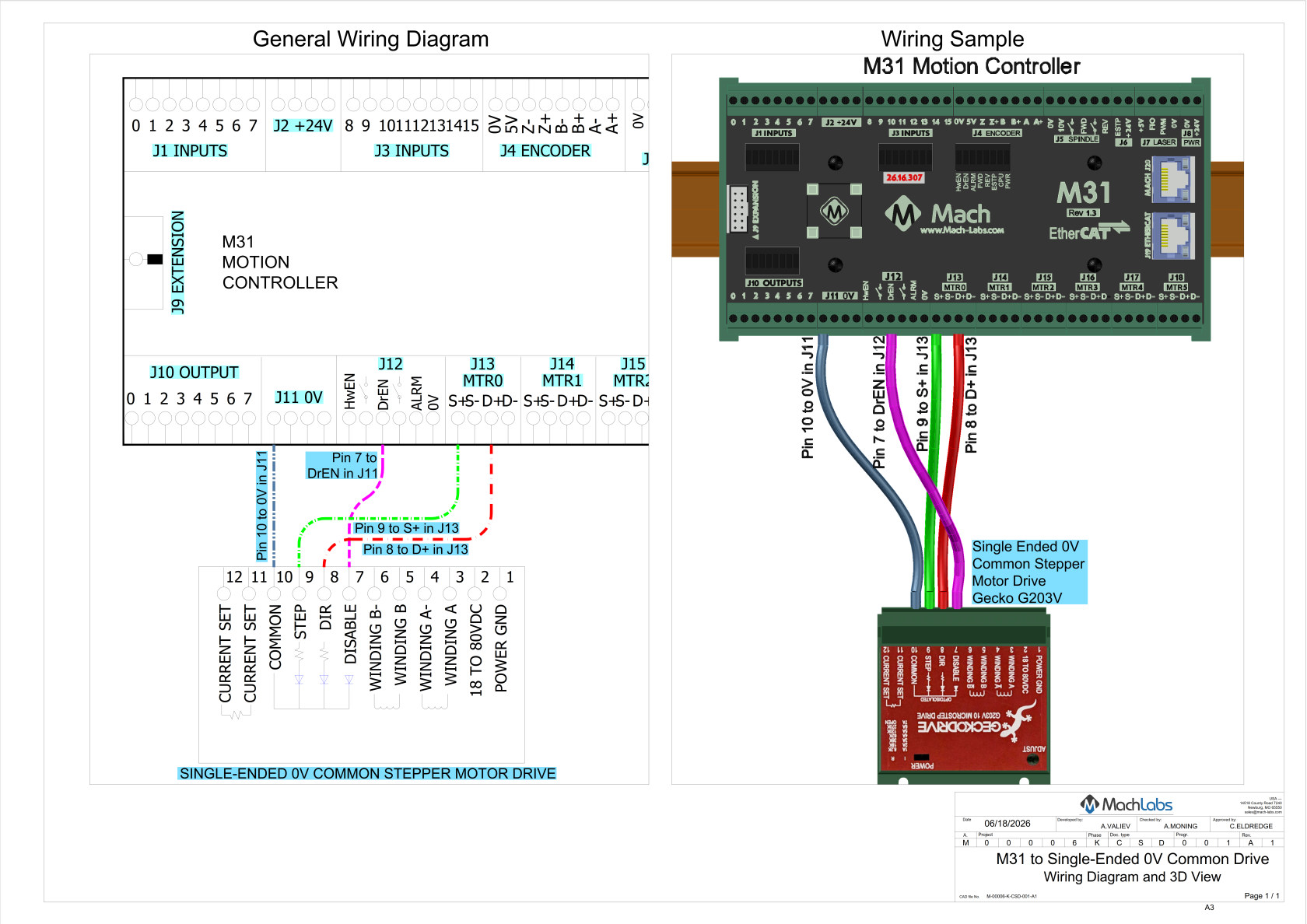
0 VDC Downloads:
-
M31_to_Single_Ended_0V_Common_3D.pdf Download the 3D files and open them in a local PDF viewer, such as Adobe Acrobat or Foxit PDF Reader.
0 VDC Common Connections
Connect the terminals as shown in the table.
| Motion controller terminal | Drive terminal |
|---|---|
0V |
COMMON COM GND SG DCM |
S+ |
PUL+, STEP+, or CP+ |
D+ |
DIR+ or CW/CCW+ |
S- |
No connection |
D- |
No connection |
- Run a single 0 VDC wire from the J11 block to your first drive. This is a series/pass-through connection.
- Connect the 0 VDC output of the power supply to the first drive.
- Connect the 0 VDC terminal of the first drive to the 0 V terminal of the second drive. Continue this pattern for all drives.
- Example: M31 J11 0 VDC → Drive 1 (0 VDC) → Drive 2 (0 VDC) → Drive 3 (0 VDC)
Leave S- and D- unconnected or you will cause serious damage to the M31 motion controller
+5 VDC common, Connect to a single-ended drive input, use for STEP- and DIR-
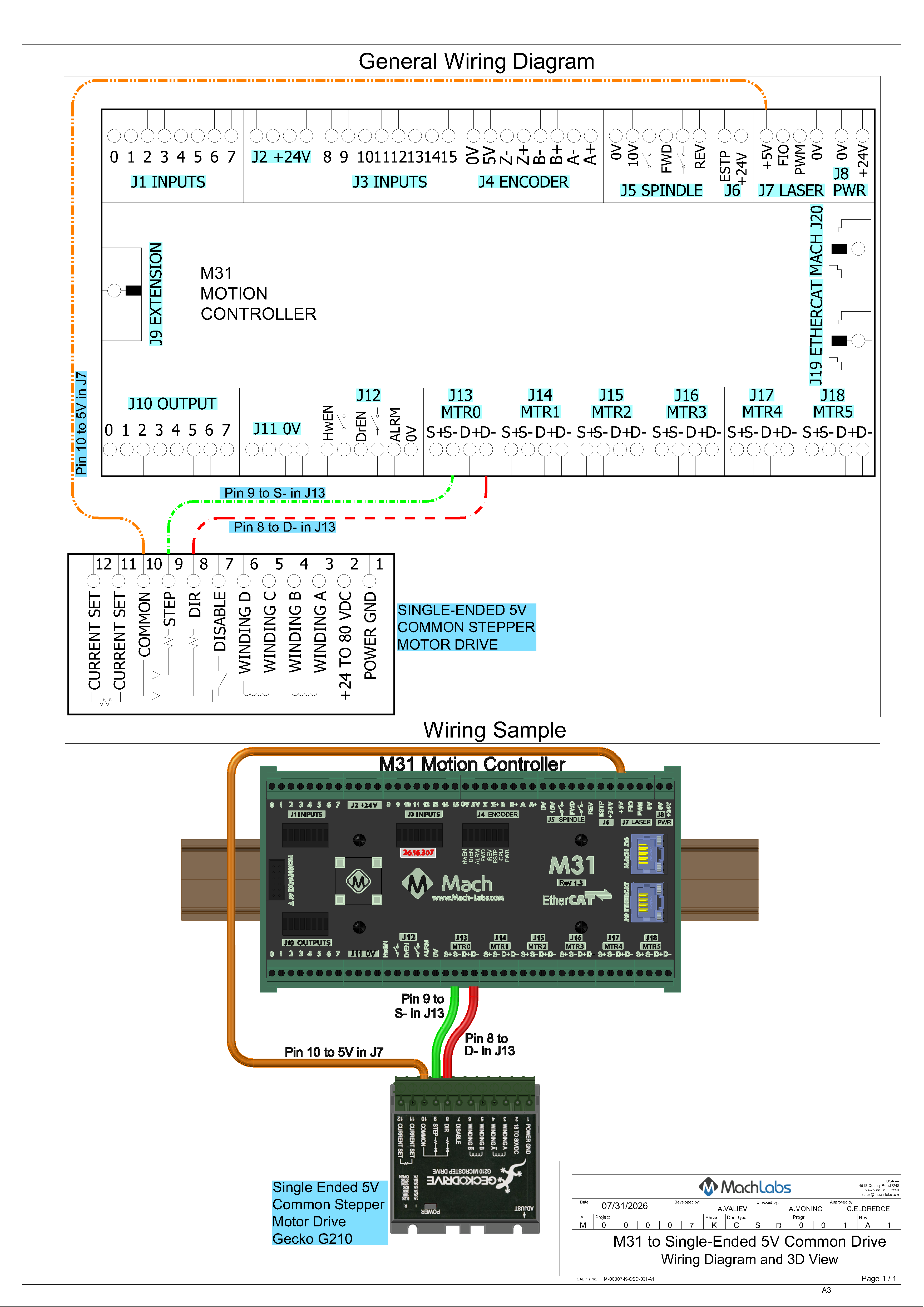
+5 VDC Downloads:
-
M31_to_Single_Ended_5V_Common_3D.pdf Download the 3D files and open them in a local PDF viewer, such as Adobe Acrobat or Foxit PDF Reader.
+5 VDC common connections
Connect the terminals as shown in the table.
| Motion controller terminal | Drive terminal |
|---|---|
+5V |
COMMON COM GND SG DCM |
S- |
PUL-, STEP-, or CP- |
D- |
DIR- or CW/CCW- |
S+ |
No connection |
D+ |
No connection |
Differential drive input connections, use + and - for STEP and DIR
Differential control wiring is always preferred because it providesgives high immunity from electrical noise. The example below shows a system wired with differential control wiring, drive enable, and drive fault.

Differential Downloads:
-
M31_to_Yaskawa _SGD7S_Differential_Wiring_3D.pdf Download the 3D files and open them in a local PDF viewer, such as Adobe Acrobat or Foxit PDF Reader.
Connect the terminals as shown in the table.
| Motion controller terminal | Drive terminal |
|---|---|
S+ |
PUL+, STEP+, or CP+ |
S- |
PUL-, STEP-, or CP- |
D+ |
DIR+, CW+, or CW/CCW+ |
D- |
DIR-, CW-, or CW/CCW- |
Differential drive: A 0 VDC connection is not always necessary
-
In mostMost differentialinterfaces,interfaces do not need a separate 0 V wireis not requiredfor thesignalsignal.to work, because theThe receiver measures the voltage difference between “+” and “-”. -
If the drive manual specifies a signal
ground,ground, shielddrain,drain, or COM connection for noise control, connect it as specified in the drive manual. -
If the drive manual does not require a 0 V connection,
thendo not connect it. -
Do not use S- or D- as a ground.
Differential drive: Notes
-
Use twisted pairs: S+ with S-, and D+ with D-.
-
If you have a dual channel (2 motors) stepper drive,
pleasecontact MachLabs support for the correct configuration. -
ThereApplicationisNotesanincludeadditionala differential-connection wiring examplewiring diagramfora differential connection toa Yaskawa Sigma 7drive in the Application Notes at the end of this document.drive.
2.2 Step and Direction M31 Plugin Configuration
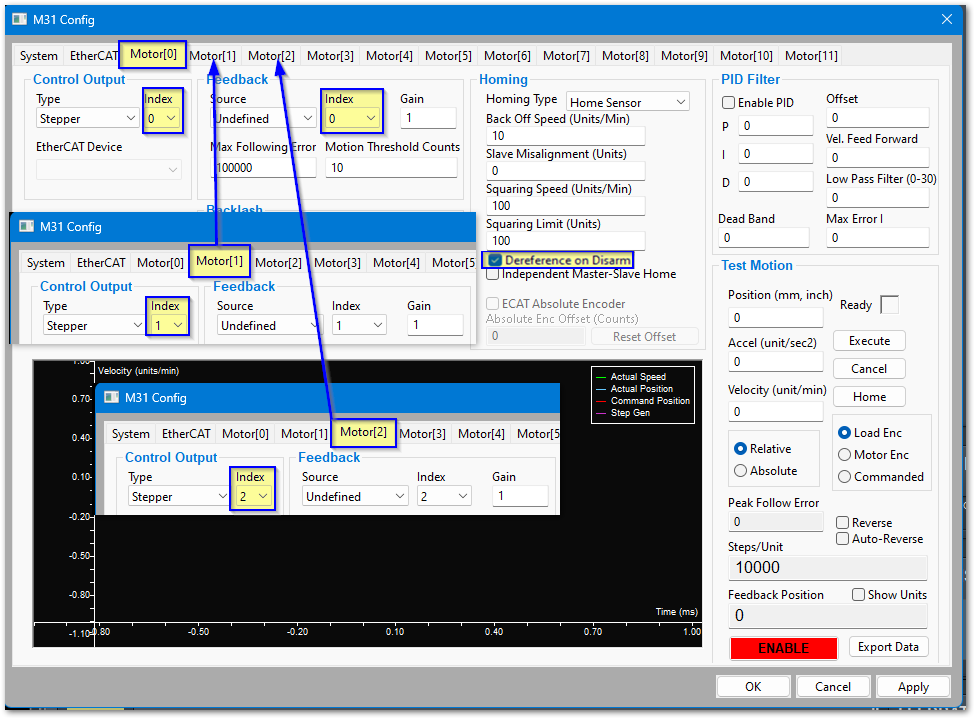
M31's default motor configuration will work for step and direction systems.
VerifyMakethesure that Control Output Index matches theMotormotor number.- Select Dereference on Disarm for all motors which do not have encoder feedback. The machine will now re-home each time it is enabled.
- Select the Homing Type you are using for this motor.
| Homing Type | Description |
|---|---|
| Home Sensor | This is the simplest to understand, |
| Index Pulse | This is set to a particular pulse on the motor rotation. It is the most accurate method, but if anything ever changes in the motor or the mechanics of the machine, this will need to be reset |
| Sensor + Index | This first touches the home switch, then backs off to a particular index pulse. It is easier to setup, but has the same vulnerability to motor and mechanical changes as an index pulse alone |
| EtherCAT | This uses the drive’s EtherCAT homing methods. Contact support to configure this option |
| Mach In-Place | This will define machine zero to be the current location of the axis |
-
Set all the Control Output and Feedback Source values to Undefined on all unused motor tabs.
-
If your machine has a gantry, refer to MachPro M31 Configuring a Master Slave Axis Gantry
-
Click Apply as you complete each motor tab.
-
Click OK when you have completed all motor tabs.
2.3 EtherCAT Network Configuration (J19)
The M31 uses a standard EtherCAT physical connection plan. The computer connects via Ethernet to J20 on the M31 motion controller. J19 on the M31 is then used to connect to each of the EtherCAT devices.
-
Put servo
&and stepper drives first in the EtherCAT chain (closest to the controller). -
Put I/O devices and safety relays in the middle.
-
Put
VFDsvariable frequency drives (VFDs) last (at the end of the chain). VFDs make electrical noise — keeping them last lowers interference. -
Use shielded network cable for all EtherCAT devices.
-
CableMachLabslength:recommendskeepa minimum EtherCAT cable length of 1 foot (about 0.3 m), based on CAT5 cabling and signal timing. Keep each cablebetweenat1orfoot andbelow 100meters(about0.3 m – 100 m).m. -
Good cableCable management: keep cables neat, do not bend them sharply, and separate network cables from high-power lines when possible.
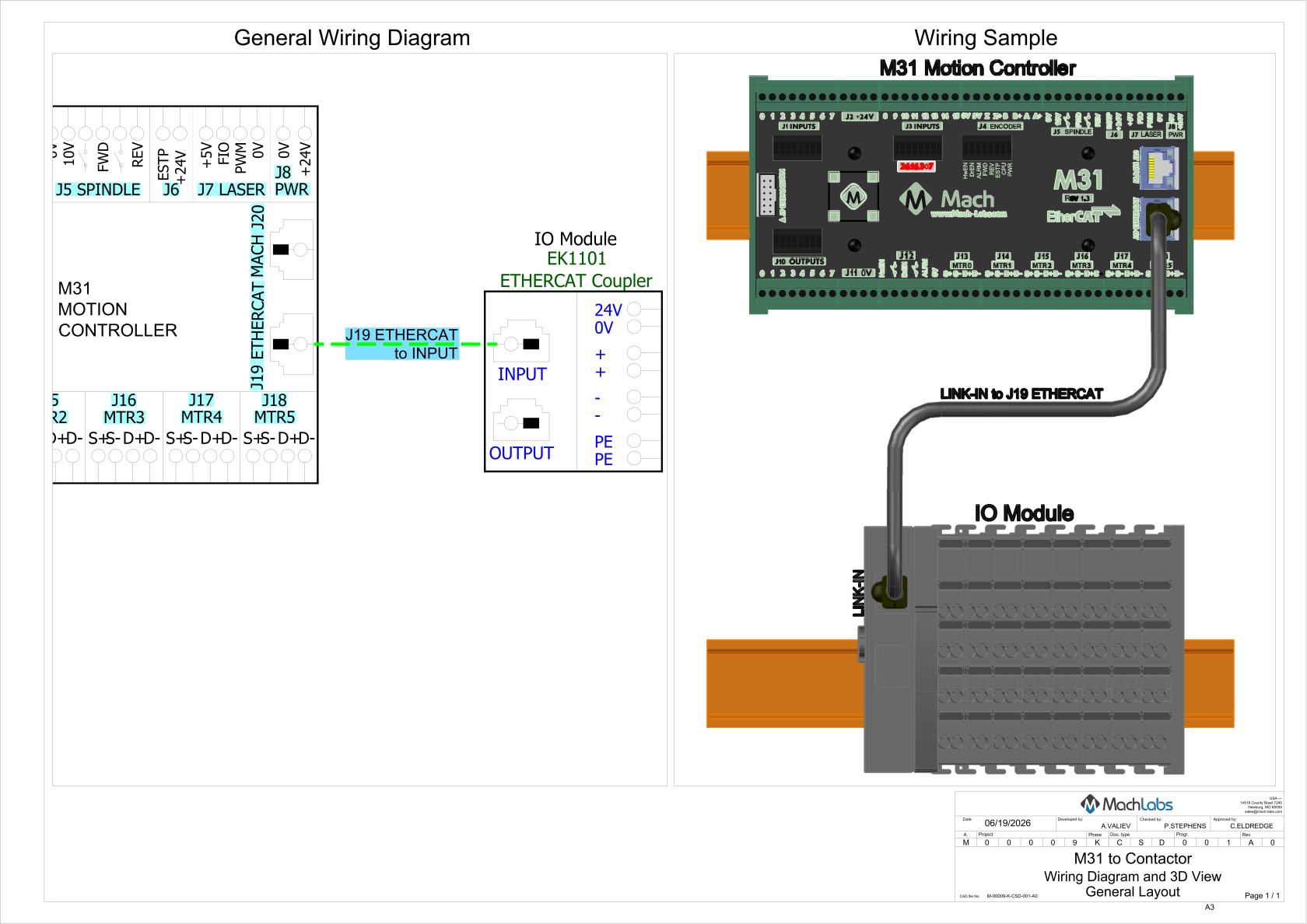
EtherCAT Downloads:
-
M31_to_IO_Module_3D.pdf Download the 3D files and open them in a local PDF viewer, such as Adobe Acrobat or Foxit PDF Reader.
Load the EtherCAT configurations
- Pull down Configure > Plugins > M31 and select the EtherCAT tab
- Click the Refresh Network button to see the available devices. You
maycan need to click this button several times for it to load all of the devices.
- Click the Update button to load the device information into the configuration window

- If any of the devices report a status of Unsupported,
pleasecontact MachLabs support using the information at the end of this manual. This is the list of MachPro compatible EtherCAT Devices: EtherCAT Devices

VerifyMake sure thatall of the devices inthe configuration listmatchcontains all your EtherCATdevices, and that none of them are missing.devices.- Click the Download EtherCAT Configuration to send the necessary configuration parameters to the individual devices.

- Click the Apply and then the OK buttons to complete the EtherCAT configuration.
- Close the MachPro software and restart it to
ensureactivate all startup settingsare active
2.4 EtherCAT M31 Plugin Configuration
Pull down Configure > Plugins > M31 and select the Motor[0] tab
The example below shows Motor[0] configured as an EtherCAT drive and connected to a Leadshine drive [1]L7N(COE)

- Select EtherCAT Drive as the Control Output Type
- Set the Control Output SubID to 0
- Select the first EtherCAT Device for Motor[0]
- Select ECAT Feedback as the Feedback Source
- Select the Homing Type you are using for this motor. There are 5 types:
| Home Sensor | ,|
| Index Pulse | ,|
| Sensor + Index | |
| Mach In-Place | ,
If you will be using Absolute Encoders on this axis, please read Absolute Encoder to enable and configure them.
If your machine has a gantry, refer to refer to MachPro M31 Configuring a Master Slave Axis Gantry: MachPro M31 Configuring a Master Slave Axis Gantry
VerifyMakethesure that Backlash Value is set to zero. This will be important for accurate calibration of the axes. Leave the Backlash Speed set at the default value of 20%.- Repeat this process for each active motor that you have.
- Set all the Control Output and Feedback Source values to Undefined on all unused motor tabs.
If you have Multi-Axis EtherCAT drives, please see the Application Notes section
3 Wiring and Mapping Inputs (J1, J3)
3.1 Input Wiring
This section gives wiring information for all M31 inputs. First, connectConnect each installed input device to an M31 hardware input. Then,Then map the applicable software signal to that hardwareinput.
For machines without home or limit switches, configure the homing method for the installed equipment. See Home In Place. The switch-wiring and mapping steps below apply when switches are fitted.
The M31 motion controller has 16 positive-negative-positiveinputs for PNP (PNP)sourcing) inputs.sensors. YouUse can use these inputsthem for limit switches, home switches, probes, and other sensors. To connect aan negative-positive-negativeNPN (NPN)sinking) sensor, add a 2.2 kΩ resistor as shown in the diagrams below.
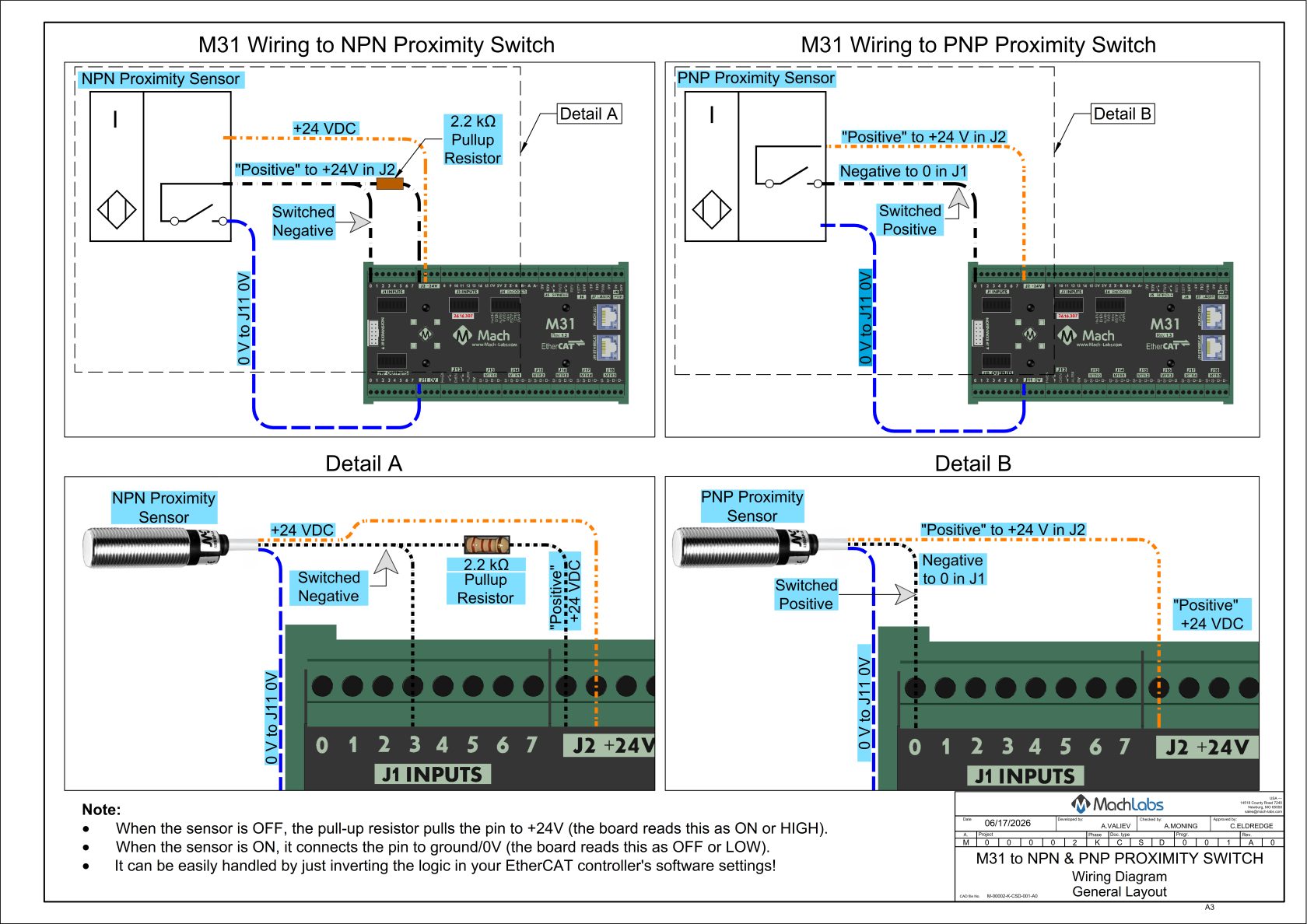
Inputs Download: M31_NPN_PNP_Proximity_Switch.pdf
Note: For the highest level of safety, wire theConnect limit switches Normallywith Closed.normally closed contacts. If a limit is tripped, a wire or limit is damaged, the system will stop motion.
Recommended placement and use of axis switches.
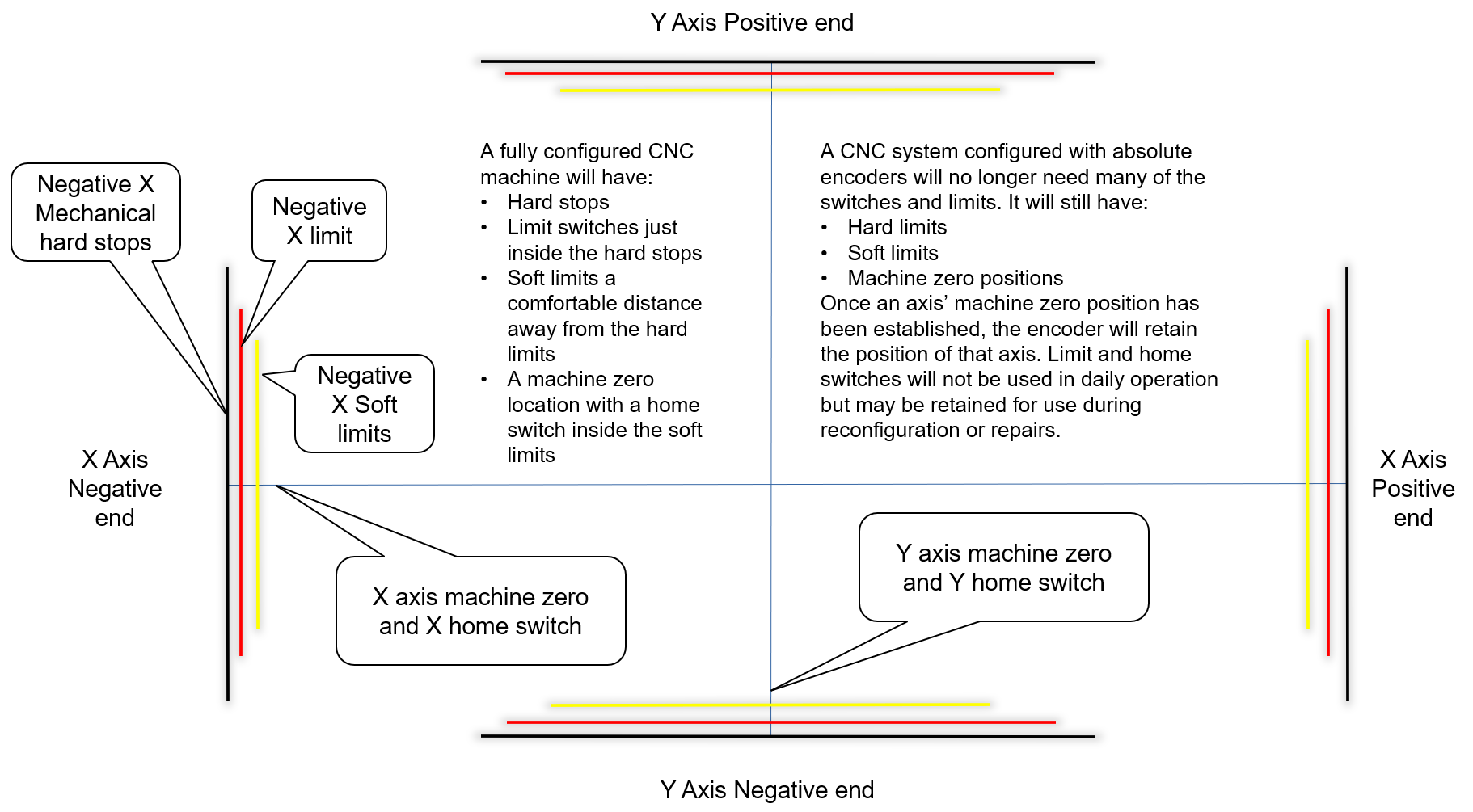
- Select or install two limit switches just inside the mechanical limits of each axis.
- Wire the two limit switches for each axis in series using their normally closed contacts.
- M31 +24 VDC -> NC limit switch -> NC limit switch -> M31 input
- Label the wires.
- Document the I/O assignment.
Note: Wiring both limit switches for each axis in series reducesdecreases the number of input ports required. Certified safety circuits oftenfrequently require each limit switch to have a separate input.
Wire a home switch on each axis to a separate input.
Use the charts in the appendix to plan the physical wiring and software mapping.
Mapping Signals
- At the top of the screen, open Configure > Control.
- Click the Input Signals tab.
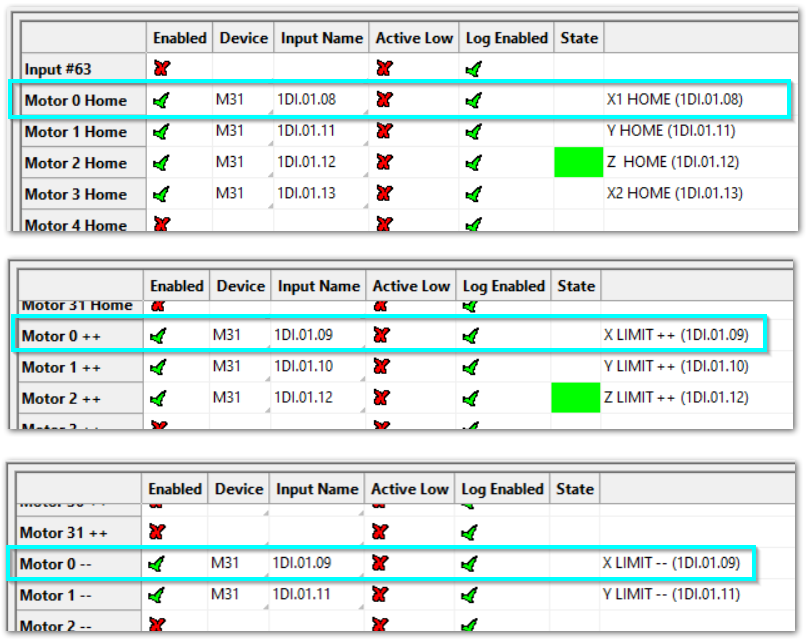
- Scroll down the list until you see each motor section: Motor Home, Motor ++, and Motor --.
Note the State column. It shows the current state of that signal, providing immediate confirmation of your I/O configurations. In the first screen below, Z is homed.
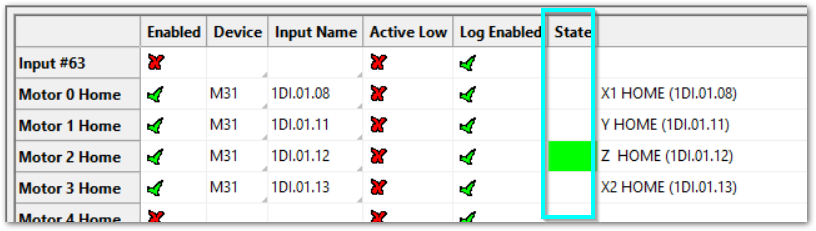
For each signal mapping (Home, ++, --), do these steps:
- Enable mapping: Click the red X next to the signal. It will turn into a green ✓. That turns the mapping on.
- Device:
ChooseSelect M31 from the Device list. - Input Name: Pick the input you wired to the M31 (for example 1DI.01.08 or 1DI.01.09).
- Active Low:
- If your limit switches are normally
closed,closed, click the red X to change it to a green ✓. - This makes the input active when the voltage goes low. Wiring normally closed is the safest method.
- If your limit switches are normally
- Description: Type the name for this axis limit (the name operators and designers use). When you finish all limits and home switches for each axis, click Apply, then click OK.
Short example
-
Motor 0: Home, ++, and -- are enabled (green check).
-
All limits are wired normally
closed.closed. -
WeTheuseexample uses M31 1DI.01.09 for ++ and --. -
WeTheuseexample uses M31 1DI.01.08 for the Home.
Manually triggerOperate each limit switch andmanually. makeMake sure theythat disableit disables Mach before continuing.you continue. This verifiesgives botha thecheck of wiring and signal mapping.
4 MachPro Axes Configuration
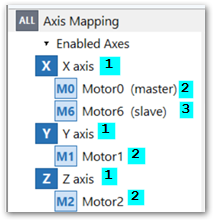
There are four mainprimary areas of the screen.
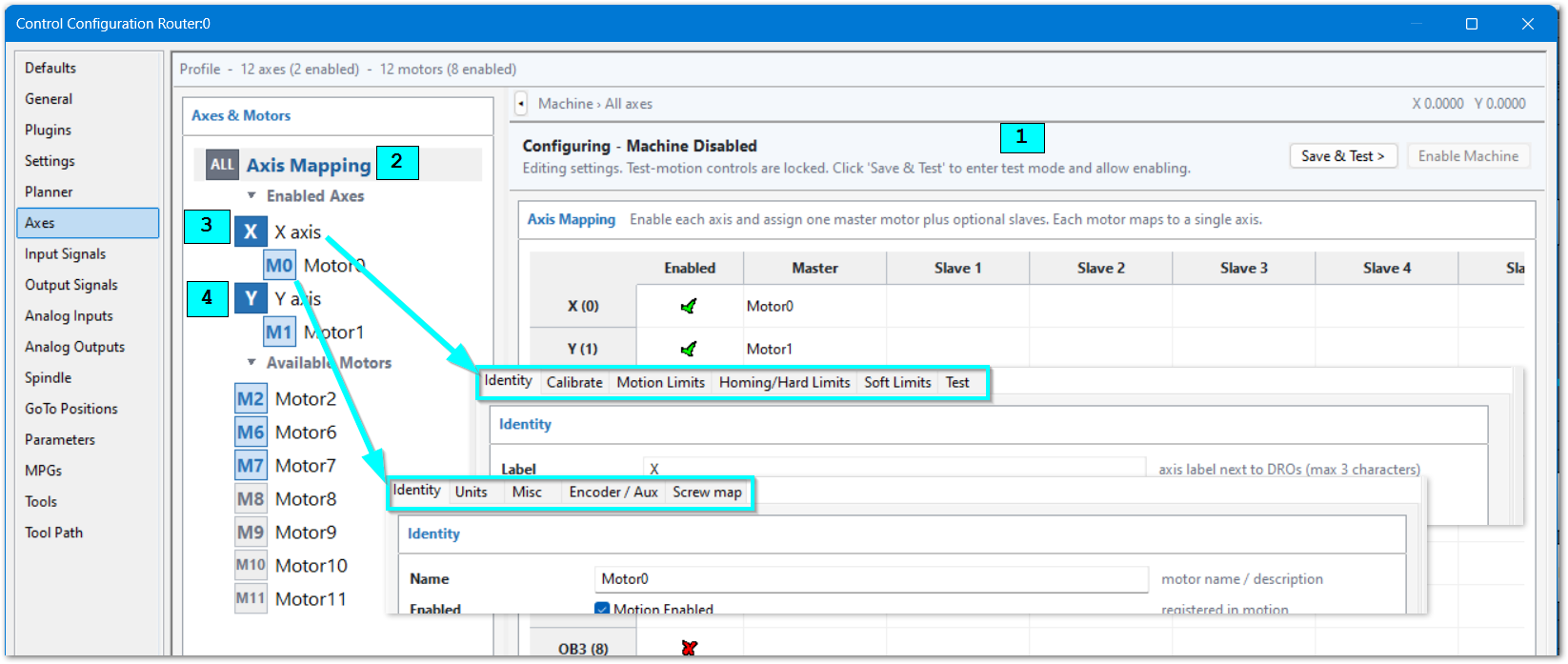
- Axis and Motor Test Panel This
willpanelalways be visiblestays at the top of thescreenscreen.soUsethatityou canto saveand test yourthe configurationwithandmotion.do motion tests. - Axis Mapping This screen controls which axes are enabled, and which motors are mapped to each axis.
- Axis Configuration These settings are specific to each axis and will apply to all motors on that axis.
- Motor Configuration These settings are specific to each motor. Example: on a gantry the two motors typically
rotateturn in opposite directions from each other.
During the axis and motor configuration process, there is a Test-Motion Panel above the configuration panels. When you have completed settings and need to test them:
- Click Save & Test
- Click Enable



Use the movement buttons on the configuration panels to testdo motion tests of the axis and motor configuration.
While test mode is enabled, you can:
-
Open a different configuration panel.
-
Select a different axis.
-
Select a different motor.
-
Continue to
testdo axis and motormovement.motion tests.
NOTE: The operator-screen Jogging buttons do not operate while the configuration screen is open. Use the movement buttons on the configuration panels.
When testingthe istests complete,are completed, click Save & Return to Config.
4.1 Axis Mapping
Before you do the full axesaxis configuration, youmake must ensuresure that all motors, including slaves, are mapped to the correct axes,axes. andMake sure that all motors are movingmove in the correct direction.
- Disable the MachPro software
- On the menu bar, click Configure > Control. Then select the Axis tab.
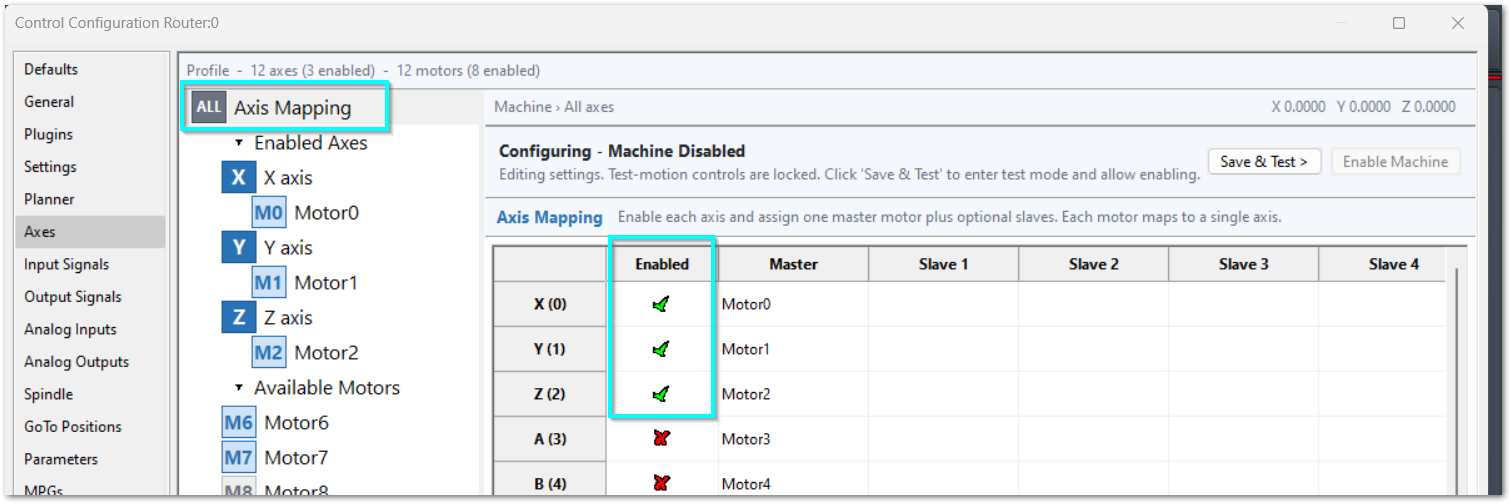
- Click the ALL Axis Mapping tab.
- Enable motors by clicking their box in the Enabled column so that it changes to a green check mark. In the example below, motors 0, 1, and 2 are enabled.
Map slave motors to the correct axis
EnsureMake sure that the slave motor is not mapped to another axis.
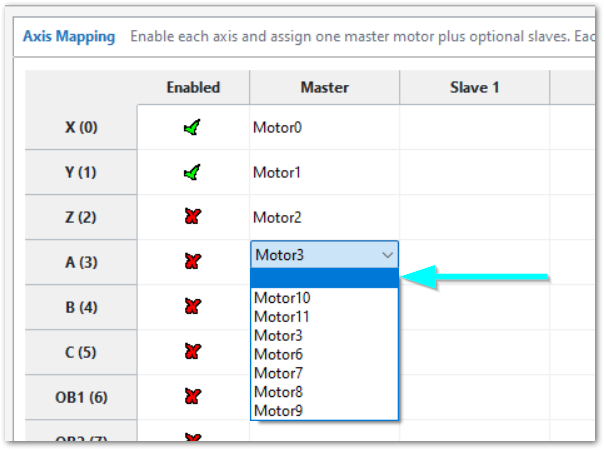
- The default configuration maps Motor3 to the A
axis,axis.but for ourThis exampleitusesneeds to be mountedMotor3 asaan X-axis slavemotormotor. - Select the
Xemptyaxis.row Clickin thepullMotor3 drop-downarrow on Motor3 and select the blank row at the top of the list of available motors.list. This unmaps all motors from axis A.- Click the X axis box in the Slave 1 column.
- Select Motor3 from the available motors and click Apply to complete the mapping.
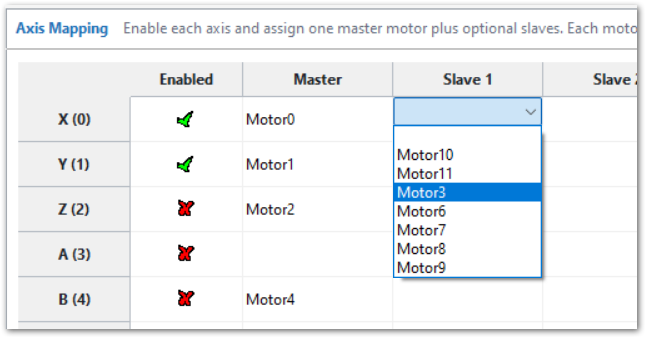
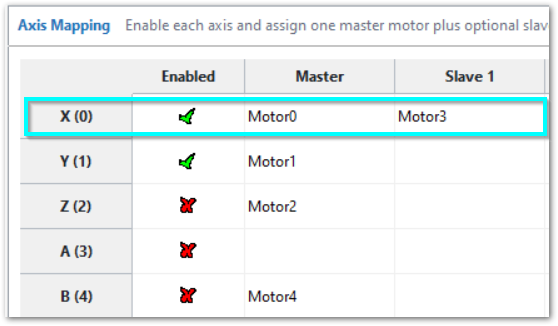
- Click the X axis tab
- Click the Test panel tab
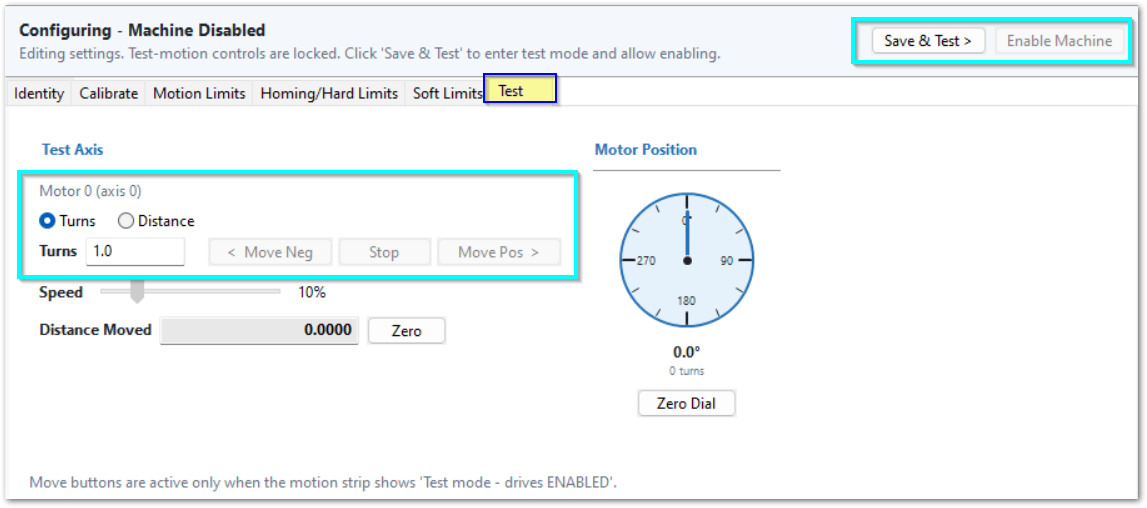
- Use the Test-Motion buttons to enable the machine
TestDo a motion test of each axis with the < Move Neg and Move Pos > buttons
WARNING: Be careful whenduring youa motion test of an axis that uses master and slave motors. The mechanical arrangement can require the two motor shafts to rotateturn in opposite directions. Incorrect motor direction can cause the axis to bind and can damage the machine. Use short, low-speed moves until you verifymake sure that the directiontwo ofmotors bothturn motors.in the correct directions.
- Use the Test-Motion buttons to disable the machine and return to configuration mode.
- In the axis and motor selection list, select the Motor number that you must reverse. Then, select the Identity tab.
- Select Reverse Direction for each motor that must
rotateturn in the opposite direction.
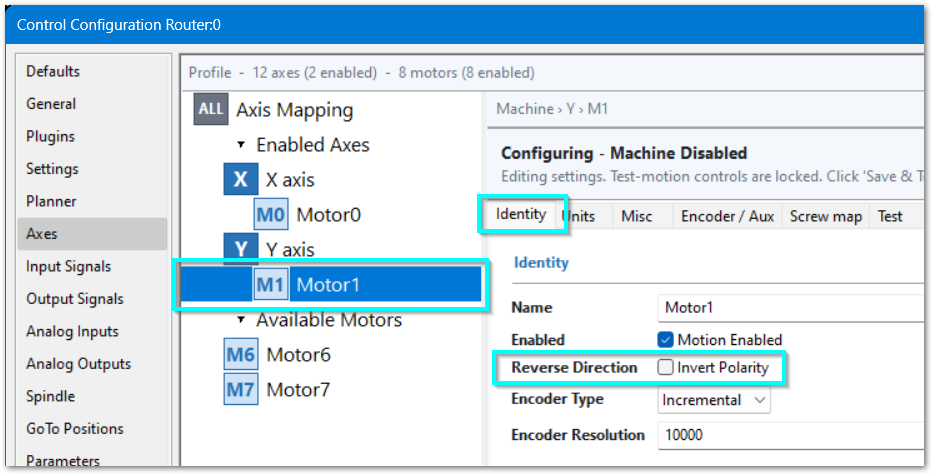
- Use the Test-Motion buttons
buttonsto enable the machine. Make short, low-speed moves andverifymake sure that all motors move the axis in the correct direction. If the motors fight each other, bind the axis, or move the two sides of the axis in opposite linear directions, disable the machine immediately. Correct the Reverse Direction setting before you continue. - Click Apply to save your changes. If
you are done withconfigurationforisnow,completed, click OK to close the configuration window.
4.2 Axis Configuration
The axis configuration panel has tabs across the top. The axis can be fully configured with these tabs, and many default settings will work without modification. Only change settings that need to be changed. Axis Calibration, Homing, and Soft Limits are all unique to each machine and must be configured correctly.
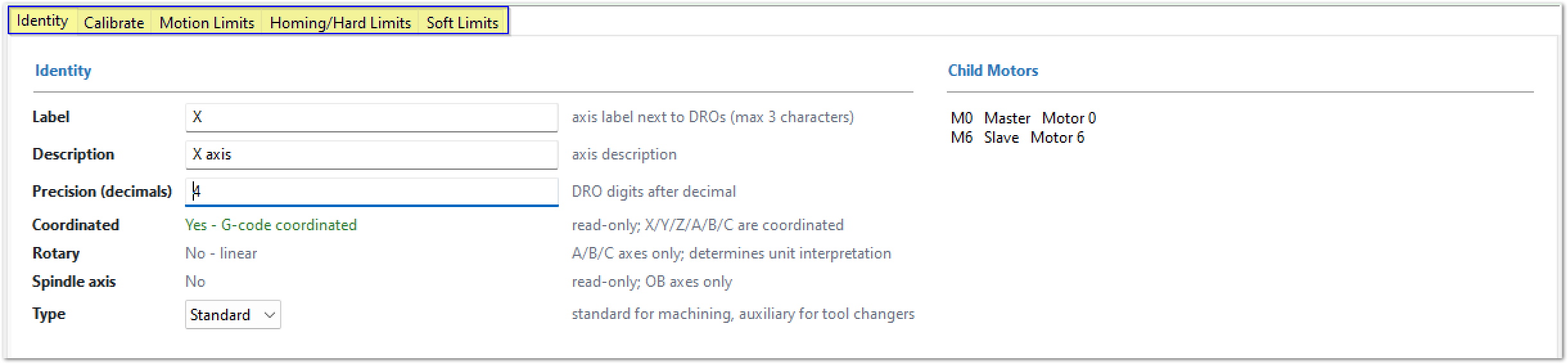
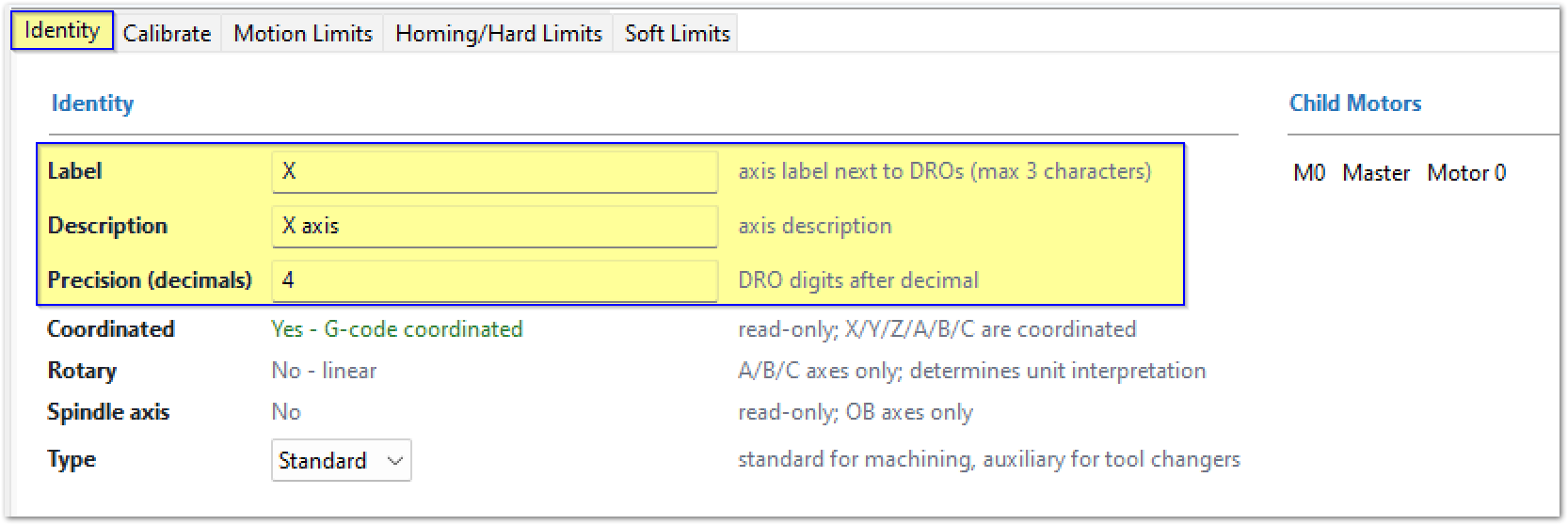
Identity
NormallySet no changes are necessary here. If anthe axis on your machine has a different name in your procedures, update it here to match yourthe machine labels and procedures.
For a rotary A, B, or C axis, open Configure > Control > Axes > selected axis > Identity and select Rotary (degrees). This changes axis units from linear units to degrees. Mixed rotary and linear feed is interpreted the same as linear feed. This setting does not specify a rotary radius or a degrees-to-distance conversion.
If this axis is for a tool changer, select Auxiliary instead of Standard as the type.
Configure an axis as Auxiliary when the axis operates only an auxiliary machine function and must not participate in coordinated toolpath motion.
An automatic tool changer axis is one example.
MachPro does not include an Auxiliary axis in coordinated toolpath moves. Therefore,Thus, the Auxiliary axis does not limit the velocity or acceleration of those moves.
Calibrate
Axis calibration is necessary for accurate machine movement. VerifyMake sure that each axis meets your accuracy requirements before you leave this section. The configuration steps after this section depend on correct axis calibration. If you change the calibration later, you must re-set the machine zero, soft limit, and any goto position settings.
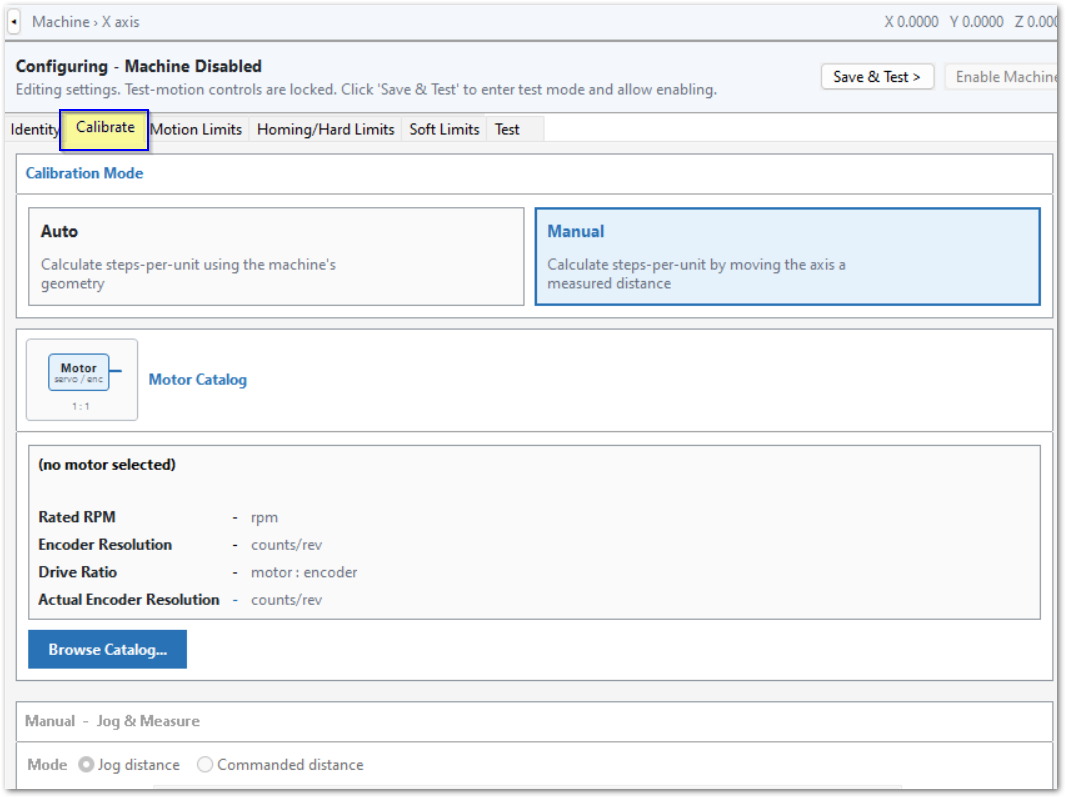
MachPro providesgives two axis calibration methods: Auto Calibration Mode and Manual Calibration Mode.
Auto Calibration Mode requires complete motor and mechanical linkage information for the axis. It providesgives the most accurate calibration.
Manual Calibration Mode uses measured axis movement to calculate the correct counts per unit. Use this mode if you do not have all motor or mechanical linkage information. Careful manual calibration will providegive accurate results for production.
Before you use either calibration mode, define the motor(s) for each axis.
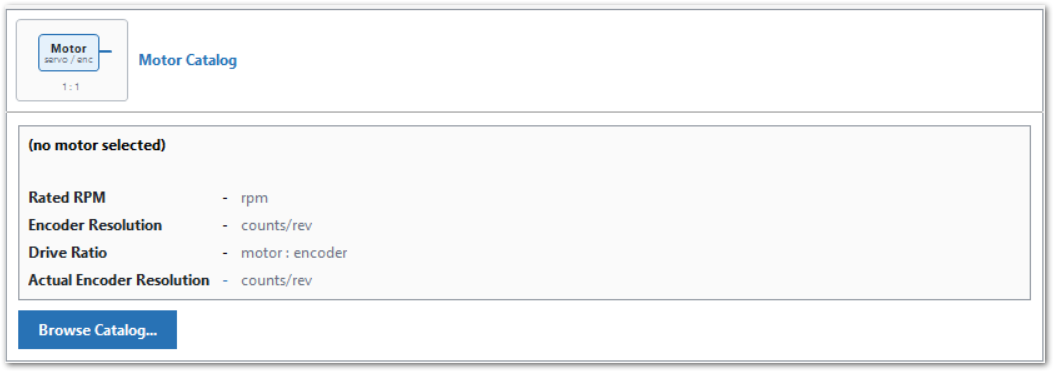
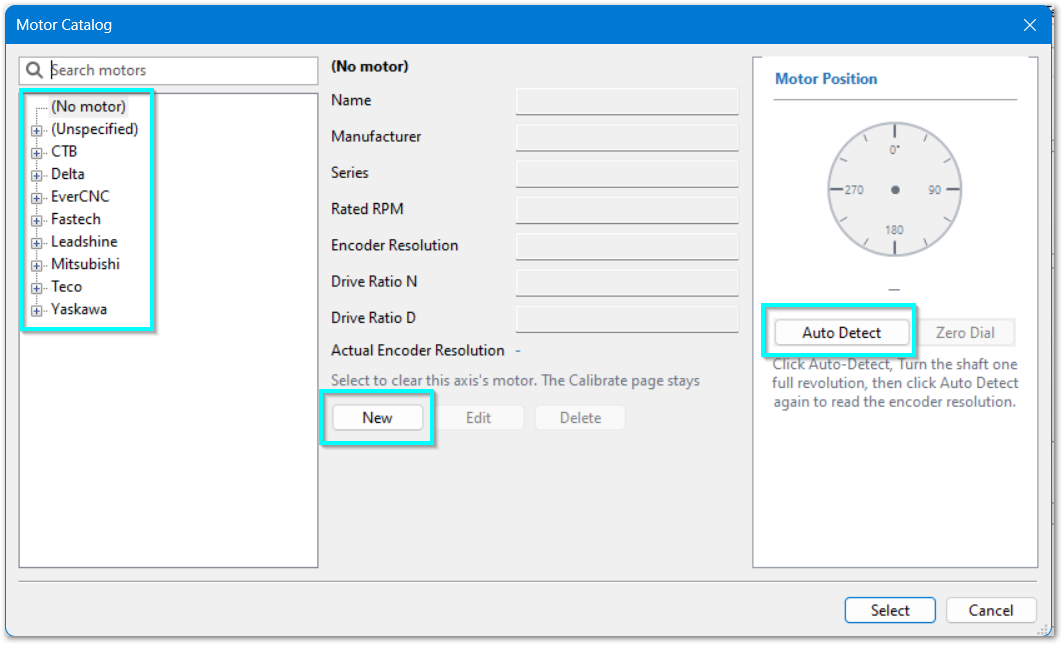
Motor Catalog
Select or enter your motor in the Motor Catalog.
Motor specifications must match your actual motors or your calibration will be incorrect.
 Definitions
-
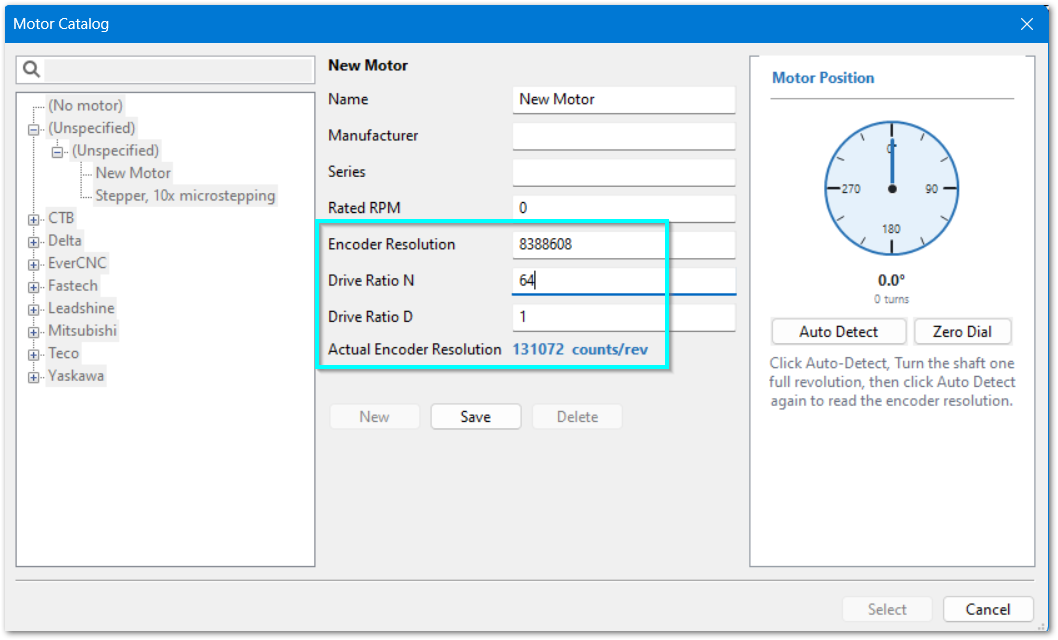
Encoder Resolution is the number of encoder counts per motor revolution that the servo drive reports.
-
Drive Ratio is the scaling factor that the motion controller applies to the Encoder Resolution when it commands motion.
-
Actual Encoder Resolution is the calculated resolution after the Drive Ratio is applied.
Select an existing motor
- Click your motor in the list on the left side
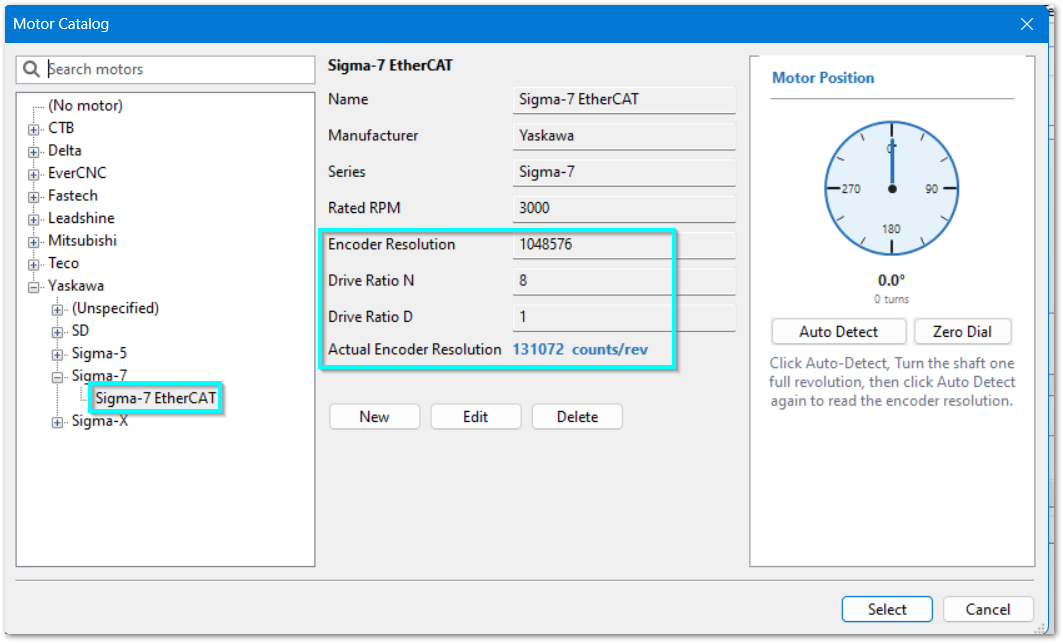
- If Actual Encoder Resolution is more than 131,072,
followuse the instructions in Set Drive Ratio - Click the Select button in the lower right corner.
Create a New Motor Entry
If your motor is not in the motor catalog, createmake a new motor entry and select that motor.
-
Click New in the center section of the motor catalog.
-
CompleteEnter data in allrequirednecessary fields. -
Enter the Encoder Resolution and Drive Ratio:
- For a stepper motor, enter the drive's Encoder Resolution and set Drive Ratio to 1:1.
- For a servo motor, enter the drive's Encoder Resolution.
- If Actual Encoder Resolution is more than 131,072,
followuse the instructions in Set Drive Ratio
-
Click Save.
-
Click Select in the lower-right corner.
The M31 supportshas a maximum encoder resolution of 131,072 counts per revolution (2¹⁷).
If the servo drive has a native encoder resolution greateris more than 131,072 counts per counts/revolution, configureset the servo drive to scale the encoder output to 131,072 counts per counts/revolution. This scaling applies to encoder information that the servo drive sends to the motion controller.
-
Find the native encoder resolution in the servo drive documentation.
The applicable servo drive parameter can have one of these names:
- Drive Ratio
- Encoder Output Resolution
- Edge/Pitch
-
If
thenative encoder resolution isgreatermore than 131,072counts percounts/revolution,configureset the servo driveto scale theencoder output to 131,072counts percounts/revolution.Refer to the servo drive documentation for the applicable parameter and setting.
-
Set the motion controller Drive Ratio to the value specified in the reference table.
This setting scales the motion command that the motion controller sends to the servo drive.
After configuration, command axis motion. Make sure that the axis moves the commanded distance.
If the axis does not move the commanded distance:
-
VerifyFind the native encoderresolution.resolution in the motor specifications. -
VerifyMake sure that the encoder scaling in the servodrive.drive is correct. -
VerifyMake sure that the motion controller Drive Ratio.is correct. -
TestDo theaxisaxis-motionmovementtest again before you change other motion settings.
| Encoder resolution | Bit resolution | Drive Ratio | Actual Encoder Resolution |
|---|---|---|---|
| 131,072 counts/revolution | 2¹⁷ | 1:1 | 131,072 |
| 1,048,576 counts/revolution | 2²⁰ | 8:1 | 131,072 |
| 8,388,608 counts/revolution | 2²³ | 64:1 | 131,072 |
| 16,777,216 counts/revolution | 2²⁴ | 128:1 | 131,072 |
Detect the Encoder Resolution
If you do not know the encoder resolution, use the Auto Detect tool on the right side of the motor catalog.
Note: Auto Detect applies only to a motor that has an encoder connected for feedback. On the M31, servo feedback is supported through EtherCAT. For Step and Directionstep-and-direction systems, enter Encoder Resolution manually.
If Actual Encoder Resolution is more than 131,072, followuse the instructions in Set Drive Ratio
Click Apply to save your changes. If you are done with configuration foris now,completed, click OK to close the configuration window.
Test Motion
Use the Test-Motion buttons buttons to enable the machine.
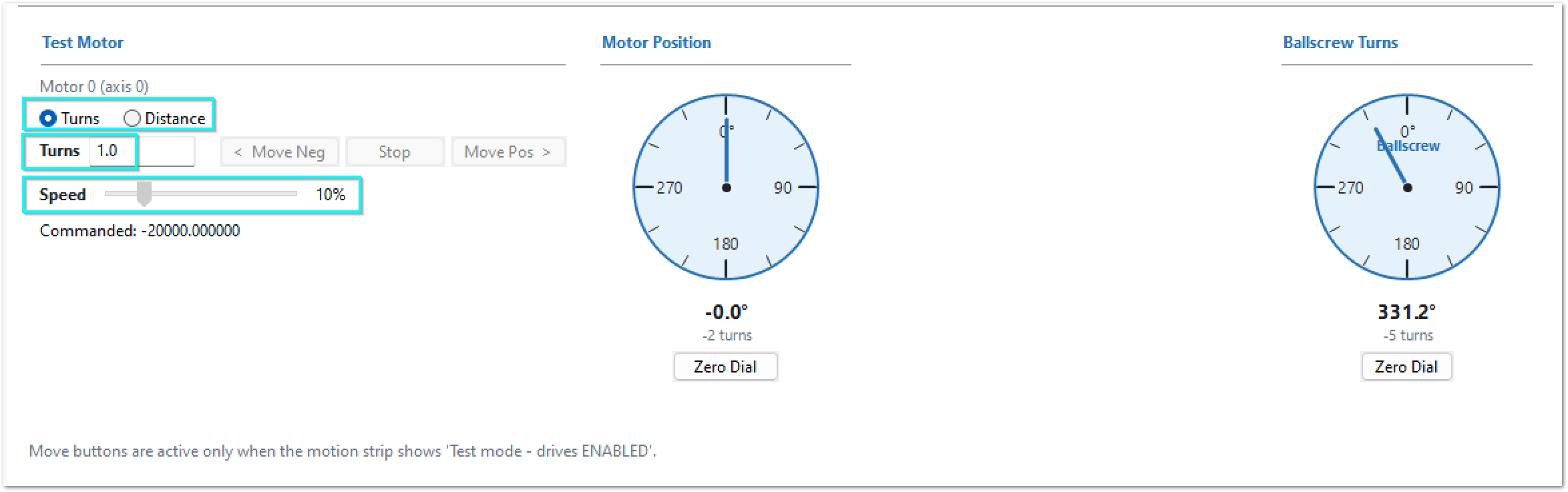
Use the Test Motor buttons at the bottom of the Calibrate panel to practice motor movement. Select turns or distance as the movement unit. Start with a small movement value and a low speed. Gradually increase the value and speed until the motor moves the full distancecalibration that you will measure during calibration.distance. Make sure that you can operate these controls before you start the manual calibration.
Manual Calibration
Measure and mark the longest distance that you can measure accurately on the axis. Allow a short jog distance at both ends of your marked area. Jog outside of the mark, and come back to the mark each time before recording movement. This will take up the mechanical backlash on that axis before making your measurement.
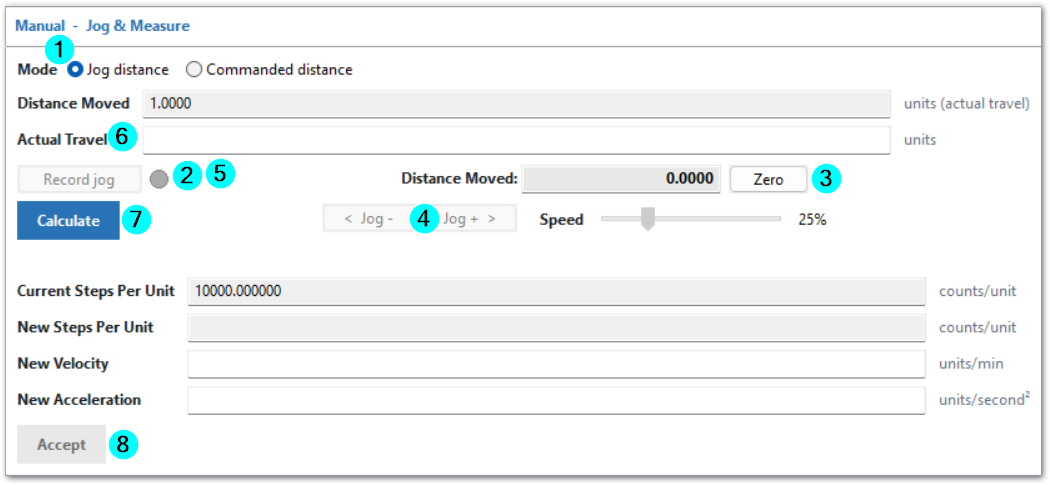
Jog the axis to the first mark using the < Jog - or Jog+ > buttons.
Adjust your speed to providegive reliable results.
- Click the Jog Distance option
- Click the Record Jog button and the indicator next to it will turn green. This will also reset the Distance Moved value above the button.
- Depending on your process, you
maycan zero the Distance Moved value above the jog buttons. - Use the < Jog - and Jog+ > buttons to jog to your second mark.
- Click the Stop Recording button
- Measure and enter the Actual Travel value
- Click the Calculate button to see the New Steps Per Unit value
- Click Accept, or make another measured movement. When you click Accept, the control updates and clears the New Steps per Unit field.
Verify with Commanded distance
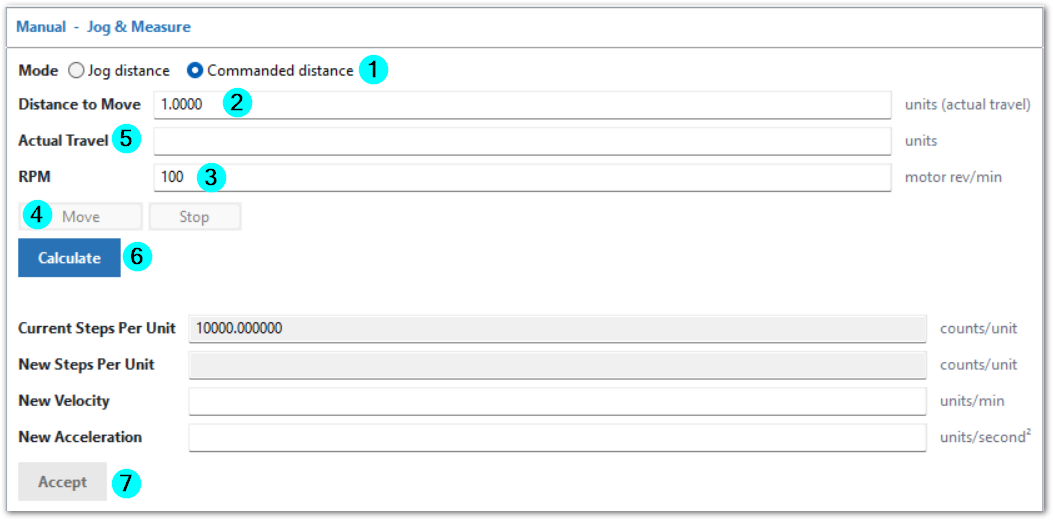
Prepare a pre-measured distance that you will move this axis, and move the axis to the first mark.
- Click the Commanded distance option
- Enter a Distance to Move
- Enter a safe RPM value for your machine
- Click the Move button
- Measure and enter the Actual Travel distance moved.
- Click the Calculate button
- Click the Accept button.
- If you made a change, repeat this process to
verifymakethesure that axis movement is accurate.
By default, the master and slave motors will use the same calibration settings. If the slave motor is different from the master, then that motor can be calibrated separately.
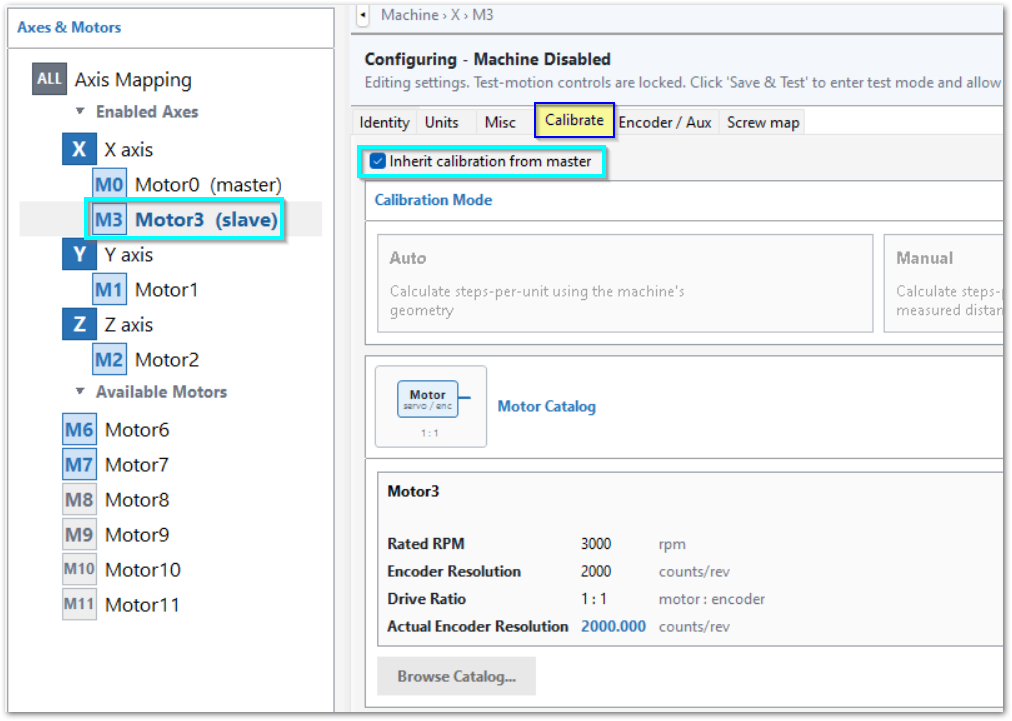
- While in the Axes menu, select the specific slave motor that needs to be calibrated.
- Uncheck Inherit calibration from master
- Select the Calibration Mode either Auto or Manual
- Complete the steps used in calibrating the master motor above.
Click Apply to save your changes. If you are done with configuration foris now,completed, click OK to close the configuration window.
If you wish to adjust the motor's velocity and acceleration values, refer to Section 5.2 Units: velocity and acceleration.
Automatic Calibration
Automatic calibration providesgives the most accurate calibration but it requires specific details about the motor and axis mechanics. If you do not have enough information, use the Manual Calibration section above. If the process is completed carefully, manual calibration will also providegive excellent accuracy.
- Enter the values for the mechanical components this axis has.
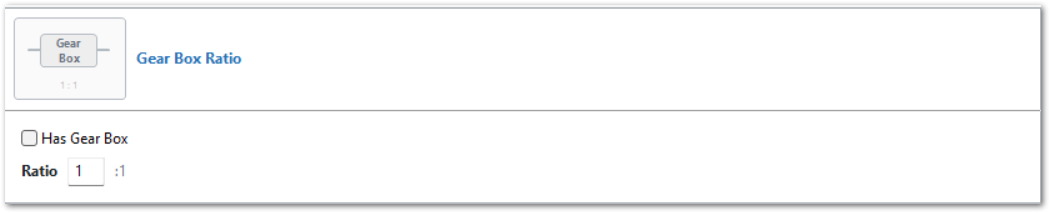
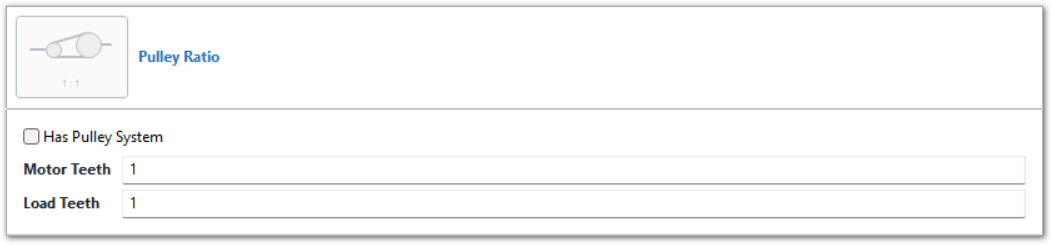
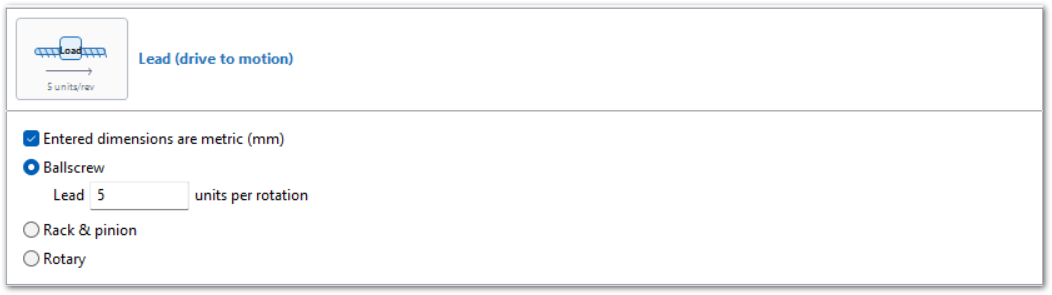
- Click the Calculate button and MachPro will calculate the correct steps per unit, velocity and acceleration for this axis.
- Click Accept or update the motor or mechanical values and re-calculate.
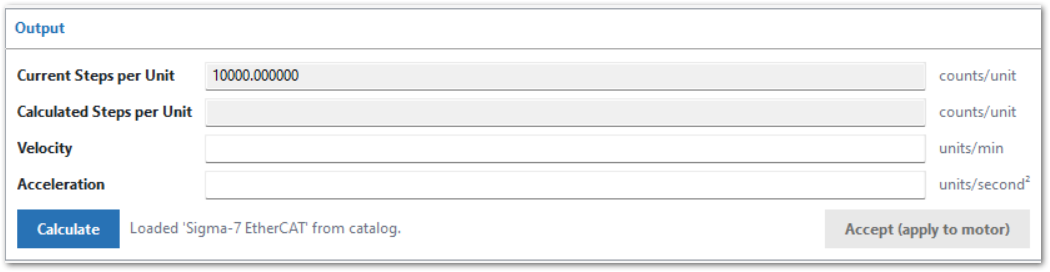
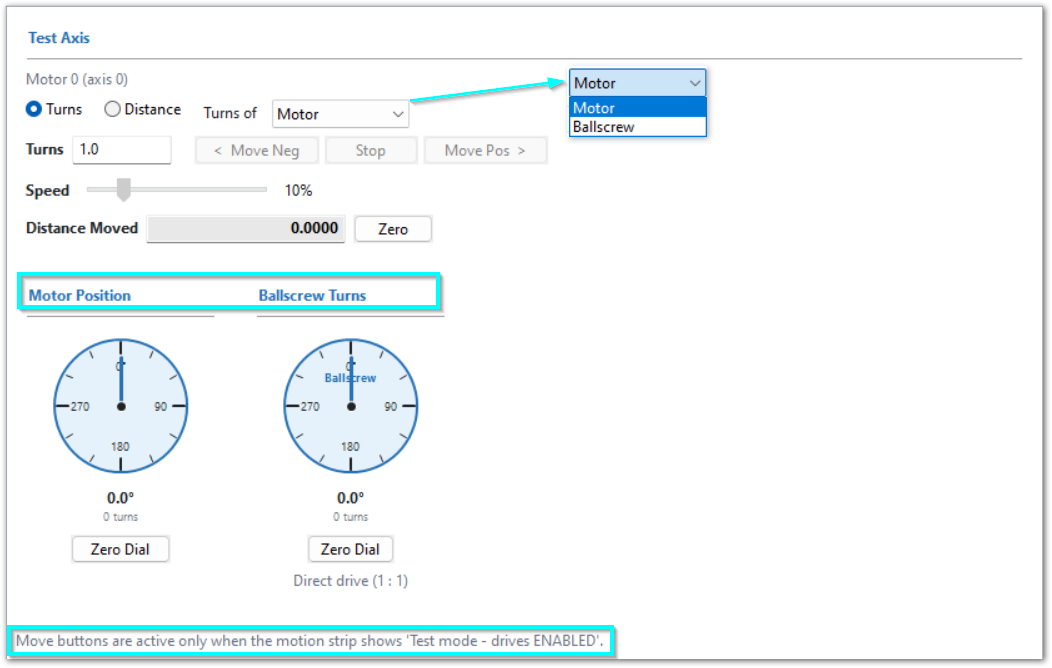
- You
maycan use the Test Axis section at the bottom of the Calibrate panetoforconfirmcalibrationthe calibration.tests.
- You
maycanchooseselect to test the motor or ballscrew turns. - Note that the machine
needs tomust be enabled with the Test-Motion buttons.
Slave Motor Calibration
By default,Use the master and slave motors will use the same calibration settings. If the slave motor calibration procedure when a slave is different mechanically different from theits master, then that motor can be calibrated separately.master.
While in the Axes menu, select the specific slave motor that needs to be calibrated.UncheckInherit calibration from masterSelect theCalibration Modeeither Auto or ManualComplete the steps used in calibrating the master motor above.
Axis calibration is necessary for accurate machine movement. VerifyMake sure that each axis meets your accuracy requirements before you continue the configuration. The remaining configuration steps depend on correct axis calibration. If you change the calibration later, you must then re-set the machine zero, soft limit, and any goto position settings.
Click Apply to save your changes. If you are done with configuration foris now,completed, click OK to close the configuration window.
Screw mapping, Linear compensation is supported in MachPro. Full use instructions are available at this link.
Screw mapping, Linear compensation is supported in MachPro. Full use instructions are available at this link.
WARNING No limits have been set up. DEATH, INJURY or serious PROPERTY DAMAGE can occur if the system is not operated carefully. Limits and homing setup will be completed in the following sections
Now that the axes are calibrated additionalmore steps can be completed.
Set Maximum Following Error
This only applies to systemsaxes with motor encoder feedbackfeedback. and you must completeComplete calibration first.
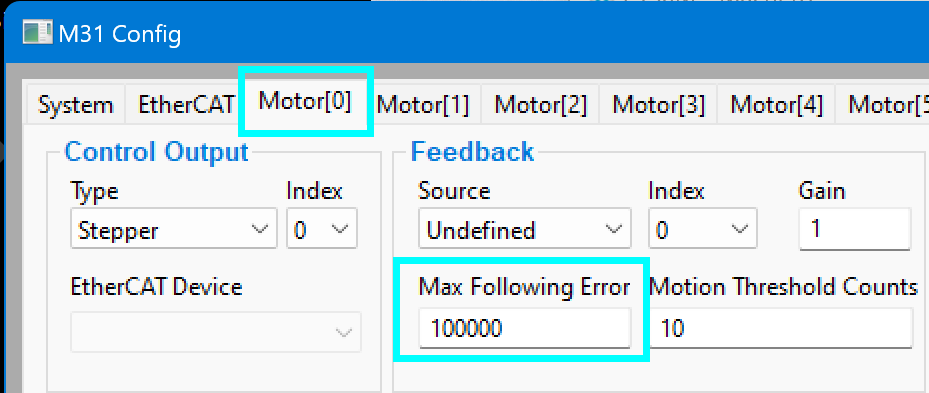
MachLabs recommends 125–150% of Steps/Unit as the initial Max Following Error value. This starting point has worked well in previous installations. It permits minor motion lag and trips a following-error fault before significant lag in those installations. Adjust the value for the machine.
Pull downOpen Configure > Plugins > M31 and select the first motor tab to be set- Set the initial Max Following Error
betweento125% and125–150% of that motor’s Steps/Unit. Adjust it for the machine. The Steps/Unitofvaluethatismotor as shown inat thelowerbottomright area of each motor tab.right. - Click Apply and then click the next motor tab that needs to be set.
- Click OK when all active motors have been set.
Backlash Compensation
Backlash is lost axis motion that occurs when an axis changes direction. Backlash compensation adds commanded motion to compensate for this lost motion.
The M31 plug-in providesgives software backlash compensation. Use it only for small and stable amounts of backlash.
Before you configure backlash compensation, measure the backlash on the applicable axis. Refer to How To Test For Backlash.
Set the Backlash Value
- Go to Configure > Plugins > M31.
- Select the motor tab for the axis that you want to configure.
- Enter the compensation distance in Backlash Value.

The machine setup units determineset the units for Backlash Value:
-
Imperial machines use inches.
-
Metric machines use millimeters.
For best performance, keep the Backlash Value less than:
-
0.0015 in on an imperial machine.
-
0.038 mm on a metric machine.
Start with one-half of the measured backlash value.
TestDo thean axisaxis-motion test after you enter the value. Adjust the value until the measured position error is acceptable.
If the backlash is large or changes at different positions along the axis, correct the mechanical system. Software backlash compensation is not suitableapplicable for backlash that changes with axis position.
If the position error changes predictably along the axis, also refer to Screw mapping, Linear compensation .
Set Backlash Speed %
- Go to Configure > Plugins > M31.
- Select the applicable motor tab.
- Set Backlash Speed % to 20% for the initial setting.
Backlash Speed % controls the acceleration used for the backlash compensation move. The M31 plug-in multiplies the motor's maximum acceleration by this percentage.
The permitted range is 10% through 400%:
-
10% = 0.1 times the maximum motor acceleration.
-
100% = the maximum motor acceleration.
-
400% = 4 times the maximum motor acceleration.
Do not set Backlash Speed % to 0%. The M31 backlash compensation function does not operate when this value is 0%.
Change Backlash Speed % only if motion testing shows that a different compensation acceleration is necessary.
Verify the Settings
After you configure backlash compensation:
- Move the axis in
boththe two directions. - Repeat the backlash measurement.
- Make sure that the compensation
reducesdecreases the measured position error. - Make sure that the axis changes direction smoothly.
- Make sure that the compensation move does not cause a motor fault, stall, or other abnormal motion.
If the compensation causes abnormal motion, reducedecrease Backlash Speed % and testdo the axisaxis-motion test again.
If you cannot get consistent backlash measurements, inspect the mechanical system before you continue to adjust software compensation.
Backlash notes
Backlash compensation corrects for a small amount of lost motion when an axis reverses direction. It does not repair the mechanical source of the backlash.
Use software compensation as a short-term or limited correction when the backlash is small and repeatable. Mechanical wear, loose components, insufficient preload, or other mechanical problems can cause backlash that changes with load or axis position. Correct these conditions mechanically.
Backlash Value and Backlash Speed % control different parts of the compensation:
-
Backlash Value specifies the compensation distance.
-
Backlash Speed % specifies the acceleration of the compensation move.
A high Backlash Speed % makes the compensation move more aggressively. ExcessiveToo much acceleration can cause rough direction changes or motion faults. Use 20% as the initial value unless machine testing shows that a different value is necessary.
All of the axes are now calibrated, but MachPro does not know where the limits of travel are on each axis. That will be configured in the remaining axis configuration steps. Until that is completed, be very careful if you are moving axes.
Click Apply to save your changes. If you are done with configuration foris now,completed, click OK to close the configuration window.
Motion Limits
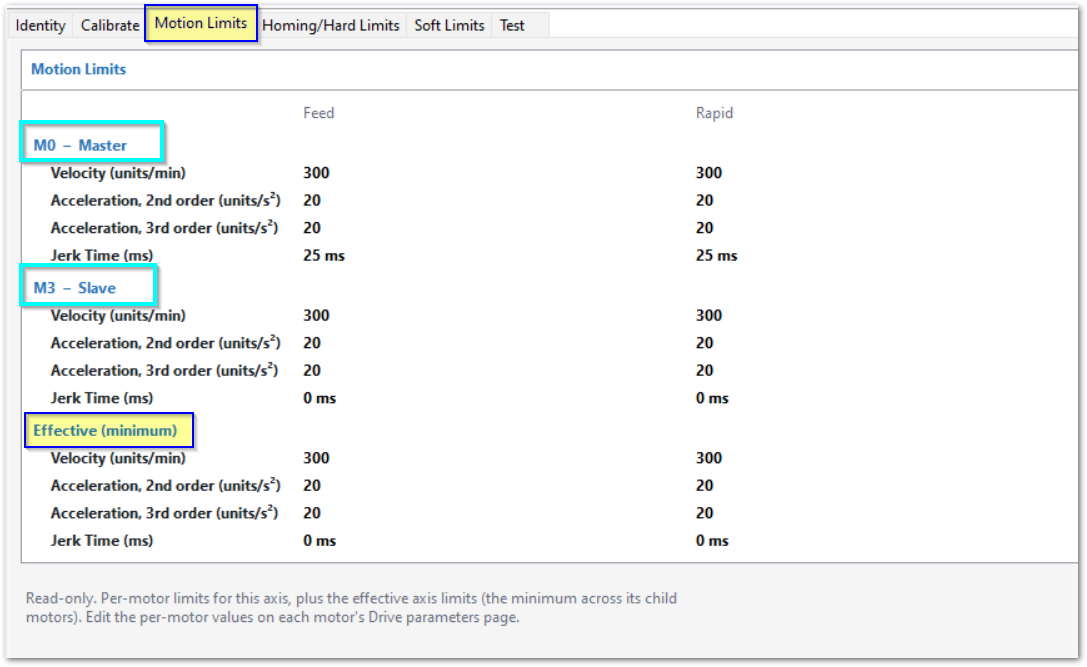
This is a read-only screentab thatlists displaysevery motor assigned to the velocity,axis, acceleration,including master and jerkslave valuesmotors, forfollowed each axis, and theby Effective (minimum) values acrossthat allcontrol axis motion. The Feed and Rapid columns show velocity in units/min, 2nd- and 3rd-order acceleration rates in units/s², and Jerk Time in ms. PureMotion is configured with Constant Acceleration Time.
Compare the motor rows with the effective row to identify configured constraints. Different motors oncan thatsupply axis.different minima. These configured values do not identify a live limiting axis during a coordinated move.
Homing / Hard limits
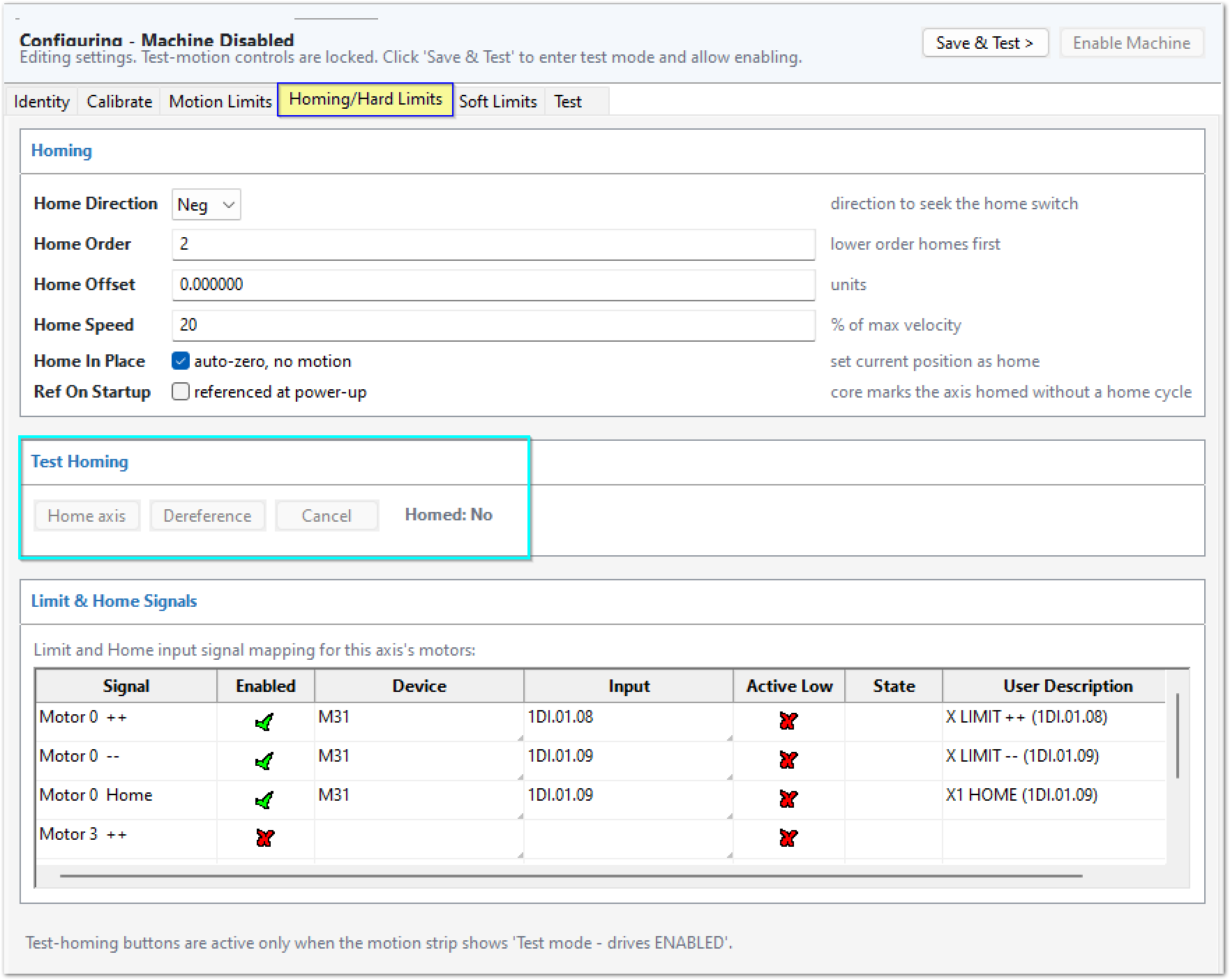
The Homing / Hard Limits tab contains the settings for axis homing and hard limits.
In this documentation, homing means the process that establishes the machine reference position and the machine zero position.
Homing does not set the zero position for a part, fixture, or workpiece.
Machine zero and work zero
The machine coordinate system is the fixed coordinate system of the machine. MachPro uses it as the reference for machine-coordinate movement, travel limits, and other machine-position functions.
The machine zero position is the originzero point of the machine coordinate system. Machine zero can also be called the machine home or reference position.
After homing, the machine coordinates are based on this reference. The machine zero position is typically X0, Y0, and Z0, but the configured Home Offset can assign a different machine-coordinate value at the completed home position.
Machine zero is different from the zero position that an operator sets for a part or fixture.
A work coordinate system defines the position of the part or fixture relative to the machine coordinate system. Operators typically set work zero with a work offset such as G54 through G59, or with another applicable work-coordinate method.
Homing establishes the machine reference. It does not change the intended part or fixture zero.
Diagram of recommended axis and limit layout
Definitions
A home switch is an input that MachPro uses during a homing cycle to locate the machine reference position.
A hard limit is a physical switch or input that stops or inhibits axis motion before the axis moves outside its permitted travel.
A referenced axis is an axis for which MachPro has established a valid machine-coordinate reference.
Configure Machine Zero
-
Set Home Direction to the direction in which the axis must move to find the home switch.
-
Set Home Order to control the sequence in which the axes home. MachPro homes the axis or axes with the lowest Home Order value first.
For a typical mill:
- Set the Z axis to
1. - Set the X axis to
2. - Set the Y axis to
2.
This configuration homes the Z axis first. The X and Y axes can then home at the same stage.
- Set the Z axis to
-
Set Home Offset to the machine-coordinate value that MachPro must assign to the axis when the homing cycle is complete. This value affects the machine coordinate system. It does not set the part or fixture zero.
-
Set Home Speed to the homing speed. Enter the value as a percentage of the maximum velocity configured for the axis.
-
Select Home In Place only if the axis does not move during the homing process. MachPro then assigns the current axis position as machine home. If you use Home In Place, you must also select Mach In-Place as the Homing Type in the M31 plugin configuration.
-
Select Ref On Startup if MachPro must mark the axis as referenced during startup without doing a homing cycle. Used on machines that use G90 and G92 heavily.
If you will be using Absolute Encoders on this axis, please read Absolute Encoder to enable and configure them.
Click Apply to save your changes. If you are done with configuration foris now,completed, click OK to close the configuration window.
Test Homing
Use the test controls in the upper-right area of the M31 configuration screen to enable test motion.
Use Home Axis to establish the machine reference for an axis.
Use Dereference to remove the current machine reference.
Prerequisites
Before youthe testhoming homing,test, make sure that:
-
Homing Type is configured in the M31 plugin. Refer to Step and Direction, or EtherCAT as applicable.
-
All motors for the axis are mapped to that axis.
-
the axis moves toward the correct home switch.
- Open the Test tab.
- Enable test motion.
- Command movement in the homing direction.
- Make sure that the axis moves toward the correct home switch.
Stop the test immediately if the axis moves in the wrong direction.
Correct the axis direction or homing configuration before you continue.
Dereference an axis
Dereferencing removes the current machine-home reference for the selected axis.
Use Dereference when:
-
You change the physical home position.
-
You change the homing hardware.
-
You must establish a new machine zero during initial setup.
After you dereference an axis, MachPro no longer considers the current machine-home position valid.
Dereferencing the axis does not define a new part or fixture zero.
Establish machine zero
After you dereference the axis, use the procedure for the configured homing method.
Home switch
- Click Home Axis.
- MachPro moves the axis through the configured homing sequence.
- MachPro uses the home switch and the configured homing settings to establish the machine reference.
- MachPro assigns the applicable machine-coordinate value.
- Carefully jog the axis to the position that you want to use as the machine reference for this axis.
- Click Home Axis.
- MachPro establishes the machine reference from the current axis position.
Do not use this procedure to set a part or fixture zero. Use the applicable work-coordinate procedure to set the work zero.
Absolute encoder - Do not click Home Axis to establish the reference with this procedure. - Use the Absolute Encoder setup procedure to establish the machine reference and encoder offset.
Gantry axis with master and slave motors
- If the machine has a gantry axis, refer to MachPro M31 Configuring a Master Slave Axis Gantry: MachPro M31 Configuring a Master Slave Axis Gantry
- You can use the controls on this tab to testfor gantry homing tests after you complete the gantry configuration.
Verify the result
-
Make sure that MachPro shows the axis as referenced after the homing procedure is complete.
The digital readout (DRO) axis labels and values change from alternating yellow and red to solid black when the axis is referenced.
-
VerifyMake sure that the machine-coordinate position is correct. -
If necessary,
verifymake sure separately that the applicable work offset gives the correct part or fixture zero.
If the machine-coordinate position is incorrect, dereference the axis and correct the homing configuration before you continue.
Do not correct an incorrect machine reference by changing the part or fixture zero.
Limit and Home Signals
At this stagestep, do a check of machine setup, verify each requirednecessary home and limit signal.
For each signal:
- Make sure that the signal is enabled.
- Make sure that the signal is assigned to the correct physical input.
- Operate the applicable switch.
- Make sure that the signal changes state in MachPro.
A signal is not necessarily configured correctly because its name appears on the Homing / Hard Limits tab.
Click Apply to save your changes. If you are done with configuration foris now,completed, click OK to close the configuration window.
Soft Limits
Soft limits define the permitted machine travel for each axis. MachPro stops a running G-code program before a commanded move would cause an axis to move outside its configured soft limits.
Before you set the soft limits, make sure that the machine is homed and that axis motion operates correctly.
The machine home position must remainstay inside the permitted travel range. For this reason, set the soft limit beyond the home position on the applicable side of the axis.
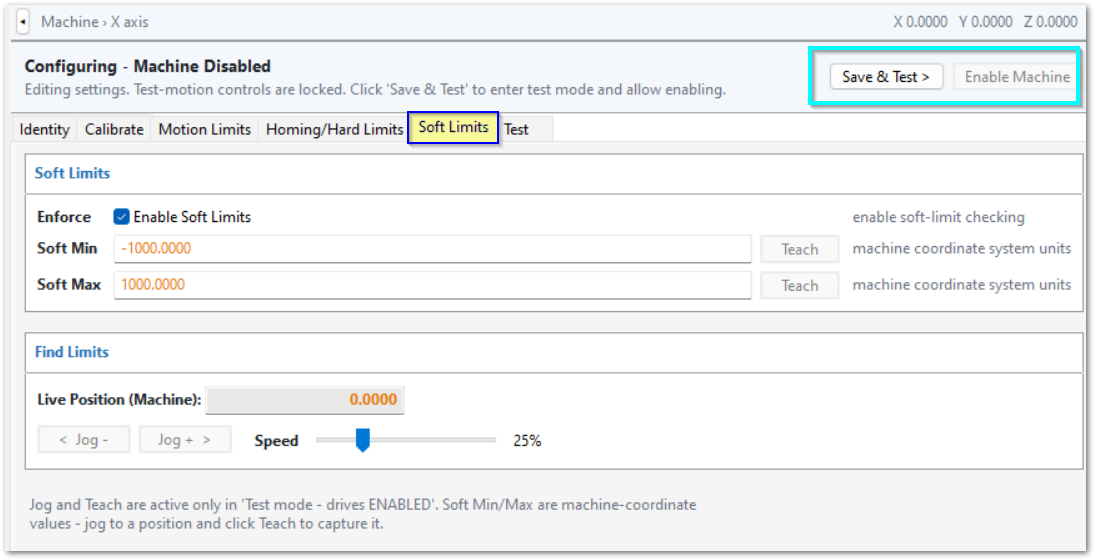
- Select the Soft Limits tab.
- Make sure that Enforce is enabled. This setting is enabled by default.
- Use the Axis and Motor Test Panel to enable machine motion.
- Use the Live Position jog controls to move the axis toward its maximum negative travel position.
- Stop the axis before it
reachesgets to the limit switches, or the mechanical hard stop. - Make sure that the selected limit position is beyond the machine home position for that axis.
- Click Teach to record the negative soft limit.
- Jog the axis to its maximum positive travel position.
- Stop the axis before it
reachesgets to the limit switches, or the mechanical hard stop. - Click Teach to record the positive soft limit.
- Repeat this procedure for each axis.
- Click Apply to save your changes. If
you are done withconfigurationforisnow,completed, click OK to close the configuration window.
Test Axis
You maycan use this tab to verifyfor motion and calibration.calibration tests. Use the Axis and Motor Test Panel to enable machine motion.
There is also a set of test motion controls at the bottom of the Calibrate tab.
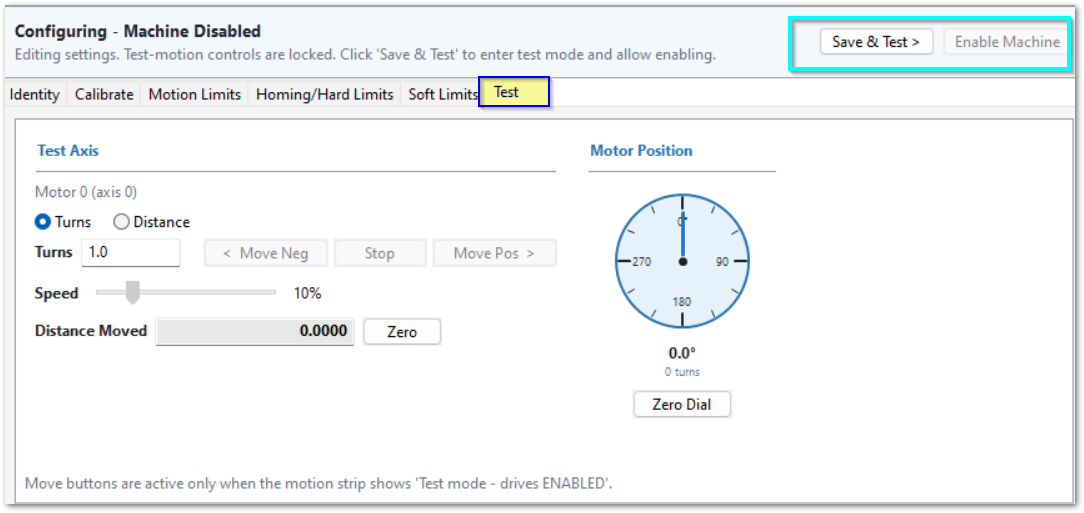
Click Apply to save your changes. If you are done with configuration foris now,completed, click OK to close the configuration window.
If you have a gantry with a master and slave motor, use MachPro M31 Configuring a Master Slave Axis Gantry: MachPro M31 Configuring a Master Slave Axis Gantry
5 Motor Configuration
There are separate tabs for configuring motors.
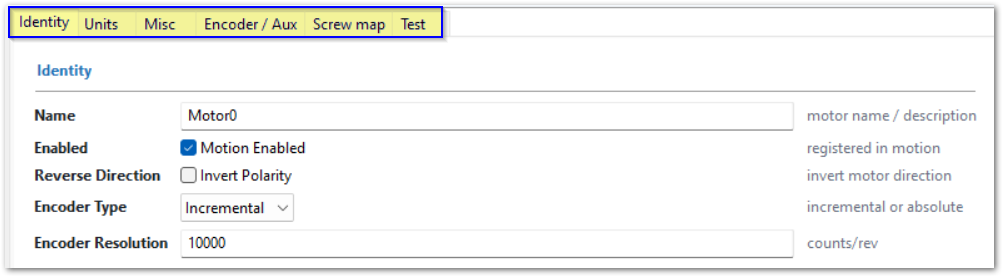
5.1 Identity
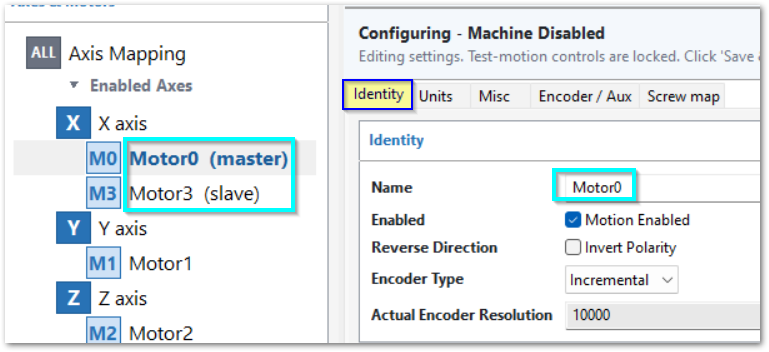
Change the default motor names to match the labels used on the physical machine.
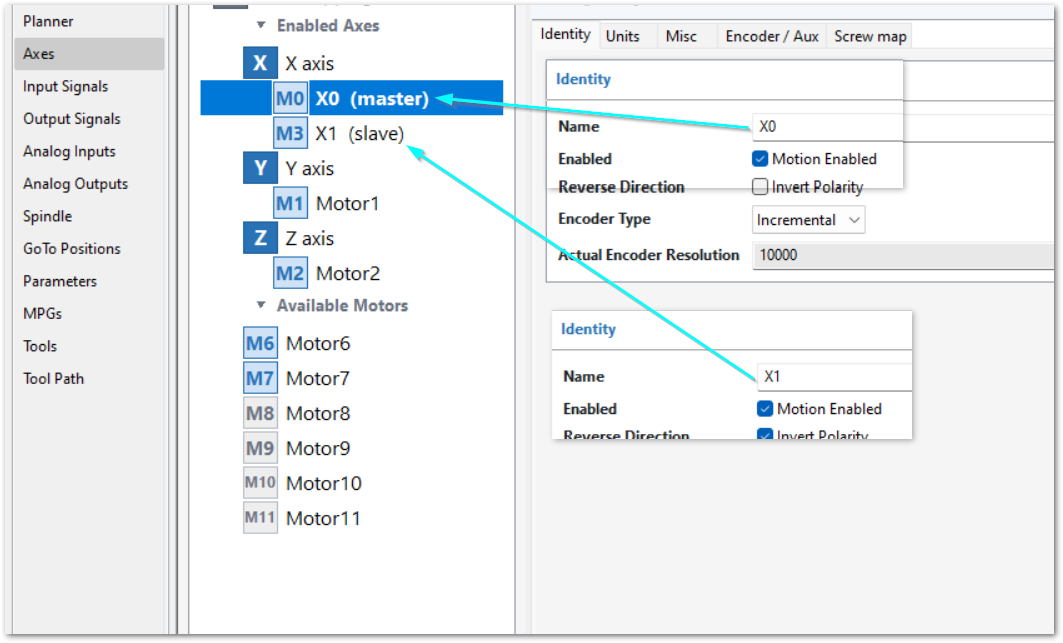
Click Apply to save your changes. If you are done with configuration foris now,completed, click OK to close the configuration window.
5.2 Units
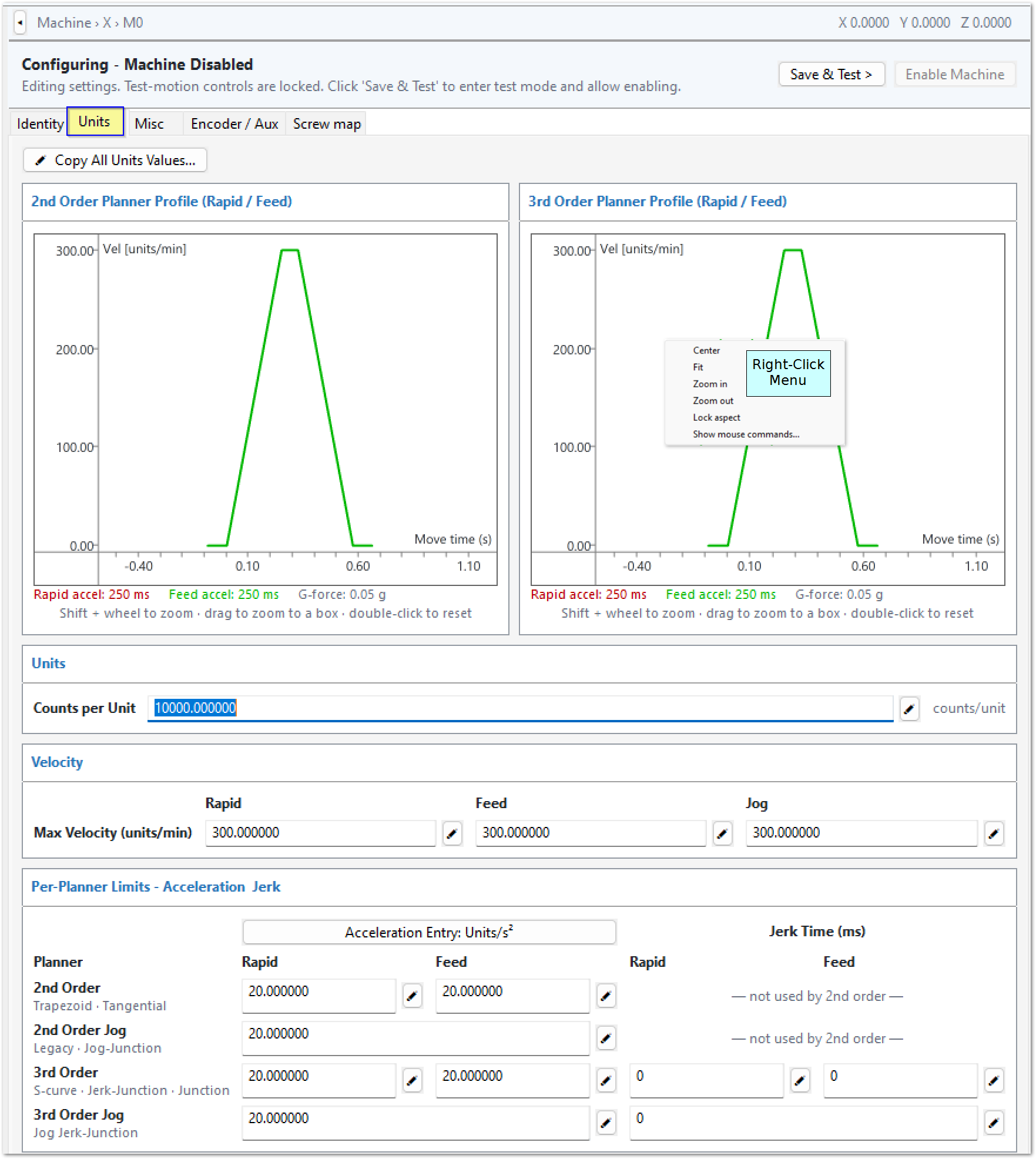
Configure axis velocity and acceleration for reliable machine operation and the shortest practical cycle time.
Calibration calculates initial Velocity and acceleration values from the motor and mechanical data. Use these values as starting values. The installed machine can require lower values.
The acceleration setting depends on the selected motion planner:
-
Trapezoidal (2nd Order) uses acceleration rate in units/s² as the actual setting.
-
PureMotion (3rd Order) uses Constant Acceleration Time in milliseconds (ms) as the actual setting.
Use vibration and oscillation astogether indicatorswith ofposition accuracy, drive stability, machining quality, and cycle time to examine machine response during this tuning.response.
Oscillation is repeated motion about an equilibrium position. Vibration is unwanted oscillatory motion that appears as shaking, buzzing, chatter, ripple, or another disturbance.
NormalUsual axis vibration does not change the physical inertia of the moving axis. The moving mass remainsstays the same. However,But acceleration, deceleration, direction changes, and oscillatory motion createmake dynamic inertial reaction forces. These forces can deflect the machine structure, increase drive load, cause position error, or excite mechanical resonance.
Do not use motion settings to hide a known mechanical problem. Correct excessivetoo much backlash, loose components, worn bearings, poorunsatisfactory lubrication, damaged drive components, and other mechanical defects before final motion tuning.
For each axis:
- Find the maximum stable velocity.
- Set the operating velocity to
80%80–90% of that value. - Find the maximum stable acceleration for the selected planner at the operating velocity.
- Set the operating acceleration with a 10–20%
operatingmargin. TestDothea test of velocity and acceleration together.TestDo motion tests throughout the full axis travel.- Complete the final tests under representative cutting load.
Do not use air cutting alone to determinefind the final Feed Velocity or Feed acceleration setting. Cutting load can cause position loss, drive faults, stalls, vibration, or unacceptable machining even when air cutting is reliable.
Use air cutting to find initial settings. Then run test jobs with the materials, tools, and cutting conditions that the machine normally uses.
Machine response can change with axis position, load, direction of travel, tooling, workholding, and cutting conditions. Test more than one machine position and direction before you accept the final settings.
Before you start
Make sure that axis calibration is complete.
Calibration sets Units. Do not change Units on the Motor Units screen. Correct the axis calibration if the displayed units are incorrect.
MachPro providesgives separate motion limits for:
-
Feed: commanded machining motion.
-
Rapid: non-cutting positioning motion.
-
Jog: manual axis motion commanded by the operator.
Velocity is the maximum commanded axis speed.
For Trapezoidal motion, acceleration rate controls how quickly velocity changes. For PureMotion, Constant Acceleration Time controls the duration of the constant-acceleration portionpart of the S-curve. Jerk Time controls the transition into and out of that constant acceleration.
The motor, drive, transmission, machine structure, axis load, lubrication, and mechanical condition can limit the practical velocity and acceleration settings.
Vibration is not the primary setting that you tune. Use it as a symptom of the machine response. IfExamine the full machine response after changing velocity, acceleration, andor Jerk Time are correct for the machine, unwanted vibration or oscillation should usually decrease..
Tune one axis
TestDo tests of one axis at a time before you testdo coordinatedcoordinated-motion motion.tests.
TestDo bothtests in the two directions and different positions in the usable travel. A machine can vibrate or oscillate in one position or direction and remainstay stable in another.
If you find excessivetoo much vibration or oscillation:
- Stop increasing the motion setting.
DetermineFindwhetherif the condition occurs at a specific speed, acceleration, position, or direction.CheckExamine the mechanical condition of the axis.- Correct mechanical wear, looseness, backlash, lubrication, or damaged components before you continue.
ReduceDecrease the applicable motion demand if necessary.- Repeat the test.
Do not use PureMotion to compensate for a mechanical defect.
Find the maximum stable velocity
-
Start with the calibrated velocity.
-
Command a move that has sufficient axis travel to
reachget to the configured velocity. -
TestDobothtests in the two directions and different positions in the usable travel. -
Change the velocity in controlled increments.
-
Continue until the axis becomes unstable or you find the practical machine limit.
-
Record the highest repeatable stable velocity.
-
Set the operating velocity to
80-80–90% of that value.
For example, if the highest stable velocity is 1,000 units/min, set the initial operating value to 800 units/min.
The velocity is too high if you find one or more of these conditions:
-
Position error
-
Drive fault
-
Over-torque condition
-
Loss of position
-
ExcessiveToo much vibration -
Harsh or unstable motion
-
Different behavior at different positions in the axis travel
If a failure occurs, decrease the velocity and repeat the test.
Find the maximum stable acceleration
Acceleration Entry
MachPro can show acceleration as:
-
Units/s²
-
Time (ms)
The Acceleration Entry selection changes how the current acceleration setting is shown and entered. It does not change the selected motion planner.
For Trapezoidal, acceleration rate in units/s² is the actual planner setting. When Time (ms) is selected, MachPro shows the correspondingrelated acceleration time.
For PureMotion, Constant Acceleration Time in milliseconds is the actual planner setting. When Units/s² is selected, MachPro shows the correspondingrelated acceleration rate.

Keep the operating velocity that you found in the previous procedure.
Trapezoidal
- Start with the calibrated acceleration rate or a known stable value.
- Command repeated acceleration and deceleration moves.
TestDobothtests in the two directions and different positions in the usable travel.- Increase the acceleration rate in controlled increments.
- Continue until the axis becomes unstable or you find the practical machine limit.
- Record the highest repeatable stable acceleration rate.
- Set the operating acceleration rate to
80-80–90% of that value. TestDothea test of velocity and acceleration together again.
If the combination is not stable, decrease the acceleration rate and do the test again.
PureMotion
- Start with the calibrated Constant Acceleration Time or a known stable value.
- Command repeated acceleration and deceleration moves.
TestDobothtests in the two directions and different positions in the usable travel.- Decrease Constant Acceleration Time in controlled increments to increase acceleration.
- Continue until the axis becomes unstable or you find the practical machine limit.
- Record the shortest repeatable stable Constant Acceleration Time.
- Increase that time to
providedecrease10-acceleration demand and give a 10–20% operatingmargin from the maximum stable acceleration.margin. TestDothea test of velocity and Constant Acceleration Time together again.
If the combination is not stable, increase Constant Acceleration Time and do the test again.
Typical indications of excessivetoo much acceleration include position errors, drive over-torque faults, excessivetoo much vibration, mechanical jolts, or inconsistent following performance.
The operating margin allows for changes in load, temperature, lubrication, and mechanical condition.
Tune coordinated Feed motion
Configure all axes that participate in coordinated toolpath motion.
During a coordinated move, MachPro keeps the commanded axes synchronized. An axis or motor with the most restrictive effective motion limit can limit the complete move.
For Trapezoidal motion, compareCompare the effectiveparticipating acceleration-rateaxes’ limits.Motion ForLimits. PureMotion,PureMotion compareincorporates velocity, acceleration, and jerk values into the effectivecommanded Constantmotion. AccelerationThe Timeread-only andacceleration Jerkrates Timeare limits.representations MachPro appliesof the effectiveconfigured limitstime across the motors that participate in the move.values.
Long moves
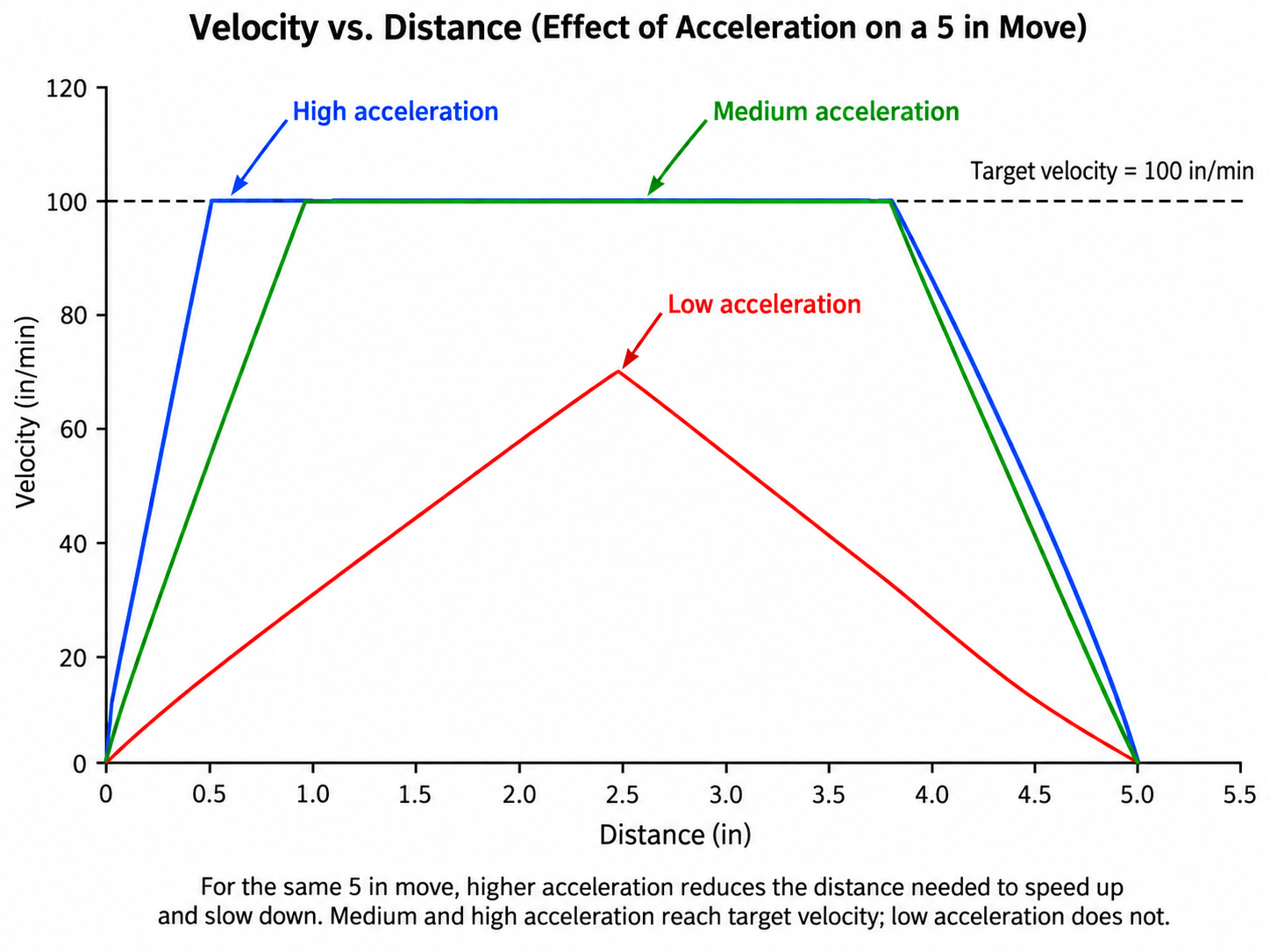
The first graph shows three moves of the same distance. Each move has the same target velocity but a different acceleration rate: low, medium, or high.
A higher acceleration rate lets the axis reach the target velocity in less time. If the move is long enough to reachget to the target velocity, the higher acceleration rate decreases the total move time.
Use the highest stablereliable operating acceleration rate towith makethe fulloperating margin. This lets the machine use ofavailable the motor's availablemotor velocity and to reduce thedecreases cycle time for each part.time.
Short moves
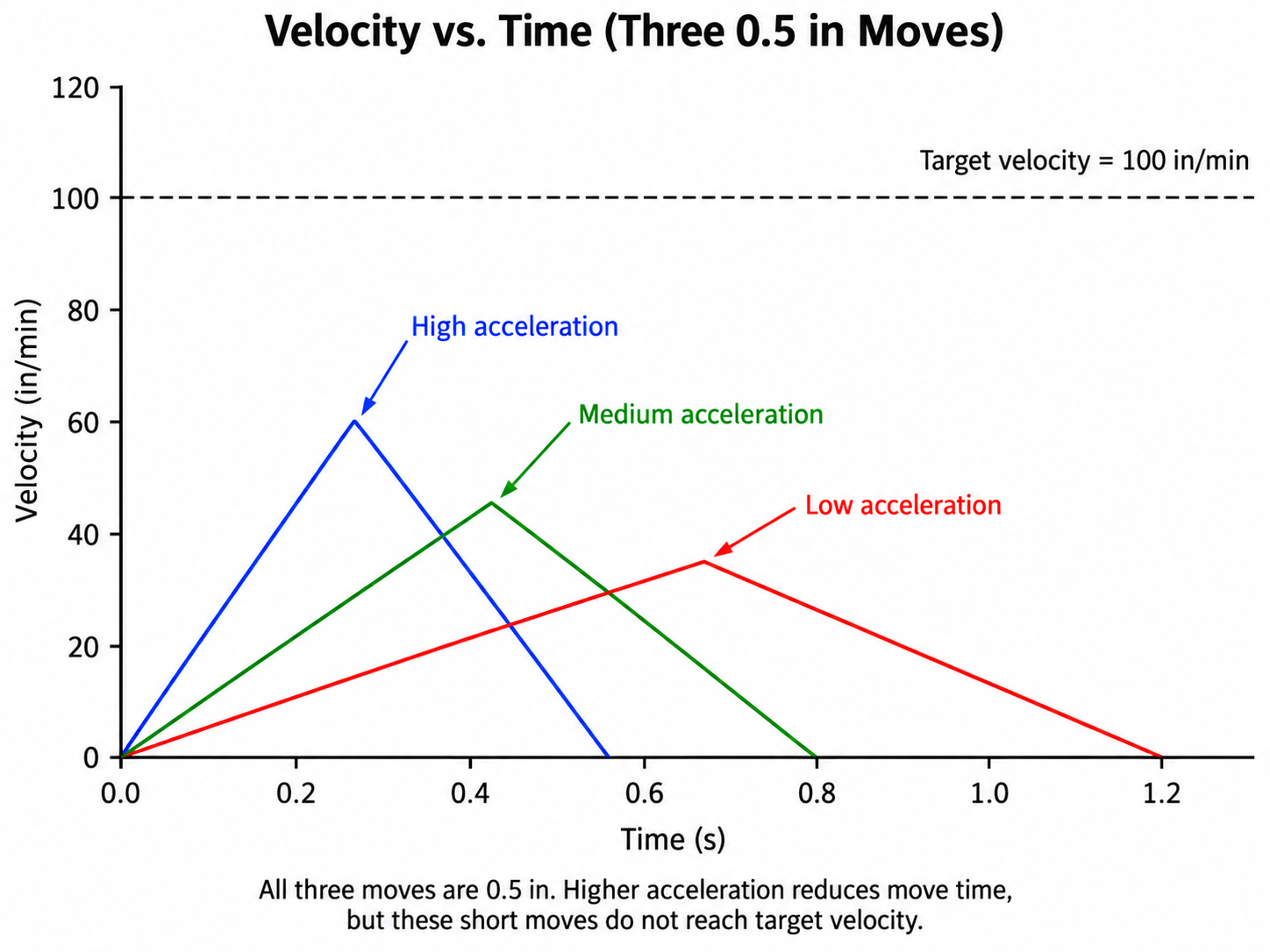
The second graph shows three shorter moves of the same distance. Each move has the same target velocity but a different acceleration rate: low, medium, or high.
None of these moves reachesgets to the target velocity. However,But a higher acceleration rate still decreases the total move time.
Use the highest stablereliable operating acceleration rate to decreasewith the operating margin. This decreases short-move time for short moves and reduce the cycle time for each part.time.
These principles apply to Rapid, Feed, and Jog acceleration.
Give special attention to Feed acceleration. Short toolpath moves frequently do not have sufficient distance to reachget to maximum Feed Velocity. A higher stable acceleration rate with Trapezoidal motion, or a shorter stable Constant Acceleration Time with PureMotion, can decrease cycle time more than a higher maximum velocity.
Do not decrease Feed Velocity only because short moves do not reachget to the configured value. DetermineFind whetherif move distance and the applicable Feed acceleration setting are the limiting conditions.
Configure Rapid and Jog motion
Use the same planner-specific velocity and acceleration tuning method for Rapid and Jog motion.
Rapid and Jog moves do not have cutting load. Their velocity and acceleration limits can thereforethus be different from the final limits that are reliable during cutting.
For Rapid motion, increase velocity only when the machine has sufficient travel to make useful use of the higher value. On short rapid moves, acceleration can have more effect on positioning time.
For Jog motion, prioritize predictable starts and stops. Do not increase jog performance until manual machine control becomes difficult.
Understand the Motor Units motion graph
Use the Motor Units graph to understand the commanded Rapid and Feed motion profile.profiles. There is no Jog motion graph. Do not use itthe graph to predict actual move time.
For Trapezoidal motion, the acceleration portionpart represents the configured acceleration rate. For PureMotion, the complete acceleration period includes the initial Jerk Time, Constant Acceleration Time, and final Jerk Time.
The graph extends its displayed timeline as necessary to let the profile reach the configured maximum velocity. Thus,The graph can show acceleration, constant velocity, and deceleration at a high velocity settingsetting. can appear as a full acceleration, constant-velocity, and deceleration profile even when a realA machine move doescan notbe havetoo sufficient distanceshort to reachattain that velocity.
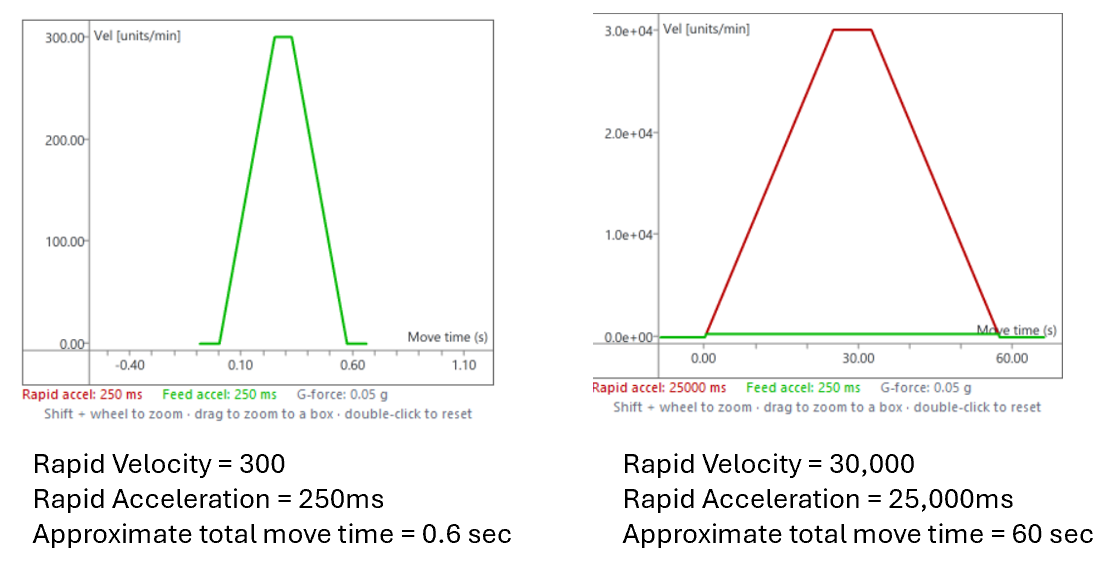
Use machine tests to determinefind actual machine performance:
-
Run the specified move on the machine to
determinefindwhetherif it reaches maximum velocity. -
Measure the specified move to
determinefind its actual cycle time. -
Run repeated machine tests to
verifymake sure that operation is reliableoperationat the configured settings. -
Run representative test cuts to
verifymake sure that operation is reliableoperationwithunder normalusual cutting loads.
UseFor airrepresentative cutting to establish initial velocitytests and accelerationfinal settings.Feed Then,settings, runuse test cuts with the materials, tools, feeds, speeds, and cutting conditions that theFinal machine will normally use. Use the test-cut results to determine the final maximum Feed Velocity and the applicable Feed acceleration setting.test.
Select the motion planner
A motion planner calculates the commanded trajectory and controls changes in velocity and acceleration.
MachPro providescalculates all planner trajectories. All commands from its planners work with every compatible motion controller. Homing and tapping motion are calculated and run in the motion controller.
MachPro gives two primary planners:
-
Trapezoidal
-
PureMotion
First establish reliable axis velocity and acceleration. Do not change the planner to compensate for incorrect axis settings.
Trapezoidal and PureMotion
The Trapezoidal planner is the 2nd Order planner. It uses acceleration rate in units/s² as the actual acceleration setting. Commanded acceleration changes directly between zero and the configured acceleration rate. Trapezoidal motion does not use Jerk Time.
PureMotion is the 3rd Order S-curve planner. It uses Constant Acceleration Time in milliseconds as the actual acceleration setting and adds Jerk Time at the beginning and end of acceleration and deceleration.
PureMotion is useful when smoother acceleration transitions reducedecrease unwanted machine response enough to improve the application or permit a higher stable acceleration. PureMotion can reducedecrease vibration or oscillation when abruptsudden acceleration transitions excite the machine structure. It does not directly tune a vibration frequency.
AdditionalMore Jerk Time can increase or decrease cycle time. Tune the complete machine motion as a system.
Trapezoidal constant velocity (CV) is not a precise path-control tool. Use PureMotion when precision is required. Its contour-error tolerance stays the maximum allowed path error. If boththe two planners give stablethe motionnecessary atprecision and machine response, you can use either planner.
| Command | Planner |
|---|---|
| G38.1 | PureMotion |
| G38.2 | Trapezoidal |
| G38.3 | Tangential Knife |
These commands are modal within an open G-code file. A different G38 command changes the requiredplanner.
Include the applicable G38 command in each file that needs a planner selectionother isthan the default. Use G38 commands only within G-code files. Do not anenter importantthem tuningin factor.Initialization Codes. Closing a file with a G38 command restores the default Trajectory Mode. MachPro also restores the default trajectory mode after shutdown and restart.
G38.3 turns on Tangential Knife mode. There are no other Tangential parameters to change.
G09 (non-modal exact stop), G61 (modal exact stop), and G64 (modal CV) control cutting behavior above the motion-planner layer. They also apply with PureMotion. They do not select the planner. MachPro G-Code and M-Code Reference: MachPro G-Code and M-Code Reference
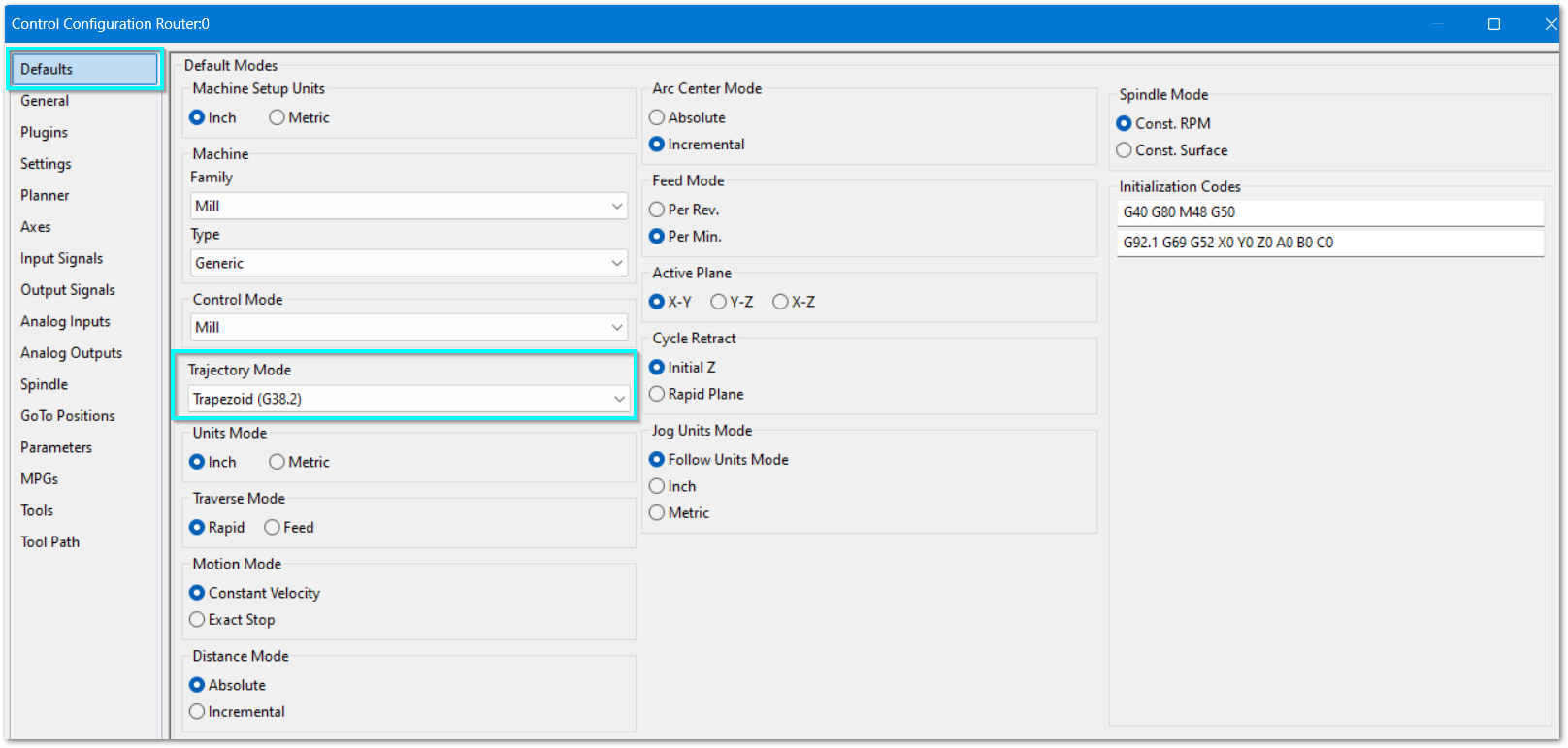
Startup and program planner selection
Configure > Control > Defaults sets the startup modes, including Trajectory Mode and Initialization Codes. Configure > Control > General contains related control options. The supplied screens show current configuration values, not factory defaults.
To select the default planner:
-
Disable MachPro.
-
Select Configure > Control.
-
Select the Defaults tab.
-
In Trajectory Mode, select Trapezoidal or PureMotion.
-
Click Apply or OK.
TestDo tests of the applicable velocity and planner-specific acceleration settings again after you change the planner.
Configure PureMotion Jerk Time
Jerk is the rate of change of acceleration. PureMotion uses Jerk Time to transition into and out of the constant-acceleration and constant-deceleration portionsparts of the S-curve. Constant Acceleration Time affects acceleration rate. Both can excite mechanical resonance. Neither directly tunes a vibration frequency.
During acceleration, PureMotion applies:
- Jerk Time to increase acceleration from zero to the constant acceleration value.
- Constant Acceleration Time.
- Jerk Time to decrease acceleration from the constant acceleration value to zero.
Total acceleration time = Constant Acceleration Time + (2 × Jerk Time)
For example, a Constant Acceleration Time of 250 ms and a Jerk Time of 25 ms produce a total acceleration period of 300 ms.
Deceleration uses the correspondingrelated reversed profile. MachPro does not providegive separate acceleration and deceleration settings.
Configure Jerk Time only after velocity and Constant Acceleration Time are stable.
- Start with a low Jerk Time of
10ms.10 ms. - Increase it in small increments only when necessary.
TestMeasuremachine vibration, oscillation,vibration andmechanicaloscillation. Examine the machine response.TestDo tests at different axis positions andboththe two directions of travel.DetermineFindwhetherif the smoother transition permits a shorter stable Constant Acceleration Time or higher practical velocity.CheckExamine the effect on cycle time.- Use the lowest Jerk Time that gives the required result.
50ms50 ms is a high value.
Increasing Jerk Time makes the transitions into and out of constant acceleration more gradual. This can reducedecrease machine vibration, oscillation, mechanical excitation, and other unwanted machine responses.
A reduction in vibration or oscillation is only one verification result. Also verifymeasure position accuracy,accuracy and cycle time. Examine drive stability, cycle time,stability and machining quality.
Do not consider vibration tuning complete at this point. Later changes to velocity, acceleration, Jerk Time, tooling, workholding, or cutting load can change the machine response.
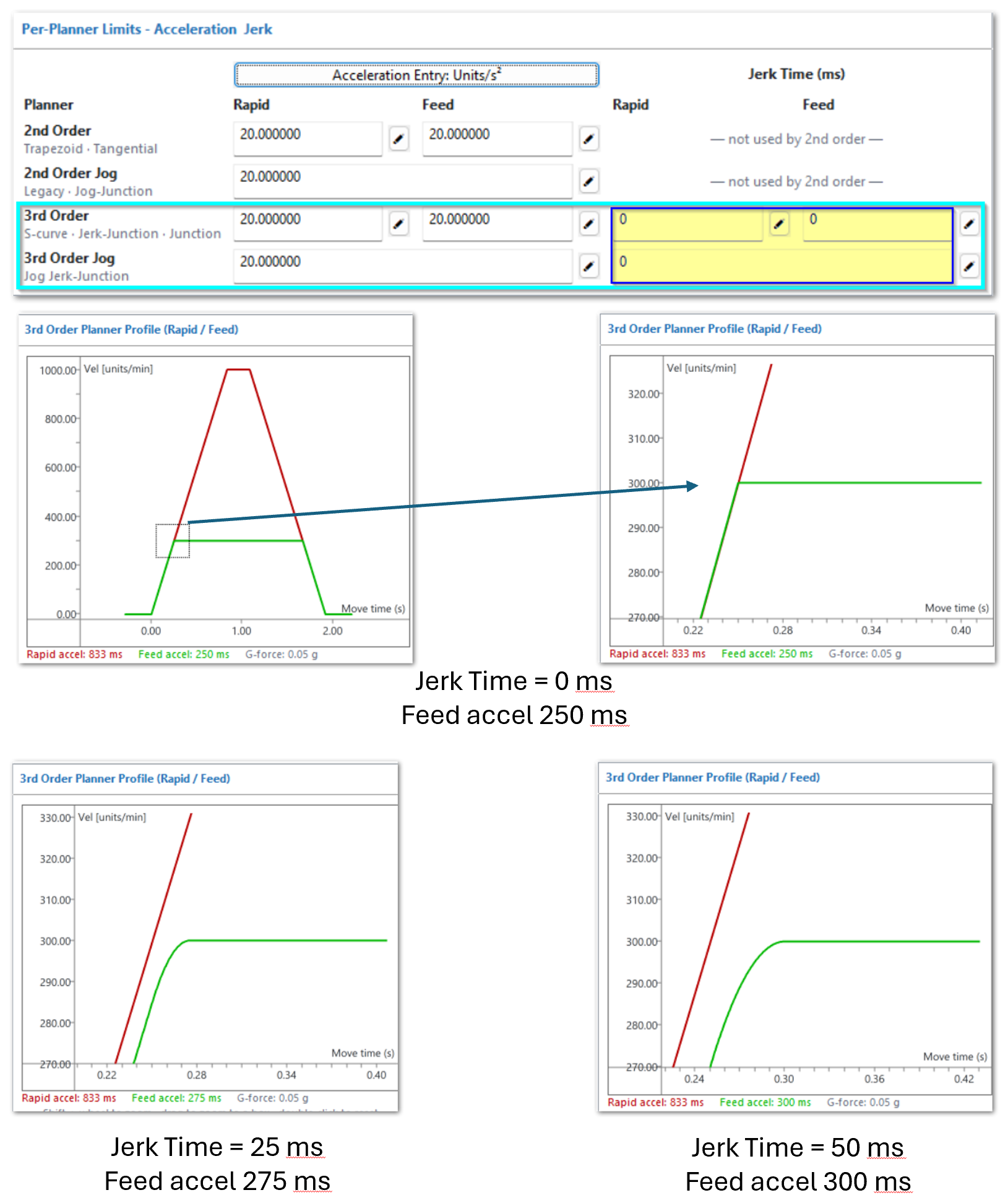
Notes:
-
The red graph lines are for rapid motion. Green lines are for feed motion.
-
The vertical scale is
theaxisvelocityvelocity.and theThe horizontal scale is the displayed profile time, not the timerequiredofforathespecified-distance move. -
The graphs are scaled to allow direct comparisons.
MachPro providesgives separate jerk-time settings for Feed, Rapid, and Jog motion.
A Jerk Time of 0 ms removes the PureMotion smoothing effect for that motion type.
Copy settings to other motors
Use the edit control next to a value to copy the value to other motors.
-
Select the edit icon.
-
Select the applicable motors.
-
Apply the value.
Use copied values as startinginitial values unless you have verified that the axes have the same operating limits. TestDo tests of each axis before you use the copied value as its final setting.
5.3 Final machine test
After you tune each axis individually, testdo coordinated machinemachine-motion motion.tests.
There is no universal test program or validation code for path error, vibration, accuracy, or cycle time. Select tests and acceptance criteria for the machine, job specifications, and material properties.
First, use air cutting tofor verifytests of the initial settings. TestInclude long and short moves, direction changes, and different positions in the usable axis travel,positions. Include coordinated Feed motion,motion and representative Rapid and Jog motion.
Make sure that the machine has no:
-
Position errors.
-
Drive faults.
-
Loss of position.
-
ExcessiveToo much vibration or oscillation. -
Mechanical instability.
Then run representative test jobs with the materials, tooling, workholding, feed rates, spindle speeds, and cutting conditions normally used on the machine.
Use the test-cut results to determinefind the final Feed Velocity and the applicable Feed acceleration setting. Do not use air cutting alone to determinefind the final Feed settings.
Cutting-edge vibration can reducedecrease surface quality and dimensional accuracy. It can come from machine motion, tooling, workholding, spindle behavior, cutting parameters, or structural resonance. Do not assume thattreat all cutting vibration isas a planner problem.
If vibration occurs only during cutting:
VerifyExamine tooling and workholding.VerifyExamine spindle condition and cutting parameters.VerifyDoFeedFeed-motionundertestsnormalwith usual cutting load.- Compare results at different machine positions and directions of travel.
- Adjust planner settings only when the vibration is related to commanded axis motion or acceleration transitions.
If coordinated motion is less stable than single-axis motion, identify the limiting axis or axis combination. Test the participating axes individually, then compare coordinated moves that use different axis combinations, such as XY, XZ, and YZ. The axis or combination that first produces vibration, oscillation, following error, loss of position, or another unstable condition is the likely limiting motion.
To increase stability:
- Decrease velocity if velocity demand is too high.
- For Trapezoidal motion, decrease the Acceleration rate if acceleration demand is too high.
- For PureMotion, increase Constant Acceleration Time if acceleration demand is too high.
- For PureMotion, increase Jerk Time if acceleration transitions excite vibration or oscillation.
- Change one setting at a time when practical.
TestDo the motion test again after each change.
Repeat the coordinated-motion and cutting tests after each significant setting change.
VerifyMake stablesure operation:that operation is stable:
-
Throughout the usable axis travel.
-
In
boththe two directions of travel. -
With the axis combinations used by the application.
-
Under
normalusual production load. -
With representative tooling and workholding.
Do not accept a setting only because the machine is stable at one position or during unloaded motion.
5.4 Misc
Enable delay is the amount of time (ms) between when MachPro enables and this drive will enable.
Position error threshold is managed by the M31 motion controller. Maximum Following Error.
Backlash amount and rate are managed by the M31 motion controller. Please see this sectionSee Backlash Compensation.
5.5 Screw Map
Screw mapping, Linear compensation is supported in MachPro. Full use instructions are available at this link.
6 Output Setup (J10)
Wiring Outputs
TheEach M31of the M31’s 8 digital output ports has 8a logic250 outputs that can be used for any lowmA current application.limit. UseIf a device needs more current, use the output to control a relay coil. The relay-coil current must stay within the output-port limit.
For relay-controlled devices, supply the relays with 24 VDC from a power supply withrated at 5 ampA or greater output for current loads above 250 mA.more.
| 8 Digital Outputs (PNP Sourcing) | |
|---|---|
| Voltage | 16 - 24 VDC |
| Max Current | 250 mA per output port; use a relay for |
| Pulse Width Modulation (PWM) | Not available on this release |
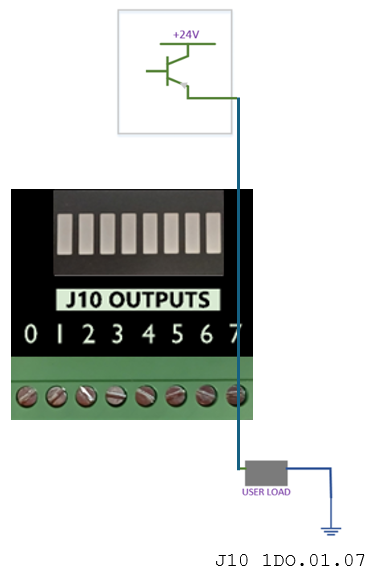
Output to a relay for current draws above 250 mA

Relay Module Downloads:
-
M31_Relay_3D.pdf Download the 3D files and open them in a local PDF viewer, such as Adobe Acrobat or Foxit PDF Reader.
Output to a contactor

Contactor Downloads:
-
M31_to_Contactor_3D.pdf Download the 3D files and open them in a local PDF viewer, such as Adobe Acrobat or Foxit PDF Reader.
Router installation defaults
A router-type MachPro installation includes the output mappings below. Disable a mapping if the machine does not have that feature.
The first (left) column contains the MachPro signal name. User Description supplies the name shown in MachPro I/O diagnostics. Use the customer’s machine terminology for this description.
In 1DO.01.02, the DO.01.02 portion identifies:
| Part | Meaning |
|---|---|
| DO | Digital Output |
| .01 | First terminal block of outputs |
| .02 | Physical terminal port 02 on that block |
The supplied router capture includes ports 00–07. Keep the complete address as shown in Output Name.
| MachPro signal name | Output Name | Installed User Description |
|---|---|---|
| Output #0 | 1DO.01.00 | GENERAL OUTPUT 0 (1DO.01.00) |
| Output #1 | 1DO.01.01 | GENERAL OUTPUT 1 (1DO.01.01) |
| Output #2 | 1DO.01.02 | LUBE PUMP (1DO.01.02) |
| Output #3 | 1DO.01.03 | VACUUM TABLE (1DO.01.03) |
| Output #4 | 1DO.01.04 | POP UP PINS (1DO.01.04) |
| Output #5 | 1DO.01.05 | DUST GUARD DOWN (1DO.01.05) |
| Output #6 | 1DO.01.06 | DRAW BAR OPEN (1DO.01.06) |
| Output #7 | 1DO.01.07 | TOOL BLAST (1DO.01.07) |
To configure an output, followuse the procedure below.

Using Outputs**Outputs
Outputs 0-5 can be controlled with M-Codes. One M-Code turns an output on, and the other M-Code turns the output off. Use the table below for a reference.
| Custom M-Codes | Functions |
|---|---|
| M200 | Output #0 on |
| M201 | Output #0 off |
| M202 | Output #1 on |
| M203 | Output #1 off |
| M204 | Output #2 on |
| M205 | Output #2 off |
| M206 | Output #3 on |
| M207 | Output #3 off |
| M208 | Output #4 on |
| M209 | Output #4 off |
| M210 | Output #5 on |
| M211 | Output #5 off |
| This pattern continues through M218 and M219 for Output #9 |
Also see M220 - M222 for extended output control
Mist and Flood Control
- On the menu bar click on Configure > Control and select the Output Signals tab.
- Select the Motion Control Device and Output Name
Add aSet User Description,which will show on the Service tab'sfor I/Odashboard.diagnostics. See Router installation defaults for naming conventions.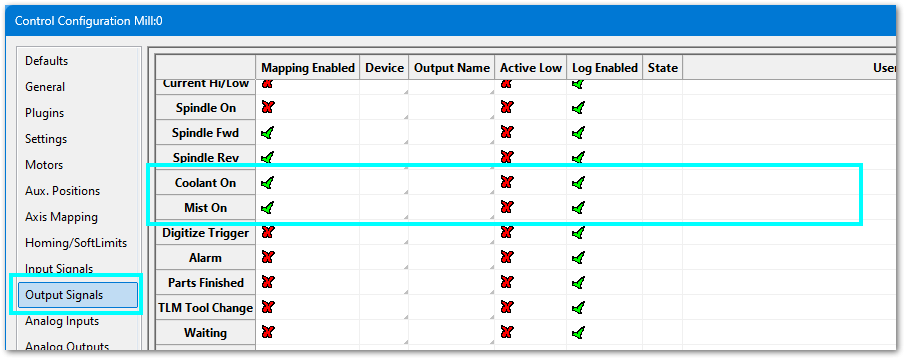
- On the left menu bar, select the Settings tab
- Filter for either Mist or Flood and adjust the settings for your system

| Feature | ON M-Code | OFF M-Code |
|---|---|---|
| Mist | M7 | M9 |
| Flood | M8 | M9 |
7 Spindle Setup (J5)
Position following error is not a meaningful spindle operating limit. MachLabs sets Max Following Error to 100000000 to prevent following error from becoming an issue during spindle operation.
For an EtherCAT spindle, other operating parameters can be monitored for faults, such as excessive torque or RPM below commanded RPM.
MachPro supports several methods to control a spindle. Select the procedure that matches the spindle drive and control method:
-
Analog 0–10 VDC control of a variable frequency drive (VFD)
-
EtherCAT control of a VFD
A variable frequency drive (VFD)VFD controls the speed and direction of an AC spindle motor.
For EtherCAT (Ethernet for Control Automation Technology) is an industrial Ethernet network thatwiring MachProand canconfiguration, use toEtherCAT communicateNetwork with compatible drives and other devices.Configuration.
7.1 Encoder Feedback (J4)
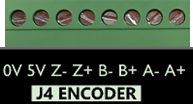
| Quadrature Encoder Channel | 1 |
|---|---|
| Connection | Terminal Blocks, 5 VDC Differential |
| Max Frequency | 1.6 MHz |
Please referRefer to the documentation for your VFD and spindle motor for spindle encoder connections.
7.2 Analog 0–10 VDC VFD
Use this configuration when the M31 sends a 0–10 VDC speed command to the variable-frequency drive (VFD).
Wire the spindle control
Connect these M31 signals to the VFD:
-
Forward rotation
-
Reverse rotation
-
0–10 VDC analog speed
For M31 controllers through Rev 1.2, refer to MachPro Spindle Configure for M31 up to Rev 1.2 These controllers use sinking outputs for the forward and reverse direction signals.
M31 Rev 1.3 and later controllers use relays for the forward and reverse direction signals.
The drawings below show connections to a Yaskawa GA500 VFD. Refer to the manual for your VFD for equivalent terminals and functions.

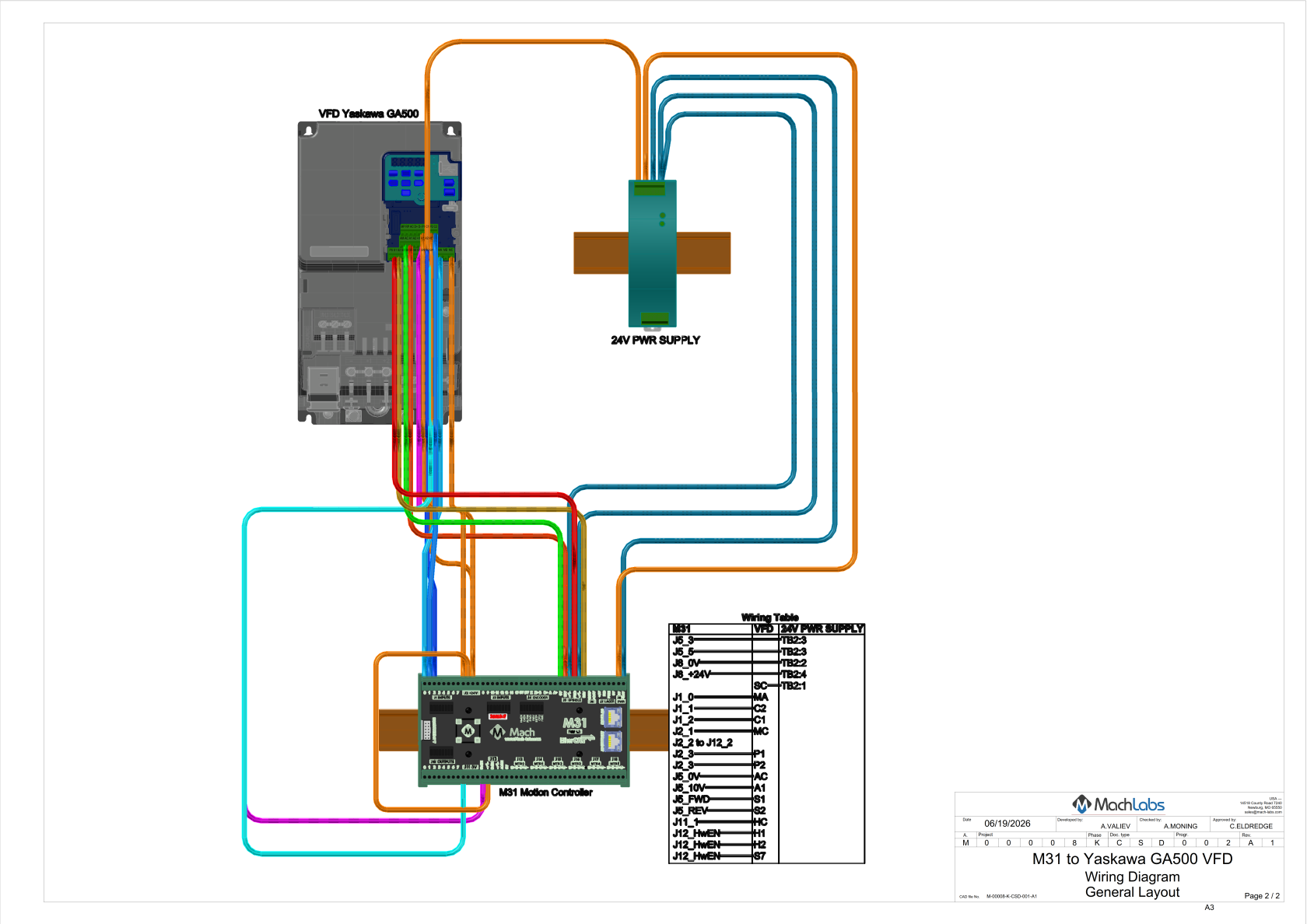
Yaskawa VFD Downloads:
-
M31_to_Yaskawa_VFD_GA500_3D.pdf Download the 3D files and open them in a local PDF viewer, such as Adobe Acrobat or Foxit PDF Reader.
Configure the VFD and M31 analog output
Configure the VFD for the connected spindle motor. Use the motor nameplate, spindle documentation, and VFD documentation to set the applicable parameters:
-
Rated voltage
-
Rated current
-
Rated frequency
-
Rated speed
-
Maximum permitted frequency
-
Acceleration and deceleration
-
Control-input functions
Do not estimate motor electrical ratings.
Configure the VFD to use the 0–10 VDC analog input for speed and the applicable digital inputs for direction.
Open Configure > Plugins > M31 > System.
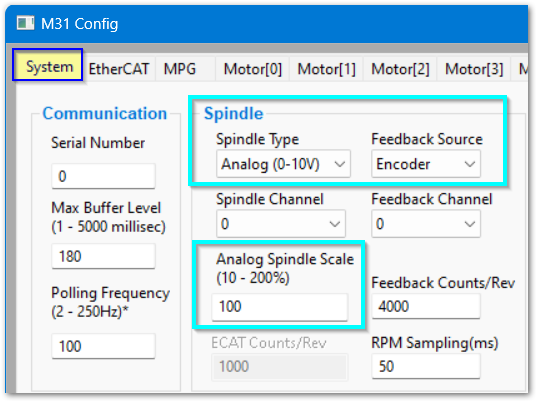
Set Spindle Type for analog control.
If the spindle has a feedback encoder, refer to the Encoder Feedback instructions. If it does not have a feedback encoder, set Feedback Source to Undefined.
Adjust Analog Spindle Scale only if the measured analog voltage does not agree with the commanded voltage.
Analog Spindle Scale % = Commanded Voltage / Actual Voltage × 100
Calibrate the spindle
Use the instructions in the MachPro Spindle Calibration manual.
7.3 EtherCAT VFD
Use this configuration when MachPro controls a variable-frequency drive (VFD) through EtherCAT.
Connect and verify the EtherCAT VFD
Complete the EtherCAT wiring.
Use the motor nameplate, spindle documentation, and VFD documentation to set the applicable VFD parameters:
-
Rated voltage
-
Rated current
-
Rated frequency
-
Rated speed
-
Maximum permitted frequency
-
Acceleration and deceleration
-
Control-input functions
Do not estimate motor electrical ratings.
Open Configure > Plugins > M31 > EtherCAT.
VerifyMake sure that the VFD appears on the EtherCAT network and that the M31 identifies it as a supported device. Refresh the EtherCAT network if necessary.
If the device shows Unsupported, contact MachMotion Support. Support for that VFD model can require an EtherCAT device definition.
Do not change VFD parameters that MachPro manages during EtherCAT initialization unless the hardware documentation instructs you to change them.
Configure the M31 spindle communication
Open Configure > Plugins > M31 > System.
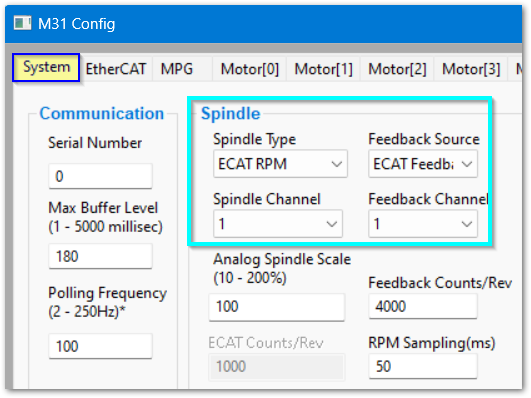
Set:
-
Spindle Type to ECAT RPM
-
Spindle Channel to 1
-
Feedback Source to ECAT Feedback
-
Feedback Channel to 1
Configure the EtherCAT motor entry for the spindle. Select the Motor tab for the spindle VFD. This is normally the last EtherCAT motor.
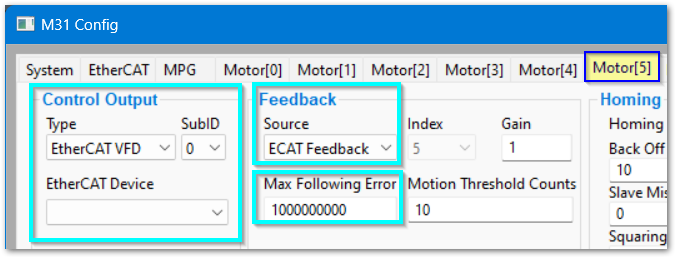
Set:
-
Control Output to EtherCAT VFD
-
SubID to 0
-
EtherCAT Device to the applicable VFD
-
Feedback Source to EtherCAT Feedback
-
Max Following Error to 100000000
TheFor high Max Following Error value prevents normalthe spindle operation from causing a following-error fault.setting and fault monitoring, see Spindle operating limits.
Configure the spindle ranges
Use the MachPro Spindle Calibration instructions to configure and calibrate the spindle ranges.
Turning on the Spindle
In addition to the screen controls the spindle can also be controlled using M-codes. Use the table below as a reference.
| M-Code | Function |
|---|---|
| M3 | Clockwise |
| M4 | CounterClockwise |
| M5 | Stop |
8 Advanced Options and Information
Look-ahead uses a variable time horizon. It examines enough future G-code blocks to stay on path or allow a controlled stop.
Feed Hold and Cycle Stop are controlled stops. For E-Stop software disable and the required hardware safety relay, see J6 setup.
There are many resource documents available in the
MachPro Advanced Configuration
MachPro 26 CNC Software Roadmap
9 Reference Information
PleaseDo observenot exceed the maximum voltage on each pin. Some pins are 24 VDC compatible, some are 5 VDC, some are 3.3 VDC, and some are 0 VDC. Exceeding their max voltage will cause serious damage to the M31 Motion controller.
M31 Specifications
| Item | Specification |
|---|---|
| Input Power | 24 VDC |
| Max Power Consumption | 48 W |
| Motor Drives | |
| Stepper Channels | 6 motors |
| Step and Direction Axis Control | 5 VDC Single Ended and Differential |
| Connection | Terminal Blocks |
| Max Pulse Speed | 1.6 MHz |
| EtherCAT Network | |
| Device Types | Servo Motors, Stepper Motors, VFDs, I/O Modules, etc. |
| Max Devices | 30 |
| 6 | |
| axes | |
| Quadrature Encoder Channel | 1 |
| Connection | Terminal Blocks, 5 VDC Differential |
| Max Frequency | 1.6 MHz |
| Spindle | 1 |
| Opto-Isolator Outputs | Forward and Reverse Open Drain / Open Collector outputs |
| Analog Speed Signal | 0-10 VDC |
| Encoder Feedback | Yes |
| Digital Outputs | 8 (PNP Sourcing) |
| Voltage | 16 - 24 VDC |
| Max Current | 250 mA per output port |
| Pulse Width Modulation (PWM) | Not yet available |
| Inputs | 16 (opto-isolated, for PNP/Sourcing sensors) |
| Voltage | 16-24 VDC |
| Input Current Range | 3 - 6 mA |
| Isolated | Yes |
| Enable Circuit | 2 |
| Hardware Enable | Relay Dry Contacts, 5 VDC Enable or 24V Enable |
| Drive Enable | Relay Dry Contacts |
| Servo Drive Alarm | 1 (NPN Sinking with 24 VDC pull-up) |
| Voltage | 5-24 VDC |
| Input Current Range | 3 - 6 mA |
| Emergency Stop Circuit | Normally Closed Connection |
| Ethernet Port | 10/100 MHz |
| Dimensions | 7.125" (L) × 3.75" (W) × 1.875" (H) |
| Optimal Temperature Range | 32° to 100°F (0° to 38°C) |
| Humidity | 30% - 60% RH |
Input Signal Mapping
| Signal | M31 Junction | Input Name | Use |
|---|---|---|---|
J1 |
1DI.01.00 |
||
J1 |
1DI.01.01 |
||
J1 |
1DI.01.02 |
||
J1 |
1DI.01.03 |
||
J1 |
1DI.01.04 |
||
J1 |
1DI.01.05 |
||
J1 |
1DI.01.06 |
||
J1 |
1DI.01.07 |
||
J3 |
1DI.01.08 |
||
J3 |
1DI.01.09 |
||
J3 |
1DI.01.10 |
||
J3 |
1DI.01.11 |
||
J3 |
1DI.01.12 |
||
J3 |
1DI.01.13 |
||
J3 |
1DI.01.14 |
||
J3 |
1DI.01.15 |
Output Signal Mapping
| Signal | M31 Junction | Output Name | Use |
|---|---|---|---|
J10 |
1DO.01.00 |
||
J10 |
1DO.01.01 |
||
J10 |
1DO.01.02 |
||
J10 |
1DO.01.03 |
||
J10 |
1DO.01.04 |
||
J10 |
1DO.01.05 |
||
J10 |
1DO.01.06 |
||
J10 |
1DO.01.07 |
10 Troubleshooting
10.1 Manually reset M31 IP address
-
Verify:MakeThesure that the M31 has 24 VDC power -
Verify:MakeThesure that the M31 and computer are connected with an ethernet connection -
Open the VSI Device Manager software
Open VSI Device Manager from the Windows desktop.

If not, click the Windows Start button and search for VSI 
The VSI Device Manager will appear as one of the windows below.


- Click Scan Network
- Click the device that the scan locates.
It will show theThe current IP addressonisthe lineshown at thetoptop.as well as anAn editable fieldinis at thelowerbottomright corner.right.- You may not see an M31 in the VSI Device Manager. Still follow steps 3 through 6.
- Enter 192.168.208.35
- Click Set New IP Addr
- Click Close
- Close MachPro, power cycle the enclosure, and restart MachPro. This ensures that all network and software changes are fully enabled.
10.2 M31 I/O Diagnostics
Use M31 and MachPro diagnostics to compare physical I/O with mapped software signals.
For output addresses and diagnostic names, see Router installation defaults.
-
Each input and output on the M31 has an associated LED
-
The M31 Diagnostic screen shows the status of all I/O at the motion controller level (click Diagnostic > M31)
-
The MachPro Input Signals screen shows the state of all enabled signals in the State column (click Configure > Control, then click Input Signals)
-
The MachPro Machine I/O screen also shows the state of all mapped I/O (click the Service tab, then the Machine I/O tab)
While you are wiring and mappingDuring I/O signals,connection confirmand mapping, operate each signal. Make sure that eachits I/Ostate port is changingchanges correctly aton the M31 - with its diagnostic LEDs,LEDs and in the MachPro software.MachPro.
M31 Diagnostics

-
Input pin 1 is active - 1DI.01.01
-
The E-Stop is active - 1DI. ESTP
-
There is power to the board.
-
The blue CPU LED will blink when the CPU is active
M31 Plugin Diagnostics

-
Click the Pin icon to keep this window on top of other windows
-
The table at the top lists the current status of all motors connected to the M31
-
InProperties, on therowleft,directlyshowsunderinformation about themotorsM31tableconnection.thereThe blue rectangle in the supplied annotated capture highlights this area. In that capture, the plug-in is not connected to a physical M31 board. -
GCode Message Cntr
.,Ifinthisthenumbermiddle, shows communication activity. It stays at0in the disconnected capture. While MachPro isactive,connectedthento theM31M31, the value changes continuously, even when no G-code file is running. -
The motor table contains Encoder, Feedback, StepGen, Command Pos, and
MachProFollowing Error displays. Communication and buffer fields show queued-motion activity. -
The window includes an axis selector, Clear Position, EtherCAT Status, and Motion Planner buttons. ==Confirm display units, index-to-motor mapping, error source/sign, buffer thresholds, Clear Position behavior, and the Motion Planner button destination.==
-
Output indicators are
communicatinginteractivenormally.controls. Clicking an output LED activates the output. Make sure that connected equipment can operate safely first. -
The bottom section shows the status of all physical inputs and physical outputs on the M31
MachPro I/O Diagnostics

-
The M31 Status window shows that 1DI.01.01 has 24 VDC
-
The Control Configuration window maps this input to MachPro Input #1. The normally closed tool setter uses Active Low: contact opens the circuit and activates the software signal. For mapping changes, use Section 3 Wiring and Mapping Inputs.
-
The Machine I/O dashboard tells us that there is currently no tool touching the tool setter pad.
10.3 M31 drive and motor test setup
IfFor youmotion wanttests before installation or to testfind a motion before installation, or are having trouble getting correct motion:fault:
Use a bench setup tofor verifytests of motors, drives, and cables. For encoder scaling, use Set Drive Ratio.
-
This ensures that you have all the cables you need
-
You can
verifymake sure that the motors all work -
YouMakecan easily verifysure thatyourencoderdrivesscalingareissetcorrect.toSee17SetbitDriveor less.Ratio.
Set the motors on a stable work surface. OftenFrequently the packing materials will work well as temporary pads.
Connect all cables between each drive and motor. You maycan leave the motors setup like this until the system is ready for axis calibration.calibration can start. At that time you will need to install the motors on the machine.

Testing Axis Motion
This procedure applies to step-and-direction axes and EtherCAT axes.
WARNING: Make sure each axis can move safely in boththe two directions. No software limits are active during this test. If the motor is installed on the machine, the only travel limits are the physical hard stops.
Open the M31 test motion screen
- Open Configure > Plugins > M31.
- Select the motor that you want to test.
- Find the Test Motion section in the lower right corner of the window.

Set the first test move
Use small values for the first test.
- Set Position to
0.1. - Set Accel to
10. - Set Velocity to
10. - Select Auto-Reverse.
- Click Enable in the Test Motion section.
The motor is now ready for a test move.

Run the test move
- Click Execute.
VerifyMake sure that the axis moves.- Click Execute again.
VerifyMake sure that the axis moves in the opposite direction.
The second move should reversechanges direction because Auto-Reverse is enabled.

Increase the test values slowly
After the first test works correctly, increase the values in small steps.
Example:
- Increase Position to
0.3. - Increase Accel to
20. - Increase Velocity to
200. - Click Execute.
VerifyMake sure that the motion is smooth and controlled.
Use short movement distances during this test. The goaltest is to verifyshows communication between the M31, the drive, and the motor.
Repeat the test
Repeat this procedure for each motor.
VerifyMake sure that each motor gives these items for each motor:results:
-
The motor enables correctly.
-
The motor moves when commanded.
-
The motor moves in the expected direction.
-
The motor reverses direction when Auto-Reverse is enabled.
-
The motion is smooth.
-
No drive alarms occur.
10.4 EtherCAT troubleshooting
-
VerifyExamine cable shielding and the IN/OUTsequencesequence.usingSee Section 2.3 EtherCAT Network Configuration. Reversed connections can prevent enabling even when the network powers up. -
All of the drives need to be programmed, and all alarms cleared. With some drives, you can clear the alarm from the face of the drive, but not clear the alarm state internally. Close the MachPro software and power cycle the enclosure. Then restart the MachPro software.
-
For
sluggishslow motion,verifyexamine encoderscalingscaling.usingSee Set Drive Ratio. -
For an unsupported device,
followuse the support instructions in Section 2.3 EtherCAT Network Configuration.
EtherCAT chain
- Close the MachPro software and then shut down the computer.
- Cycle the power on the whole machine.
- Restart the computer and the MachPro software. Recheck to see if you are still having a problem.
VerifyMake sure thattheGCode MessageCNTRCntris still activechanges intheM31 Status.windowSee(DiagnosticConnection>andM31)communication activity.VerifyExamine the EtherCAT chain between drives. Disconnect the cable from drive 1 to drive 2, and refresh the network. Youmaycan need to refresh several times to fully populate the drive list.- If that works, reconnect drive 1 to drive 2, and disconnect drive 2 from drive 3. Repeat until the drive list will not populate.
TheThat drive stops the EtherCAT chainisfromgettingoperatingstuck at that drive.correctly. CheckExamine the parameters you programmed into that drive.
If the list of online devices in right column still does not populate with valid devices, please contact MachLabs support.
Network
Are the M31 motion controller and computer connected and communicating?
-
VerifyExamine the PCconnectionconnection.usingSee Connect the dedicated network interface to M31 (J20). -
From the MachPro software, pull downOpen Diagnostic > M31 in MachPro -
The value in the GCode Message Cntr should be actively changing
 If it is a static value or 0:
 -
Close MachPro and power cycle your enclosure, then restart MachPro
-
Research and resolve all alerts and warnings that
come upappear during that process. -
Examine the
Verify yourdedicated network settings
10.5 Vibration or oscillation during motion
Vibration and oscillation are symptoms. First identify the condition that causes them.
Possible causes include:
-
Velocity is too high.
-
Acceleration demand is too high.
-
AbruptSudden Trapezoidal acceleration transitions excite the machine structure. -
PureMotion Jerk Time is too short for the machine response.
-
Mechanical looseness or wear.
-
ExcessiveToo much backlash. -
PoorUnsatisfactory lubrication. -
Damaged bearings, couplings, screws, guideways, or drive components.
-
Drive or servo instability.
-
A mechanical resonance is excited at a specific speed, acceleration, machine position, or direction.
-
Tooling, workholding, spindle, or cutting-condition problems.
Use this diagnostic sequence:
DetermineFindwhetherif the vibration or oscillation occurs without cutting.DetermineFindwhetherif it occurs at a specific speed, acceleration, position, or direction.- Inspect the mechanical system.
- Correct known wear, looseness, backlash, lubrication, or damaged components.
VerifyDo velocity and accelerationusingtests. See Tune one axis.- If acceleration transitions are mechanically harsh, use Select the motion planner and Configure PureMotion Jerk Time.
VerifyDocoordinatedcoordinated-motion and representative cuttingperformancetests.usingSee Section 5.3 Final machine test.
Do not use PureMotion to hide vibration caused by mechanical wear or damage.
NormalFor vibrationdefinitions does not change theand physical inertiaeffects, ofsee anMotor axis. The moving mass remains the same. Acceleration and oscillatory motion do create temporary inertial reaction forces. These forces can increase structural deflection, drive load, following error, and position error.Units.
If the vibration occurs only at the cutting edge, verifyexamine tooling, workholding, spindle condition, and cutting parameters before you change planner settings.
11 Application Notes
For 480 VAC systems, use line filters before servo drives and VFDs to reducedecrease electrical noise from the VFDs.
11.1 Vibration, oscillation, and mechanical condition
MechanicalUse wearMotor canUnits createfor vibrationmechanical-response orexplanations oscillation that motion-plannerand tuning cannotdecisions. correct.Use CorrectVibration the mechanical cause before you use PureMotiontroubleshooting to optimizeisolate motion and cutting causes. Repeat Final machine response.
Machineafter vibrationsignificant can change with axis position, load, direction of travel,tuning, tooling, workholding, spindleor operation,load and cutting load. Repeat vibration evaluation after significant motion tuning and under representative production conditions.changes.
PureMotion does not directly tune a vibration frequency. Jerk Time controls the acceleration transitions that can excite machine vibration. Constant Acceleration Time affects the acceleration rate, which can also excite mechanical resonance.
Evaluate vibration or oscillation together with position accuracy, drive stability, machining quality, and cycle time. For tuning steps, use Section 5.2 Units; for production verification, use Section 5.3 Final machine test.
11.2 E-Stop variations
- customers
Connectwhoalloperate without E-Stopdevicesdevices, the J6 setup includes a jumper option. Where E-Stop protection is implemented, use a machine-specific safety-relay circuit. The J6 input is the controller’s status connection. Do not substitute a standard relay or a chain of input contacts for the required safety implementation.Multiple voltage-free (dry) contacts in series
conditionincan report thesameE-Stopcircuit.to In a series circuit,J6: any open contactwill openopens theentire E-Stopstatus circuit. This - describes
Iftheyouinputneedconnection,specializednot the complete machine safetycircuits, please contact support.design.
For
Adding an E-Stop Button to the M31 Board
Wire the E-Stop button to a relay input.Use the relay output contacts in the E-Stop circuit.Askhave a qualifiedelectrician toperson design the interface. This person must do tests of the safety-relay andverifyM31thisconnections.wiring.
11.3 M31 E-Stop Input Mapping
Map the Emergency Stop input to M31 1DI.ESTP using the signal-mapping procedure in Section 3 Wiring and Mapping Inputs. Set Active Low.
Open the E-Stop circuit and verifymake sure that the system disables. The system operates only when the circuit is closed and healthy.

Use a normally closed 24 VDC E-Stop circuit. Pressing E-Stop or breaking a wire removes voltage and disables the machine.
11.4 Hardware and Drive Enable Settings
- Open Configure > Control.
- Select the Settings tab.
- Select the Machine category and the Enable subcategory You can:
-
Set the delay between hardware enable and drive enable.
-
ChooseSelect which outputs turn off when the system disables.
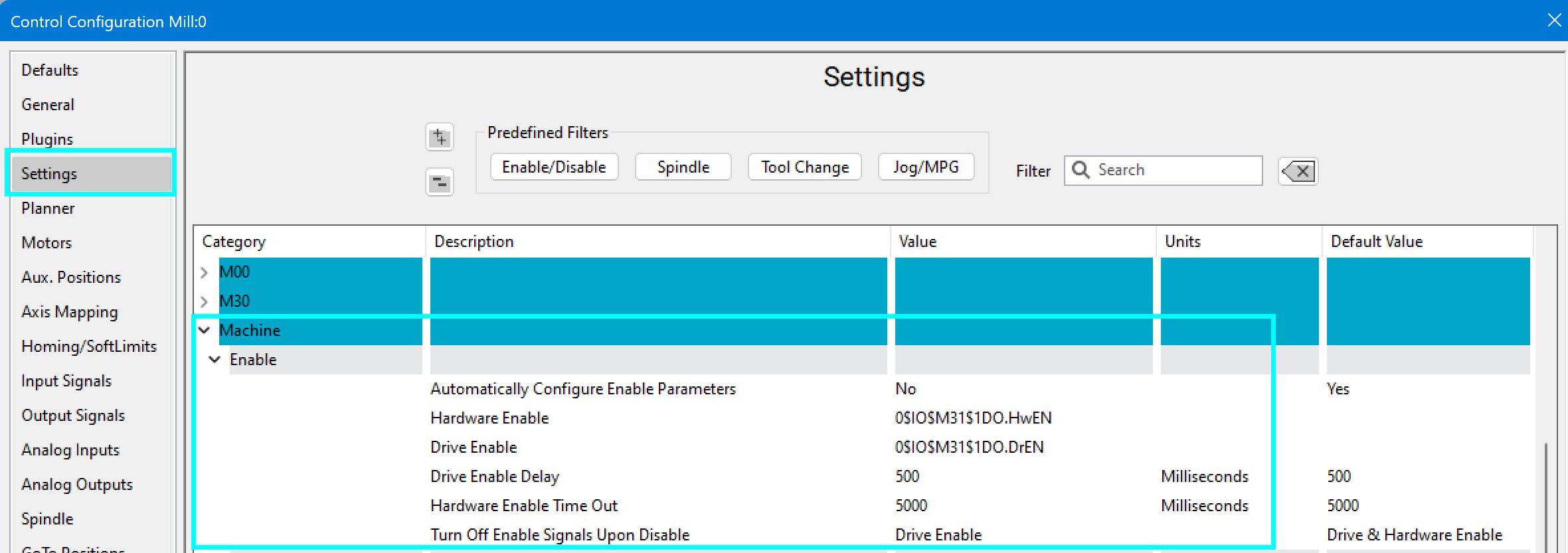
11.5 Differential step and direction connection to a Yaskawa Sigma 7 drive.
Use the differential wiring procedure in Section 2.1 Step and Direction Connection and Configuration. The diagrams below show the Yaskawa Sigma 7 connections.
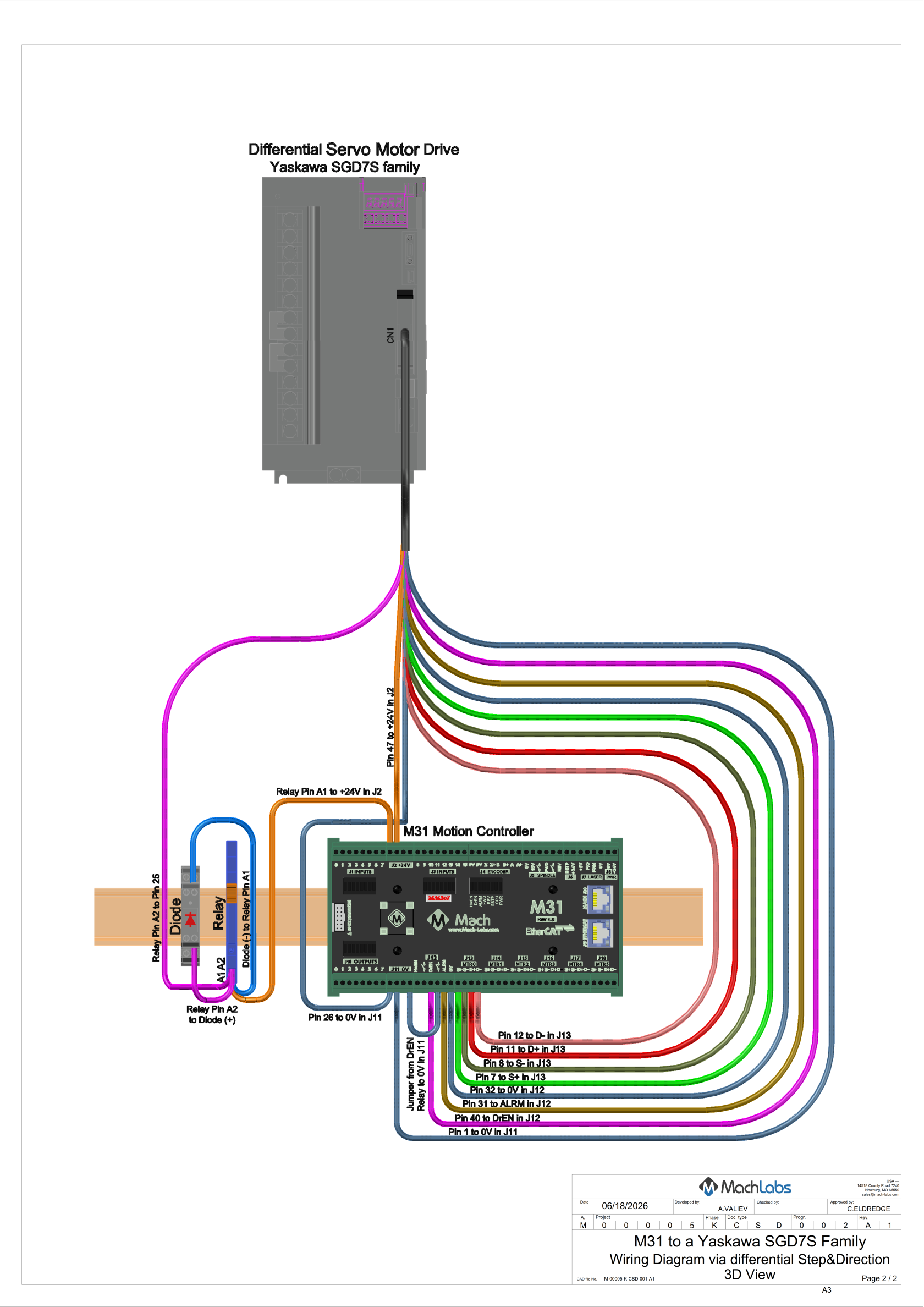
11.6 Configure Multi-Axis EtherCAT drives
-
These are not standard drives that have one motor controlled by one drive. These drives each control multiple motors.
-
The Control Output EtherCAT Device will
remainstay the same for all motors attached to your multi-axis drive -
Set the Control Output SubID value to match the motor number.
-
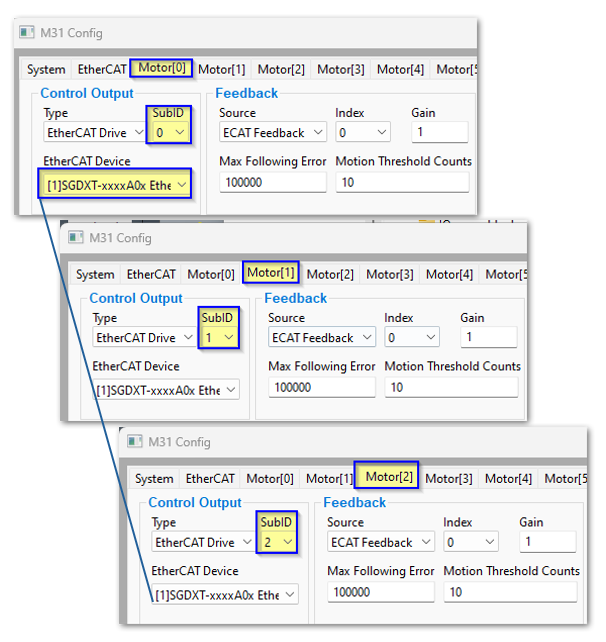
11.7 EtherCAT State Machine
WhenAt enablingstartup or booting up,enable, an EtherCAT slave device moveschanges through a specific sequence of four main communication statesstates. managed by theThe EtherCAT State Machine (ESM): controls this sequence:
- Init (Initialization) This is the initial state after power-on. No mailbox or process data communication is possible. The master initializes the slave's address and communication settings. The EtherCAT master is answering the question: "What
kindtype of device are you?" for each device in the chain. - Pre-Operational (Pre-Op) - Mailbox communication is enabled, allowing the master to configure SDOs (Service Data Objects), PDO (Process Data Object) mapping, and other parameters. Process data communication is not yet active. The EtherCAT master is answering the question: "How are you configured?" for each device in the chain.
- Safe-Operational (Safe-Op) - The master and slave check the configuration. Mailbox and process data communication are active, but the slave only sends input
data;data.outputsOutputs are held in a safe state (e.g., switched off). If there are any device alarms, EtherCAT will not move past this state. - Operational (Op) - The slave is fully functional. Both mailbox and process data communication are active, and the master sends output data, which the slave applies.
{{@2016}}