
MachPro Manual Upgrade of M31 Firmware and FPGA

For the M31 to function correctly with MachPro, the M31 must have the latest firmware and FPGA version.
Verify Installed Versions
To check, follow these steps below:
-
Open VSI Device Manager located at:
"C:\Program Files (x86)\Vital System Inc\VSI Device Manager\" -
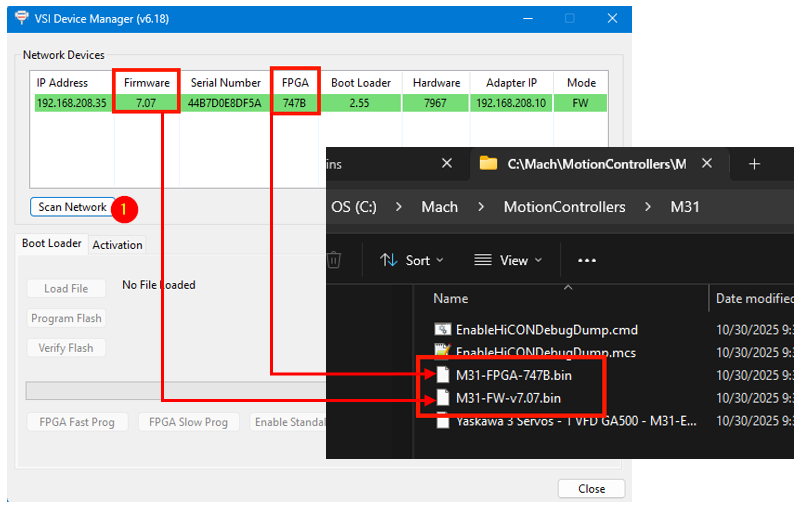
Click Scan Network.
-
Compare the Firmware and FPGA versions shown with the files in
C:\Mach\Plugins\Dependencies\M31Plugin\Firmware and look for the latest M31-FW-*.bin file
If they match, the system is ready. You may close all windows and continue.
Note: If you cannot find the M31 when you scan network, the M31 IP address may not yet be configured to the current default IP. On the bottom right side of the VSI Device Manager, type in 192.168.208.35 and press Set New IP Addr. Cycle power on the M31 and you should be able to see it in the VSI Device Manager. 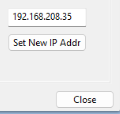
If they do not match, follow the next steps to update the M31.
Update Firmware and FPGA on the M31
-
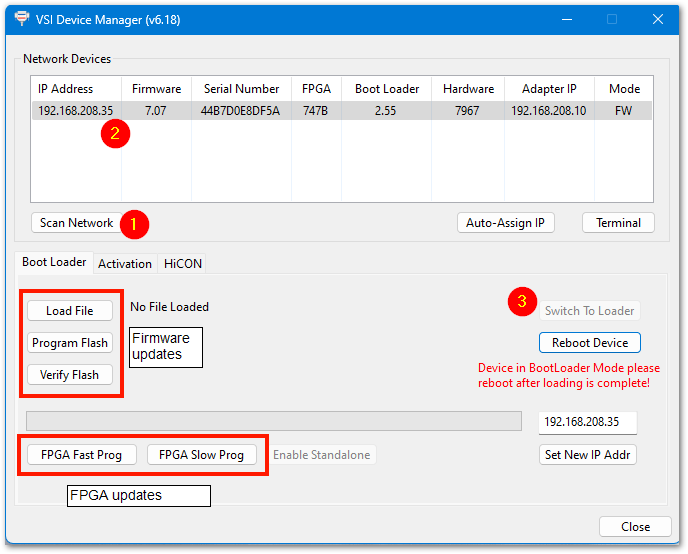
After scanning the network, locate your M31 in the device list.
Click it once — the row will turn blue. -
Click Switch to Loader.
The row will change to tan, indicating Loader mode.
Updating the FPGA:
-
Click FPGA Fast Prog.
-
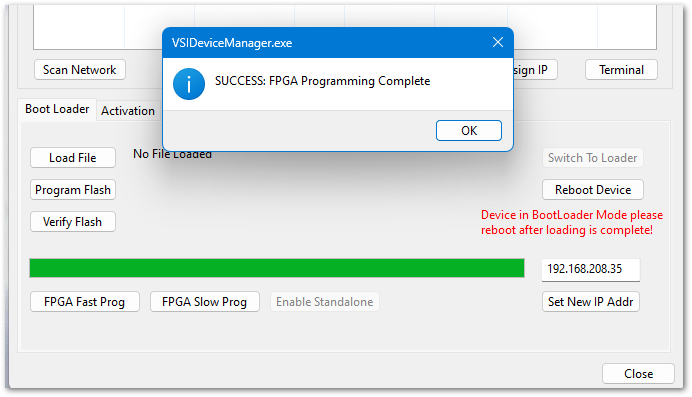
When prompted, navigate to C:\Mach\Plugins\Dependencies\M31Plugin\Firmware and select the latest M31-FPGA-*.bin file.
- Follow the prompts to complete the update.
-
Click Reboot Device and wait for the confirmation that the operation is complete.
Updating the Firmware:
-
Click Switch to Loader again.
-
Click Load File, and select the firmware (M31-FW-*.bin) file from
C:\Mach\Plugins\Dependencies\M31Plugin\Firmware -
Click Program Flash to install it.
- Click Reboot Device and wait for the confirmation that the operation is complete.

When both updates finish, click Scan Network again and verify that the Firmware and FPGA versions now match the MachPro package files.
| http://www.mach-labs.com | MachLabs Documentation | support@mach-labs.com |
The MachLabs Team
14518 County Road 7240, Newburg, MO 65550
support@mach-labs.com