
5 Examples
Examples
The following examples are to provide some guidance on the creation of scripts. They are not specific to any one machine and are not guaranteed to work on any machine.
Using Signals
Signals are internal triggers for events in Mach4. They can be tied to external I/O, or internal events such as running a Gcode file, jogging, feed hold, soft limit state, enabled state, etc. A common use for signals in scripts will be to read the state of inputs, and set outputs active or inactive. Turning on/off coolant, clamping fixtures, and special spindle functions, are all examples of when signals might be used in a script. Here is a quick script for turning the spindle on, in the forward direction, Mach signal
OSIG_SPINDLEFWD.
|
local inst = mc.mcGetInstance() local hsig = mc.mcSignalGetHandle(inst, mc.OSIG_SPINDLEFWD) local spinstate = mc.mcSignalGetState(hsig) mc.mcSignalSetState(hsig, 0) end |
To use a signal we first need to know the handle, or Mach’s internal reference ID for the signal. Once we know the handle, the state can be read and/or written to. By reading the state of OSIG_SPINDLEFWD we know if the spindle is on in the forward direction or not. We can then decide what to do based on that information. This script will turn the spindle on in the forward direction if it is currently not running in forward, and will stop it if it is running in forward. This is a very simple example, but it shows the basics of how to use signals.
Reading Data from an External File
Lua scripts are also capable of reading data from an external file, a .csv for example. This can be extremely useful for providing a table of shapes for a wizard, or materials, positions for a tool changer, etc. Having data in an external file can make it easier to edit by providing a formatted Excel spreadsheet for example, or make it more difficult by making the file read only.
For an example let’s make a .csv file that contains X, Y and Z positions of tools in a rack style tool changer, we’ll call it “ToolChangePositions.csv”. This is what it will look like:
Looking at this table we can see that tool number 1 is at the position X3.5, Y2, Z-10. If we can read this data into a table in a script it can be used to find the tool position in a tool change routine. Below is what that script could look like.
For this a table makes the most sense for storing the tool position data. We can start by defining the table TC_Positions.
Then we can find the .csv file and store the path to a variable, in this case CSVPath.
Next we open the file to read the data. Because we are going to have multiple pieces of data, tool number and three positions, for each entry we will create a table for each entry within the TCPositions table. The variable ToolNum sets the ID of each entry, or line in the .csv. So we start with ToolNum = 0, the header information will land here. Then we increment ToolNum by 1 and run it again, so all the data from the tool number 1 line in the .csv will be in the table TCPositions[1] table and so on. This loop will run until there is no more data in the .csv.
Just before incrementing ToolNum, we can set a max tool number in TCPositions so we know how many tools have been defined. We will call this TCPositions[“Max”]. The value of this will be equal to the last tool number entered. So in this example TCPositions[“Max”] = 6.
Now the position data can be used in a tool change script. The following lines show how to read and use the data. This example script checks to make sure the selected tool number is greater than 0 but less than or equal to the maximum. So if a user tried to select tool number 10 they would get the “ERROR: Tool number out of range!” message. If the selected tool number is within the valid range then the tool position data will be displayed in the message bar on the Mach4 screen.
|
local TC_Positions = {} ToolNum = 0; --[[ Open the file and read out the data --]] io.input(io.open(CSVPath,"r")) local line; for line in io.lines(CSVPath) do tkz = wx.wxStringTokenizer(line, ","); TC_Positions[ToolNum] = {}-- make a blank table in the positions table to hold the tool data TC_Positions[ToolNum] ["Tool_Number"] = token; TC_Positions[ToolNum] ["X_Position"] = tkz:GetNextToken(); TC_Positions[ToolNum] ["Y_Position"] = tkz:GetNextToken(); TC_Positions[ToolNum] ["Z_Position"] = tkz:GetNextToken(); TC_Positions["Max"] = ToolNum --Set the max tool number ToolNum = ToolNum + 1 --Increment the tool number end io.close() --Read tool data local SelectedToolNum = 1 local MaxToolNum = TC_Positions["Max"] if (SelectedToolNum <= MaxToolNum) and (SelectedToolNum > 0) then local Num = TC_Positions[SelectedToolNum].Tool_Number mc.mcCntlSetLastError(inst, string.format("Tool: %.0f | X: %.3f | Y: %.3f | Z: %.3f", Num, XPos, YPos, ZPos)) mc.mcCntlSetLastError(inst, "ERROR: Tool number out of range!") end |
Modules
Modules are scripts that can be accessed from any other script in Mach4. This is useful if you have functions or data that could be used in multiple types of scripts all throughout your Mach interface. This could be reading and storing data for wizards, commonly used functions, or all of the special scripts and functions used in the screen. For developers putting special or custom scripts in a module has the benefit of being able to compile it so pieces of the code cannot be copied and reused somewhere. Screen buttons that require lengthy scripts can be simple function calls to code in a compiled module.
For an example, the tool change position script from the previous section could be converted into a module to be used by the tool change routine. This will simplify the tool change script itself and also allow access to the data in other scripts.
The first step will be making some slight changes to the tool change positions script from the previous example. It will be saved in the Modules folder as ToolChangePositions.lua.
|
local TC_Positions = {} local CSVPath = wx.wxGetCwd() .. "\\Profiles\\YourProfile\\Modules\\ToolChangePositions.csv"
ToolNum = 0; --[[ Open the file and read out the data --]] io.input(io.open(CSVPath,"r")) local line; for line in io.lines(CSVPath) do tkz = wx.wxStringTokenizer(line, ","); TC_Positions[ToolNum] = {}-- make a blank table in the positions table to hold the tool data TC_Positions[ToolNum] ["Tool_Number"] = token; TC_Positions[ToolNum] ["X_Position"] = tkz:GetNextToken(); TC_Positions[ToolNum] ["Y_Position"] = tkz:GetNextToken(); TC_Positions[ToolNum] ["Z_Position"] = tkz:GetNextToken(); TC_Positions["Max"] = ToolNum ToolNum = ToolNum + 1; end io.close() function TC_Positions.GetToolData(SelectedToolNum) local MaxToolNum = TC_Positions["Max"] if (SelectedToolNum <= MaxToolNum) and (SelectedToolNum > 0) then else end return TC_Positions |
Reading through this new script we can see that it is mostly the same. The difference is an addition of a function, TC_Positions.GetToolData(SelectedToolNum), to return the data associated with the desired tool number back to the main program. This module can stay in the modules folder, and could also be compiled and saved as a .mcc file instead of the .lua or .mcs formats. Any of the three formats are acceptable. A compiled .mcc file has the benefit and drawback of not being editable or even viewable.
The function TC_Positions.GetToolData(SelectedToolNum) checks the selected tool number against the max tool number and zero. If the selected tool number is in the valid range then the data is returned using the return command: return TC_Positions[SelectedToolNum]. If the selected tool number is outside the valid range then “nil” is returned. In the main program we can use this difference in returned value to check if the tool number was valid or not.
The last line in the module is return TC_Positions. This line sends the table TC_Positions, with all of its contents, back to the script that loaded the module.
Now for the main script, this is what would appear in the tool change script to get the tool change positions.
|
local inst = mc.mcGetInstance() package.path = wx.wxGetCwd() .. "\\Profiles\\YourProfile\\Modules\\?.lua;" if(package.loaded.ToolChangePositions == nil) then if (ToolData ~= nil) then Num = ToolData.Tool_Number XPos = ToolData.X_Position YPos = ToolData.Y_Position ZPos = ToolData.Z_Position mc.mcCntlSetLastError(inst, string.format("Tool: %.0f | X: %.3f | Y: %.3f | Z: %.3f", Num, XPos, YPos, ZPos)) else mc.mcCntlSetLastError(inst, "ERROR: Tool number out of range!")
|
The first part of this script set the file path for the module, or package, to load. The “?.lua” is like a wild car. It’s looking for any file with the extension .lua, if you’re module is compiled this would need to be changed to .mcc. The following if statement checks to see if the desired module, in this case
ToolChangePositions, is loaded to the variable “tcp”. Whatever is returned at the end of the module, in our module the table “TC_Positions” is returned on the last line, is now contained in the variable tcp.
Now tool data can be retrieved by using the TC_Positions.GetToolData(SelectedTool) function. To call it from the main script replace the variable name in the module with the new variable name that the module was loaded to in the main script, tcp. So to get tool data for a selected tool we would call the function tcp.GetToolData(SelctedTool). In this example script the command mc.mcToolGetSelected(inst) is used to get the currently selected tool from Mach, the last T number commanded in a program or in MDI. So in the case of a tool change; if T4 M6 is commanded in a program then calling
mc.mcToolGetSelected(inst) in the M6 macro will return a value of 4. Passing this into our GetToolData function will return the position values for the selected tool provided that it is within the acceptable range.
Now we can check to see if we got valid data back and use it if we did. If the function returns nil, then we know that the tool number was outside the acceptable range and we can error and/or abort the process.
Tool Change
In the previous examples we’ve been building up to a tool change macro for a rack style tool changer. It’s time to put it all together. We will use the module for getting the tool position data, and the main script from the last example will be the bones of our tool change script.
A couple thoughts before we write the script. 1.) A tool change routine should only execute if the tool actually needs changing, there is no sense doing anything if the tool we want to change to is already in the spindle. 2.) We will be moving the machine around and changing modal states and feedrates. It is a good idea to store the state of the machine prior to changing anything so it can be returned to that state when the tool change is complete. This helps to avoid accidents from a machine unknowingly being changed into incremental mode when it is expected to be in absolute, bad feedrates being used because they weren’t specified after a tool change, or any of a host of other possible issues. Best to avoid such problems.
Let’s create an m6 tool change script to use our module and change tools.
|
local inst = mc.mcGetInstance() package.path = wx.wxGetCwd() .. "\\Profiles\\YourProfile\\Modules\\?.lua;" tcp = require "ToolChangePositions" function m6() ------ Get and compare next and current tools ----- mc.mcCntlSetLastError(inst, "Next tool = Current tool") end local CurFeed = mc.mcCntlGetPoundVar(inst, 2134)
------ Get position data for current tool ------ ToolData = tcp.GetToolData(CurrentTool) if (ToolData ~= nil) then Num1 = ToolData.Tool_Number XPos1 = ToolData.X_Position YPos1 = ToolData.Y_Position mc.mcCntlEStop(inst) mc.mcCntlSetLastError(inst, "ERROR: Tool number out of range!") do return end ------ Get position data for next tool ------ ToolData = tcp.GetToolData(SelectedTool) Num2 = ToolData.Tool_Number XPos2 = ToolData.X_Position YPos2 = ToolData.Y_Position else mc.mcCntlEStop(inst) mc.mcCntlSetLastError(inst, "ERROR: Tool number out of range!") do return end end
------ Move to current tool change position ----- GCode = GCode .. "G00 G90 G53 Z0.0\n" GCode = GCode .. string.format("G00 G90 G53 X%.4f Y%.4f\n", XPos1, YPos1) GCode = GCode .. string.format("G00 G90 G53 Z%.4f\n", ZPos1 + 1.0) mc.mcCntlGcodeExecuteWait(inst, GCode)
------ Release drawbar ----- local hsig = mc.mcSignalGetHandle(inst, DrawBarOut)
------ Move to next tool change position ------ GCode = "" GCode = GCode .. string.format("G01 G90 G53 Z%.4f\n F15.0", ZPos1 + 1.0) GCode = GCode .. "G00 G90 G53 Z0.0\n" GCode = GCode .. string.format("G00 G90 G53 X%.4f Y%.4f\n", XPos2, YPos2) GCode = GCode .. string.format("G00 G90 G53 Z%.4f\n", ZPos2 + 1.0) mc.mcCntlGcodeExecuteWait(inst, GCode)
------ Clamp drawbar -----
------ Move Z to home position ------ mc.mcCntlGcodeExecuteWait(inst, "G00 G90 G53 Z0.0\n")
------ Reset state ------ mc.mcCntlSetPoundVar(inst, 2134, CurFeed)
------ Set new tool ------ mc.mcToolSetCurrent(inst, SelectedTool) mc.mcCntlSetLastError(inst, string.format("Tool change - Tool: %.0f", SelectedTool)) end if (mc.mcInEditor() == 1) then m6() |
Each section of the tool change macro is labeled to make it easier to follow. We’ve combined all the code examples from the previous examples to arrive here, with a couple new additions. Let’s walk through it.
The first section of the code loads the module we will be using to look up the tool positions. This is positioned outside the m6() function so that it can be available to all M codes without having to call it in every macro it is used in.
Next is the m6() function. Recall that an M code requires a function of the same name to call. In this case an M6 in the program will call the m6() function.
Now, inside the function is the meat of the tool change. The first section, “Get and compare next and current tools,” gets the next tool and current tool and compares them to make sure a tool change should happen. If the current tool in the spindle is the tool to be changed to exit the script.
Previously we talked about getting the current state of the machine prior to changing anything so we can set it back the way we found it when the script exits. The next section, “Get current state,” retrieves that data for us and saves it for later.
The next two sections, “Get position data…,” does just what it says. This is the section of the script that accesses the “ToolChangePositions” module that we created. These two sections function just like the code we developed in the module example. After getting the tool position data it is checked to make sure a valid selection was made. This error also needs to stop the machine or it will just keep running the program when the script is exited, this is big potential for a crash. In this example and E-stop command is given when an invalid tool is selected to make sure the machine is incapable of continuing when the script is exited. This way if the selection is invalid we exit the script with an error rather than get part way thru a tool change and then error for bad data.
If the tool selection is valid for both tools we move ahead to the next sections which perform the actual tool change motion. The “Move to current tool change position,” executes a short G code program to move the machine to the spot in the rack for the tool currently in the spindle.
The “Release drawbar” section does just that. Using the code from the example in section 5.1 we can make a bit of code to activate the output that controls the drawbar.
After releasing the tool the sections, “Move to next tool change position”, “Clamp drawbar”, and “Move to Z home position” continue the rest of the machine motion to pick up the next tool and return home.
After all the motion of actually changing tools, we can “Reset state” back to what it was before entering the macro. The last thing to do is reset the current tool to the new tool in the “Set new tool” section. That ends the m6() function.
Below that is an if statement to check if the script is open in an editor. As discussed before this is for debugging, so when in the editor the function will be called.
Automatic Tool Height Setting
There are several ways to create an automatic tool height setting process. It could be written in G code or in a Lua script. Since this is a Lua scripting manual we’ll show one way to set tools using a Lua script. This example puts the auto tool height setting script in an M code for easy access from anywhere in Mach. It can be executed from a button or in a program. The following program is an example of an M code for automatically setting the height of a tool. There are a number of necessary parameters that are stored in registers, so it is necessary to get those values before performing the operation. This script follows the same format as the tool change macro example in section 5.4.
A brief run through: As before the first step in the script is getting and defining necessary variables and the current state of the machine. Register values are retrieved using the GetRegister() function created in section 4.3. It is not defined in this script so it must be defined in an M code header file or a loaded module to allow access to it.
The next sections calculate the position on the touch off sensor and use a G31 probing move the tool into the sensor. The state of the sensor’s signal is checked before movement to make sure it is not already active, and the checked again after it is touched to make sure that it was indeed contacted. This is all error checking and although it is not required it is strongly suggested.
Following the actually tool touch off movement, the offset length is calculated and set and then everything returned to its previous state.
|
----------------------------------------------------------------------------- -- Auto Tool Setting Macro ----------------------------------------------------------------------------- --[[ Requires the following instance registers to be defined TS_XPos-----------X position of probe (machine position) TS_YPos-----------Y position of probe (machine position) TS_Type-----------Offset type (1 or 2) TS_TouchPos-------Z position of touch off surface (machine position) TS_ProbeH---------Height of probe above touch off surface TS_DefaultL-------Default tool length guess TS_Retract--------Retract distance after probe touch Offset Type 1-----Length of tool from gauge line to tip Offset Type 2-----Distance from tip of tool to the touch position ]] --The function GetRegister() must be defined for use by macros function m1005() local inst = mc.mcGetInstance()
------------- Define Vars ------------ ------------- Get current state ------------ ------------- Get touch off parameters ------------- local Xpos = GetRegister("TS_XPos", 1) ------------- Check Probe ------------- local hsig = mc.mcSignalGetHandle(inst, ProbeSignal) local ProbeState = mc.mcSignalGetState(hsig) mc.mcCntlSetLastError(inst, "ERROR: Probe signal is activated") end
------------- Calculations for Gcode ------------- local StartHeight = TouchPos + ProbeHeight + ToolLengthGuess + .5
------------- Generate GCode ------------- AutoToolSetGCode = "" |
|
AutoToolSetGCode = AutoToolSetGCode .. "G00 G80 G40 G49 G90\n" AutoToolSetGCode = AutoToolSetGCode .. "G00 G53 Z0.0\n" AutoToolSetGCode = AutoToolSetGCode .. string.format("G00 G53 X%.4f Y%.4f\n", Xpos, Ypos) AutoToolSetGCode = AutoToolSetGCode .. string.format("G00 G53 Z%.4f\n", StartHeight) AutoToolSetGCode = AutoToolSetGCode .. "G91 G31 Z-2.0 F25.\n"
mc.mcCntlGcodeExecuteWait(inst, AutoToolSetGCode) --Check probe contact ProbeState = mc.mcSignalGetState(hsig) if (ProbeState ~= 1) then mc.mcCntlSetLastError(inst, "ERROR: No contact with probe") end
AutoToolSetGCode = "" AutoToolSetGCode = AutoToolSetGCode .. string.format("G91 G00 Z%.4f\n", RetractDistance) AutoToolSetGCode = AutoToolSetGCode .. "G91 G31 Z-1.0 F10.\n"
mc.mcCntlGcodeExecuteWait(inst, AutoToolSetGCode) --Check probe contact ProbeState = mc.mcSignalGetState(hsig) if (ProbeState ~= 1) then mc.mcCntlSetLastError(inst, "ERROR: No contact with probe") end
AutoToolSetGCode = "" AutoToolSetGCode = AutoToolSetGCode .. "G90 G00 G53 Z0.0\n" ------------- Get touch position and set offset ------------- local ZProbed = mc.mcCntlGetPoundVar(inst, 5063) if (OffsetType == 1) then ZOffset = math.abs(TouchPos - ZOffset) end
mc.mcToolSetData(inst, mc.MTOOL_MILL_HEIGHT, CurTool, ZOffset) mc.mcCntlSetLastError(inst, string.format("Auto tool setting complete, Offset = %.4f", ZOffset))
------------- Set previous state ------------ end if (mc.mcInEditor() == 1) then m1005() end |
Wizards
Wizards are tools that can be created and used to perform common function. In Mach4 a wizard is usually a graphical interface for creating G code files, very similar to conversation programming on some machines. Lua gives the programmer the ability to create a wizard for anything; hole patterns, facing, engraving, spirals, loops, play music. Included with Mach4 is a bolt circle wizard designed to show users how wizards can be built. It is written to be easy for a user to modify to create their own wizard.
Wizard scripts should be located in the “Wizards” folder in the Mach4 root directory. The “Load Wizards” button on the default Mach4 screen will load the scripts located here. When the “BoltHoleCircle” wizard is run it will open a window:
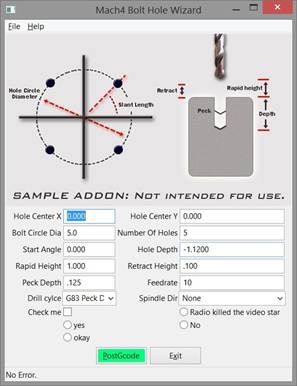
Figure 512: Bolt Hole Circle Wizard
This window is created using the functions and variables laid out in the script. There is a lot going on is this script to create the window layout and setup the buttons. Because a lot of the programming for the window itself is out of the scope of this manual, we will stick to discussing how and where to modify this to create another wizard. The only parts to worry about are the functions: Setupinputs(), SaveSettings(), GenGcode(), and variables “m_iniName” and “m_image”. Following is the code to create the bolt circle wizard:
|
---------------------------------------------------------------------------- -- Name: BoltHolelua -- Author: B Barker -- Modified by: -- Created: 08/03/2013 -- Copyright: (c) 2013 Newfangled Solutions. All rights reserved. -- Licence: BSD license ----------------------------------------------------------------------------- function GetNextID() end --global var to hold the frame mainframe = nil panel = nil m_id = 0 m_iniName = "CircleHolePat" ID_GENGCODE_BUT = GetNextID() ID_CLOSE_BUTTON = GetNextID() m_image = wx.wxGetCwd() .. "\\Wizards\\HolesNew.png" function Setupinputs() --Add all the inputs local val m_center_x = AddInputControl("Hole Center X",nil) m_center_x:SetValue( mc.mcProfileGetString(0 , tostring(m_iniName), "Xcenter", "0.000") ) m_center_y = AddInputControl("Hole Center Y", nil) m_circle_dia:SetValue( mc.mcProfileGetString(0 , tostring(m_iniName), "Dia", "5.0") ) m_NumHoles:SetValue( mc.mcProfileGetString(0 , tostring(m_iniName), "Holes", "5") ) m_StartAngle:SetValue( mc.mcProfileGetString(0 , tostring(m_iniName), "Startangle", "0.000") ) m_z_depth = AddInputControl("Hole Depth", nil) m_z_depth:SetValue( mc.mcProfileGetString(0 , tostring(m_iniName), "Depth", "-1.1200") ) m_rapid_height = AddInputControl("Rapid Height", nil) m_rapid_height:SetValue( mc.mcProfileGetString(0 , tostring(m_iniName), "RapidHeight", "1.000") ) m_retract_height = AddInputControl("Retract Height", nil) m_retract_height:SetValue( mc.mcProfileGetString(0 , tostring(m_iniName), "RetractHeight", ".100") ) m_peck_depth = AddInputControl("Peck Depth", nil) m_peck_depth:SetValue( mc.mcProfileGetString(0 , tostring(m_iniName), "PeckDepth", ".125") ) m_feedrate = AddInputControl("Feedrate", nil) m_feedrate:SetValue( mc.mcProfileGetString(0 , tostring(m_iniName), "Feed", "10") ) m_cycletype, ID_CYCLE_TYPE = AddSelectControl("Drill cylce", {"G81 Single pass", "G83 Peck Drill", "G73 High speed Peck"}, ID_CYCLE_TYPE) local val = mc.mcProfileGetString(0 , tostring(m_iniName), "Cycle", "0") m_spindle = AddSelectControl("Spindle Dir", {"None", "CW", "CCW"}, nil) m_Test2 = AddRadioControl("Radio killed the video star") AddRadioControl("yes") AddRadioControl("No ") AddRadioControl("okay") end function SaveSettings() mc.mcProfileWriteString(0 , tostring(m_iniName), "Xcenter", tostring(m_center_x:GetValue())) mc.mcProfileWriteString(0 , tostring(m_iniName), "RetractHeight", tostring(m_retract_height:GetValue())) mc.mcProfileWriteString(0 , tostring(m_iniName), "PeckDepth", tostring(m_peck_depth:GetValue())) mc.mcProfileWriteString(0 , tostring(m_iniName), "Feed", tostring(m_feedrate:GetValue())) mc.mcProfileWriteString(0 , tostring(m_iniName), "Cycle", tostring(m_cycletype:GetCurrentSelection())) end function GenGcode() local x_center = m_center_x:GetValue() local stAngle = (math.pi/180)*m_StartAngle:GetValue() local gcode = string.format("G00 Z%.4f\n", RapidHeight) local x = x_center+(dia/2)*math.cos(stAngle); local y = y_center+(dia/2)*math.sin(stAngle);
local spin = m_spindle:GetCurrentSelection() if(spin == 0)then gcode = gcode .. "(No Spindle M Code)\n" elseif(spin == 1) then gcode = gcode .. "M03 (Spinle CW)\n" elseif(spin == 2) then gcode = gcode .. "M04 (Spinle CCW)\n" if(drilltype == 0)then gcode = gcode .. string.format("G81 X%.4f Y%.4f Z%.4f R%.4f F%.4f\n", x, y, depth, retheight, feed ) elseif(drilltype == 1) then gcode = gcode .. string.format("G83 X%.4f Y%.4f Z%.4f R%.4f Q%.4f F%.4f\n", x, y, depth, retheight, peck, feed ) elseif(drilltype == 2) then gcode = gcode .. string.format("G73 X%.4f Y%.4f Z%.4f R%.4f Q%.4f F%.4f\n", x, y, depth, retheight, peck, feed ) end local StepAng= (2*math.pi)/numberofholes; for i=1, numberofholes-1, 1 do x=x_center+(dia/2)*math.cos(stAngle+(StepAng*i)); end gcode = gcode .. "G80\nM05\nM30" local file = wx.wxFileDialog(panel, "Select Gcode File", "", "", "Text files (*.txt)|*.txt|Tap files (*.tap)|*.tap", wx.wxFD_SAVE,wx.wxDefaultPosition,wx.wxDefaultSize, "File Dialog"); if(file:ShowModal() == wx.wxID_OK)then --wx.wxMessageBox(tostring(path)) io.output(io.open(path,"w")) mc.mcCntlLoadGcodeFile( 0, tostring(path)) end SaveSettings() end function main() if(mcLuaPanelParent == nil)then -- create the wxFrame window mainframe = wx.wxFrame( wx.NULL, -- no parent wx.wxID_ANY, -- whatever for wxWindow ID "Mach4 Bolt Hole Wizard", -- frame caption wx.wxDefaultPosition, -- place the frame in default position wx.wxDEFAULT_FRAME_STYLE ) -- use default frame styles -- create a panel in the frame panel = wx.wxPanel(mainframe, wx.wxID_ANY) -- create a simple file menu with an exit local fileMenu = wx.wxMenu() fileMenu:Append(wx.wxID_EXIT, "E&xit", "Quit the wizard") -- create a simple help menu helpMenu:Append(wx.wxID_ABOUT, "&About", "About Bolt Hole Wizard") -- create a menu bar and append the file and help menus local menuBar = wx.wxMenuBar() -- attach the menu bar into the frame -- create a simple status bar -- connect the selection event of the exit menu item to an -- event handler that closes the window wx.wxEVT_COMMAND_MENU_SELECTED, function (event) -- connect the selection event of the about menu item mainframe:Connect(wx.wxID_ABOUT, wx.wxEVT_COMMAND_MENU_SELECTED, function (event) wx.wxMessageBox("Bolt Hole pattern wizard \n\nAuthor: Brian Barker\nDate: 8/3/13\nThis wizard is to be used as an example of how to make a wizard", "About wxLua", wx.wxOK + wx.wxICON_INFORMATION, mainframe) else panel = mcLuaPanelParent end --Set up the main sizer so we can start adding controls local InputsGridSizer = wx.wxFlexGridSizer( 2, 4, 0, 0 ) InputsGridSizer:AddGrowableCol(1, 0)
function AddInputControl(name_string, width) if(width == nil)then end local textCtrlID = GetNextID() local staticText = wx.wxStaticText( panel, wx.wxID_ANY, name_string) local textCtrl = wx.wxTextCtrl( panel, textCtrlID, "0.000", wx.wxDefaultPosition, wx.wxSize(width, -1), wx.wxTE_PROCESS_ENTER ,wx.wxTextValidator(wx.wxFILTER_NUMERIC)) InputsGridSizer:Add( staticText, 0, wx.wxALIGN_CENTER_VERTICAL+wx.wxALL+wx.wxALIGN_RIGHT, 2) InputsGridSizer:Add( textCtrl, 0, wx.wxGROW+wx.wxALIGN_CENTER+wx.wxALL+wx.wxALIGN_LEFT, 2) return textCtrl, textCtrlID function AddCheckControl(name_string) local staticText = wx.wxStaticText( panel, wx.wxID_ANY, name_string) local Ctrl = wx.wxCheckBox( panel, ID, "", wx.wxDefaultPosition, wx.wxDefaultSize, wx.wxTE_PROCESS_ENTER ,wx.wxTextValidator(wx.wxFILTER_NUMERIC)) InputsGridSizer:Add( staticText, 0, wx.wxALIGN_CENTER_VERTICAL+wx.wxALL+wx.wxALIGN_RIGHT, 2) InputsGridSizer:Add( Ctrl, 0, wx.wxGROW+wx.wxALIGN_CENTER+wx.wxALL+wx.wxALIGN_LEFT, 2) return Ctrl, ID function AddRadioControl(name_string) local ID = GetNextID() local sizer = wx.wxBoxSizer( wx.wxHORIZONTAL ) local Ctrl = wx.wxRadioButton( panel, ID, name_string, wx.wxDefaultPosition, wx.wxDefaultSize, wx.wxTE_PROCESS_ENTER ,wx.wxTextValidator(wx.wxFILTER_NUMERIC)) InputsGridSizer:Add( sizer, 0, wx.wxALIGN_CENTER_VERTICAL+wx.wxALL+wx.wxALIGN_RIGHT, 2) InputsGridSizer:Add( Ctrl, 0, wx.wxGROW+wx.wxALIGN_CENTER+wx.wxALL+wx.wxALIGN_LEFT, 2) return Ctrl, ID end function AddSelectControl(name_string, selections, selCtrlID) local selCtrlID = GetNextID() local staticText = wx.wxStaticText( panel, wx.wxID_ANY, name_string ) InputsGridSizer:Add( staticText, 0, wx.wxALIGN_CENTER_VERTICAL+wx.wxALL+wx.wxALIGN_RIGHT, 2) InputsGridSizer:Add( selCtrl, 0, wx.wxGROW+wx.wxALIGN_CENTER, 2) return selCtrl, selCtrlID -- Add image to the top local TopImage = wx.wxStaticBitmap(panel, wx.wxID_ANY, hbmp ) --Setup the inputs Setupinputs() -- make the bottom buttons local buttonSizer = wx.wxBoxSizer( wx.wxHORIZONTAL ) local genGcode = wx.wxButton( panel, ID_GENGCODE_BUT, "&PostGcode") genGcode:SetBackgroundColour(wx.wxColour(0,255, 128))
buttonSizer:Add( genGcode, 0, wx.wxALIGN_CENTER+wx.wxALL, 2 ) local closeButton = wx.wxButton( panel, ID_CLOSE_BUTTON, "E&xit") end
--Set up the sizers mainSizer:Add( TopImage, 0, wx.wxALIGN_CENTER+wx.wxALL, 2 ) panel:SetSizer( mainSizer ) panel:Connect(ID_GENGCODE_BUT, wx.wxEVT_COMMAND_BUTTON_CLICKED, function(event) end)
panel:Connect(ID_CYCLE_TYPE, wx.wxEVT_COMMAND_COMBOBOX_SELECTED, if(m_cycletype:GetCurrentSelection() == 0)then m_peck_depth:SetBackgroundColour(wx.wxColour("LIGHT GRAY")) m_peck_depth:SetEditable(true) m_peck_depth:SetBackgroundColour(wx.wxColour(wx.wxNullColour)) end end) -- Connect a handler for pressing enter in the textctrls function(event) -- Send "fake" button press to do calculation. -- Button ids have been set to be -1 from textctrl ids. -- dialog:ProcessEvent(wx.wxCommandEvent(wx.wxEVT_COMMAND_BUTTON_CLICKED, event:GetId()- 1)) -- show the frame window
if(mcLuaPanelParent == nil)then panel:Connect(ID_CLOSE_BUTTON, wx.wxEVT_COMMAND_BUTTON_CLICKED, panel:Fit() |
First is “m_iniName”. Variable values from the input boxes will be stored in a section in the machine.ini file. Set “m_iniName” to be something descriptive, usually similar to the name of the wizard. This helps with organization in the .ini file.
m_iniName = "CircleHolePat"
Next is “m_image.” This variable sets the path to the image to be displayed at the top of the wizard window. Change the file path and name to match the location of the desired image.
m_image = wx.wxGetCwd() .. \\Wizards\\HolesNew.png
The first function is Setupinputs(). This function defines the inputs to be displayed at the bottom of the wizard window. The formatting is already done, all that is required is to add or remove lines and rename them to the desired variable and description. Generally each input will have two lines of code, the first calls the function AddInputControl() to add the label and input box to the wizard window. In the snippet below “m_center_x” will be assigned the value of whatever is input into the input box labeled “Hole Center X”. The second line sets the value of “m_center_x” and the input box to the last value that was saved in the machine.ini file, in the “CircleHolePat” section with the handle “Xcenter”. If there is no value in the .ini then a default value of 0.00 will be assigned.
m_center_x = AddInputControl("Hole Center X",nil)
m_center_x:SetValue( mc.mcProfileGetString(0 , tostring(m_iniName), "Xcenter", "0.000") )
Drop down selection boxes are also possible using the following format:
AddSelectControl("Spindle Dir", {"None", "CW", "CCW"}, nil)
Radio controls and check boxes also have functions for easy creation.
m_Test = AddCheckControl("Check me")
m_Test2 = AddRadioControl("Radio killed the video star")