
2 Script Editor
Script Editor
Mach4 includes a built in script editor. The editor can be found in the ‘Operator’ menu as ‘Edit/Debug Scripts’ (see Figure 2-1). Selecting ‘Edit/Debut Scripts’ will open a window to select the script to be edited. By default the ‘Macros’ folder for the current profile will be shown. Select and open a file and it will be opened in the editor.
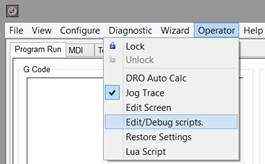
Figure 21: Operator Menu
The script editor is essentially a fancy text editor, with some features specific to programming scripts and macros for Mach4.
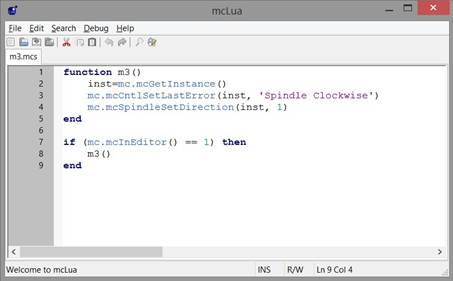
Figure 22: Script Editor
File Menu
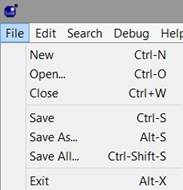
Figure 23: Script editor file menu.
Edit Menu
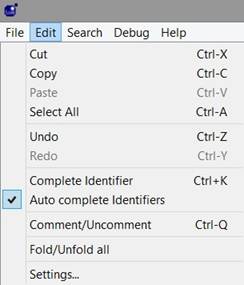
Figure 24: script editor edit menu.
Settings displays window that allows the operator to change the color and style of different types of text in the program.
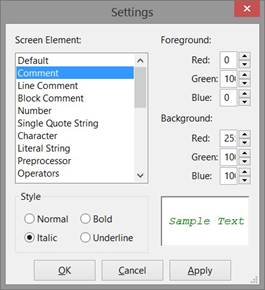
Figure 25: Script editor settings.
Search Menu
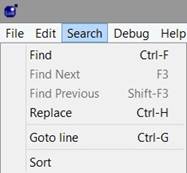
Figure 26: Script editor search menu
Debug Menu
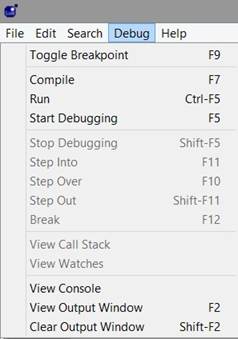
Figure 27: Script editor debug menu.
Start Debugging will start the debugger. Debugging helps in diagnosing errors in the program. There are a couple ways to run through the program in the debugging mode. The Start Debugging command will change to Continue when in the debugging mode. When the debugger starts the program will pause at the beginning and wait for input from the user. Continue will run through the complete program. The other controls, Step Into, Step Over, and Step Out allow the user to step through the script line by line. Step Into and Step Over differ in the way functions are executed. Step Into will make a single step into the function. Step Over will execute the entire function and pause at the end. If a function is stepped into, the Step Out command will execute the remaining portion of the function and pause at the end.
The Console shows error messages and debugging data while running programs.
Toolbar
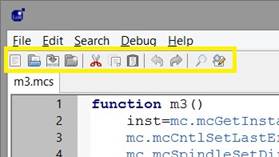
Figure 28: Script editor toolbar
The toolbar in the script editor contains some of the most common controls. From left to right:
• Create new document
• Open existing document
• Save current document
• Save all open documents
• Cut
• Copy
• Paste Undo
• Redo
• Search for text
• Find and replace text