
MachPro Jogging Increments & Pendant Info

Starting Principles
Configure the velocity and acceleration for each motor before working on pendant settings. Refer to your motion control manual in the axis calibration settings.
Work up to the highest velocity and acceleration values that your machine can safely and effectively run with. That will minimize your cycle times and your setup time.
- Set the maximum velocity as high as the motor and mechanics can safely run without excessive wear on the machine.
- Rapid rates (motor maximum velocity) can reduced with the screen controls.
- If velocity is too low, the pendant can outrun the motor maximum velocity
- Acceleration is set for each motor and it affects all motion on that motor - rapid moves and feed rate moves.
- Acceleration that is too low will increase cycle times per part
- Acceleration that is too high will create rigid, shaking, rough motion.
- The primary function of the machine is production, and jogging needs to work within the production settings.
Note: The pendant will send pulses to the control, and all those pulses will be completed - even if it takes several more seconds. It appears to be coasting, but it is really completing the motion you commanded. This is more visible on an axis with a low velocity and/or at the X100 increment.
Jog Settings
MachPro provides configuration options for External jogging using physical buttons on the control panel, and Manual Pulse Generator (MPG) jogging with a pendant.
There are also adjustments for Continuous and Incremental jogging; and for jogging rotary axes.
The default values will work for many machines. Very large or very small machines often need to adjust these values.
- Disable MachPro
- Pull down Configure -> Control
- Select the Settings tab
- Collapse the settings tree

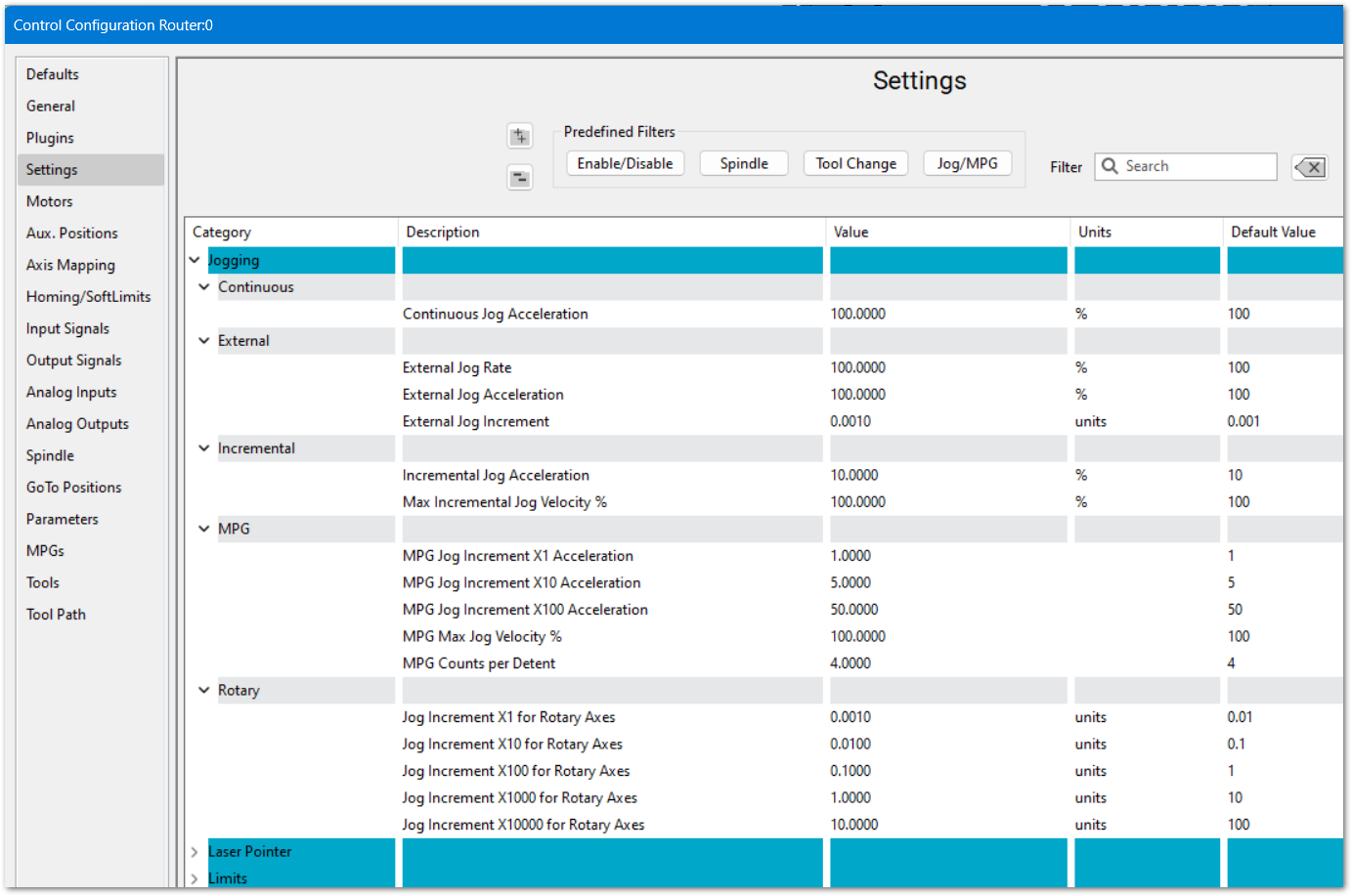
- Expand the Jogging section.

Continuous and Incremental Jog
Continuous jog acceleration defaults to 100% for long jogs. If that is too fast for your machine or application, you may reduce it.
Incremental jog acceleration is set low, at 10%, for precise movements.
External Jog Settings
These control the physical buttons on the face of the control.
MPG Pendant
MPG jog acceleration values are the ones most likely to be adjusted
This is not changing the motors' acceleration values - only the pendant's jog values. In the (Manual Pulse Generator) MPG section, you can enter values between 1-100.
- Adjust X1 first, then X10. These are for precise movements and you should see accurate motion with no coasting.
- Adjust X100 last. This is for long distance jogging and you may have some coasting in this increment. Coasting is when you stop spinning the pendant wheel, but the axis continues to move. Note that the control will complete all of the movement that the pendant sends - no matter how long it takes.
- If the axis accelerates rigidly, shakes, or vibrates; the acceleration is set too high
- If the axis coasts, the acceleration is set too low
The MPG max jog velocity and counts per detent can also be changed, but note that those changes apply to all of the MPG increments - X1, X10 and X100. Often X100 is the one needing to be reduced while the others are left alone.
Rotary Jog Settings
These settings control the increment values and they apply to all rotary axes.
Adjusting Jog Increments
Test jogging before adjusting these values. The default values are often good.
To access the pendant jog increment settings:
- Disable MachPro
- Pull down Configure -> Control
- Select the General tab

|
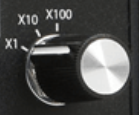
The pendant has three jog increment positions: X100, X10 and X1. The distance the machine will jog at each setting is determined by the values in the bottom 3 fields in both the inches and metric sections.
|
|
This screen sets the values for:
Using the values in this example:
If a position has a 0 then it will not be cycled through the jog increments for on-screen jogging.
On some systems (grinders), X100 is too fast and only X10 and X1 are needed. In that case set the X100 and X10 values the same 0.001 (inches) or 0.01 (metric).
|
|
To use the different jog increments with on-screen jogging:
|

Reverse MPG Pendant Direction
- Wired Pendant:
- In the User Interface tab of the MachPro Plugin, select the wired pendant in the list of active controllers, then set the Invert encoder checkbox (check the box if unchecked, uncheck if checked)
- Wireless Pendant:
- To enable the reverse, you need to add a key to the machine.ini file.
- Under the section for the MPG (eg. [ExternalController#]), add the field:
ReverseEncoder=1 - Note: The ExternalController # will depend on the setup location in the plugin list for the user interfaces.
| http://www.mach-labs.com | MachLabs Documentation | support@mach-labs.com |
The MachLabs Team
14518 County Road 7240, Newburg, MO 65550
support@mach-labs.com