
PRIVATE M31 Motion Control Setup Manual
{{@2007#bkmrk--1}}
The M31 is an industrial-grade motion controller for MachPro CNC systems. It serves as a stable hardware bridge between your Windows PC and machine drives, communicating over Ethernet to ensure synchronized, precise motion.
Key Features
- Axis Support: Base support for 6 axes, with scalable license upgrades to 12 axes.
- Control Flexibility: Supports both high-end EtherCAT and traditional step-and-direction protocols.
- Expandability: Allows you to connect EtherCAT I/O modules, absolute encoders, and servos so the machine never loses position.
WARNING: Incorrect installation can cause death, injury, or equipment damage. Do not attempt to install this controller until thoroughly reading and understanding this manual.
1 Introduction
Links to Portable Document Format (PDF) versions of the wiring diagrams are below the diagrams. Some PDF files contain three-dimensional (3D) models. These files have 3D.pdf at the end of the file name. Open a 3D PDF with Acrobat Reader or Foxit PDF Reader . You can rotate the 3D model to examine the wiring and components from different views. The 3D function uses additional features in the PDF reader. When you open a 3D PDF, click Trust to enable these features.
Sections 2 through 5 are designed to get most systems up and running with a minimum of custom configuration. If your system has features not described in these sections, please check sections 6 through 10. The Application notes have configuration information for less common features, and more discussion on configuration options.
Use the M31 image below as a reference throughout the manual.
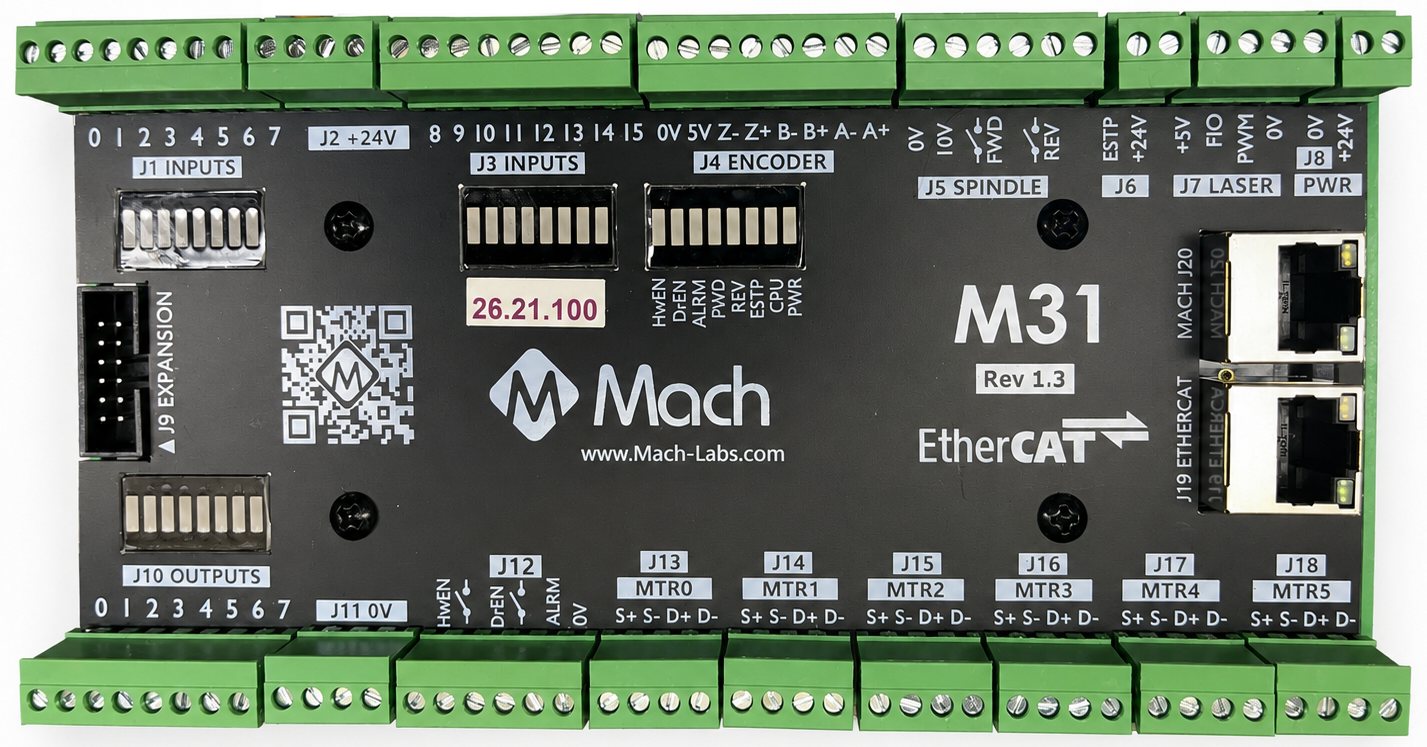
Status LEDs
Each LED has a single color.
| LED | ON | OFF |
|---|---|---|
| Power | Green - M31 is powered | No Power |
| CPU | Blue blinking - M31 CPU is active
|
CPU is not enabled |
| E-Stop | Red - E-Stop pressed, or the E-Stop circuit is incomplete | E-Stop is not active |
| Hardware Enable | Orange - Hardware Enable is on | No Hardware Enable signal |
| Drive Enable | Orange - Drive Enable is on | No Drive Enable signal |
| Spindle FWD | Green when spinning forward | |
| Spindle REV | Green when spinning in reverse | |
| Drive Alarm | Red - One or more drives are in alarm state | All drives report good |
Tools Required
A small, flat head screwdriver is needed for the I/O terminals.
Hardware Startup (J8)
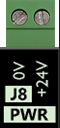
You must supply 24VDC to the power connection located at the top right of the board as shown below. The LED labeled PWR will be green when 24VDC is supplied.
Emergency Stop (E-Stop Circuit J6)
Connect your Emergency Stop devices to the J6 E-Stop circuit. This is a normally closed circuit with 24 VDC running in it. When the 24 VDC signal is lost, the red E-Stop LED will turn on and the system will disable immediately
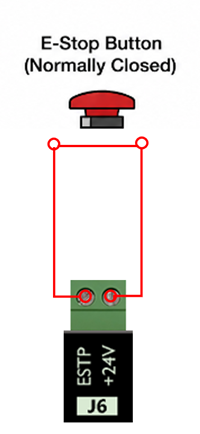
Important: The M31 motion controller will not operate unless the Emergency Stop (E-Stop) button is released or the circuit is jumpered.
If you are not going to use any Emergency Stop devices, place a jumper between the ESTP and +24V terminals on J6. See the application notes at the end of this document for information about other E-Stop variations and the signal mapping.
Hardware and drive enable (J12)
- The M31 includes hardware enable and drive enable circuits.
- These circuits remain inactive until the emergency stop (E-stop) button is released, or the circuit is jumpered.
- The default settings will work for most systems.
Hardware Enable is activated when the control is powered up and all the components in the control enclosure are powered. The drives are not yet controlling the motors. Unless the motors have mechanical holding brakes, the axes can be moved by hand.
Drive Enable is activated when the Enable button on the control is clicked. The drives are now actively controlling the motors with holding torque or motion commands.
See the Application notes at the end for additional settings.

Connect your control's dedicated network interface to M31 (J20)
The M31 motion controller connects to the control computer through a **static IP Ethernet connection**.Connect a shielded CAT 5 cable from J20 on the M31 to the dedicated network port on your control.
The M31 IP address (192.168.208.35) and the computer adapter IP (192.168.208.10) are pre-configured if you purchased both a CNC control and the M31
Follow the Microsoft guide below to manually set your network adapter to communicate with the M31: Microsoft Instructions: Manually Configure IPv4 Settings Scroll to the bottom and expand the section titled “To specify IPv4 settings manually.”
Then perform the following steps:
- Set IP address to:
192.168.208.10 - Set Subnet mask to:
255.255.255.0 - Save the settings and close the window.
- Connect the Mach J20 port to the dedicated network port on the control computer using a shielded CAT 5 cable.
First Startup
On the desktop of your control, there is a MachPro shortcut for your machine type. If you are missing this icon, please run the MachPro installer

- Double click on your MachPro shortcut
- A window will come up asking to Press Cycle Start to Enable Mach and Home All Axes .
- Click Cancel to prevent the system from enabling before you have configured it.

Firmware Update
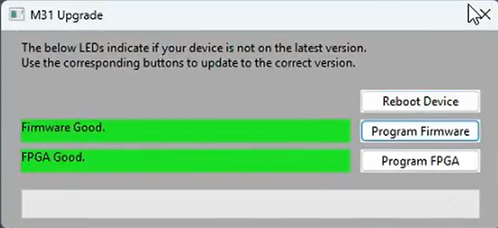
On your first start of the MachPro software, it will check to ensure that you have the latest firmware for the M31 motion controller. If not, you will see an update screen.

- Follow the prompts to update the M31 firmware.
- When it has completed the process, it will prompt to reboot the M31. Click OK to reboot the M31.
- Close the M31 Upgrade window when both the FIrmware and FPGA bars are green.
- Restart the MachPro software to ensure smooth operation.
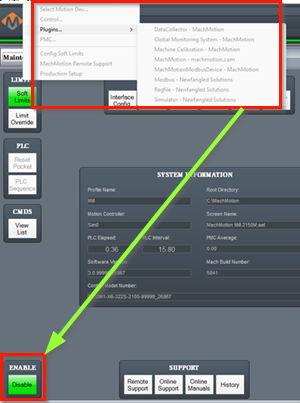
The configuration menus are locked if the system is enabled, and all the menu options will be grayed out.
Disable the system before making configuration changes.
2 Drive and Motor Setup
All of the drives and external I/O will be wired into the M31. The M31 motion controller uses EtherCAT and step and direction to control the axes.
- All axis drives and motors will be wired, configured, and calibrated for accurate motion in this Axis Setup section.
- Machine zero, limits, homing, and fixtures will be configured in the Inputs and Homing Setup section.
- The M31 will support both Step and Direction, and EtherCAT devices simultaneously.
- Carefully label all motors, drives, and cables at the connection points before you install them.
Step and Direction Connection and Configuration (J13 - J18)
The M31 supports differential or single-ended outputs. For differential outputs there are two signals for step (step + and step -) and two signals for direction (direction + and direction -). For single-ended there is only one signal for step and one signal for direction.
Note: The M31 does not support powering and controlling motors directly. It is designed to supply control signals to a drive, which will power and control the motor.

If using step and direction:
- wire the drives to J13-J18.
- Use J11 for 0 VDC
- Use J7 for +5 VDC
- Use J2 for +24 VDC
- Use your drive manual to determine if
- The drive supports differential wiring, which is always preferred
- If the drive has + or - terminals for STEP and DIR, which would also indicate that it uses a singled ended control cable
- Remove power from the motion controller and drive
Connection summary
| Drive input type | Common connection | Step connection | Direction connection | Unused outputs |
|---|---|---|---|---|
| 0 VDC common | Controller 0V |
S+ |
D+ |
S- and D- |
| +5 VDC common | Controller +5V |
S- |
D- |
S+ and D+ |
| Differential | Optional controller 0V to drive signal ground, only when specified |
S+ and S- |
D+ and D- |
None |
0 VDC Common, Connect to a single-ended drive input, use for STEP+ and DIR+
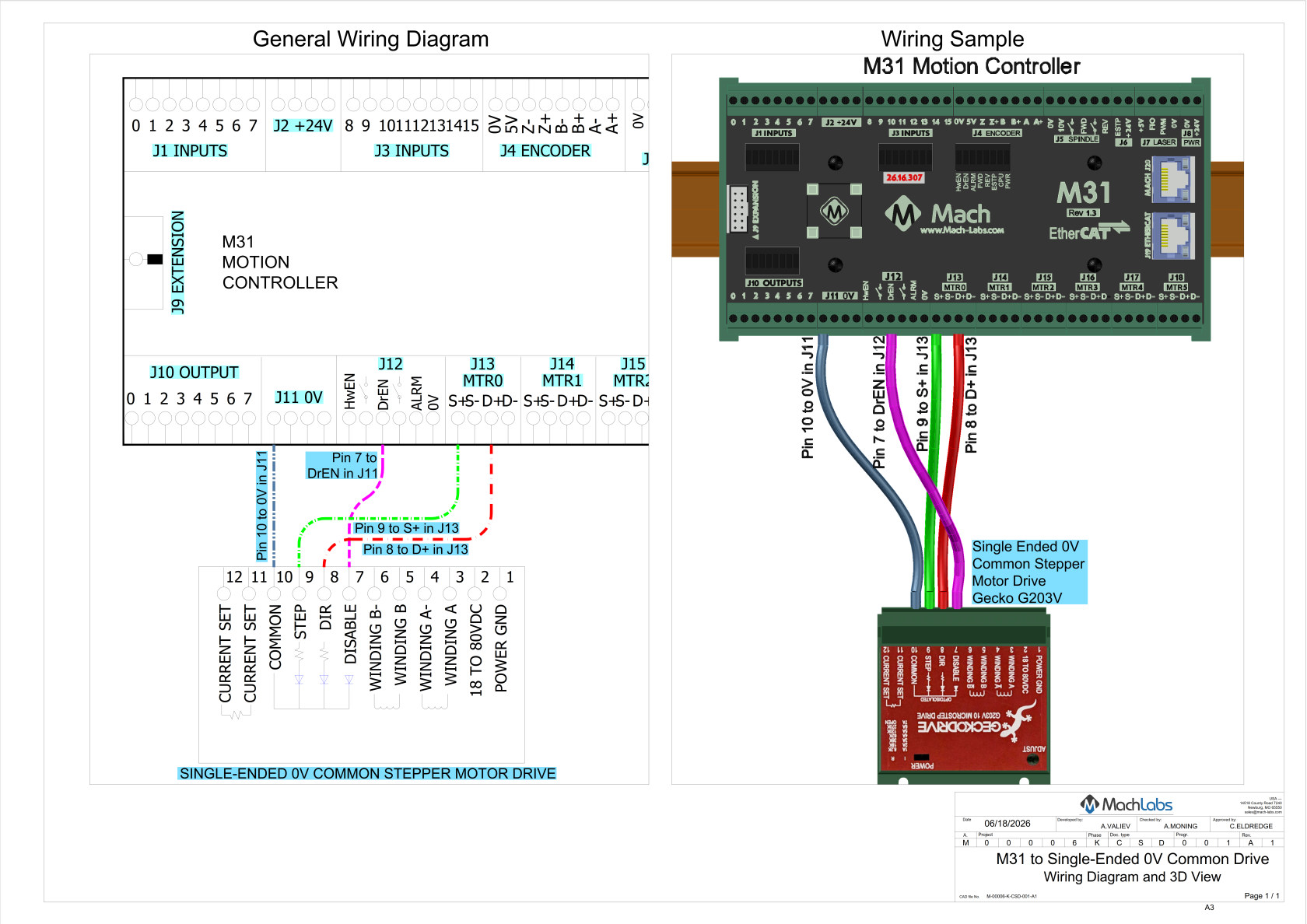
0 VDC Downloads:
0 VDC Common Connections
Connect the terminals as shown in the table.
| Motion controller terminal | Drive terminal |
|---|---|
0V |
COMMON COM GND SG DCM |
S+ |
PUL+, STEP+, or CP+ |
D+ |
DIR+ or CW/CCW+ |
S- |
No connection |
D- |
No connection |
- Run a single 0 VDC wire from the J11 block to your first drive. This is a series/pass-through connection.
- Connect the 0 VDC output of the power supply to the first drive.
- Connect the 0 VDC terminal of the first drive to the 0 V terminal of the second drive. Continue this pattern for all drives.
- Example: M31 J11 0 VDC → Drive 1 (0 VDC) → Drive 2 (0 VDC) → Drive 3 (0 VDC)
Leave S- and D- unconnected or you will cause serious damage to the M31 motion controller
+5 VDC common, Connect to a single-ended drive input, use for STEP- and DIR-
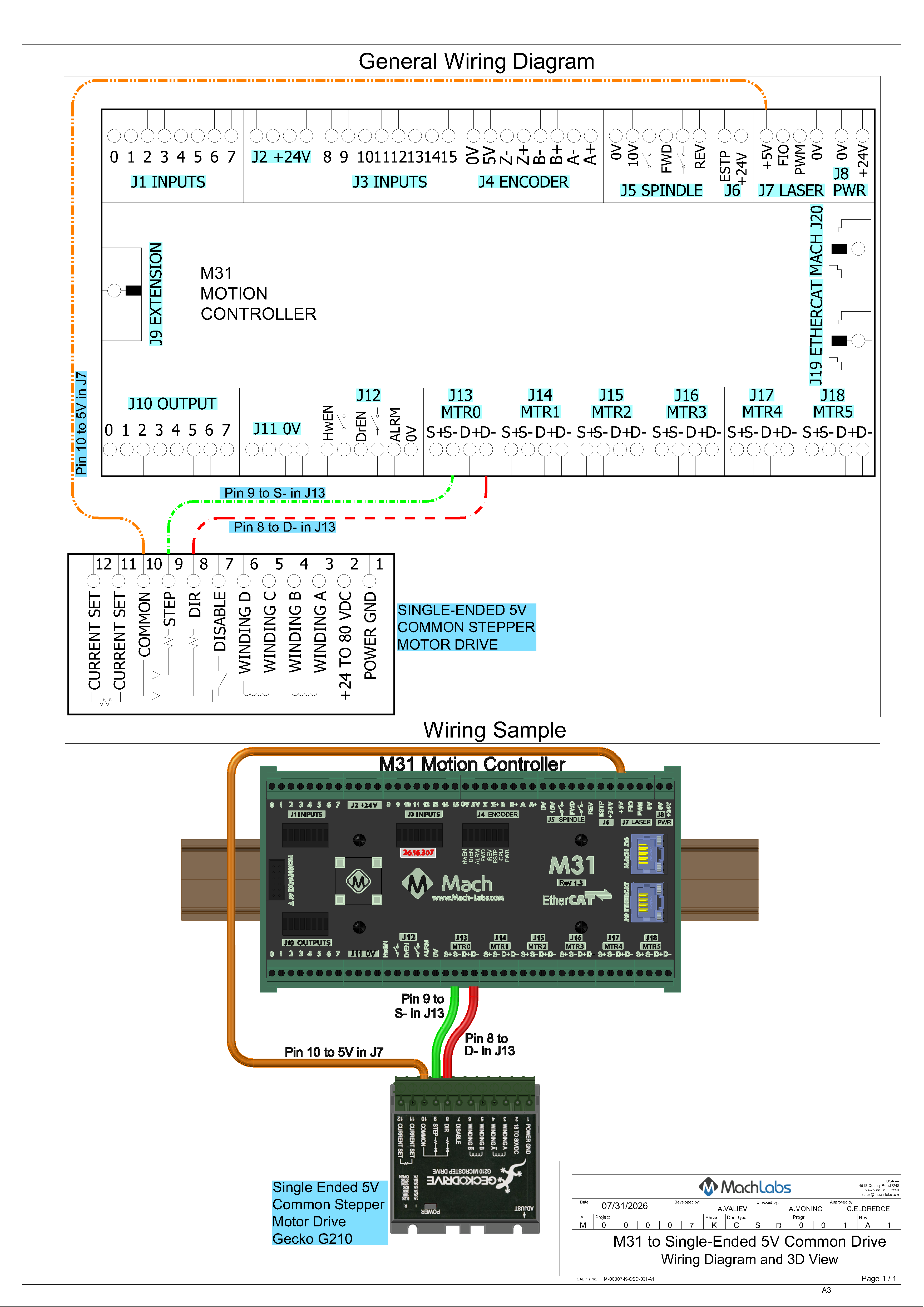
+5 VDC Downloads:
+5 VDC common connections
Connect the terminals as shown in the table.
| Motion controller terminal | Drive terminal |
|---|---|
+5V |
COMMON COM GND SG DCM |
S- |
PUL-, STEP-, or CP- |
D- |
DIR- or CW/CCW- |
S+ |
No connection |
D+ |
No connection |
Differential drive input connections, use + and - for STEP and DIR
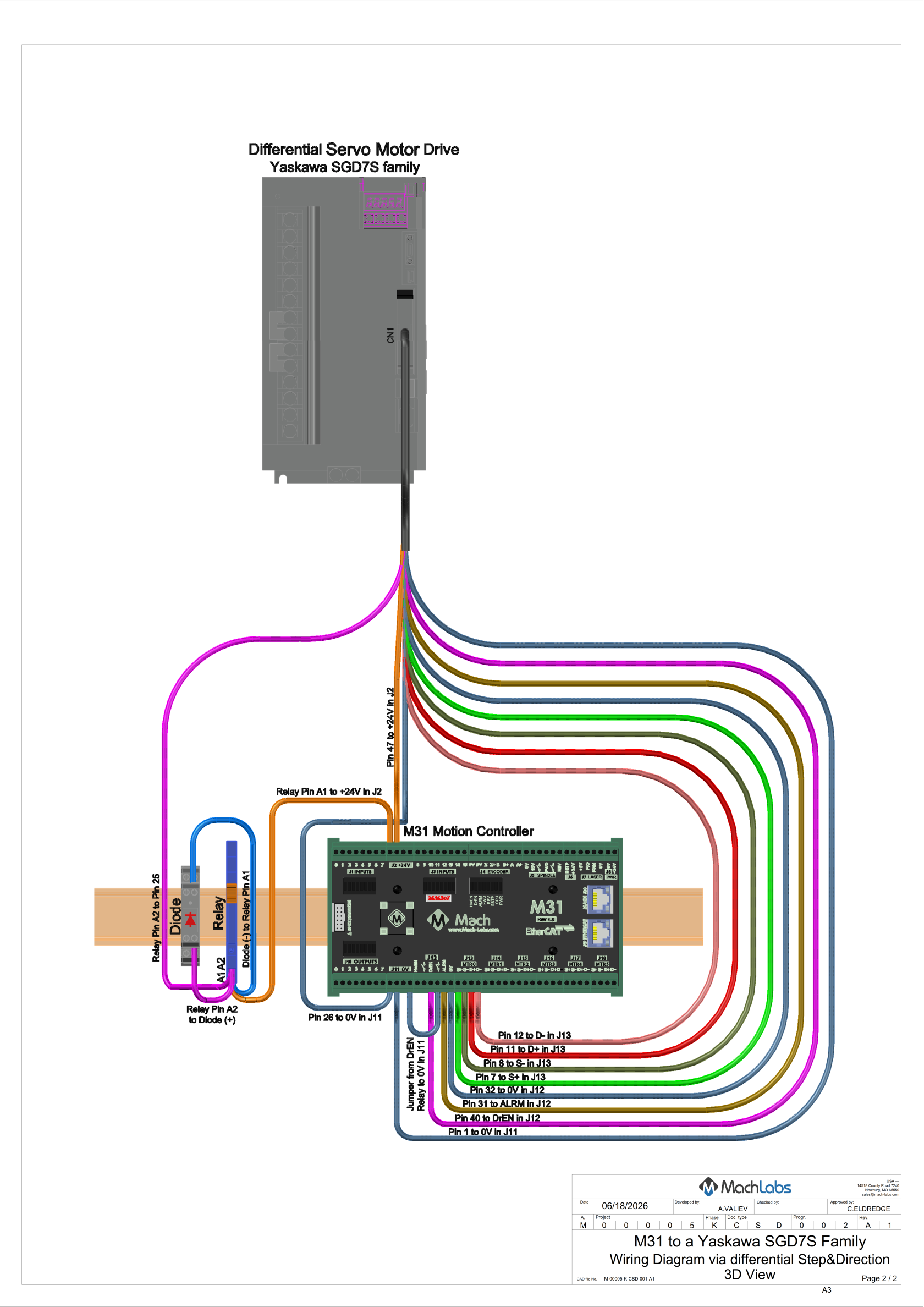
Differential control wiring is always preferred because it provides high immunity from electrical noise. The example below shows a system wired with differential control wiring, drive enable, and drive fault.

Differential Downloads:
- M31_to_Yaskawa_SGD7S_differential_wiring_step_direction.pdf
- M31_to_Yaskawa _SGD7S_Differential_Wiring_3D.pdf
Connect the terminals as shown in the table.
| Motion controller terminal | Drive terminal |
|---|---|
S+ |
PUL+, STEP+, or CP+ |
S- |
PUL-, STEP-, or CP- |
D+ |
DIR+, CW+, or CW/CCW+ |
D- |
DIR-, CW-, or CW/CCW- |
Differential drive: A 0 VDC connection is not always necessary
- In most differential interfaces, a separate 0 V wire is not required for the signal to work, because the receiver measures the voltage difference between “+” and “-”.
- If the drive manual specifies a signal ground, shield drain, or COM connection for noise control, connect it as specified in the drive manual.
- If the drive manual does not require a 0 V connection, then do not connect it.
- Do not use S- or D- as a ground.
Differential drive: Notes
- Use twisted pairs: S+ with S-, and D+ with D-.
- If you have a dual channel (2 motors) stepper drive, please contact MachLabs support for the correct configuration.
- There is an additional example wiring diagram for a differential connection to a Yaskawa Sigma 7 drive in the Application Notes at the end of this document.
Step and Direction M31 Plugin Configuration
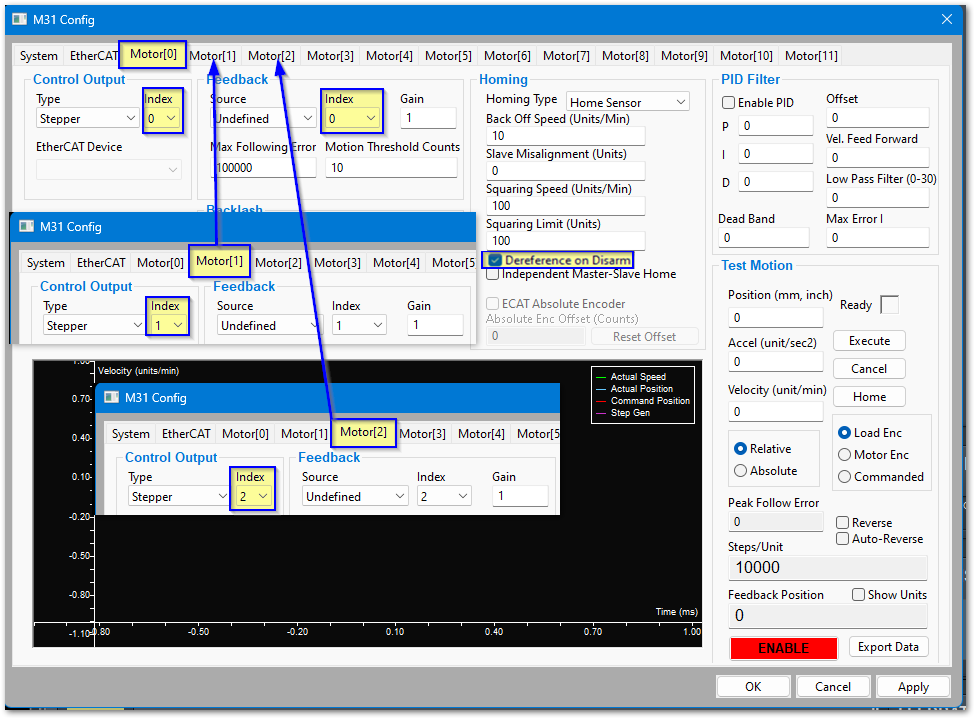
M31's default motor configuration will work for step and direction systems.
- Verify the Control Output Index matches the Motor number.
- Select Dereference on Disarm for all motors. The machine will now re-home each time it is enabled.
- Select the Homing Type you are using for this motor.
| Homing Type | Description |
|---|---|
| Home Sensor | This is the simplest to understand, troubleshoot; and it is very reliable. We recommend you install home sensors - even on machines with absolute encoders enabled |
| Index Pulse | This is set to a particular pulse on the motor rotation. It is the most accurate method, but if anything ever changes in the motor or the mechanics of the machine, this will need to be reset |
| Sensor + Index | This first touches the home switch, then backs off to a particular index pulse. It is easier to setup, but has the same vulnerability to motor and mechanical changes as an index pulse alone |
| Mach In-Place | This will define machine zero to be the current location of the axis |
-
Set all the Control Output and Feedback Source values to Undefined on all unused motor tabs.
-
If your machine has a gantry, refer to MachPro M31 Configuring a Master Slave Axis Gantry
-
Click Apply as you complete each motor tab.
-
Click OK when you have completed all motor tabs.
EtherCAT Network Configuration (J19)
The M31 uses a standard EtherCAT physical connection plan. The computer connects via Ethernet to J20 on the M31 motion controller. J19 on the M31 is then used to connect to each of the EtherCAT devices.
- Put servo & stepper drives first in the EtherCAT chain (closest to the controller).
- Put I/O devices and safety relays in the middle.
- Put VFDs last (at the end of the chain). VFDs make electrical noise — keeping them last lowers interference.
- Use shielded network cable for all EtherCAT devices.
- Cable length: keep each cable between 1 foot and 100 meters (about 0.3 m – 100 m).
- Good cable management: keep cables neat, do not bend them sharply, and separate network cables from high-power lines when possible.
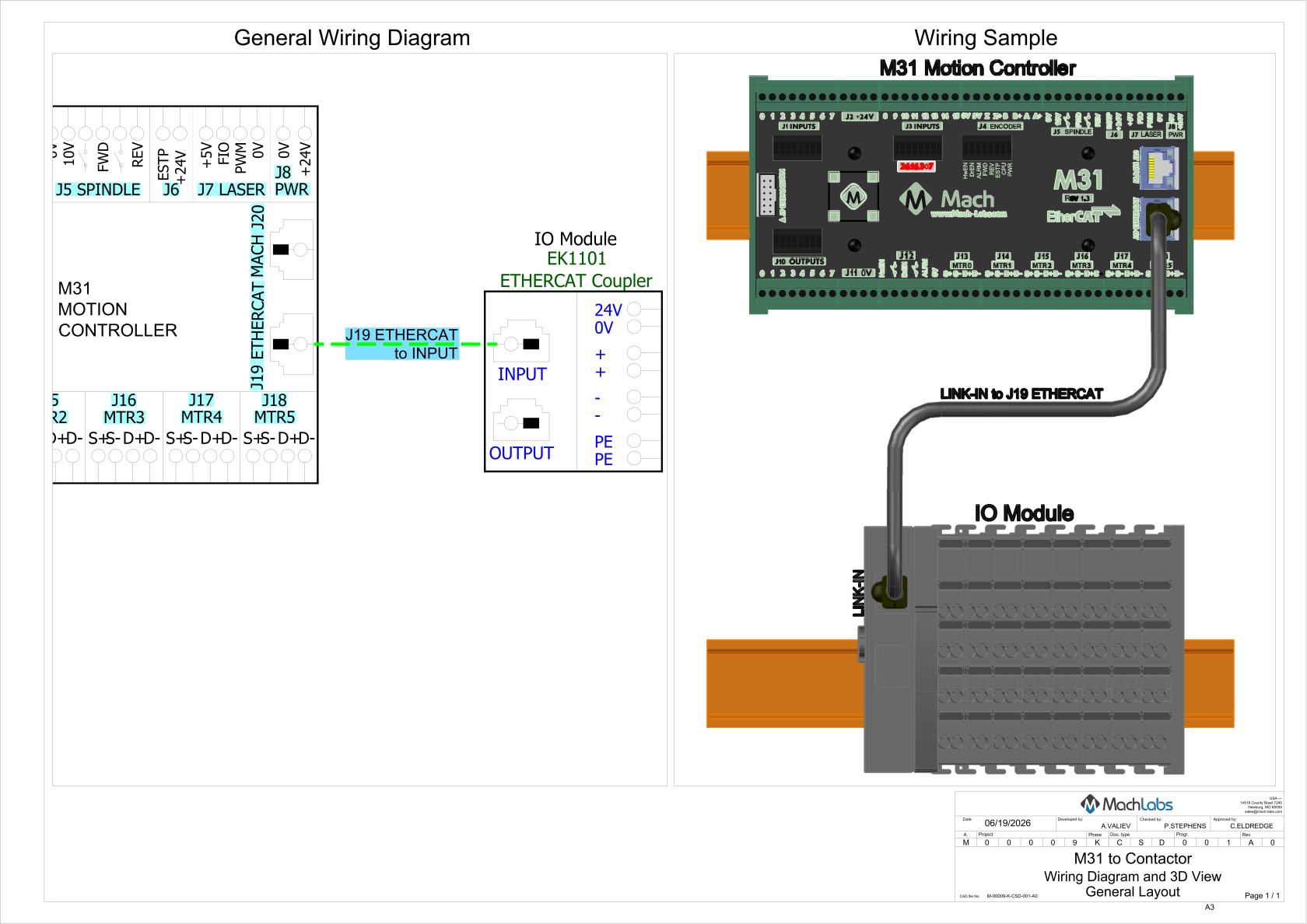
EtherCAT Downloads:
Load the EtherCAT configurations
- Pull down Configure > Plugins > M31 and select the EtherCAT tab
- Click the Refresh Network button to see the available devices. You may need to click this button several times for it to load all of the devices.

- Click the Update button to load the device information into the configuration window

- If any of the devices report a status of Unsupported, please contact MachLabs support using the information at the end of this manual. This is the list of MachPro compatible EtherCAT Devices

- Verify that all of the devices in the configuration list match your EtherCAT devices, and that none of them are missing.
- Click the Download EtherCAT Configuration to send the necessary configuration parameters to the individual devices.

- Click the Apply and then the OK buttons to complete the EtherCAT configuration.
- Close the MachPro software and restart it to ensure all startup settings are active
EtherCAT M31 Plugin Configuration
Pull down Configure > Plugins > M31 and select the Motor[0] tab
The example below shows Motor[0] configured as an EtherCAT drive and connected to a Leadshine drive [1]L7N(COE)

- Select EtherCAT Drive as the Control Output Type
- Set the Control Output SubID to 0
- Select the first EtherCAT Device for Motor[0]
- Select ECAT Feedback as the Feedback Source
- Select the Homing Type you are using for this motor. There are 5 types:
| Homing Type | Description |
|---|---|
| Home Sensor | This is the simplest to understand, troubleshoot; and it is very reliable. We recommend you install home sensors - even on machines with absolute encoders enabled |
| Index Pulse | This is set to a particular pulse on the motor rotation. It is the most accurate method, but if anything ever changes in the motor or the mechanics of the machine, this will need to be reset |
| Sensor + Index | This first touches the home switch, then backs off to a particular index pulse. It is easier to setup, but has the same vulnerability to motor and mechanical changes as an index pulse alone |
| EtherCAT | This enables advanced EtherCAT communication with the drive and is used to implement EtherCAT homing methods on the drive. Contact support if you need this feature |
| Mach In-Place | This will define machine zero to be the current location of the axis |
If you will be using Absolute Encoders on this axis, please read Absolute Encoder to enable and configure them.
If your machine has a gantry, refer to MachPro M31 Configuring a Master Slave Axis Gantry
- Verify the Backlash Value is set to zero. This will be important for accurate calibration of the axes. Leave the Backlash Speed set at the default value of 20%.
- Repeat this process for each active motor that you have.
- Set all the Control Output and Feedback Source values to Undefined on all unused motor tabs.
If you have Multi-Axis EtherCAT drives, please see the Application Notes section
3 Wiring and Mapping Inputs (J1, J3)
Input Wiring
This section gives wiring information for all M31 inputs. First, connect each input device to an M31 hardware input. Then, map the applicable software signal to that hardware input.
The M31 motion controller has 16 positive-negative-positive (PNP) inputs. You can use these inputs for limit switches, home switches, probes, and other sensors. To connect a negative-positive-negative (NPN) sensor, add a 2.2 kΩ resistor as shown in the diagrams below.
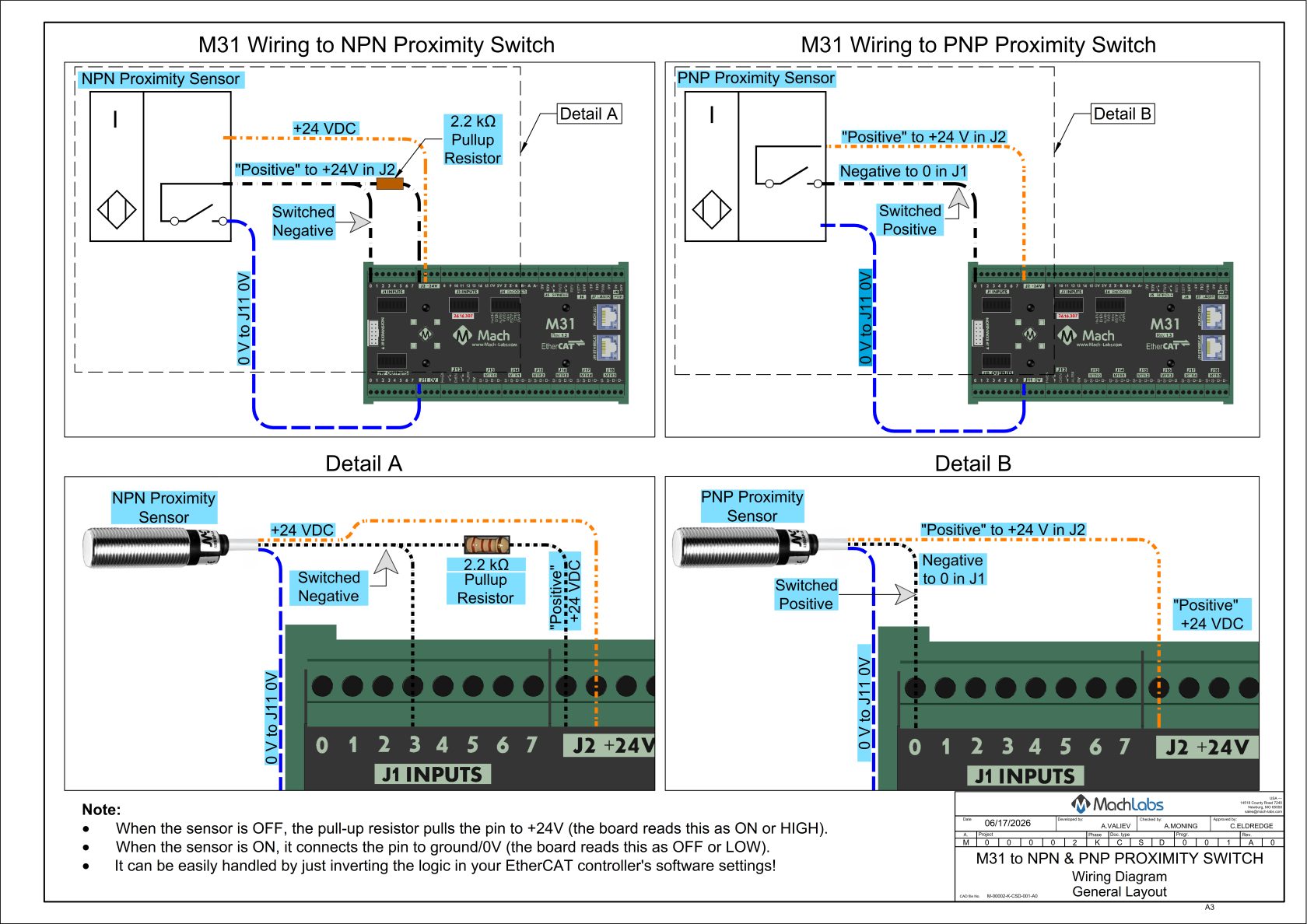
Inputs Download: M31_NPN_PNP_Proximity_Switch.pdf
Note: For the highest level of safety, wire the limit switches Normally Closed. If a limit is tripped, a wire or limit is damaged, the system will stop motion.
Recommended placement and use of axis switches.
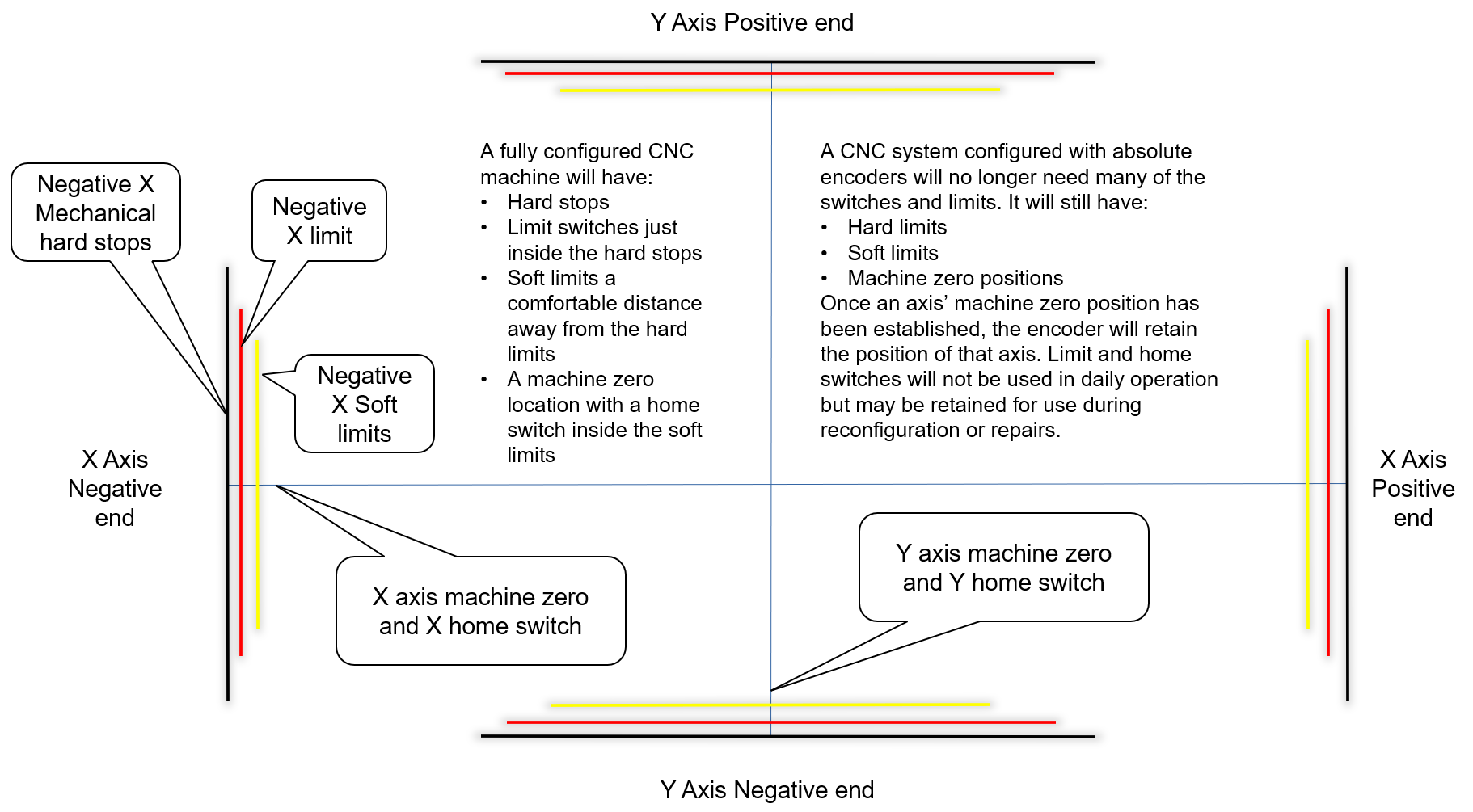 Wire the 24 V **limit switches**. These switches are the final sensors that stop axis motion before the axis reaches the mechanical hard stops.
- Select or install two limit switches just inside the mechanical limits of each axis.
- Wire the two limit switches for each axis in series using their normally closed contacts.
- M31 +24 VDC -> NC limit switch -> NC limit switch -> M31 input
- Label the wires.
- Document the I/O assignment.
Note: Wiring both limit switches for each axis in series reduces the number of input ports required. Certified safety circuits often require each limit switch to have a separate input.
Wire a home switch on each axis to a separate input.
Use the charts in the appendix to plan the physical wiring and software mapping.
Mapping Signals
- At the top of the screen, open Configure > Control.
- Click the Input Signals tab.
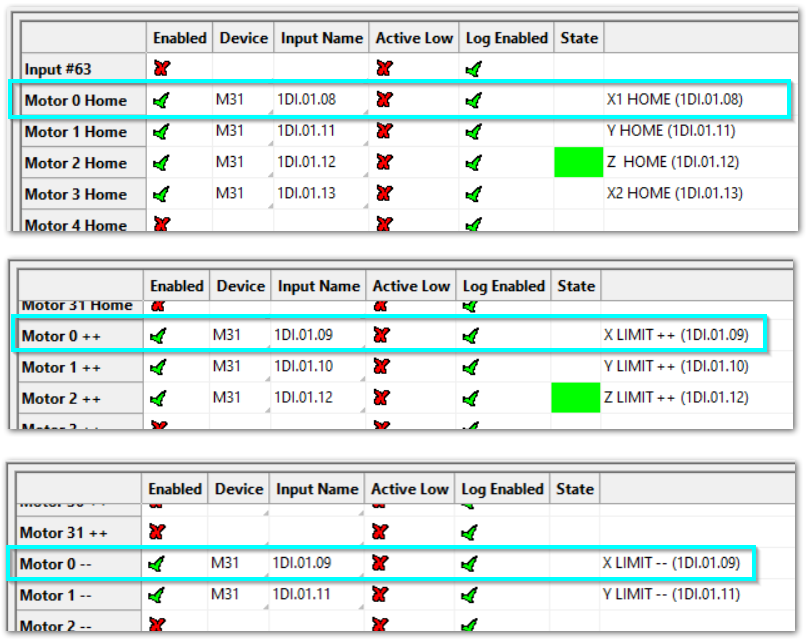
- Scroll down the list until you see each motor section: Motor Home, Motor ++, and Motor --.
Note the State column. It shows the current state of that signal, providing immediate confirmation of your I/O configurations. In the first screen below, Z is homed.
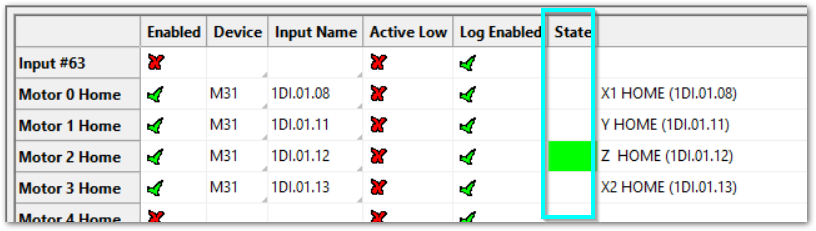
For each signal mapping (Home, ++, --), do these steps:
- Enable mapping: Click the red X next to the signal. It will turn into a green ✓. That turns the mapping on.
- Device: Choose M31 from the Device list.
- Input Name: Pick the input you wired to the M31 (for example 1DI.01.08 or 1DI.01.09).
- Active Low:
- If your limit switches are normally closed, click the red X to change it to a green ✓.
- This makes the input active when the voltage goes low. Wiring normally closed is the safest method.
- Description: Type the name for this axis limit (the name operators and designers use). When you finish all limits and home switches for each axis, click Apply, then click OK.
Short example
- Motor 0: Home, ++, and -- are enabled (green check).
- All limits are wired normally closed.
- We use M31 1DI.01.09 for home, ++ and --.
- If we use M31 1DI.01.08 for the Home switch it will be more reliable.
- When M31 1DI.01.09 is mapped for a home switch, MachPro will only use it as a home switch only during a homing cycle. At all other times it will function as a limit switch.
Manually trigger each limit switch and make sure they disable Mach before continuing. This verifies both the wiring and signal mapping.
4 MachPro Axes Configuration
There are four main areas of the screen.
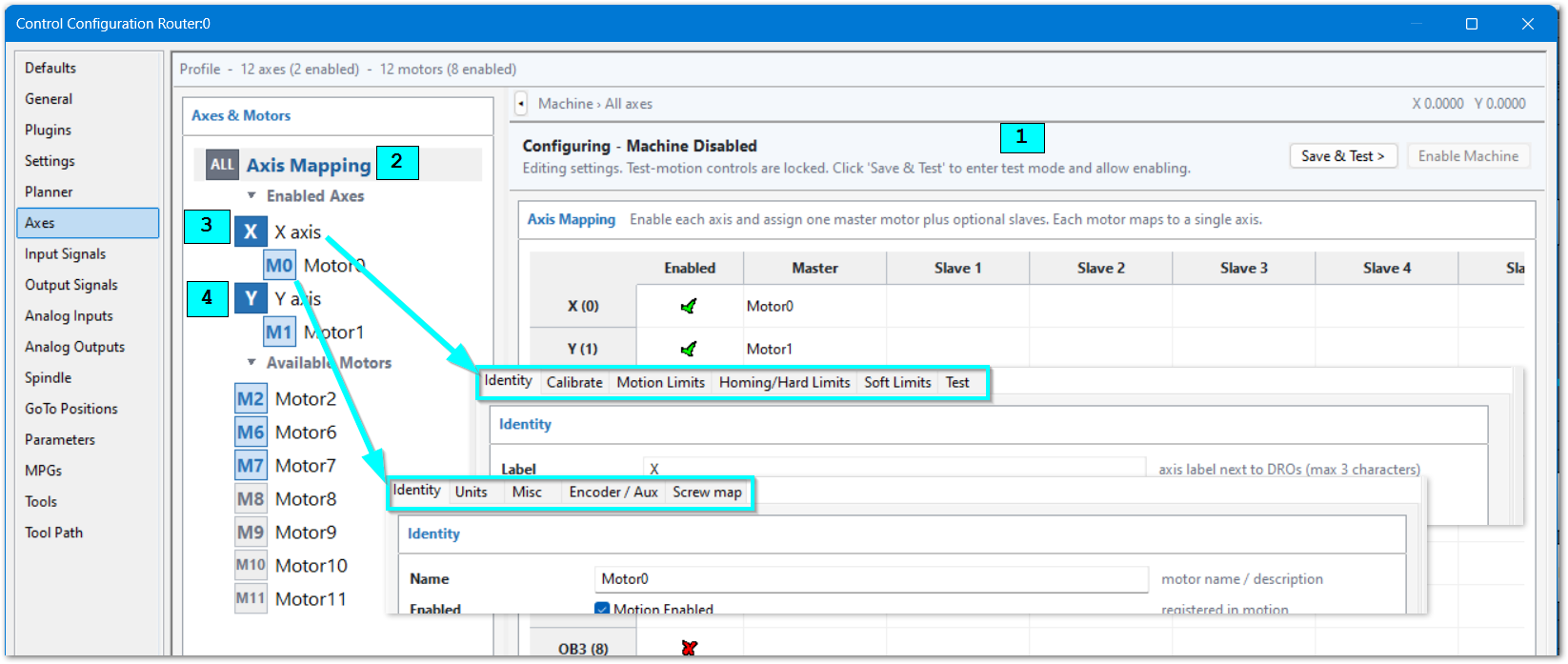
- Axis and Motor Test Panel This will always be visible at the top of the screen so that you can save and test your configuration with motion.
- Axis Mapping This screen controls which axes are enabled, and which motors are mapped to each axis.
- Axis Configuration These settings are specific to each axis and will apply to all motors on that axis.
- Motor Configuration These settings are specific to each motor. Example: on a gantry the two motors typically rotate in opposite directions from each other.
During the axis and motor configuration process, there is a Test-Motion Panel above the configuration panels. When you have completed settings and need to test them:
- Click Save & Test
- Click Enable



Use the movement buttons on the configuration panels to test the axis and motor configuration.
While test mode is enabled, you can:
- Open a different configuration panel.
- Select a different axis.
- Select a different motor.
- Continue to test axis and motor movement.
NOTE: The operator-screen Jogging buttons do not operate while the configuration screen is open. Use the movement buttons on the configuration panels.
When testing is complete, click Save & Return to Config.
Axis Mapping
Before you do the full axes configuration, you must ensure that all motors, including slaves, are mapped to the correct axes, and that all motors are moving in the correct direction.
- Disable the MachPro software
- On the menu bar, click Configure >Control. Then select the Axis tab.
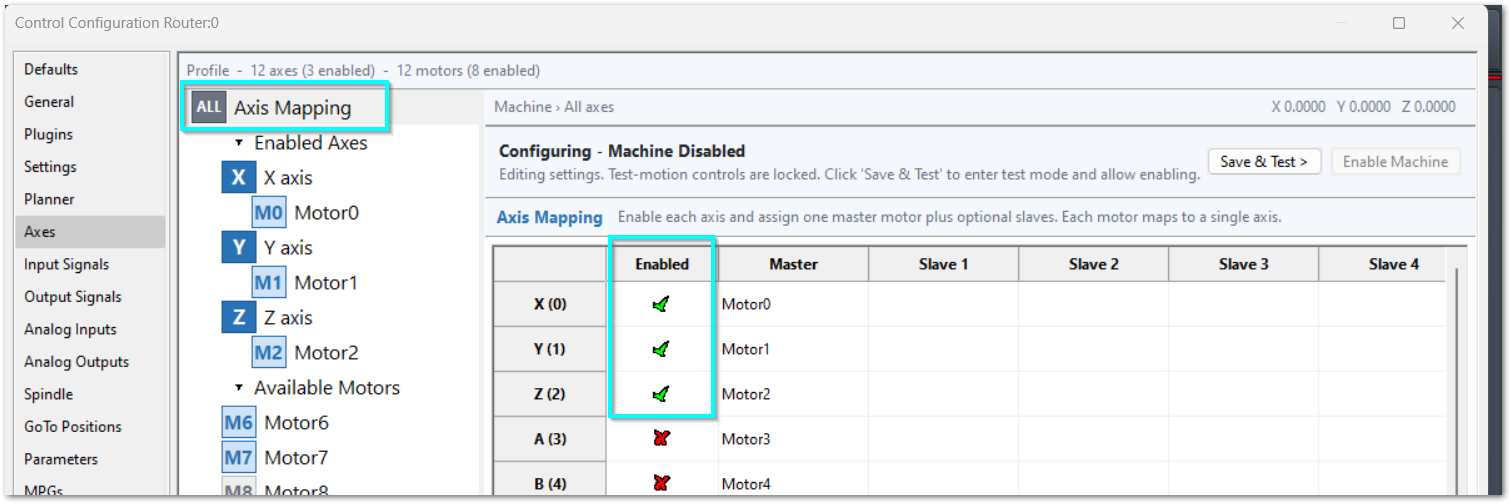
- Click the ALL Axis Mapping tab.
- Enable motors by clicking their box in the Enabled column so that it changes to a green check mark. In the example below, motors 0, 1, and 2 are enabled.
Map slave motors to the correct axis
- Ensure that the slave motor is not mapped to another axis.
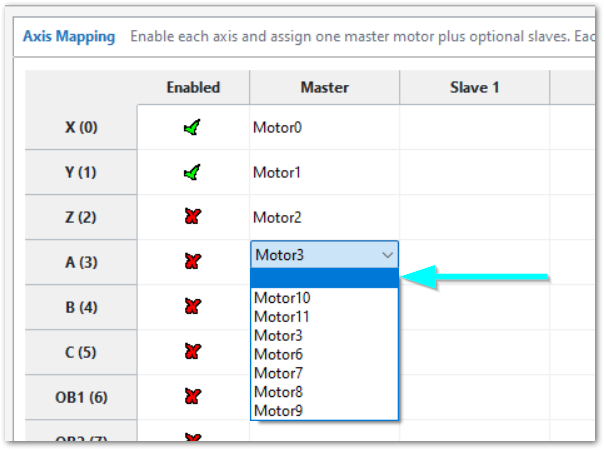
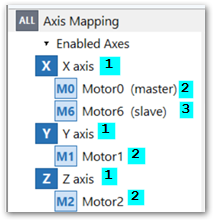
- The default configuration maps Motor3 to the A axis, but for our example it needs to be mounted as a slave motor on the X axis.
- Click the pull down arrow on Motor3 and select the blank row at the top of the list of available motors. This unmaps all motors from axis A.
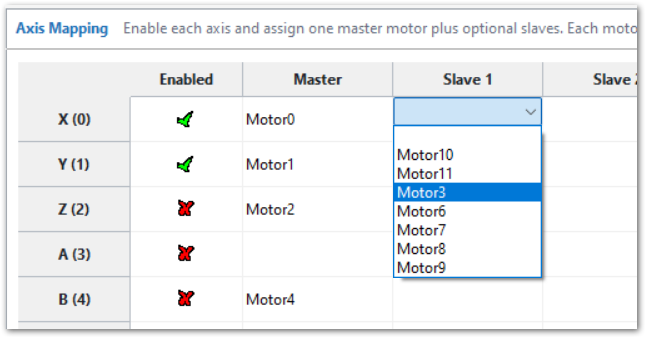
- Click the X axis box in the Slave 1 column.
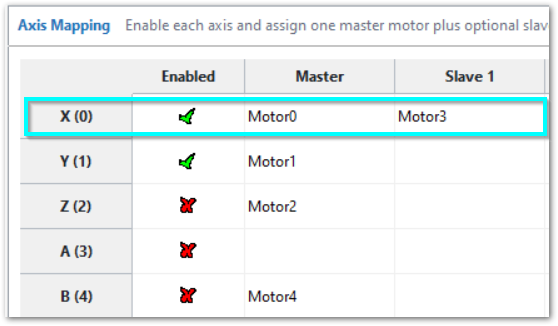
- Select Motor3 from the available motors and click Apply to complete the mapping.
Set motor direction
- Click the X axis tab
- Click the Test panel tab
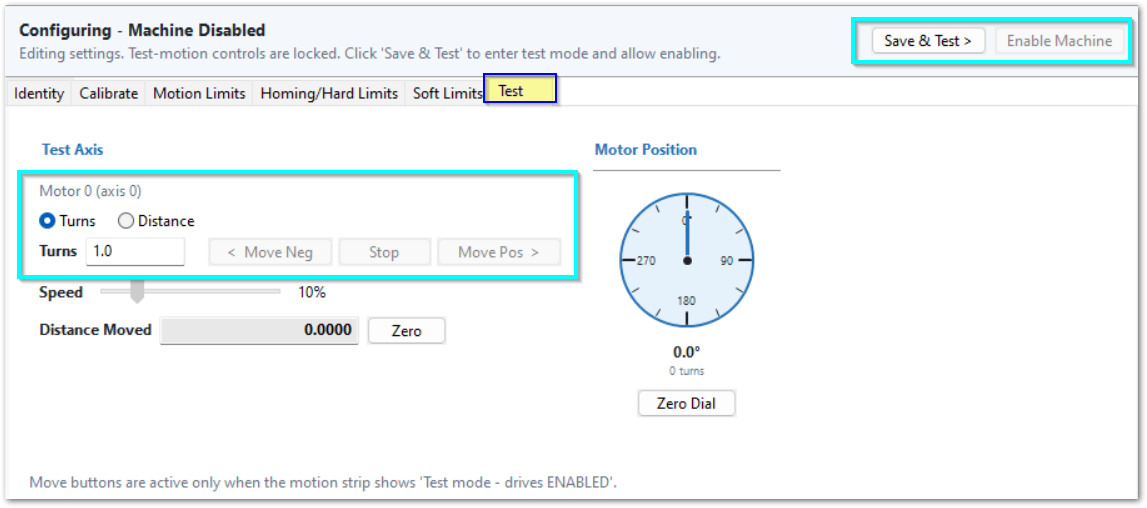
- Use the Test-Motion buttons to enable the machine
- Test each axis with the < Move Neg and Move Pos > buttons
WARNING: Be careful when you test an axis that uses master and slave motors. The mechanical arrangement can require the two motor shafts to rotate in opposite directions. Incorrect motor direction can cause the axis to bind and can damage the machine. Use short, low-speed moves until you verify the direction of both motors.
- Use the Test-Motion buttons to disable the machine and return to configuration mode.
- In the axis and motor selection list, select the Motor number that you must reverse. Then, select the Identity tab.
- Select Reverse Direction for each motor that must rotate in the opposite direction.
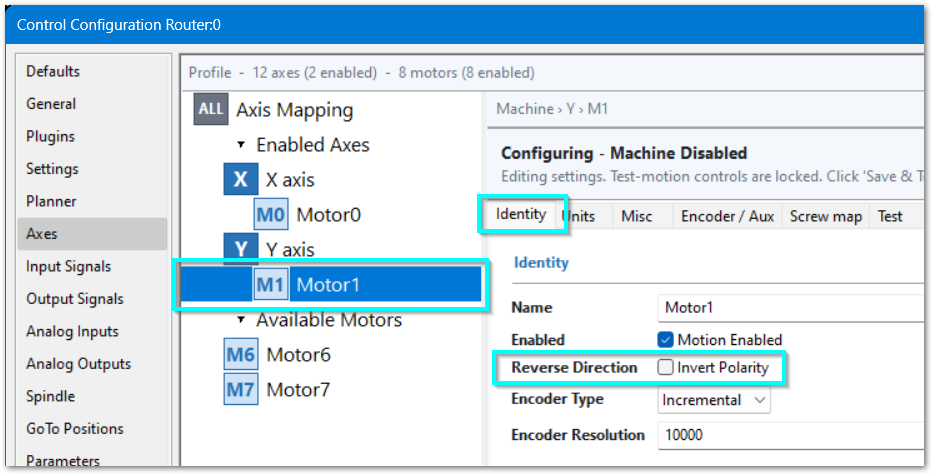
- Use the Test-Motion buttons to enable the machine. Make short, low-speed moves and verify that all motors move the axis in the correct direction. If the motors fight each other, bind the axis, or move the two sides of the axis in opposite linear directions, disable the machine immediately. Correct the Reverse Direction setting before you continue.
- Click Apply to save your changes. If you are done with configuration for now, click OK to close the configuration window.
Axis Configuration
The axis configuration panel has tabs across the top. The axis can be fully configured with these tabs, and many default settings will work without modification. Only change settings that need to be changed. Axis Calibration, Homing, and Soft Limits are all unique to each machine and must be configured correctly.
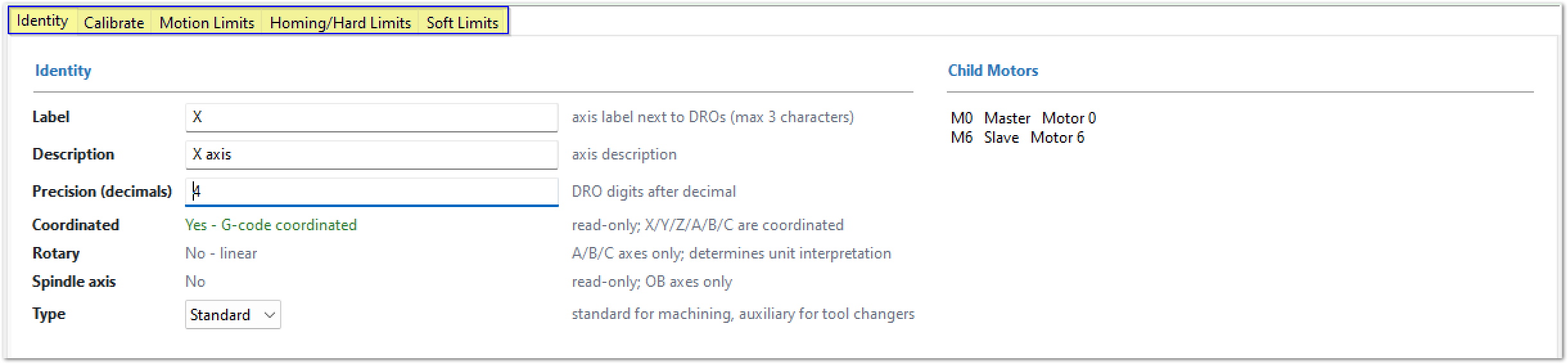
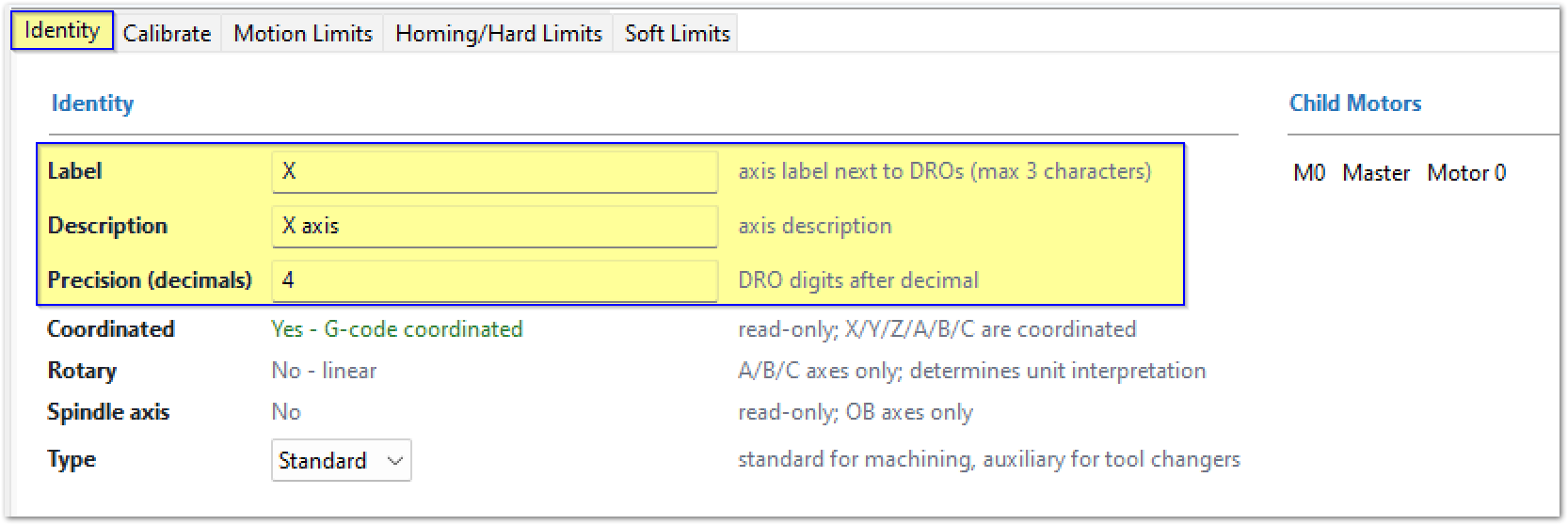
Axis Identity tab
Normally no changes are necessary here. If an axis on your machine has a different name in your procedures, update it here to match your procedures.
If this axis is for a tool changer, select Auxiliary instead of Standard as the type.
Calibrate
Axis calibration is necessary for accurate machine movement. Verify that each axis meets your accuracy requirements before you leave this section. The configuration steps after this section depend on correct axis calibration. If you change the calibration later, you must re-set the machine zero, soft limit, and any goto position settings.
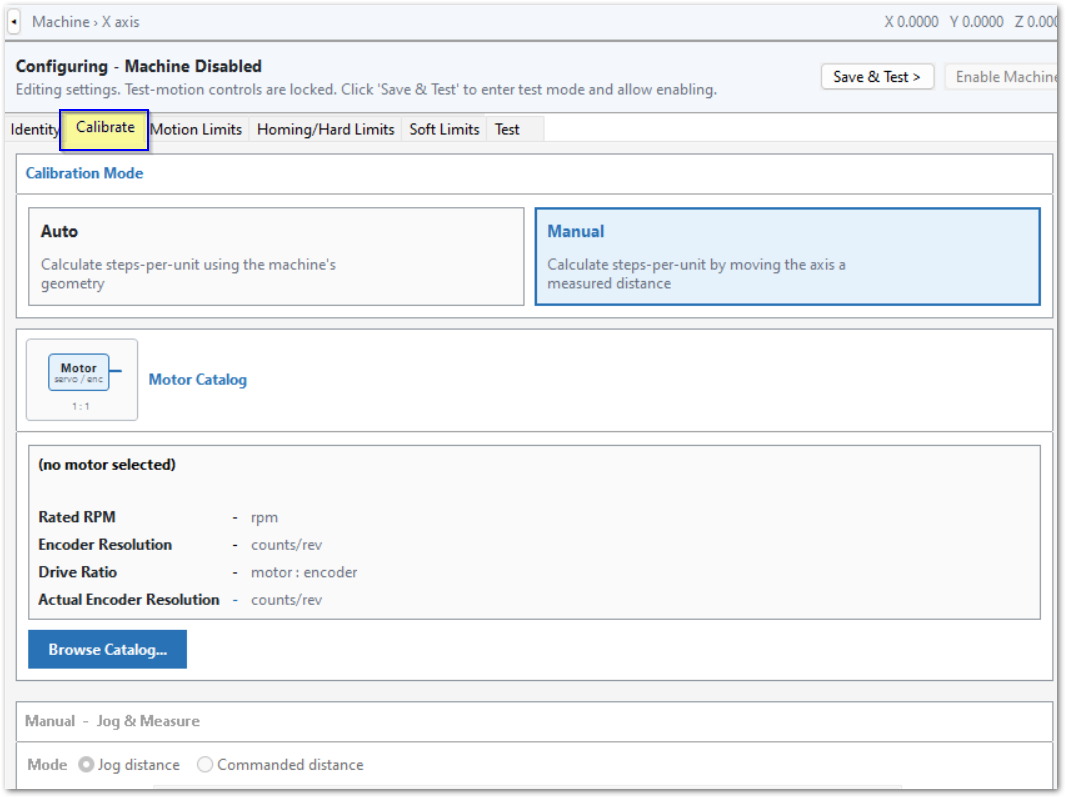
MachPro provides two axis calibration methods: Auto Calibration Mode and Manual Calibration Mode.
Auto Calibration Mode requires complete motor and mechanical linkage information for the axis. It provides the most accurate calibration.
Manual Calibration Mode uses measured axis movement to calculate the correct counts per unit. Use this mode if you do not have all motor or mechanical linkage information. Careful manual calibration can provide results suitable for production.
Before you use either calibration mode, define the motor(s) for each axis.
This section describes Manual Calibration Mode first, followed by Auto Calibration Mode.
Motor Catalog
Select or enter your motor in the Motor Catalog
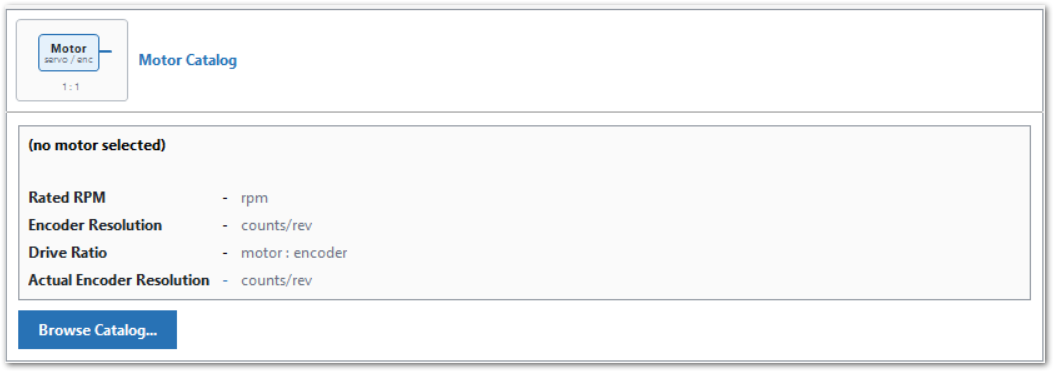 Definitions
- Encoder Resolution is the number of encoder counts per motor revolution that the servo drive reports.
- Drive Ratio is the scaling factor that the motion controller applies to the Encoder Resolution when it commands motion.
- Actual Encoder Resolution is the calculated resolution after the Drive Ratio is applied.
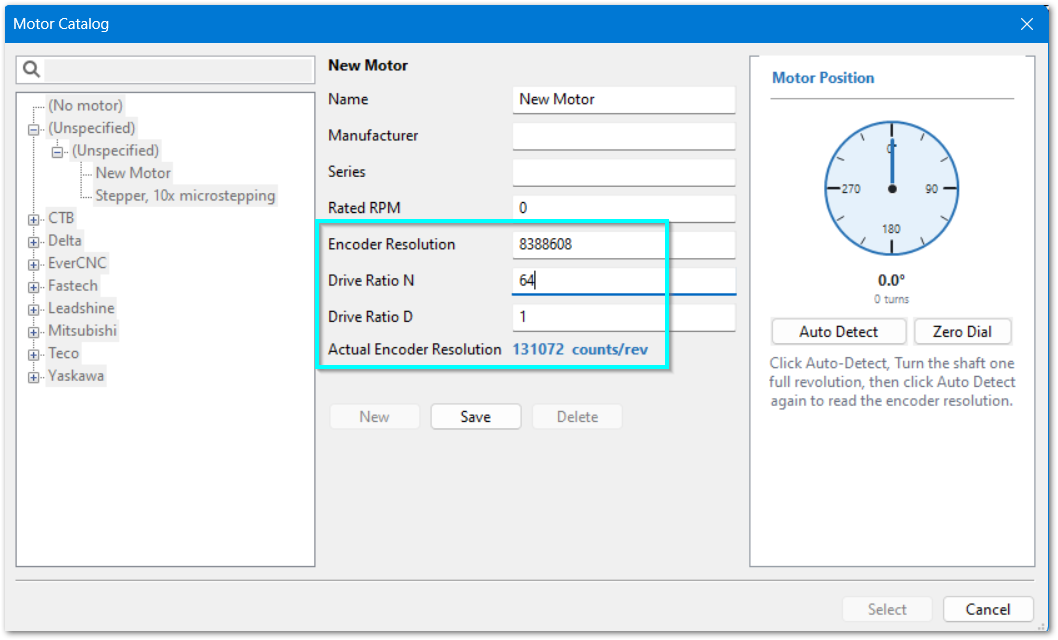
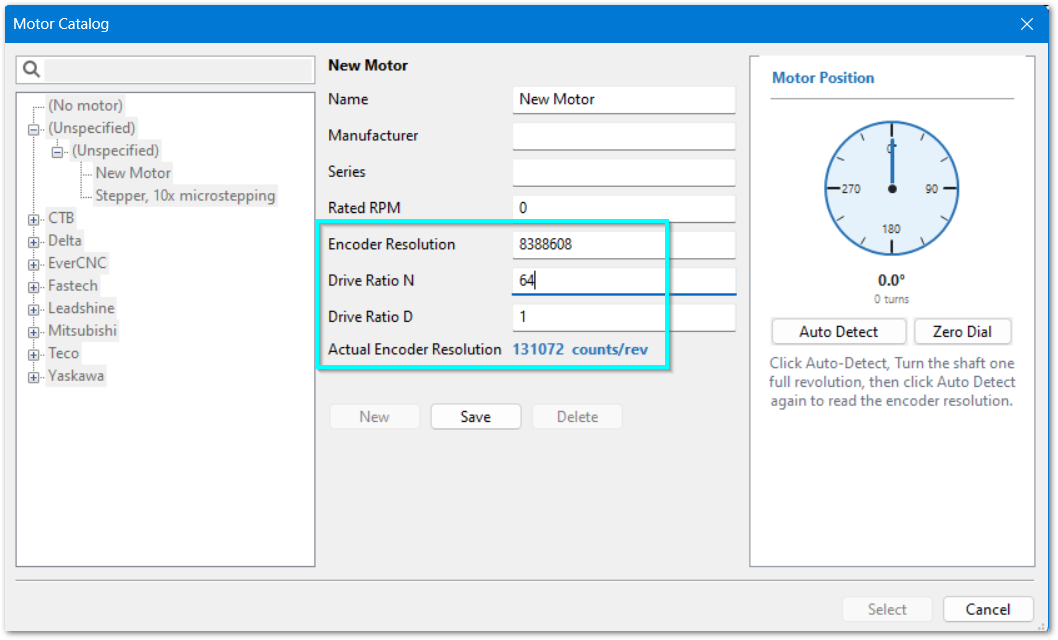
Select an existing motor
- Click your motor in the list on the left side
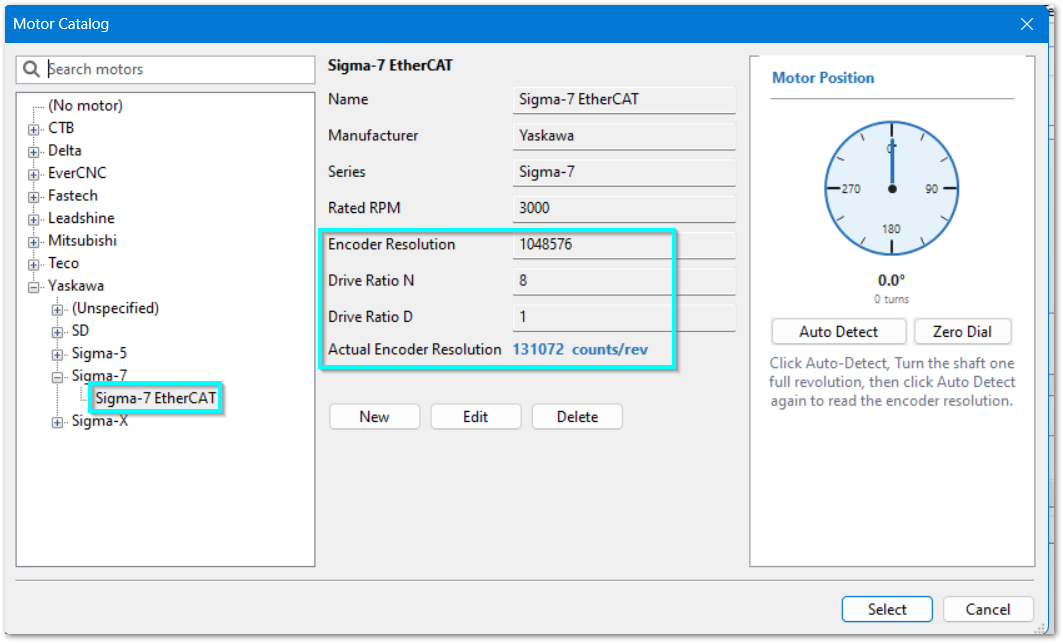
- If Actual Encoder Resolution is more than 131,072, follow the instructions in Set Drive Ratio
- Click the Select button in the lower right corner.
Create a New Motor Entry
If your motor is not in the motor catalog, create a new motor entry and select that motor.
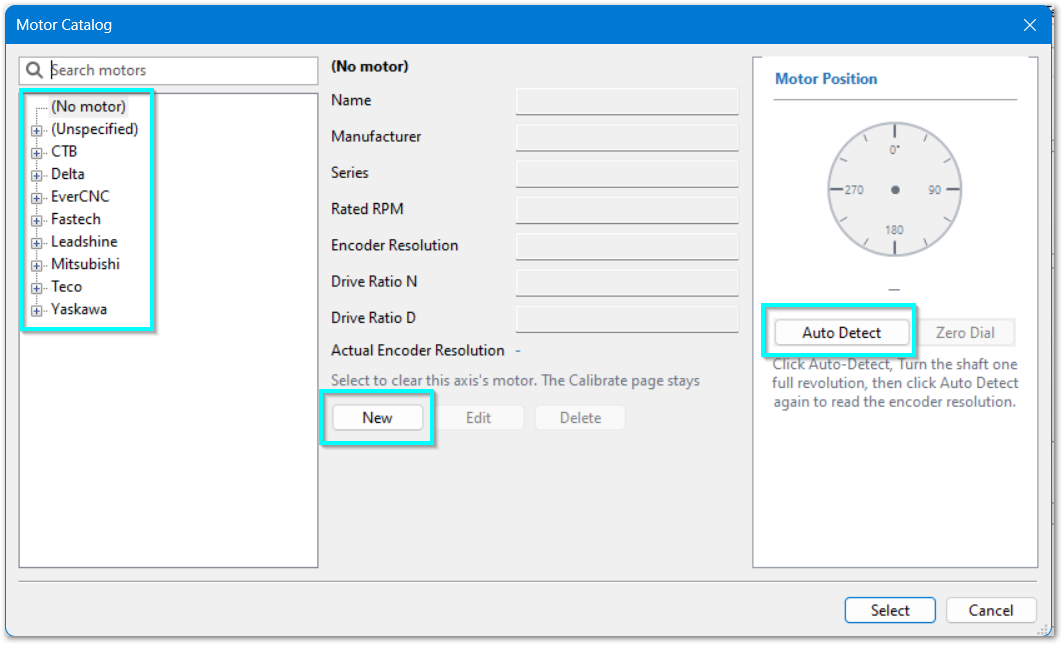
- Click New in the center section of the motor catalog.
- Complete all required fields.
- Enter the Encoder Resolution and Drive Ratio:
- For a stepper motor, enter the drive's Encoder Resolution and set Drive Ratio to 1:1.
- For a servo motor, enter the drive's Encoder Resolution.
- If Actual Encoder Resolution is more than 131,072, follow the instructions in Set Drive Ratio
- Click Save.
- Click Select in the lower-right corner.
The M31 supports a maximum encoder resolution of 131,072 counts per revolution (2¹⁷).
If the servo drive has a native encoder resolution greater than 131,072 counts per revolution, configure the servo drive to scale the encoder output to 131,072 counts per revolution. This scaling applies to encoder information that the servo drive sends to the motion controller.
-
Find the native encoder resolution in the servo drive documentation.
The applicable servo drive parameter can have one of these names:
- Drive Ratio
- Encoder Output Resolution
- Edge/Pitch
-
If the native encoder resolution is greater than 131,072 counts per revolution, configure the servo drive to scale the encoder output to 131,072 counts per revolution.
Refer to the servo drive documentation for the applicable parameter and setting.
-
Set the motion controller Drive Ratio to the value specified in the reference table.
This setting scales the motion command that the motion controller sends to the servo drive.
After configuration, command axis motion. Make sure that the axis moves the commanded distance.
If the axis does not move the commanded distance:
-
Verify the native encoder resolution.
-
Verify the encoder scaling in the servo drive.
-
Verify the motion controller Drive Ratio.
-
Test the axis movement again before you change other motion settings.
| Encoder resolution | Bit resolution | Drive Ratio | Actual Encoder Resolution |
|---|---|---|---|
| 131,072 counts/revolution | 2¹⁷ | 1:1 | 131,072 |
| 1,048,576 counts/revolution | 2²⁰ | 8:1 | 131,072 |
| 8,388,608 counts/revolution | 2²³ | 64:1 | 131,072 |
| 16,777,216 counts/revolution | 2²⁴ | 128:1 | 131,072 |
Detect the Encoder Resolution
If you do not know the encoder resolution, use the Auto Detect tool on the right side of the motor catalog.
Note: Auto Detect applies only to a motor that has an encoder connected for feedback. On the M31, servo feedback is supported through EtherCAT. For Step and Direction systems, enter Encoder Resolution manually.
If Actual Encoder Resolution is more than 131,072, follow the instructions in Set Drive Ratio
Click Apply to save your changes. If you are done with configuration for now, click OK to close the configuration window.
Test Motion
Use the Test-Motion buttons to enable the machine.
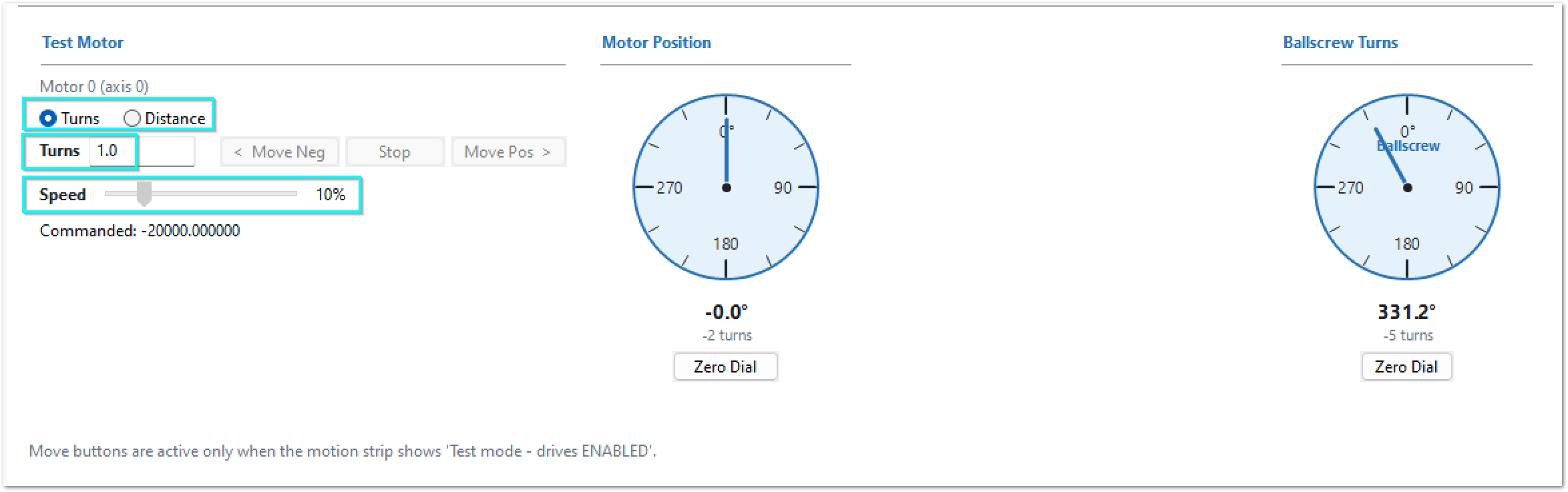
Use the Test Motor buttons at the bottom of the Calibrate panel to practice motor movement. Select turns or distance as the movement unit. Start with a small movement value and a low speed. Gradually increase the value and speed until the motor moves the full distance that you will measure during calibration. Make sure that you can operate these controls before you start the manual calibration.
Manual Calibration
Measure and mark the longest distance that you can measure accurately on the axis. Allow a short jog distance at both ends of your marked area. Jog outside of the mark, and come back to the mark each time before recording movement. This will take up the mechanical backlash on that axis before making your measurement.
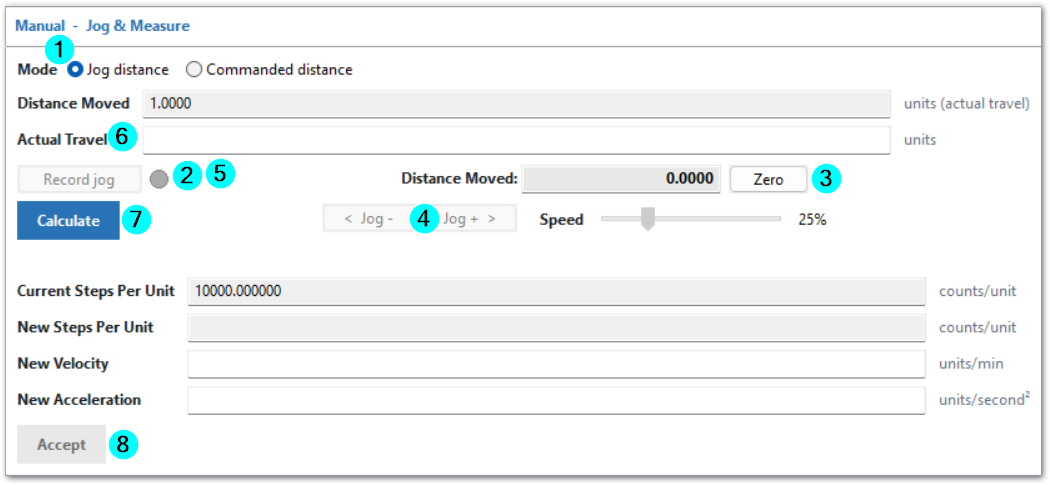
Jog the axis to the first mark using the < Jog - or Jog+ > buttons. Adjust your speed to provide reliable results.
- Click the Jog Distance option
- Click the Record Jog button and the indicator next to it will turn green. This will also reset the Distance Moved value above the button.
- Depending on your process, you may zero the Distance Moved value above the jog buttons.
- Use the < Jog - and Jog+ > buttons to jog to your second mark.
- Click the Stop Recording button
- Measure and enter the Actual Travel value
- Click the Calculate button to see the New Steps Per Unit value
- Click Accept, or make another measured movement. When you click Accept, the control updates and clears the New Steps per Unit field.
Verify with Commanded distance
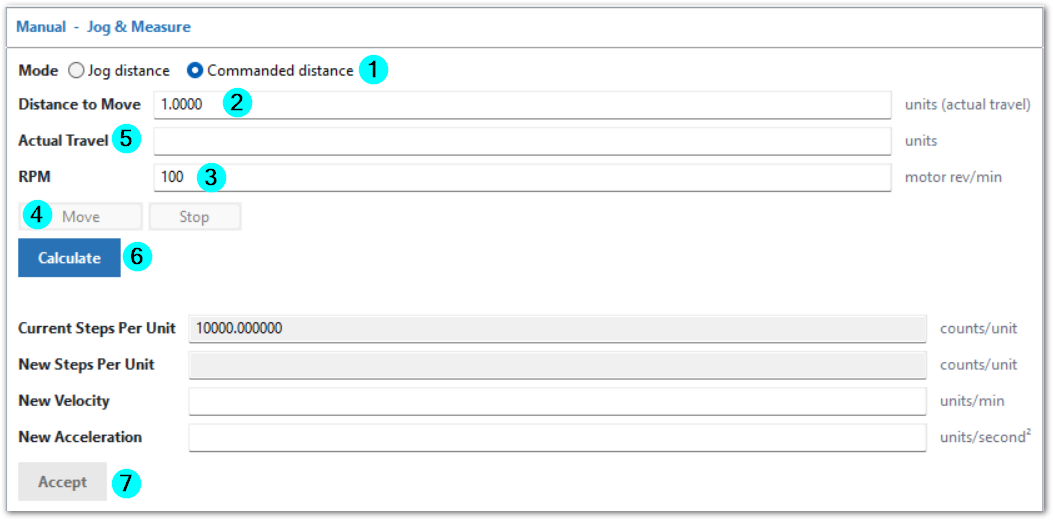
Prepare a pre-measured distance that you will move this axis, and move the axis to the first mark.
- Click the Commanded distance option
- Enter a Distance to Move
- Enter a safe RPM value for your machine
- Click the Move button
- Measure and enter the Actual Travel distance moved.
- Click the Calculate button
- Click the Accept button.
- If you made a change, repeat this process to verify the axis movement is accurate.
Slave Motor Calibration
By default, the master and slave motors will use the same calibration settings. If the slave motor is different from the master, then that motor can be calibrated separately.
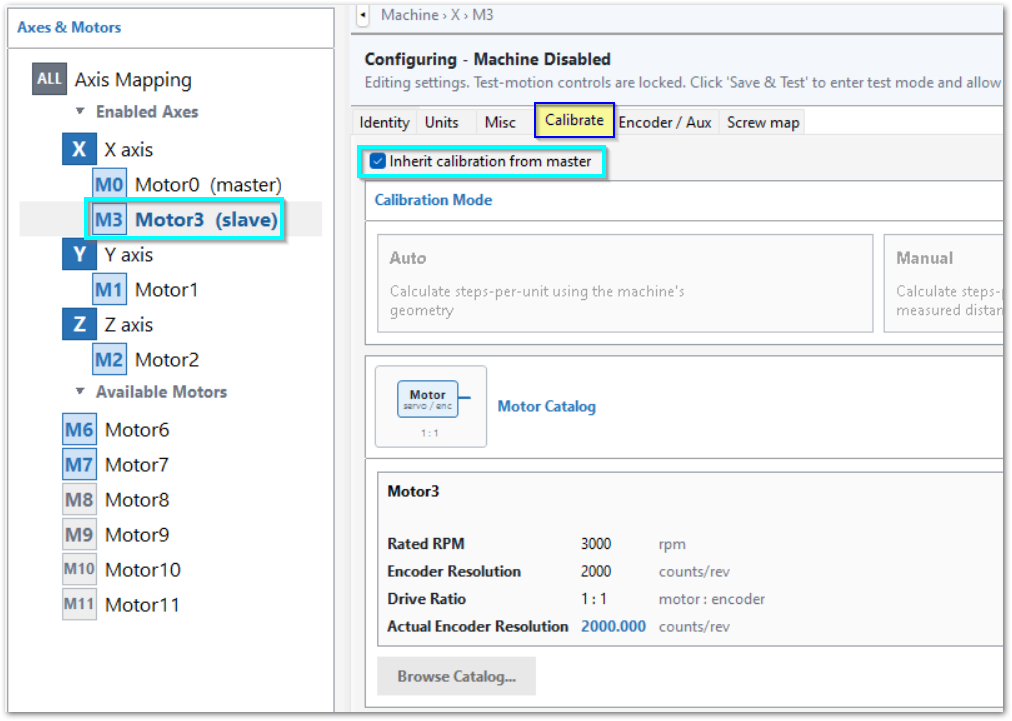
- While in the Axes menu, select the specific slave motor that needs to be calibrated.
- Uncheck Inherit calibration from master
- Select the Calibration Mode either Auto or Manual
- Complete the steps used in calibrating the master motor above.
Click Apply to save your changes. If you are done with configuration for now, click OK to close the configuration window.
If you wish to adjust the motor's velocity and acceleration values, refer to Configure Velocity and Acceleration in the Application Notes
Automatic Calibration
Automatic calibration provides the most accurate calibration but it requires specific details about the motor and axis mechanics. If you do not have enough information, use the Manual Calibration section above. If the process is completed carefully, manual calibration will also provide excellent accuracy.
- Enter the values for the mechanical components this axis has.
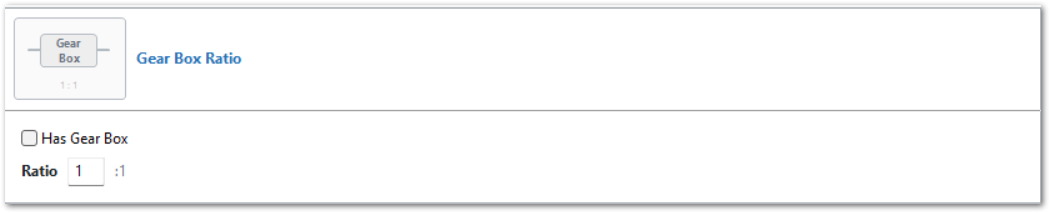
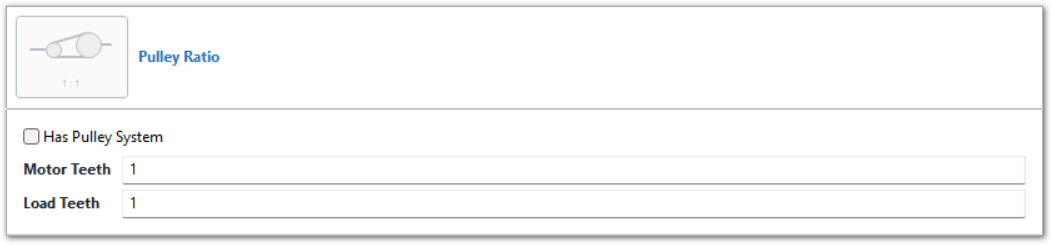
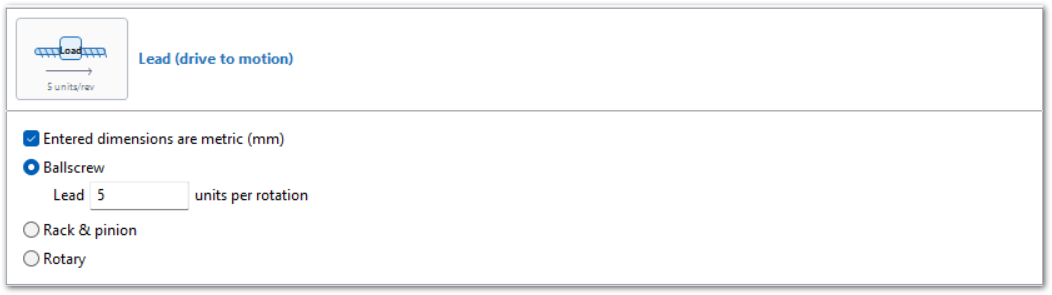
- Click the Calculate button and MachPro will calculate the correct steps per unit, velocity and acceleration for this axis.
- Click Accept or update the motor or mechanical values and re-calculate.
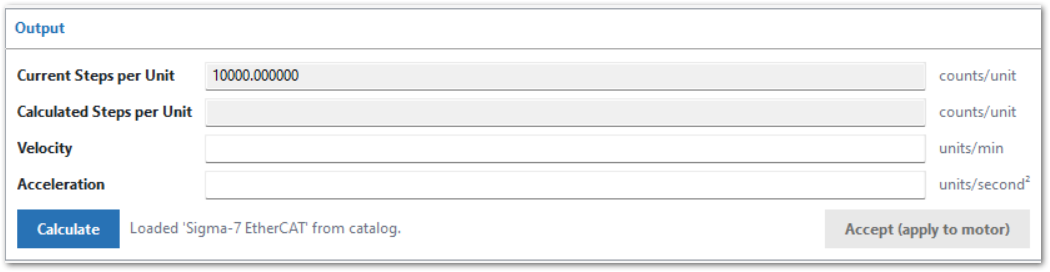
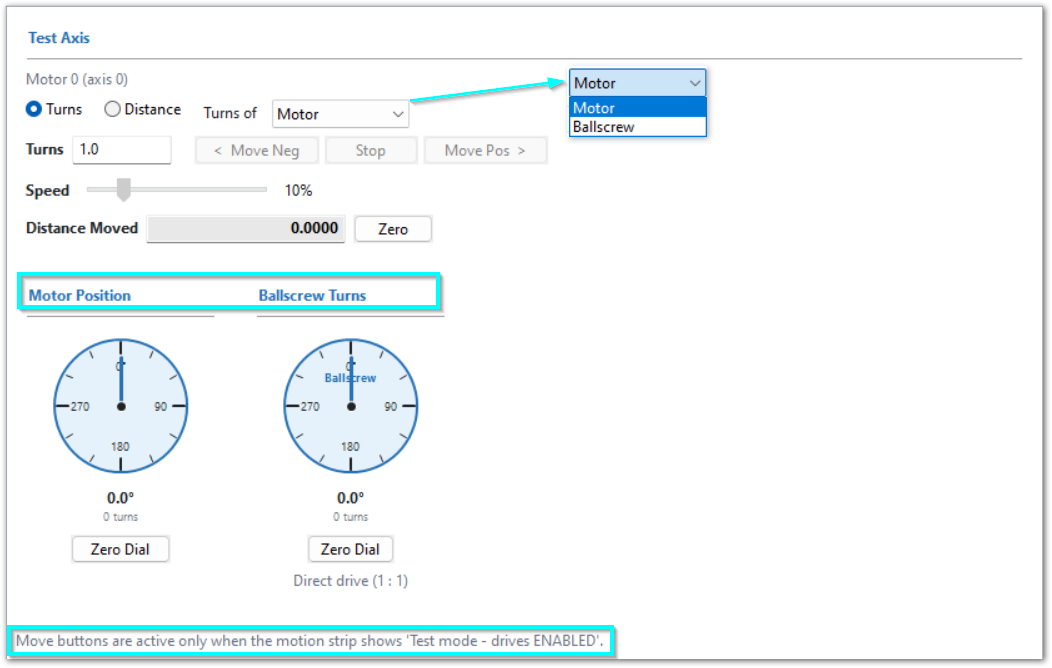
- You may use the Test Axis section at the bottom of the Calibrate pane to confirm the calibration.
- You may choose to test the motor or ballscrew turns.
- Note that the machine needs to be enabled in test mode.
Slave Motor Calibration
By default, the master and slave motors will use the same calibration settings. If the slave motor is mechanically different from the master, then that motor can be calibrated separately.
- While in the Axes menu, select the specific slave motor that needs to be calibrated.
- Uncheck Inherit calibration from master
- Select the Calibration Mode either Auto or Manual
- Complete the steps used in calibrating the master motor above.
Axis calibration is necessary for accurate machine movement. Verify that each axis meets your accuracy requirements before you continue the configuration. The remaining configuration steps depend on correct axis calibration. If you change the calibration later, you must then re-set the machine zero, soft limit, and any goto position settings.
Click Apply to save your changes. If you are done with configuration for now, click OK to close the configuration window.
Screw mapping, Linear compensation is supported in MachPro. Full use instructions are available at this link.
WARNING No limits have been set up. DEATH, INJURY or serious PROPERTY DAMAGE can occur if the system is not operated carefully. Limits and homing setup will be completed in the following sections
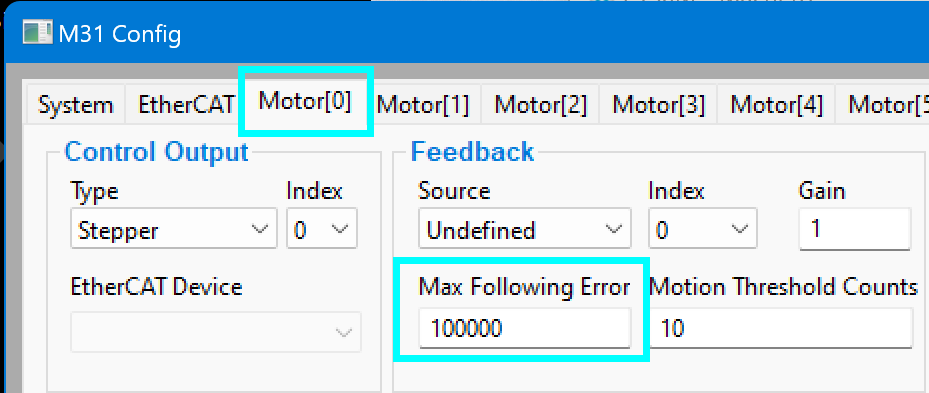
Set Maximum Following Error
This only applies to systems with motor encoder feedback and you must complete calibration first.
- Pull down Configure > Plugins > M31 and select the first motor tab to be set
- Set the Max Following Error between 125% and 150% of the Steps/Unit of that motor as shown in the lower right area of each motor tab.
- Click Apply and then click the next motor tab that needs to be set.
- Click OK when all active motors have been set.
All of the axes are now calibrated, but MachPro does not know where the limits of travel are on each axis. That will be configured in the remaining axis configuration steps. Until that is completed, be very careful if you are moving axes.
Click Apply to save your changes. If you are done with configuration for now, click OK to close the configuration window.
Motion Limits This is a read-only screen that displays the velocity, acceleration, and jerk values for each axis, and the Effective (minimum) values across all motors on that axis. motor limits tab.png
Homing / Hard limits
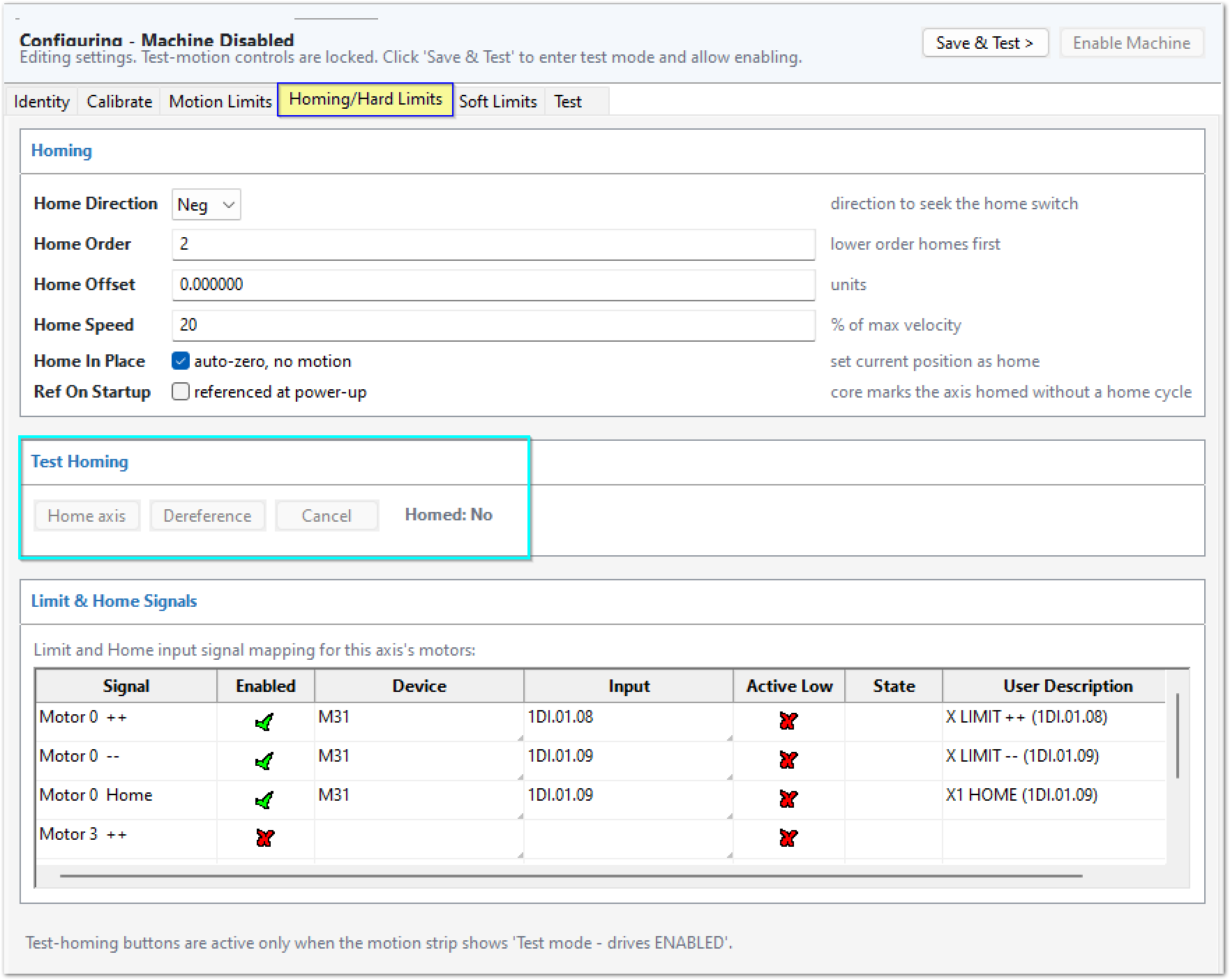
The Homing / Hard Limits tab contains the settings for axis homing and hard limits.
In this documentation, homing means the process that establishes the machine reference position and the machine zero position.
Homing does not set the zero position for a part, fixture, or workpiece.
Machine zero and work zero
The machine coordinate system is the fixed coordinate system of the machine. MachPro uses it as the reference for machine-coordinate movement, travel limits, and other machine-position functions.
The machine zero position is the origin of the machine coordinate system. Machine zero can also be called the machine home or reference position.
After homing, the machine coordinates are based on this reference. The machine zero position is typically X0, Y0, and Z0, but the configured Home Offset can assign a different machine-coordinate value at the completed home position.
Machine zero is different from the zero position that an operator sets for a part or fixture.
A work coordinate system defines the position of the part or fixture relative to the machine coordinate system. Operators typically set work zero with a work offset such as G54 through G59, or with another applicable work-coordinate method.
Homing establishes the machine reference. It does not change the intended part or fixture zero.
Diagram of recommended axis and limit layout
Definitions
A home switch is an input that MachPro uses during a homing cycle to locate the machine reference position.
A hard limit is a physical switch or input that stops or inhibits axis motion before the axis moves outside its permitted travel.
A referenced axis is an axis for which MachPro has established a valid machine-coordinate reference.
Configure Machine Zero
-
Set Home Direction to the direction in which the axis must move to find the home switch.
-
Set Home Order to control the sequence in which the axes home. MachPro homes the axis or axes with the lowest Home Order value first.
For a typical mill:
- Set the Z axis to
1. - Set the X axis to
2. - Set the Y axis to
2.
This configuration homes the Z axis first. The X and Y axes can then home at the same stage.
- Set the Z axis to
-
Set Home Offset to the machine-coordinate value that MachPro must assign to the axis when the homing cycle is complete. This value affects the machine coordinate system. It does not set the part or fixture zero.
-
Set Home Speed to the homing speed. Enter the value as a percentage of the maximum velocity configured for the axis.
-
Select Home In Place only if the axis does not move during the homing process. MachPro then assigns the current axis position as machine home. If you use Home In Place, you must also select Home In Place as the Homing Type in the M31 plugin configuration.
-
Select Ref On Startup if MachPro must mark the axis as referenced during startup without doing a homing cycle. Used on machines that use G90 and G92 heavily.
If you will be using Absolute Encoders on this axis, please read Absolute Encoder to enable and configure them.
Click Apply to save your changes. If you are done with configuration for now, click OK to close the configuration window.
Test Homing
Use the test controls in the upper-right area of the M31 configuration screen to enable test motion.
Use Home Axis to establish the machine reference for an axis.
Use Dereference to remove the current machine reference.
Prerequisites
Before you test homing, make sure that:
- The home and limit switches are wired, mapped, and tested.
- Homing Type is configured in the M31 plugin. Refer to Step and Direction, or EtherCAT as applicable.
- All motors for the axis are mapped to that axis.
- the axis moves toward the correct home switch.
- Open the Test tab.
- Enable test motion.
- Command movement in the homing direction.
- Make sure that the axis moves toward the correct home switch.
Stop the test immediately if the axis moves in the wrong direction.
Correct the axis direction or homing configuration before you continue.
Dereference an axis
Dereferencing removes the current machine-home reference for the selected axis.
Use Dereference when:
- You change the physical home position.
- You change the homing hardware.
- You must establish a new machine zero during initial setup.
After you dereference an axis, MachPro no longer considers the current machine-home position valid.
Dereferencing the axis does not define a new part or fixture zero.
Establish machine zero
After you dereference the axis, use the procedure for the configured homing method.
Home switch
- Click Home Axis.
- MachPro moves the axis through the configured homing sequence.
- MachPro uses the home switch and the configured homing settings to establish the machine reference.
- MachPro assigns the applicable machine-coordinate value.
Home In Place
- Carefully jog the axis to the position that you want to use as the machine reference for this axis.
- Click Home Axis.
- MachPro establishes the machine reference from the current axis position.
Do not use this procedure to set a part or fixture zero. Use the applicable work-coordinate procedure to set the work zero.
Absolute encoder - Do not click Home Axis to establish the reference with this procedure. - Use the Absolute Encoder setup procedure to establish the machine reference and encoder offset.
Gantry axis with master and slave motors - If the machine has a gantry axis, refer to MachPro M31 Configuring a Master Slave Axis Gantry - You can use the controls on this tab to test gantry homing after you complete the gantry configuration.
Verify the result
-
Make sure that MachPro shows the axis as referenced after the homing procedure is complete.
The digital readout (DRO) axis labels and values change from alternating yellow and red to solid black when the axis is referenced.
-
Verify that the machine-coordinate position is correct.
-
If necessary, verify separately that the applicable work offset gives the correct part or fixture zero.
If the machine-coordinate position is incorrect, dereference the axis and correct the homing configuration before you continue.
Do not correct an incorrect machine reference by changing the part or fixture zero.
Limit and Home Signals
At this stage of machine setup, verify each required home and limit signal.
For each signal:
- Make sure that the signal is enabled.
- Make sure that the signal is assigned to the correct physical input.
- Operate the applicable switch.
- Make sure that the signal changes state in MachPro.
A signal is not necessarily configured correctly because its name appears on the Homing / Hard Limits tab.
Click Apply to save your changes. If you are done with configuration for now, click OK to close the configuration window.
Soft Limits
Soft limits define the permitted machine travel for each axis. MachPro stops a running G-code program before a commanded move would cause an axis to move outside its configured soft limits.
Before you set the soft limits, make sure that the machine is homed and that axis motion operates correctly.
The machine home position must remain inside the permitted travel range. For this reason, set the soft limit beyond the home position on the applicable side of the axis.
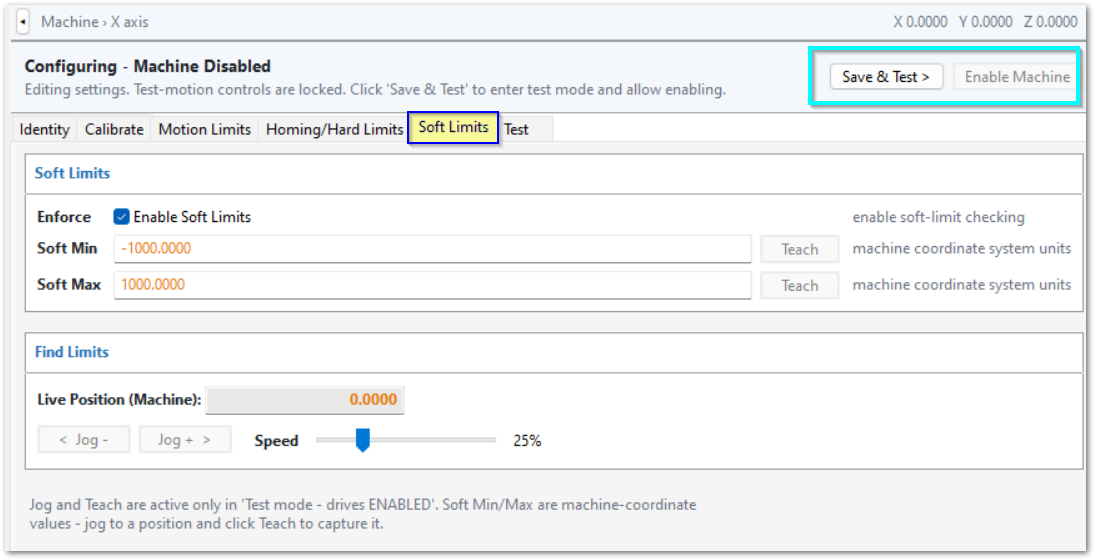
- Select the Soft Limits tab.
- Make sure that Enforce is enabled. This setting is enabled by default.
- Use the Axis and Motor Test Panel to enable machine motion.
- Use the Live Position jog controls to move the axis toward its maximum negative travel position.
- Stop the axis before it reaches the limit switches, or the mechanical hard stop.
- Make sure that the selected limit position is beyond the machine home position for that axis.
- Click Teach to record the negative soft limit.
- Jog the axis to its maximum positive travel position.
- Stop the axis before it reaches the limit switches, or the mechanical hard stop.
- Click Teach to record the positive soft limit.
- Repeat this procedure for each axis.
- Click Apply to save your changes. If you are done with configuration for now, click OK to close the configuration window.
Test Axis
You may use this tab to verify motion and calibration. Use the Axis and Motor Test Panel to enable machine motion.
There is also a set of test motion controls at the bottom of the Calibrate tab.
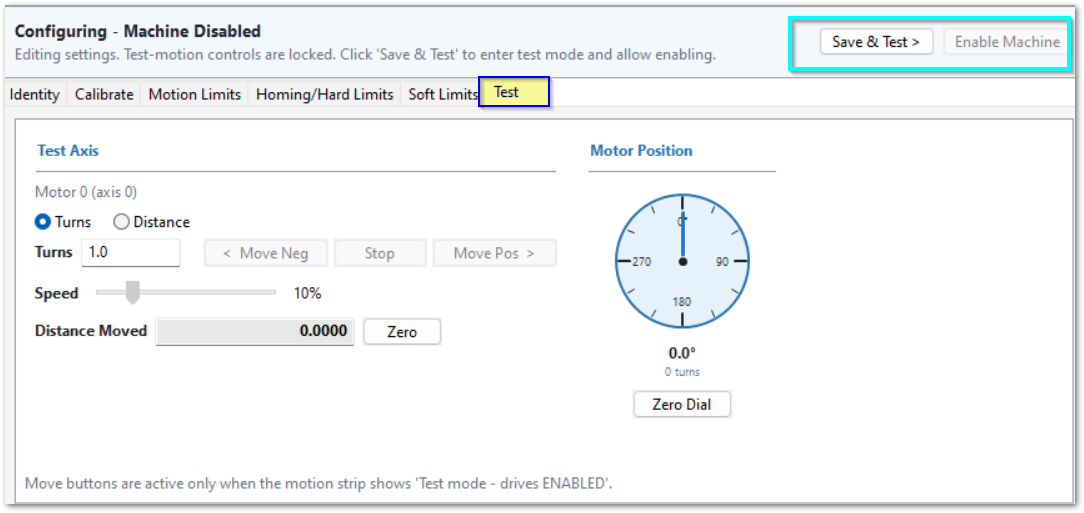
Click Apply to save your changes. If you are done with configuration for now, click OK to close the configuration window.
If you have a gantry with a master and slave motor, use MachPro M31 Configuring a Master Slave Axis Gantry
5 Motor Configuration
There are separate tabs for configuring motors.
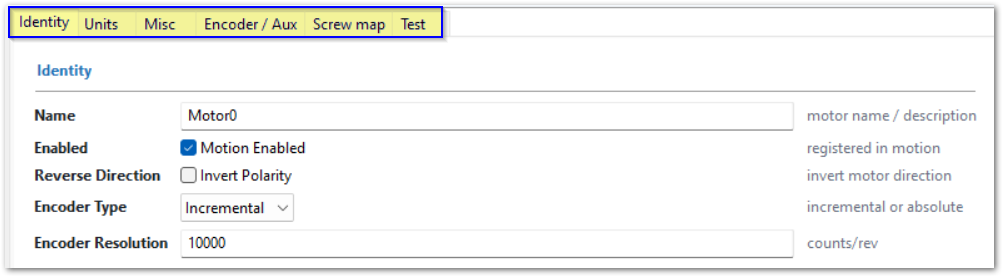
Identity
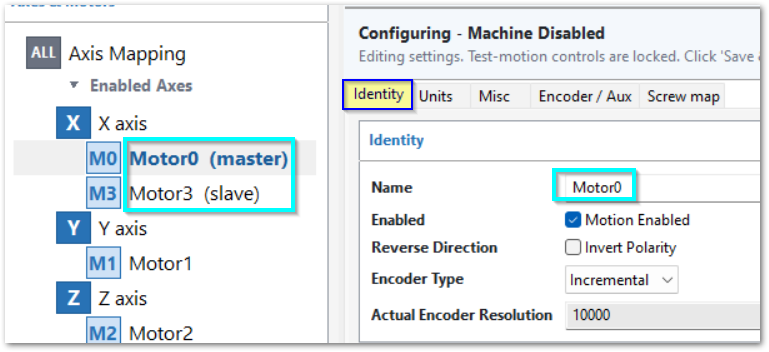
Change the default motor names to match the labels used on the physical machine.
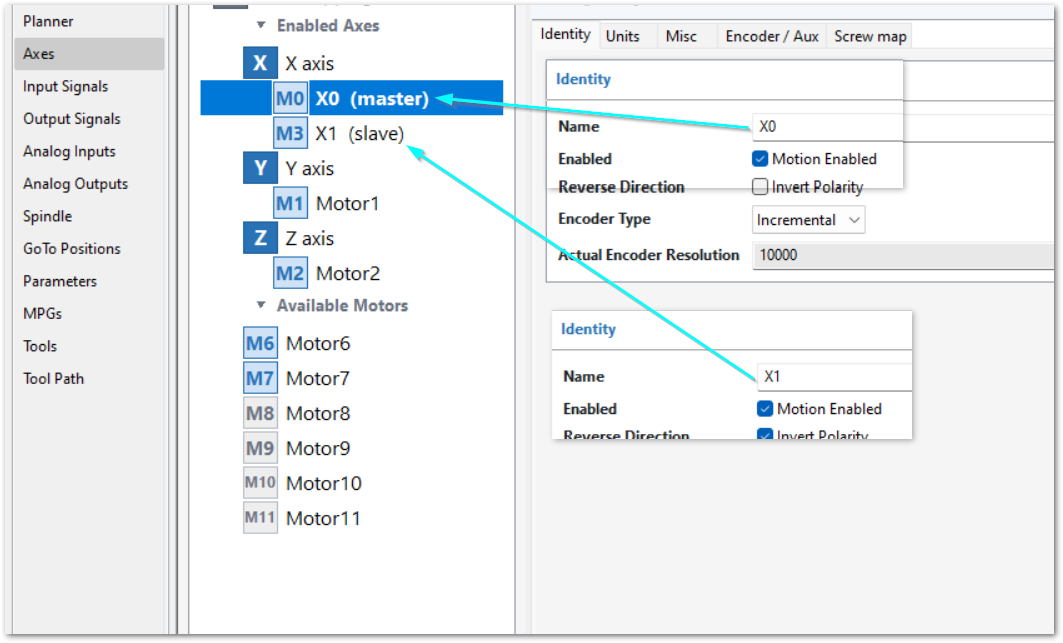
Click Apply to save your changes. If you are done with configuration for now, click OK to close the configuration window.
Units

Velocity
The calibration process sets the maximum rated Velocity and Acceleration values from the motor and mechanical specifications entered during calibration.
These calculated values are starting limits. Most machines require lower values for smooth and reliable operation. Verify and adjust Velocity and Acceleration before you operate the machine in production.
Copy units values
Click Copy All Units Values to copy all unit values from the selected motor to the other motors.
Use this function only when the motors require the same unit settings.
Units
Calibration sets Units.
Do not change Units on this screen. If the calibration is incorrect, return to the calibration procedure and correct it.
Velocity
Calibration sets the initial maximum Rapid and Feed velocity values.
Reduce these values as necessary for the machine. Select values that give smooth and reliable motion throughout the full axis travel.
-
Rapid sets the maximum velocity for rapid motion. On a machine with a large work area, a higher Rapid velocity can reduce the time for non-cutting moves. Reduce this value if rapid motion is harsh or unreliable.
-
Feed sets the maximum permitted velocity for feed motion. G-code normally commands the feed rate for the material, cutting tool, and machining operation. This setting limits the maximum feed velocity, including increases commanded by the feed-rate override.
-
Jog sets the maximum jog velocity. Set this value to the highest jog velocity that is appropriate for the machine. The operator can reduce the jog velocity from the control console or pendant.
Per-Planner Limits - Acceleration and Jerk
Acceleration
Calibration sets the initial maximum Velocity and Acceleration values.
Each axis move starts with acceleration and ends with deceleration. Set Acceleration to the highest value that gives smooth motion without position errors, over-torque errors, vibration, harsh movement, or jolts.
Reduce Acceleration if you observe any of these conditions.
Do not set Acceleration unnecessarily low. Low acceleration increases the time required for each move and increases the cycle time for each part.
After you change Velocity or Acceleration, test the axis through its full travel and at the applicable rapid, feed, and jog speeds. Make sure that motion is smooth and that no drive or motion errors occur.
Select a motion planner
MachPro supports multiple motion planners. A motion planner calculates commanded machine motion and controls velocity, acceleration, and deceleration.
The two primary motion planners are Trapezoidal and PureMotion. They use different methods to control acceleration. Select the planner that best matches your experience and machine requirements.
If you have experience with one of these planner types, use that planner for the initial machine setup. This gives you a familiar motion response while you configure and test the machine.
The motion planner is selected in the Defaults tab of Control Configuration.
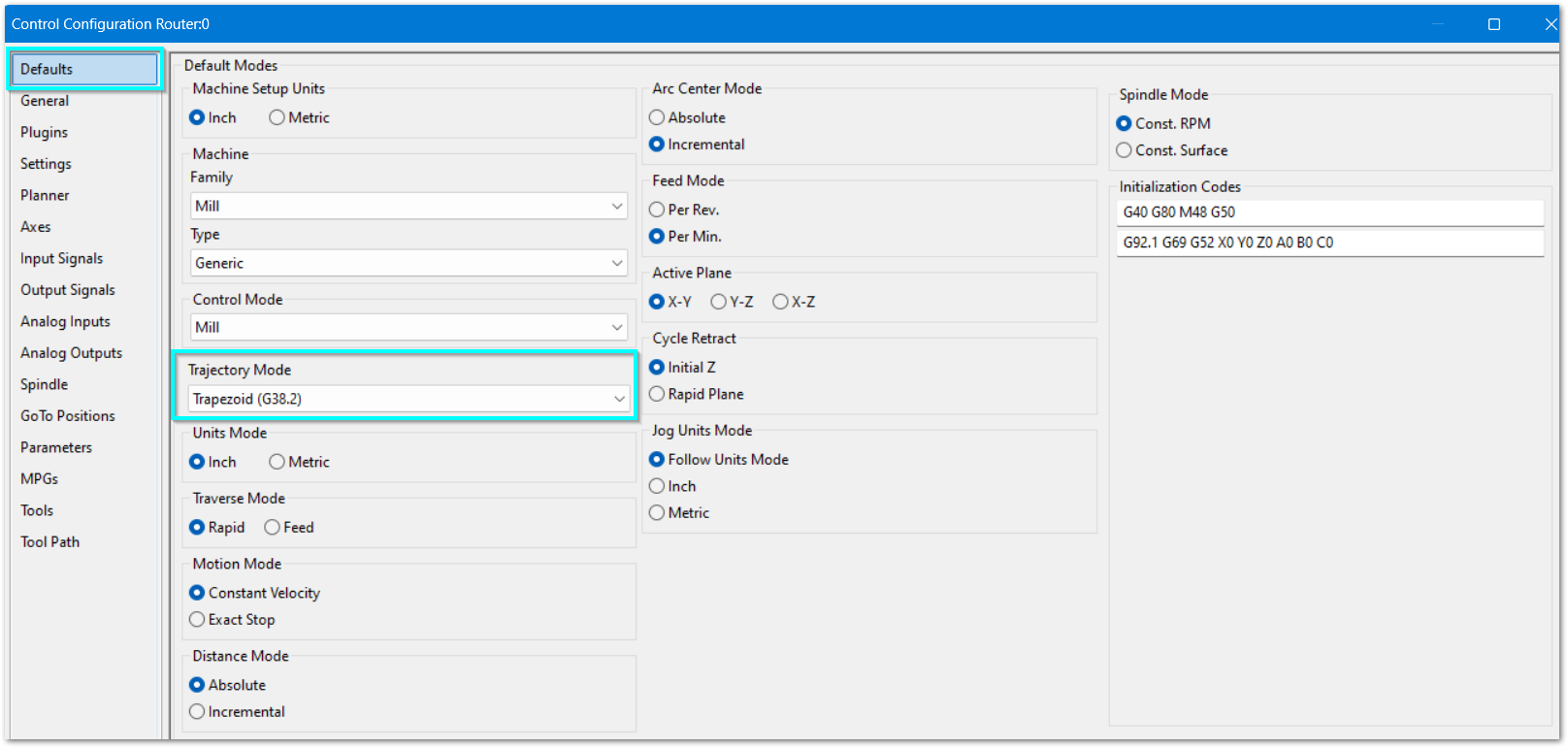
- Disable MachPro.
- Select Configure > Control.
- Select the Defaults tab.
- In Trajectory Mode, select Trapezoidal or PureMotion.
- Click Apply to save the change and continue configuration.
- Click OK to save the change and close Control Configuration.
After you select the planner, configure the acceleration settings for that planner before you test machine motion.
If the machine operates correctly with the selected planner, continue with the remaining machine setup. You can evaluate the other planner later if the application requires different acceleration characteristics or smoother motion.
Trapezoidal motion planner
The Trapezoidal motion planner is a second-order motion planner. A second-order motion planner controls position, velocity, and acceleration.
The planner uses a trapezoidal velocity profile. A typical move has these phases:
- The axis accelerates to the commanded velocity.
- The axis moves at a constant velocity when the move is sufficiently long.
- The axis decelerates to the target position.
Acceleration changes immediately at the transitions between these phases. This method has been widely used in computer numerical control (CNC) systems and requires less processing than higher-order motion planning.
These immediate acceleration changes can cause less-smooth machine motion. The effect depends on the machine mechanics, commanded velocity, acceleration settings, and the type of motion.
PureMotion motion planner
PureMotion is a third-order motion planner. A third-order motion planner also controls jerk.
Jerk is the rate of change of acceleration.
PureMotion uses an S-curve velocity profile. The S-curve controls how quickly acceleration changes during the move.
PureMotion provides a setting for the rate of change of acceleration. This setting can make acceleration and deceleration smoother than with the Trapezoidal motion planner.
Motor Motion Configuration
Use the calibrated Velocity and Acceleration values as the starting point with either planner. Tune velocity, acceleration, and the applicable motion-planner settings as a system. After each significant change, test the machine and verify that the axis motion is stable and meets the required machine performance.
Each axis move starts with acceleration and ends with deceleration. Configure velocity and acceleration together. Do not tune one value without testing the effect of the other.
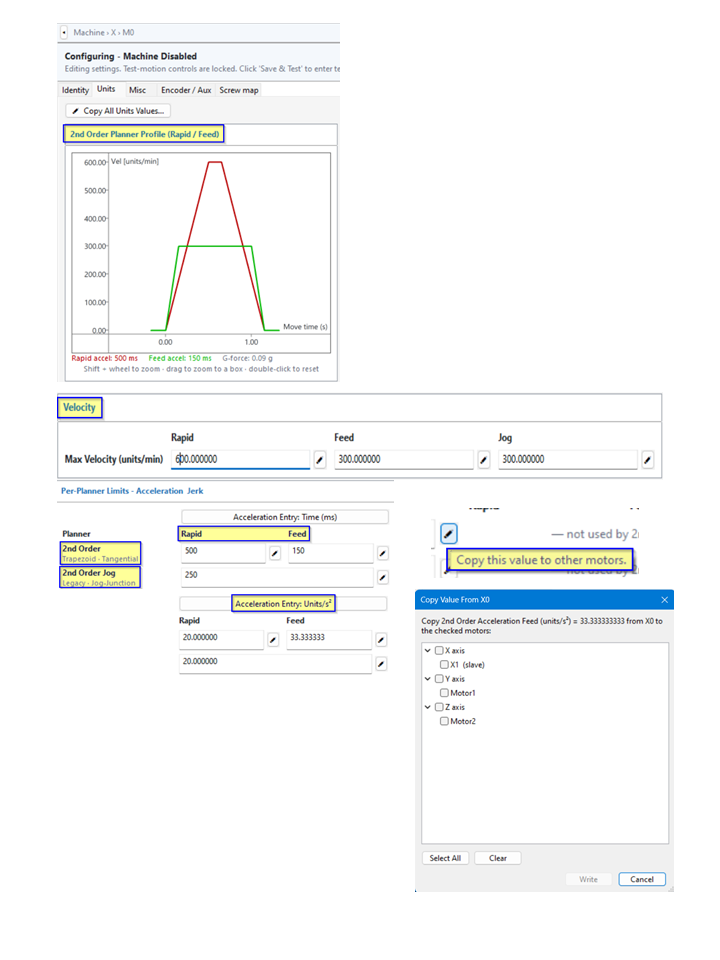
The top of the Motor Units screen contains motion graphs. The lower part of the screen contains the motor configuration values.
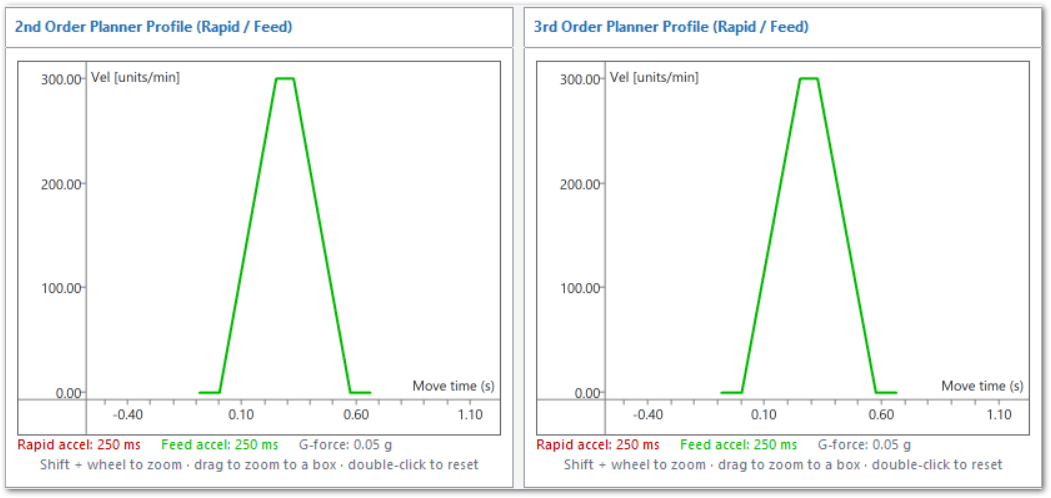
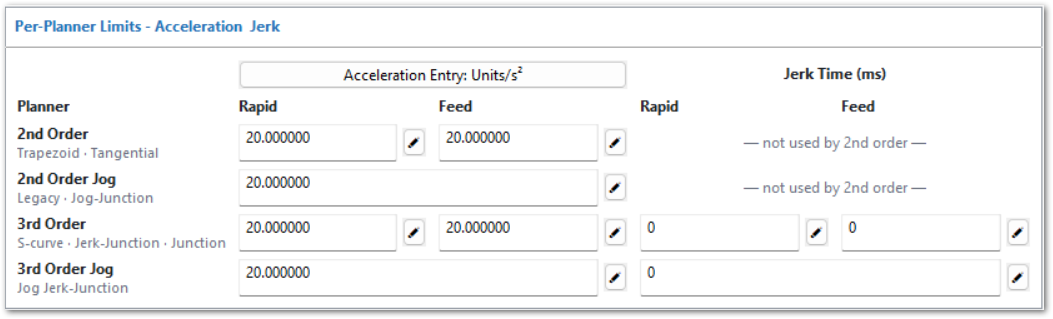
The images in the graphs can be manipulated to better see the effects of acceleration and jerk value changes.

Trapezoidal Configuration
Trapezoidal motion uses a constant acceleration rate to increase velocity and a constant deceleration rate to decrease velocity.
MachPro provides separate velocity and acceleration settings for three types of motor motion:
- Rapid
- Feed
- Jog
Use the separate settings to optimize the machine for each type of motion.
For example, you can use a higher Rapid velocity for non-cutting positioning moves and a lower Feed velocity for cutting moves.
Change the acceleration display mode
Use the selector above the acceleration values to change the acceleration display mode.
You can select:
- Units/s²
- Time (ms)
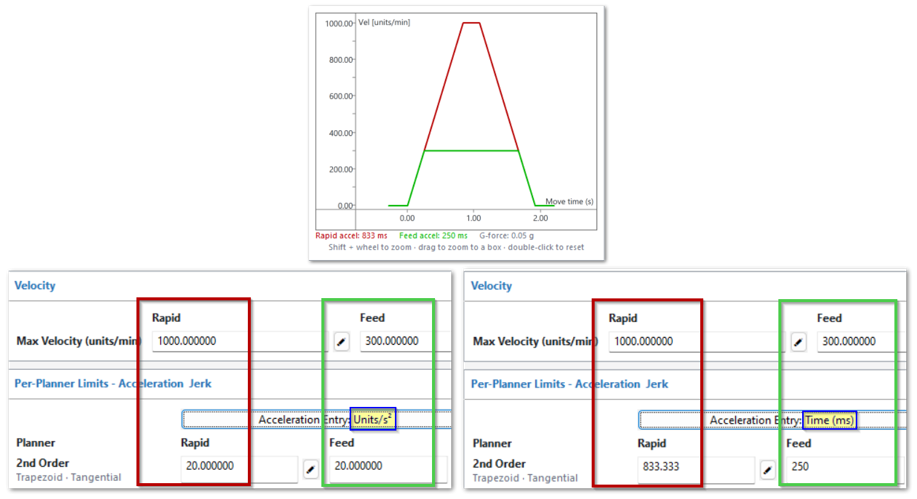
Units/s² specifies the rate of change in velocity in machine units per second squared.
Time (ms) specifies the acceleration time in milliseconds. This value controls how long the motor takes to accelerate to the applicable velocity.
Changing the display mode does not create a different type of acceleration profile. It changes how MachPro shows the acceleration setting. We recommend you use both modes.
Copy a motor setting to other motors
Each applicable value has an edit icon next to it.
- Select the edit icon next to the value that you want to copy.
- Select the motors that must use the same value.
- Apply the value.
Use this function when multiple motors require the same configuration.
Set Rapid, Feed and Jog velocity and acceleration, Jerk time
MachPro provides separate velocity and acceleration settings for Rapid, Feed, and Jog motion.
Configure these settings together because velocity and acceleration affect the same move.
- Rapid motion is normally used for non-cutting positioning moves.
- Feed motion is normally used for commanded cutting moves.
- Jog motion is manual axis motion commanded by the operator.
Set each maximum velocity to a value that the motor, drive, and mechanical system can operate at reliably.
The maximum Rapid Velocity can usually be higher than the maximum Feed Velocity. A higher Rapid Velocity can decrease positioning time, especially on machines with long axis travel.
The maximum Feed Velocity is usually lower than the maximum Rapid Velocity. A lower Feed Velocity requires less time and distance to reach the commanded velocity. This can decrease cycle time on toolpaths that contain many short feed moves.
The time required to accelerate to a commanded velocity depends on the acceleration rate and the commanded velocity. With the same acceleration rate in units per second squared (units/s²), the motor takes more time to reach a higher velocity than a lower velocity. This graph shows the same acceleration rate for Rapid and Feed velocities, but you may set them to different rates.
Set Jog velocity to give predictable manual machine movement during setup and positioning.
For each motion type, set acceleration to the highest value that gives smooth and reliable motion.
Reduce the applicable acceleration if you find one or more of these conditions:
- Position errors
- Drive over-torque errors
- Vibration
- Harsh motion
- Jolts
- Mechanical instability
Do not set acceleration lower than necessary. Low acceleration increases the time required for each move and can increase part cycle time.
Do not tune velocity independently from acceleration. Test the velocity and acceleration settings together.
After you change the settings, test Rapid, Feed, and Jog motion at the applicable speeds. Make sure that each axis:
- Accelerates smoothly.
- Reaches the commanded velocity when the move has sufficient travel.
- Decelerates smoothly.
- Stops without a position error.
- Operates without drive faults.
- Operates without excessive vibration or mechanical instability.
If the axis does not operate reliably, reduce the applicable velocity or acceleration. Then test the axis again.
Jerk time
This graphic starts with a jerk time of 0 ms, and that configuration will perform the same as a trapezoidal motion planner. The bottom two images show 25 and 50 ms jerk times. As jerk times increase the smoothing of the transitions also increases.

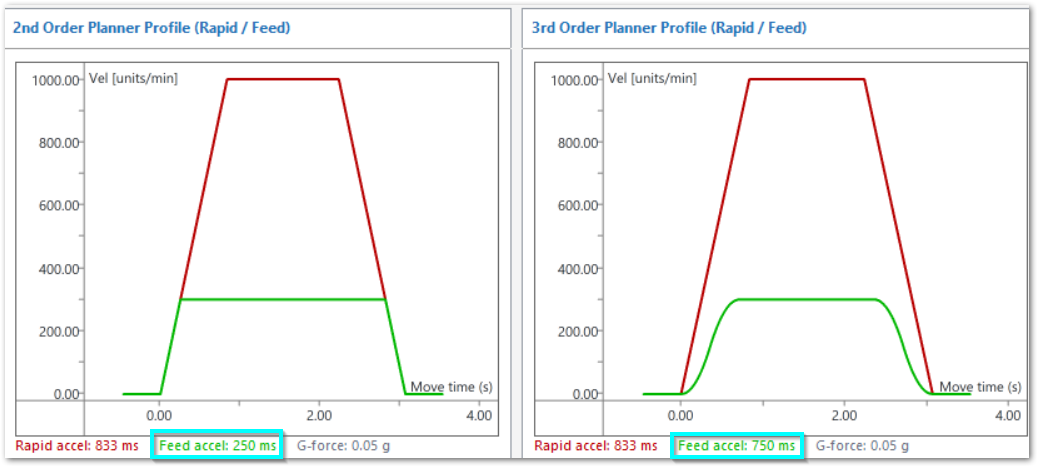
The graphic below shows the trapezoidal graph next to the PureMotion graph where the feed jerk time is set to 500 ms. This is an extreme example to show the jerk time effect over the entire commanded motion. Note that:
- There will be absolutely no abrupt motion on feed moves
- The feed acceleration increased to 750 ms compared to the trapezoidal 250 ms
- The rapid acceleration still has 0 jerk time and its motion remains the same as trapezoidal motion
- You may set different jerk times for rapid, feed, and jog
Misc
enable delay and backlash - moved from or read from M31?
Encoder / Aux
Screw Map
Velocity and Acceleration Note (part of motor > units)
These notes and all of the material in application notes needs to be updated and merged into the motor | units tab. The core concepts remain the same, but 2nd and 3rd order planner, and jerk/junction are new and need to be factored in. How much to include in the install steps and what to move to application notes
- The calibration process sets the velocity and acceleration for each axis. On machines with a large work area, a high maximum velocity will reduce non-cutting move time. Feed rates are set separately and do not use the maximum velocity.
- Each move starts with acceleration and ends with deceleration. Set the acceleration to the highest value that gives smooth motion without over-torque errors, vibration, harsh movement, or jolts. Acceleration that is too low increases the cycle time for each part.
- If you wish to adjust the motor's velocity and acceleration values, refer to Configure Velocity and Acceleration in the Application Notes
4 Output Setup (J10)
Wiring Outputs
The M31 has 8 logic outputs that can be used for any low current application. Use a 5 amp or greater 24 VDC power supply for output current loads above 250mA.
| 8 Digital Outputs (PNP Sourcing) | |
|---|---|
| Voltage | 16 - 24VDC |
| Max Current | 250mA use a relay for higher current |
| Pulse Width Modulation (PWM) | Not available on this release |
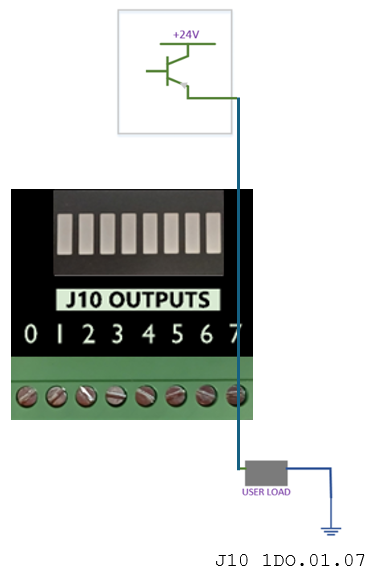
Output to a relay for current draws above 250mA

Relay Module Downloads:
Output to a contactor

Contactor Downloads:
Mapping Signals to Outputs
To configure an output, follow the procedure below.
 **Using Outputs**
Outputs 0-5 can be controlled with M-Codes. One M-Code turns an output on, and the other M-Code turns the output off. Use the table below for a reference.
| Custom M-Codes | Functions |
|---|---|
| M200 | Output #0 on |
| M201 | Output #0 off |
| M202 | Output #1 on |
| M203 | Output #1 off |
| M204 | Output #2 on |
| M205 | Output #2 off |
| M206 | Output #3 on |
| M207 | Output #3 off |
| M208 | Output #4 on |
| M209 | Output #4 off |
| M210 | Output #5 on |
| M211 | Output #5 off |
| This pattern continues through M218 and M219 for Output #9 |
Also see M220 - M222 for extended output control
Mist and Flood Control
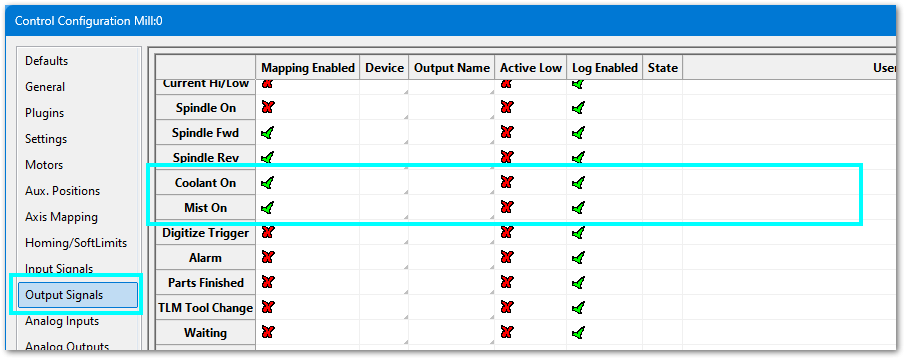
- On the menu bar click on Configure > Control and select the Output Signals tab.
- Select the Motion Control Device and Output Name
- Add a User Description, which will show on the Service tab's I/O dashboard.
- On the left menu bar, select the Settings tab
- Filter for either Mist or Flood and adjust the settings for your system

| Feature | ON M-Code | OFF M-Code |
|---|---|---|
| Mist | M7 | M9 |
| Flood | M8 | M9 |
5 Spindle Setup (J5)
Configure the VFD for the spindle motor
A VFD (Variable Frequency Drive) controls the speed of the spindle motor.
Set the VFD to match the motor’s electrical ratings:
- Rated voltage
- Rated current
- Rated speed (RPM range)
You must use the values from:
- The VFD manual
- The spindle motor manual
Do not guess these values.
Spindle control options on the M31
The M31 controller will either use 0-10 VDC or EtherCAT to control the spindle. EtherCAT is the recommended option if your hardware supports it. It provides more control, and access to advanced VFD functions. Use your VFD manual to determine the control methods supported.
EtherCat M31 Spindle Configuration
To access this configuration pull down Configuration > Plugins > M31
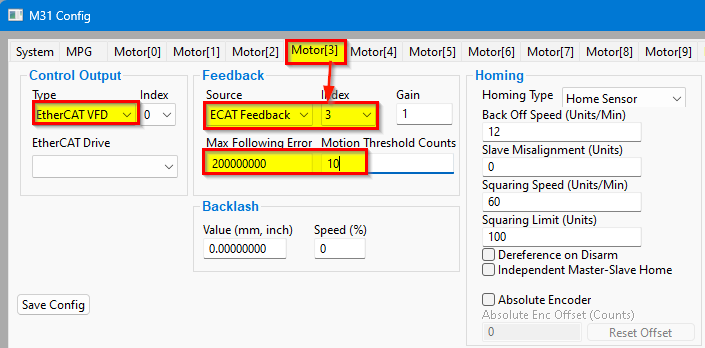
The feedback index will be the same as the motor number - in this case 3.
Set the Max Following Error very high as this is not meaningful for a spindle
Turning on the Spindle
In addition to the screen controls the spindle can also be controlled using M-codes. Use the table below as a reference.
| M-Code | Function |
|---|---|
| M3 | Clockwise |
| M4 | CounterClockwise |
| M5 | Stop |
Encoder Feedback (J4)
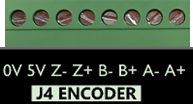
| Quadrature Encoder Channel | 1 |
|---|---|
| Connection | Terminal Blocks, 5 VDC Differential |
| Max Frequency | 1.6 MHz |
Please refer to the documentation for your VFD and spindle motor for spindle encoder connections.
0-10 VDC Configuration
- Forward rotation signal
- Reverse rotation signal
- 0–10 V analog speed signal
MachPro Spindle Configure for M31 up to Rev 1.2 These M31 controllers use sinking (forward and reverse collectors) to control the spindle rotation direction.
For M31 Rev 1.3 and later, use the information below. All M31 controllers from Rev 1.3 on use forward and reverse relays to control spindle rotation direction.
The drawings below show 0-10 VDC connections to a Yaskawa GA500. The manual for your VFD should have similar documentation.

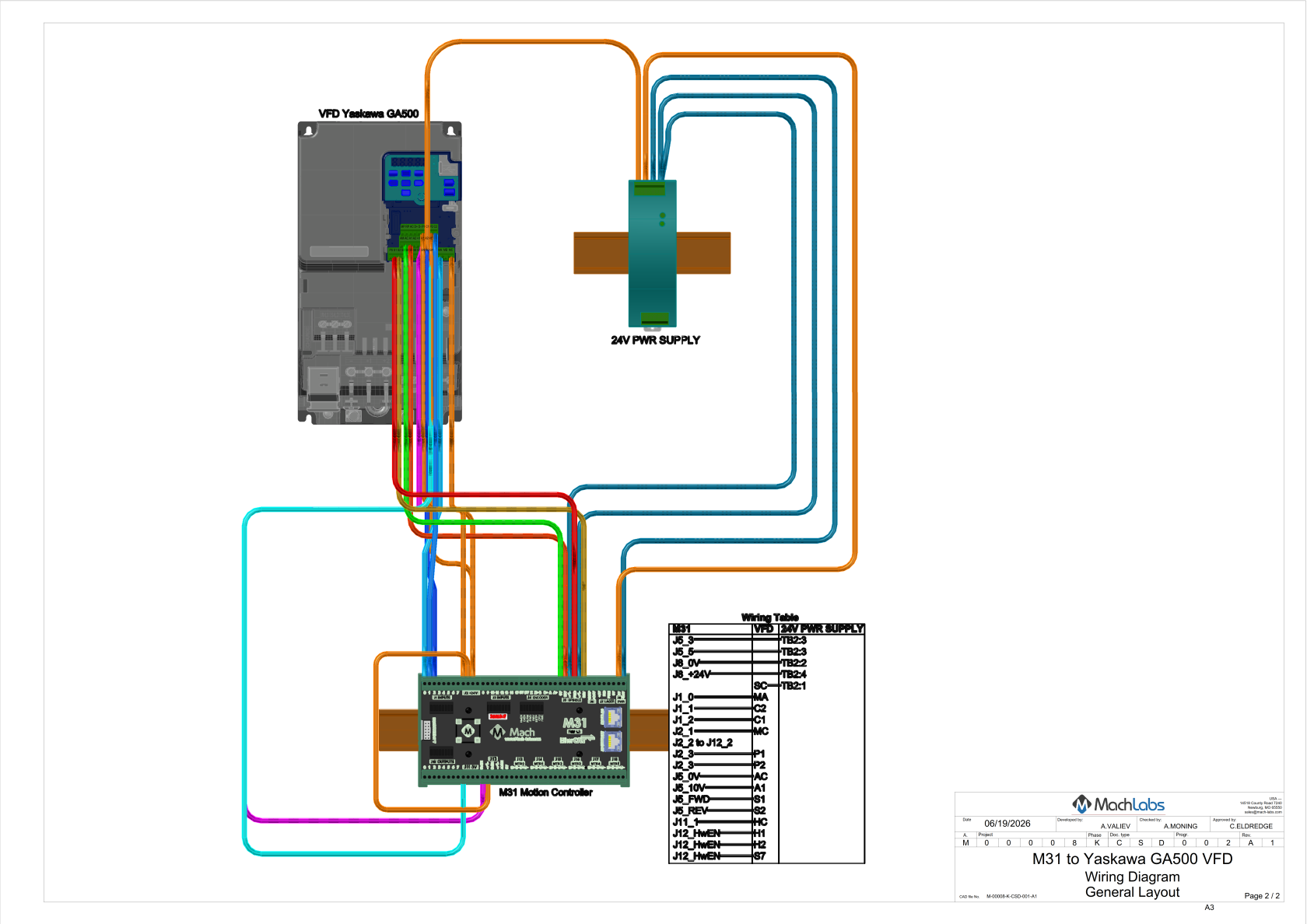
Yaskawa VFD Downloads:
- M31_to_Yaskawa_VFD_GA500_Wiring_Diagram.pdf
- M31_to_Yaskawa_VFD_GA500_General_Layout.pdf
- M31_to_Yaskawa_VFD_GA500_3D.pdf
https://support.machmotion.com/attachments/641
Analog Spindle Voltage Adjustment
On the Systems tab of the M31 plugin, the spindle voltage can be adjusted by changing the percentage (10-200%). Most systems will not require this value to be changed. However, if the voltage is not close enough, the percentage adjustment can be calculated with the following formula:
Analog Spindle Scale % = Commanded Voltage/Actual Voltage * 100
6 Advanced Options and Information
MachPro Settings
A number of advanced features can be configured in the Mach Settings such as periodic oiler control. Begin by going to Configure >Control and got to the Settings tab. Settings contains custom options for the control, including dialog options, lube system, tool measurement/offsets, and tool changer options.
MachPro Tool Setters and Offsets
7 Next Steps
There are Machine Type Setup and Operation manuals for the different machine types,
and there is also an Advanced Configuration Manual for features like modifying the tool table or using the GCAdapter.
8 Reference Information
Please observe the maximum voltage on each pin. Some pins are 24 VDC compatible, some are 5 VDC, some are 3.3 VDC, and some are 0 VDC. Exceeding their max voltage will cause serious damage to the M31 Motion controller.
| Item | Specification |
|---|---|
| Input Power | 24 VDC |
| Max Power Consumption | 48 W |
| Motor Drives | |
| Stepper Channels | 6 motors |
| Step and Direction Axis Control | 5 VDC Single Ended and Differential |
| Connection | Terminal Blocks |
| Max Pulse Speed | 1.6 MHz |
| EtherCAT Network | |
| Device Types | Servo Motors, Stepper Motors, VFDs, I/O Modules, etc. |
| Max Devices | 30 |
| Max Motors | 6 motors by default (8 and 12 motor options available) |
| Quadrature Encoder Channel | 1 |
| Connection | Terminal Blocks, 5 VDC Differential |
| Max Frequency | 1.6 MHz |
| Spindle | 1 |
| Opto-Isolator Outputs | Forward and Reverse Open Drain / Open Collector outputs |
| Analog Speed Signal | 0-10 VDC |
| Encoder Feedback | Yes |
| Digital Outputs | 8 (PNP Sourcing) |
| Voltage | 16 - 24 VDC |
| Max Current | 250 mA |
| Pulse Width Modulation (PWM) | Not yet available |
| Inputs | 16 (opto-isolated, for PNP/Sourcing sensors) |
| Voltage | 16-24 VDC |
| Input Current Range | 3 - 6 mA |
| Isolated | Yes |
| Enable Circuit | 2 |
| Hardware Enable | Relay Dry Contacts, 5 VDC Enable or 24V Enable |
| Drive Enable | Relay Dry Contacts |
| Servo Drive Alarm | 1 (NPN Sinking with 24VDC pull-up) |
| Voltage | 5-24 VDC |
| Input Current Range | 3 - 6 mA |
| Emergency Stop Circuit | Normally Closed Connection |
| Ethernet Port | 10/100 MHz |
| Dimensions | 7.125" (L) × 3.75" (W) × 1.875" (H) |
| Optimal Temperature Range | 32° to 100°F (0° to 38°C) |
| Humidity | 30% - 60% RH |
| Signal | M31 Junction | Input Name | Use | |
|---|---|---|---|---|
J1 |
1DI.01.00 |
|||
J1 |
1DI.01.01 |
|||
J1 |
1DI.01.02 |
|||
J1 |
1DI.01.03 |
|||
J1 |
1DI.01.04 |
|||
J1 |
1DI.01.05 |
|||
J1 |
1DI.01.06 |
|||
J1 |
1DI.01.07 |
|||
J3 |
1DI.01.08 |
|||
J3 |
1DI.01.09 |
|||
J3 |
1DI.01.10 |
|||
J3 |
1DI.01.11 |
|||
J3 |
1DI.01.12 |
|||
J3 |
1DI.01.13 |
|||
J3 |
1DI.01.14 |
|||
J3 |
1DI.01.15 |
| Signal | M31 Junction | Output Name | Use |
|---|---|---|---|
J10 |
1DO.01.00 |
||
J10 |
1DO.01.01 |
||
J10 |
1DO.01.02 |
||
J10 |
1DO.01.03 |
||
J10 |
1DO.01.04 |
||
J10 |
1DO.01.05 |
||
J10 |
1DO.01.06 |
||
J10 |
1DO.01.07 |
9 Troubleshooting
Firmware and FPGA upgrade
If you have problems with the automated upgrades, you should use the manual upgrade process. **MachPro Manual Upgrade of M31 Firmware and FPGA**If you need to reset the IP address on the M31
- Verify: The M31 has 24VDC power
- Verify: The M31 and computer are connected with an ethernet connection
- Open the VSI Device Manager software
You should see the VSI Device Manager icon on your windows desktop

If not, click the Windows Start button and search for VSI 
The VSI Device Manager will appear as one of the windows below.


- Click Scan Network
- Click the device that the scan locates. It will show the current IP address on the line at the top as well as an editable field in the lower right corner.
- You may not see an M31 in the VSI Device Manager. Still follow steps 3 through 6.
- Enter 192.168.208.35
- Click Set New IP Addr
- Click Close
- Close MachPro, power cycle the enclosure, and restart MachPro. This ensures that all network and software changes are fully enabled.
I/O Diagnostics
The M31 and MachPro have a rich set of diagnostics.
- Each input and output on the M31 has an associated LED
- The M31 Diagnostic screen shows the status of all I/O at the motion controller level (click Diagnostic > M31)
- The MachPro Input Signals screen shows the state of all enabled signals in the State column (click Configure >Control, then click Input Signals)
- The MachPro Machine I/O screen also shows the state of all mapped I/O (click the Service tab, then the Machine I/O tab)
While you are wiring and mapping I/O signals, confirm that each I/O port is changing correctly at the M31 - with its diagnostic LEDs, and in the MachPro software.
M31 Diagnostics

- Input pin 1 is active - 1DI.01.01
- The E-Stop is active - 1DI. ESTP
- There is power to the board.
- The blue CPU LED will blink when the CPU is active
M31 Plugin Diagnostics

- Click the Pin icon to keep this window on top of other windows
- The table at the top lists the current status of all motors connected to the M31
- In the row directly under the motors table there is a GCode Message Cntr. If this number is active, then the M31 and MachPro are communicating normally.
- The bottom section shows the status of all physical inputs and physical outputs on the M31
MachPro I/O Diagnostics

- The M31 Status window shows that 1DI.01.01 has 24VDC
- The Control Configuration window shows that this input from the M31 is mapped to MachPro Input #1. Because this input is a tool setter with a normally closed status, the Active Low status was turned on. Now, when the tool touches, the circuit will open, and the software input signal will trigger. All of these settings can be changed from this window.
- The Machine I/O dashboard tells us that there is currently no tool touching the tool setter pad.
Test Setup
If you want to test motion before installation, or are having trouble getting correct motion:
You can do a test setup with your motors, drives, and cables. This is particularly helpful in setting and verifying 17 bit encoding.
- This ensures that you have all the cables you need
- You can verify that the motors all work
- You can easily verify that your drives are set to 17 bit or less.
Set the motors on a stable work surface. Often the packing materials will work well as temporary pads.
Connect all cables between each drive and motor. You may leave the motors setup like this until the system is ready for axis calibration. At that time you will need to install the motors on the machine.

Testing Axis Motion
This procedure applies to step-and-direction axes and EtherCAT axes.
WARNING: Make sure each axis can move safely in both directions. No software limits are active during this test. If the motor is installed on the machine, the only travel limits are the physical hard stops.
Open the M31 test motion screen
- Open Configure > Plugins > M31.
- Select the motor that you want to test.
- Find the Test Motion section in the lower right corner of the window.

Set the first test move
Use small values for the first test.
- Set Position to
0.1. - Set Accel to
10. - Set Velocity to
10. - Select Auto-Reverse.
- Click Enable in the Test Motion section.
The motor is now ready for a test move.

Run the test move
- Click Execute.
- Verify that the axis moves.
- Click Execute again.
- Verify that the axis moves in the opposite direction.
The second move should reverse direction because Auto-Reverse is enabled.

Increase the test values slowly
After the first test works correctly, increase the values in small steps.
Example:
- Increase Position to
0.3. - Increase Accel to
20. - Increase Velocity to
200. - Click Execute.
- Verify that the motion is smooth and controlled.
Use short movement distances during this test. The goal is to verify communication between the M31, the drive, and the motor.
Repeat the test
Repeat this procedure for each motor.
Verify these items for each motor:
- The motor enables correctly.
- The motor moves when commanded.
- The motor moves in the expected direction.
- The motor reverses direction when Auto-Reverse is enabled.
- The motion is smooth.
- No drive alarms occur.
EtherCAT Problems
- The EtherCAT cables must be shielded
- Very carefully check the In/Out cabling sequence through the entire EtherCAT chain. If one or more of the devices is backwards, the EtherCAT network will power up, but will not enable.
- All of the drives need to be programmed, and all alarms cleared. With some drives, you can clear the alarm from the face of the drive, but not clear the alarm state internally. Close the MachPro software and power cycle the enclosure. Then restart the MachPro software.
- Drives connected to the M31 Motion Controller must be configured for 17 bit or less. If they are configured for more than 17 bit, the system may still have motion, but it will be very sluggish.
- If you see a Not Supported status next to a device in the EtherCAT tab of the M31 Config window, contact support.
EtherCAT Network Troubleshooting
- Close the MachPro software and then shut down the computer.
- Cycle the power on the whole machine.
- Restart the computer and the MachPro software. Recheck to see if you are still having a problem.
- Verify that the GCode Message CNTR is still active in the M31 Status window (Diagnostic > M31).
- Verify the EtherCAT chain between drives. Disconnect the cable from drive 1 to drive 2, and refresh the network. You may need to refresh several times to fully populate the drive list.
- If that works, reconnect drive 1 to drive 2, and disconnect drive 2 from drive 3. Repeat until the drive list will not populate. The EtherCAT chain is getting stuck at that drive.
- Check the parameters you programmed into that drive.
If the list of online devices in right column still does not populate with valid devices, please contact MachLabs support.
Network
Are the M31 motion controller and computer connected and communicating?
- Ensure that the Motion port on the computer is connected to the Mach J20 port on the M31.
- From the MachPro software, pull down Diagnostic > M31
- The value in the GCode Message Cntr should be actively changing

- If it is a static value or 0:
- Close MachPro and power cycle your enclosure, then restart MachPro
- Research and resolve all alerts and warnings that come up during that process.
- Verify your network settings . If you need to make network changes, close MachPro and power cycle the enclosure.
10 Application Notes
If your system is running 480 VAC we recommend using line filters before the servo drives and VFDs to minimize electrical noise from the VFDs.
E-Stop variations
- Connect all E-Stop devices in series in the same E-Stop circuit.
- In a series circuit, any open contact will open the entire E-Stop circuit.
- If you need specialized safety circuits, please contact support.
Adding an E-Stop Button to the M31 Board
- Wire the E-Stop button to a relay input.
- Use the relay output contacts in the E-Stop circuit.
- Ask a qualified electrician to design and verify this wiring.
M31 E-Stop Input Mapping
The Emergency Stop input is mapped to M31 1DI.ESTP.
- Pull down Configure > Control and click the Input Signals tab
- Scroll down the input signals to reach the E-Stop signal
- When configured correctly, opening the E-Stop terminals will disable the system.
- The system will only operate when the E-Stop circuit is closed and healthy.

Tip: The most effective way to wire an E-Stop circuit is with 24 VDC all the time the machine is enabled. If someone presses the E-Stop button, or an E-Stop wire is cut, the machine will be disabled immediately.
When mapping the M31 input to the MachPro software signal, set that input as Active Low. When the the 24 VDC is removed, then input from the M31 goes to a low state, the E-Stop signal will trigger active and the machine will disable.
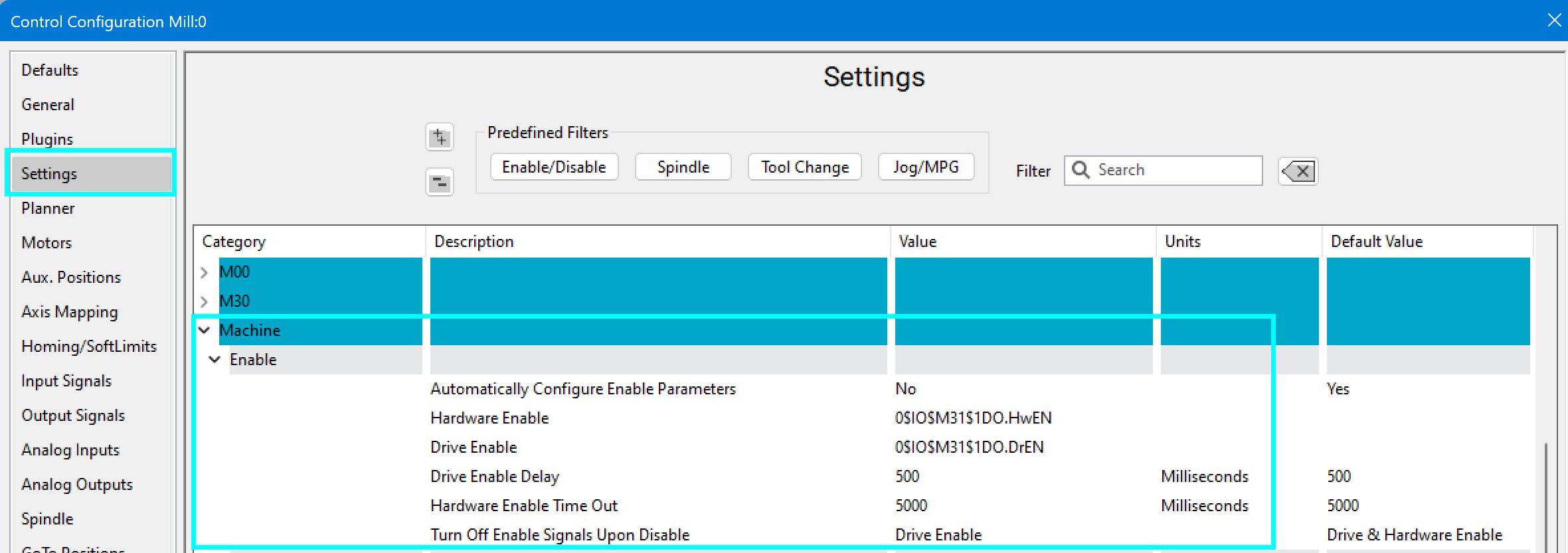
Hardware and Drive Enable Settings
- Open Configure > Control.
- Select the Settings tab.
- Select the Machine category and the Enable subcategory You can:
- Set the delay between hardware enable and drive enable.
- Choose which outputs turn off when the system disables.
Differential step and direction connection to a Yaskawa Sigma 7 drive.
Explanation:
Why Use 17-Bit Encoder Resolution?
A 17-bit encoder resolution provides sufficient positioning resolution for most CNC applications. It also permits the use of servo motors and drives that have higher native encoder resolutions.
The M31 supports a maximum of 131,072 counts per revolution (2¹⁷). If the servo drive uses an encoder with a higher native resolution, configure the drive so that it reports 131,072 counts per revolution to the M31.
Servo drive manufacturers use different names for this setting. Depending on the drive, the applicable parameter can be identified as:
- Drive Ratio
- User Parameter
- Encoder Output Resolution
- Edge/Pitch
Refer to the servo drive documentation for the parameter that controls the encoder resolution reported through EtherCAT.
Reference: Encoder Resolution
| Encoder resolution | Bit resolution | Use Drive Ratio |
|---|---|---|
| 131,072 counts/revolution | 2¹⁷ | 1:1 |
| 1,048,576 counts/revolution | 2²⁰ | 8:1 |
| 8,388,608 counts/revolution | 2²³ | 64:1 |
| 16,777,216 counts/revolution | 2²⁴ | 128:1 |
The M31 supports a maximum of 131,072 counts per revolution (2¹⁷). If a motor or drive has a higher native encoder resolution, configure the drive to report no more than 131,072 counts per revolution.
Configure Multi-Axis EtherCAT drives
- These are not standard drives that have one motor controlled by one drive. These drives each control multiple motors.
- The Control Output EtherCAT Device will remain the same for all motors attached to your multi-axis drive
- Set the Control Output SubID value to match the motor number.
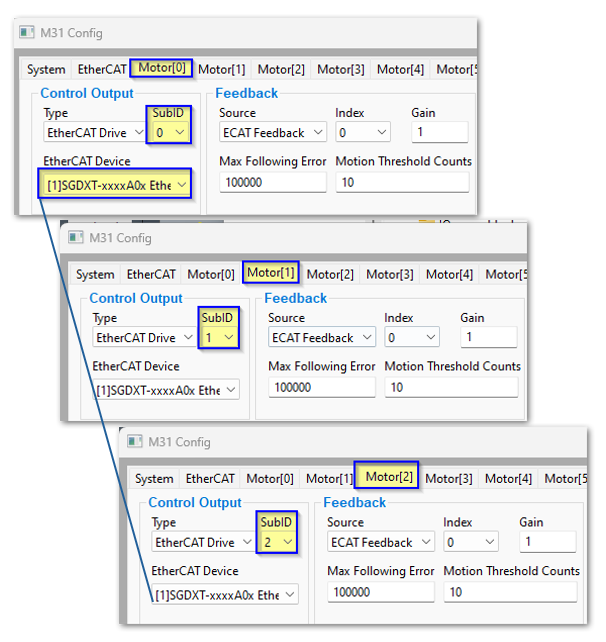
EtherCAT State Machine
When enabling or booting up, an EtherCAT slave device moves through a specific sequence of four main communication states managed by the EtherCAT State Machine (ESM):
- Init (Initialization) This is the initial state after power-on. No mailbox or process data communication is possible. The master initializes the slave's address and communication settings. The EtherCAT master is answering the question: "What kind of device are you?" for each device in the chain.
- Pre-Operational (Pre-Op) - Mailbox communication is enabled, allowing the master to configure SDOs (Service Data Objects), PDO (Process Data Object) mapping, and other parameters. Process data communication is not yet active. The EtherCAT master is answering the question: "How are you configured?" for each device in the chain.
- Safe-Operational (Safe-Op) - The master and slave check the configuration. Mailbox and process data communication are active, but the slave only sends input data; outputs are held in a safe state (e.g., switched off). If there are any device alarms, EtherCAT will not move past this state.
- Operational (Op) - The slave is fully functional. Both mailbox and process data communication are active, and the master sends output data, which the slave applies.
Backlash Compensation
Backlash is lost axis motion that occurs when an axis changes direction. Backlash compensation adds an axis movement command to correct this lost motion.
The M31 provides software backlash compensation as a short-term solution for small, stable amounts of backlash. To calculate the backlash of an axis use How To Test For Backlash
Entering backlash compensation values
Backlash Value
Go to Configure > Plugins > M31 and select the first motor tab to set Backlash Value.

The Backlash Value specifies the backlash compensation distance. The machine setup units determine which units the M31 plug-in uses - metric or imperial.
For best performance, keep the backlash compensation value less than:
- 0.0015 in for an imperial machine
- 0.038 mm for a metric machine
Start by entering half of the measured backlash value, test and adjust.
Correct the mechanical system if the backlash is too large or changes at different positions along the axis. See also Screw mapping, Linear compensation
Backlash Speed %
Go to Configure > Plugins > M31 to set Backlash Speed %.
The Backlash Speed % specifies the acceleration for the backlash compensation movement. The M31 plug-in multiplies the maximum motor acceleration by this percentage.
The permitted range is 10% through 400%.
- 10% is 0.1 times the maximum motor acceleration.
- 100% is equal to the maximum motor acceleration.
- 400% is 4 times the maximum motor acceleration.
Use 20% as the initial value.
Do not set the backlash speed value to zero. The M31 will not function with a speed of zero. Only change this value if your motion tuning indicates that it needs to be changed.
{{@2016}}