
MachPro Mill and Router Setup Manual

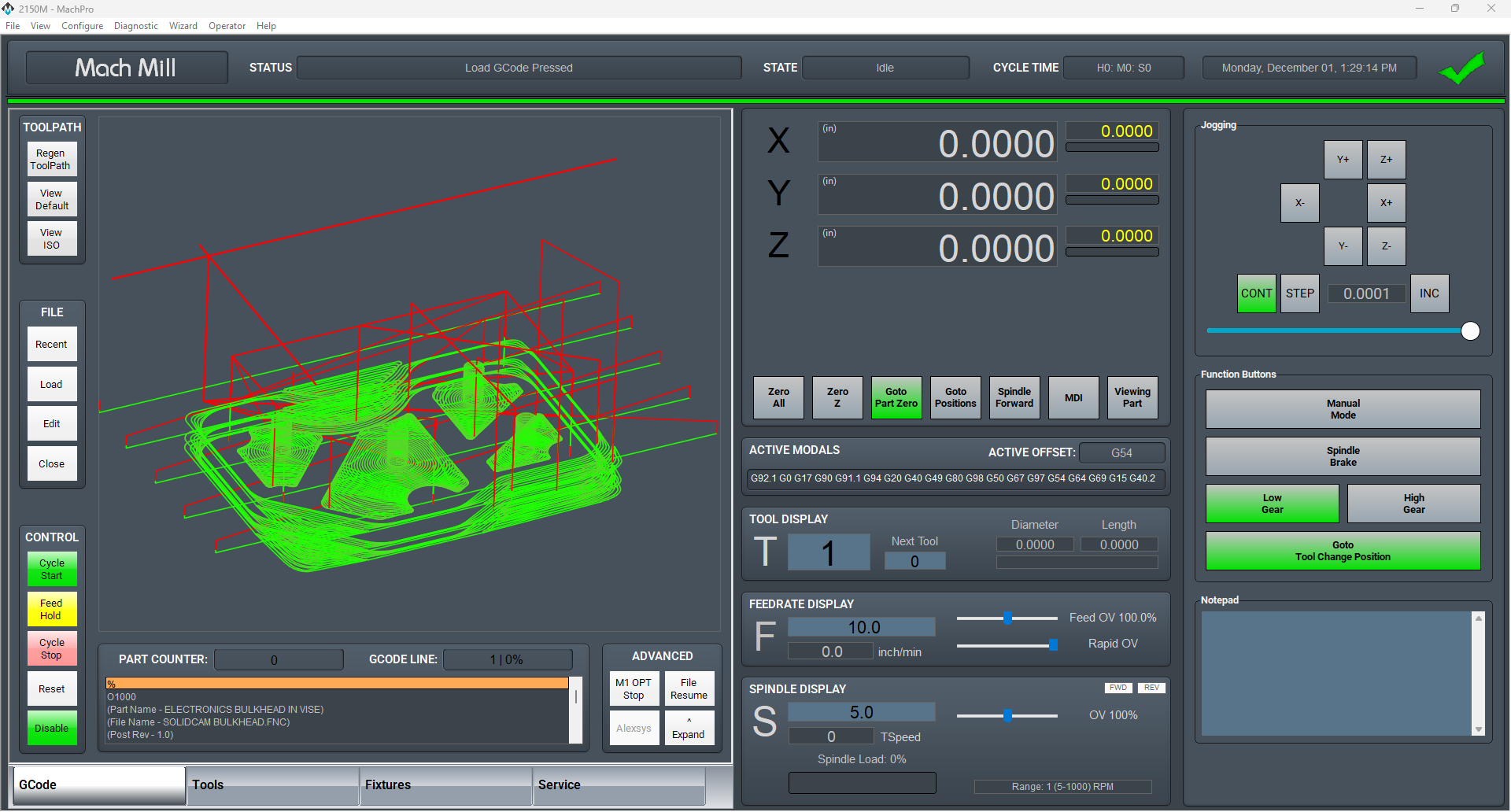
Configure Software
Please refer to your motion controller's documentation to:
- Establish the network connection to the MachPro computer
- Connect and configure drives
- Connect and configure I/O
- Calibrate the axes
- Establish machine zero
- Configure soft limits
- Calibrate the Spindle
Some of these configuration steps need integration with the MachPro software. The M31 Motion Control Setup Manual includes the information you need for the M31. Compatible motion controllers should complete the MachPro Compatible Motion Controller Configuration Settings
Languages
| MachPro Version | 2026.5.13.1 and greater |
You may change the display language for the MachPro screen labels and buttons. This is an English-to-target-language word mapping feature, and you may freely switch between available languages. We will add more languages as there is a need. If you see something in your language that would be better translated with a different word or phrase, please submit a ticket so we can update it. support@mach-labs.com
If your CNC experience and training was primarily in English, it may be easier to configure MachPro while it is running in English. When the system is ready for daily operations, switch to an appropriate language for the operators. Be thoughtful in changing the display language. Use it as a tool to simplify your operations.
- From the main MachPro screen, pull down the Operator menu and click Select Language
- You need to restart MachPro after selecting a new language

Spindle Calibration
This is primarily for mills where the speeds and feeds are precise, and directly affect the finish and accuracy of the final part. Spindle speeds on routers are usually not as precise.
Spindle Settings
These are the settings for the most commonly used Spindle features.
- Pull down Configure -> Control -> Settings tab
- Click the
 button to flatten the full settings tree, then expand the Spindle section


Gear shifter
Before configuring the gear shifter, you need to configure your gear ranges. Use this portion of the Spindle Calibration document for gear range configuration. Set MaxRPM values for each gear
The default settings will work for a machine with a manual gear shifter.
You may use M-codes to run the gear change cycle during a job. M40 - M45 change ranges from 0 to 5. M40 P# can also be used where # is the gear range to use
Load
Connect your encoder to an analog input and map the Spindle Load Meter Register to that input
Orient
MachPro uses M19 to run the orient sequence.
The two primary ways to use it are in Manual or Automatic mode
For Manual mode, the default configuration will work without any changes

For Automatic mode configure:
- Spindle Orient Type Auto
- Spindle Orient Style Macro
- Spindle Orient Output
- Spindle Orient Input

You may change the other parameters according to what your system needs.
Sub Spindle
The minimum settings that need to be configured for the subspindle are:
- Sub Spindle Enabled
- Sub Spindle CW output
- Sub Spindle CCW output
- Sub Spindle Max RPM

Use M-codes to control the sub spindle
- M013 CW start
- M104 CCW start
- M105 stop
Global Monitoring System (GMS)
Configure the Global Monitoring System
Global Monitoring is used to setup user alerts or messages as well as to control I/O functionality based on certain conditions. The system allows the machine to watch for specified conditions, and take action when those conditions are met.
To set up the Global Monitoring System go to Configuration -> Plugins -> Global Monitoring System.

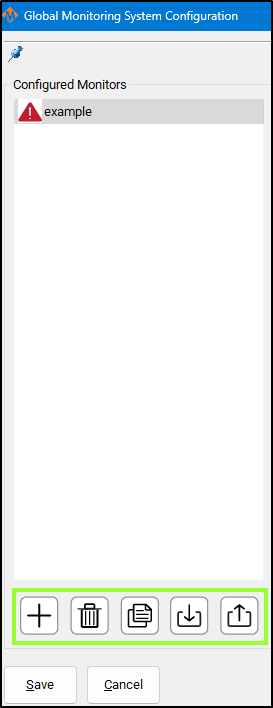
Working with configured monitors
|
The monitoring system provides five main functions for managing monitors: 1. Create a Monitor
2. Delete a Monitor
3. Duplicate a Monitor
4. Import Monitors
5. Export Monitors
Active Monitor The monitor selected in the leftmost list is the one currently active for editing. |
 |
Configure Monitor Class
The monitoring system can initiate four classes of actions: Alarm, Warning, Notice, and Process.
Each class defines how the system responds to detected conditions.
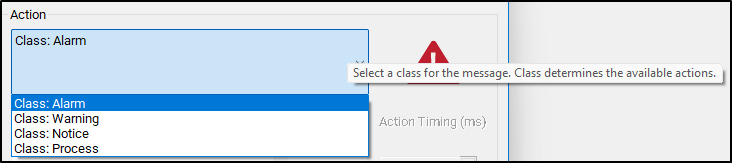
1. Alarm
-
Used for emergency conditions.
-
Can take immediate safety actions, such as:
-
Disabling the machine.
-
Stopping all motion.
-
-
Requires operator intervention before restarting.
2. Warning
-
Used for non-critical issues that still require attention.
-
Can perform various automated actions.
-
Prevents Cycle Start while active.
-
Alerts the operator through a visible or audible signal.
3. Notice
-
Used for informational messages only.
-
Takes no automatic actions.
-
Displays a message to the operator for awareness.
4. Process
-
Used for background control actions.
-
Has the same potential actions as a Warning,
but does not alert the operator and does not block Cycle Start.
Tip: Use Alarm for safety-critical faults, Warning for operational issues, Notice for information, and Process for silent automation tasks.
 Configure Monitor Actions
After selecting the Action Class, you can define the specific action the monitor performs when it becomes active.
Primary and Secondary Actions
-
Each monitor has one primary action.
-
Some actions allow a secondary action.
-
Example:
-
A Warning with Action: Escalate to Alarm can trigger a chosen Alarm action after a delay.
-
-
Action Timing
-
The Action Timing field defines the delay (in milliseconds) between the first and second actions.
Example:
If Action Timing = 5000, the secondary action runs 5 seconds after the primary action.If Action Timing = 1, the secondary action runs 1/1000 of a second after the primary action - and that is very short
Set longer rather than shorter timings. It is possible to overwhelm your computer with timings that are too short. For actions that need a quick response, start with 500 and only decrease if you need to.
Repeating Actions
-
You can configure the monitor to repeat actions while it remains active.
-
When enabled:
-
The monitor executes the first action.
-
Waits for the defined Action Timing period.
-
Executes the second action (if configured).
-
Repeats this cycle until the monitor condition is no longer active.
-
Tip: Use repeating actions for persistent conditions that require continuous alerts or repeated control signals.

Custom Monitor Actions
If the standard actions do not meet your needs, you can create custom actions for the Warning and Process classes.
Enabling Custom Actions
-
In the Action List, select Custom.
-
Click the Customize button next to the action field.
-
This button is only active when Custom is selected.
-
-
A Custom Action Editor window will open.
Building a Custom Action List
In the Custom Action Editor, you can define a sequence of actions that occur when the monitor activates.
Steps:
-
Select an Action Type – Choose what kind of task the monitor will perform.
-
Fill in Action Details – Provide required parameters or settings.
-
Press Add Action – Adds the defined action to the custom action list.
Managing the Action List
-
Reorder actions:
Select an item and use the up or down arrow buttons to change its order. -
Remove an action:
Select it and press the red X button.
The monitor will execute the actions in the listed order each time it is activated.


An item can be double-clicked on to be edited, and then you should press Update Action to save your changes.
Items will be resolved sequentially in the order they appear in the list, with no pauses in between items.
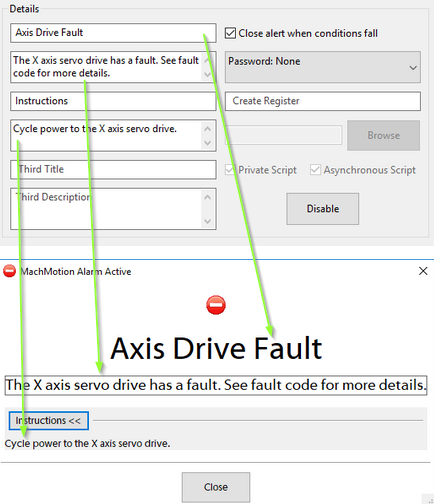
Monitor Details
Most monitors display an alert when their conditions are triggered.
All alert information and related settings are managed in the Details section of the monitor configuration.
Alert Information
-
The Details section controls what information appears in the alert message when the monitor activates.
-
You can edit titles, messages, and other displayed text from this section.
Password Protection
-
You can password-protect a monitor from the Details section.
-
When enabled:
-
The password is required to edit the monitor.
-
The password is also required to clear the monitor after activation.
-
Register Output
-
The monitor can write its current status to a register.
-
The register includes:
-
Enabled/Disabled state.
-
Idle/Active state.
-
-
Use this to track monitor states through external systems or scripts.
Script Execution
-
If the selected action is Execute Script, configure the script in this section.
-
Specify the script file name with the
.mcsextension.-
Example:
MonitorAlert.mcs
-
Disabling a Monitor
-
You can disable the entire monitor without deleting it.
-
A disabled monitor will:
-
Not check its conditions.
-
Not perform any actions.
-
-
Re-enable it later to restore normal operation.


Set Monitor Conditions
A monitor will do its configured action based on the conditions that are set for it. To edit these conditions, you will need to select the Edit Conditions button. The following window will be displayed.

Monitor conditions define when a monitor becomes active.
They are organized into sets and items, which together form the logical rules that trigger a monitor.
Structure Overview
-
Sets: Groups that define the logical relationship between their items or subsets.
-
Items: Individual conditions within a set.
-
Subsets: Nested sets that allow complex logical combinations.
Set Types
Each set can be one of three logic types:
Set Type Logic Description AND True only if all contained items and subsets are true. OR True if at least one item or subset is true. NOT True only if all contained items and subsets are false. Tip: Most monitors only require a single AND set.
Adding Sets
-
Select the parent set where the new set should belong.
-
Choose the set type (AND, OR, or NOT) from the list.
-
Press Add Set.
This creates a new logic group inside the parent set.
Adding Items (Conditions)

-
Select an item type from the dropdown menu.
-
Fill in the condition details.
-
Press Add Condition to include it in the selected set.
Example: Machine Enabled Condition
To add a condition that requires the machine to be enabled:
-
Choose Condition Type: Signal.
-
Select Output Signals.
-
Choose Machine Enabled.
-
Press Add Condition.
Editing Sets and Conditions
-
Edit a set:
Double-click the set in the left-hand list, change the set type, then press Update. -
Edit a condition:
Double-click the condition, modify the details, then press Update.
Saving Changes
-
Press OK to save all modifications.
-
Press Cancel to discard any unsaved changes.

Save All Changes
Pressing Save will save changes to all monitors and exit config. Pressing Cancel will discard all changes and exit config.

Common GMS Templates
See the attached ini files to download and import standard GMS functions.
SpindleWarmupBackup.ini
If you run a file when the spindle is not warmed up, it will warm up the spindle and then go ahead and run the file. As a safety feature, you can prevent a file from starting until spindle warmup is completed to avoid this issue.
Diagnostics Window
The Global Monitoring System icon is on most screens, and will indicate if there is currently an alarm or warning active. If there are no alarms or warnings active, then the icon will be a green checkmark. If there is an alarm or warning active, it will flash a red and yellow error triangle. Clicking on the icon will open the diagnostics window.


The diagnostics window will show all configured monitors and their data. The condition tree will show the state of each condition by highlighting true conditions in green. A red condition means that the condition is incorrectly configured and cannot be checked.
Alarms and warnings must be cleared to operate the machine. Pressing Reset on the operator panel will clear alarms. They can also be cleared in the diagnostics be clicking Clear All. Resetting a monitor will transition the monitor back to the idle state and reset the timers on all conditions. If the conditions on a monitor are still true, then the monitor will activate again immediately.
A monitor can be temporarily disabled here. The monitor will continue to check it's conditions and change states, but will not take any actions when it transitions out of the idle state. The monitor will re-enable itself when it transitions back to idle state or when the operator enables it again.

-




Lube System Setup
If your system has an oiler edit the lube settings. Pull down Configure -> Control, and select the Settings Tab. Scroll down to the Lube System settings. Enable the lube system, and adjust the settings:
- choose an action trigger
- set the lube output
- set the time run time of the oiler
- set the time between cycles
Adjust the values according to your machine's needs. Note that lube pumps vary widely in their output. Start conservatively and increase the values to achieve proper lubrication.
In the example below:
- The lube system is enabled
- It runs on software timer settings
- But only when MachPro is enabled
- It does not run a cycle on startup
- The lube output is the MachPro software signal mapped to the pump output
- There is an option for a pressure sensor feedback input
- When the pump runs, it will run for 8 seconds
- It will remain off for 5 minutes between lube cycles
- This system is not using a PLC for the lube system

| http://www.mach-labs.com | MachLabs Documentation | support@mach-labs.com |
The MachLabs Team
14518 County Road 7240, Newburg, MO 65550
support@mach-labs.com
Tool Setters and Offsets
Probing Wizard
| MachPro Version | less than 2026.5.13.1 |
Edge and Angle Finding
The Edge Finding tools are available on the Fixtures Tab -> Edge Finding.

Edge Finding Settings
Edges have two options for when the probe makes contact. The work offset can be zeroed at the edge or the position where the edge is found can be reported without zeroing. This selection is made in the 'Settings' group on the edge finding page. The following settings apply to edge finding of either type.
X/Y Reposition Distance: This is the distance used for the X and Y axes to travel in free space during corner findings. It should be a large enough distance for both axes to clear the edge of the corner. These moves will be made as protected moves.
Z Reposition Distance: This is the distance the Z will move in free space during corner findings. It should be greater than your retract distance, in order for the Z axis to reach the side of the material. This move will be made as a protected move.
Approach Distance: All axes will use this value when doing a probe move for both edges and corners. It is the maximum distance the probe will move while searching for material. If the probe is not activated before this distance is consumed, then an error will occur and the operation will be stopped.
Retract Distance: This distance is used after a probe touch to remove the probe from the side of the material. It should be a sufficient distance to deactivate the probe. This distance is also used during the probe double-touch if that feature is activated.

Angle Finding Settings
Angles have two methods of being measured. For small pieces with no movement interference, there are four canned functionalities. These options will probe the side of the part, then move a specified distance along the part, and probe the side again. If the part is large or the user wants more control over measuring the angle, they can enter Jog Mode. Once they activate this mode, they can probe a side of the material, then jog the machine to a new position and probe the side again. This is useful to expedite travel from one end of a part to another.
Angle Measure Options: There are five options for the user to choose from here. This selection will determine how the machine operates during an angle probing operation.
X--: The probe will move in the negative X direction. This means it will be touching the east side of the part.
X++: The probe will move in the positive X direction. This means that it will be touching the west side of the part.
Y--: The probe will move in the negative Y direction. This means it will be touching the north side of the part.
Y++: The probe will move in the positive Y direction. This means it will be touching the south side of the part.
Jog Mode: The probe will move in the direction that the user chooses later.
Reposition Distance: This is the distance that the probe will move between the two probing operations of an angle probe. It can be positive or negative. It is only used when not in Jog Mode. This move will be done in as a protected move at the 'First Touch' feed rate.
Approach Distance: This is the distance that the probe will attempt to move in order to probe the material. If the material is not reached before this distance is consumed, then an error will occur and the operation will stop. This value should be a positive value.
Retract Distance: This distance is used after a probe touch to remove the probe from the side of the material. It should be a sufficient distance to deactivate the probe. This distance is also used during the probe double-touch if that feature is activated.

Probe Configuration Settings
The following options can be set on the 'Settings' page of the wizard and will be applied across both edge finding operations and angle finding operations.
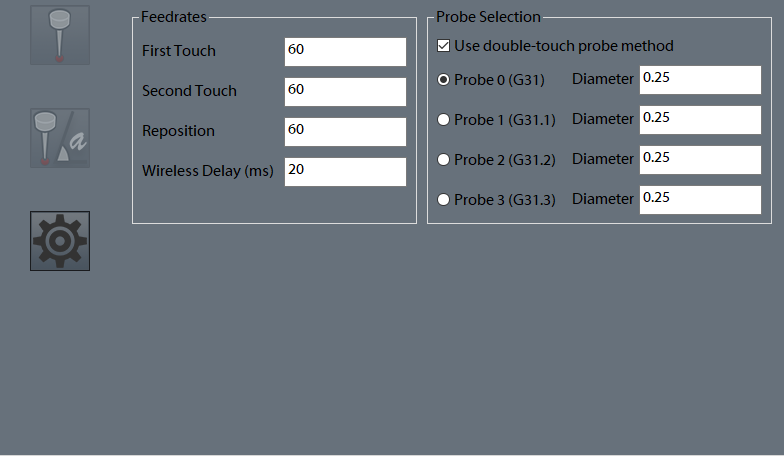
First Touch: This is the first field in the 'Feedrates' section of the settings. This value is the feed rate that the probe will use for the first touch of each probe operation. It is required to be positive.
Second Touch: This is the second field in the 'Feedrates' section of the settings. This value is the feed rate that the probe will use for the second touch of each probe operation, if the double-touch feature is enabled. It is required to be positive. This is typically a slower feed rate for a more accurate reading.
Reposition: This is the third field in the 'Feedrates' section of the settings. This is the distance that the probe will retract from the part after each touch.
Wireless Delay (ms): If the configured probe is wireless, an optional number of milliseconds here can be added as a delay during probe arming, in order to allow the probe to complete the arm sequence before checking for errors.
Double-touch: Check this box to use two probe touches during all probe moves. If this box is unchecked, all probes will use only one touch and will do their touch at the 'First Touch' feed rate.
Probe Diameter: This is the diameter of the probe stylus being used. This must be an accurate number in order to get an accurate fixture offset.
Probe Code Options: The user can specify which probe signal to watch for while running a probe operation. In Mach, G31 corresponds to the “Probe” input signal, G31.1 is the “Probe 1” input signal, G31.2 is the “Probe 2” input signal, and G31.3 is the “Probe 3” input signal. The probe must be wired and mapped correctly to the selected signal for these operations to work.
Status
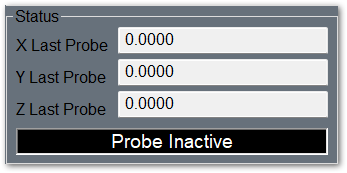
There are two sections to the Status column that appears on all pages other than 'Settings'. The first section shows the last probed position for the X, Y, and Z axes. The positions will be shown in work coordinates, unless the "Machine Coordinates" signal is active, in which case they will be shown in machine coordinates.
The second section is an LED that indicates if the currently selected probe is active or not. If in the settings, the user has G31 selected, then the LED will correspond to the input signal “Probe”. If they have selected G31.1, then the LED will indicated that status of the input signal “Probe 1”. The LED will mark the state of the input signal “Probe 2” if the user has selected G31.2 in the settings, and the LED will correlate with the “Probe 3” input signal if the user selected G31.3.
Functions
There are fourteen functions that the probing wizard can do. There are four operations that find a single edge of the part, four operations for finding a corner of the part, one operation to find the center of a circle, one operation to find material top (Z axis), and four operations to find the angle of a part.
When commanding any probe motions, be sure that your ‘Probe Code Options’ field is set to the correct probe.
Edge Finder

Corner Finder

 The first button, which will zero on the top left corner, will start by moving downwards and locating the top of the part. It will do a full two-touch routine (if enabled) and then zero the Z axis. Next, it will move in the positive Y axis the distance specified in your ‘X/Y Reposition Distance’ field. It is important that the distance is correct in order to properly be clear of the part. After this move, Z will descend by the 'Z Reposition' distance. Once the Z has been lowered, the probe will move in the negative Y direction and probe the top edge of the part. This is the same routine as the corresponding edge finder. After probing Y, the Y axis will be zeroed and the Z will raise up. The Y axis will return back to its starting position over the part. Then X axis will move in the negative X direction the reposition distance so that it will be clear of the part. The Z will again descend the same Z reposition distance. At this point, the X axis will perform a full probe routine in the positive X direction. After probing the X edge and setting the zero, the Z axis will raise up, the both X and Y will move to zero. At the end of the routine, X and Y will be at zero and the Z axis will be at the retract distance away from its zero point.
 The second button, which will zero on the top right corner, will start by moving downwards and locating the top of the part. It will do a full two-touch routine (if enabled) and then zero the Z axis. Next, it will move in the positive Y axis the distance specified in your ‘X/Y Reposition Distance’ field. It is important that the distance is correct in order to properly be clear of the part. After this move, Z will descend the 'Z Reposition' distance. Once the Z has been lowered, the probe will move in the negative Y direction and probe the top edge of the part. This is the same routine as the corresponding edge finder. After probing Y, the Y axis will be zeroed and the Z will raise up. The Y axis will return back to its starting position, over the part. Then X axis will move in the positive X direction the reposition distance so that it will be clear of the part. The Z will again descend the same Z reposition distance. At this point, the X axis will perform a full probe routine in the negative X direction. After probing the X edge and setting the zero, the Z axis will raise up, the both X and Y will move to zero. At the end of the routine, X and Y will be at zero and the Z axis will be at the retract distance away from its zero point.
 The third button, which will zero on the bottom left corner, will start by moving downwards and locating the top of the part. It will do a full two-touch routine (if enabled) and then zero the Z axis. Next, it will move in the negative Y axis the distance specified in your ‘X/Y RepositionDistance’ field. It is important that the distance is correct in order to properly be clear of the part. After this move, Z will descend the 'Z Reposition' distance. Once the Z has been lowered, the probe will move in the positive Y direction and probe the bottom edge of the part. This is the same routine as the corresponding edge finder. After probing Y, the Y axis will be zeroed and the Z will raise up. The Y axis will return back to its starting position, over the part. Then X axis will move in the negative X direction the reposition distance so that it will be clear of the part. The Z will again descend the same Z reposition distance. At this point, the X axis will perform a full probe routine in the positive X direction. After probing the X edge and setting the zero, the Z axis will raise up, the both X and Y will move to zero. At the end of the routine, X and Y will be at zero and the Z axis will be at the retract distance away from its zero point.
 The fourth button, which will zero on the bottom right corner, will start by moving downwards and locating the top of the part. It will do a full two-touch routine (if enabled) and then zero the Z axis. Next, it will move in the negative Y axis the distance specified in your ‘X/Y RepositionDistance’ field. It is important that the distance is correct in order to properly be clear of the part. After this move, Z will descend the 'Z Reposition' distance. Once the Z has been lowered, the probe will move in the positive Y direction and probe the bottom edge of the part. This is the same routine as the corresponding edge finder. After probing Y, the Y axis will be zeroed and the Z will raise up. The Y axis will return back to its starting position, over the part. Then X axis will move in the positive X direction the reposition distance so that it will be clear of the part. The Z will again descend the same Z reposition distance. At this point, the X axis will perform a full probe routine in the negative X direction. After probing the X edge and setting the zero, the Z axis will raise up, the both X and Y will move to zero. At the end of the routine, X and Y will be at zero and the Z axis will be at the retract distance away from its zero point.
Circle Center
 This function will find the center of a circle and zero there. It will only work with holes, not posts. The probe must start already lowered into the hole. The probe will first move in the negative X direction and probe the side of the circle, and then return to its starting position. All probe operations will do two full touches of the part, if the double-touch feature is enabled. After the first edge, the probe will then probe in the positive X direction, then return to the starting position. You should be sure the approach distance will reach both sides of the circle. After the second X axis probe, the operation will be repeated in the Y axis. The probe will first move in the positive Y direction and probe an edge of the circle and return to start. Then the probe will move in the negative Y direction and find the edge there. At this point, the machine will calculate the center of the circle, and move to position. Upon arrival, it will zero both the X and Y axes.
Zero Z Axis
 This function will probe the part in the negative Z direction. The Z axis will move the approach distance while trying to find the part top. If the double-touch feature is enabled, then the Z axis will probe twice. After finding the top of the part, the probe will zero its position and retract the specified retract distance.
Measure Angle

There are five methods to measure the angle that a part sits at. You can probe using one of the four canned probing functions or you can manually probe the angle using Jog Mode. Each function requires two probe routines to complete. The probe will touch the side once, move a certain distance, and then touch the side again. The canned functions use the ‘Reposition Distance’ parameter as the distance to move along the part. This parameter specifies both direction and distance between the two probe operations. If it is positive, then the probe will move in a positive direction up the side of the part before doing the next probing operation. If it is negative, then the probe will move in a negative direction down the side of the part before doing the next probing operation.
 The first function will move the probe in the positive X direction, thereby probing the left edge of the part. The probe will do one full probe operation against the side of the part. Then it will retract. After retracting, it will move the Y axis the distance specified in the ‘Reposition Distance’ field. For instance, if ‘Reposition Distance’ is set to 1, then the Y axis will move positive 1 unit (inches or millimeters). If ‘Reposition Distance’ is set to -1, then the Y axis will move 1 unit in the negative direction. After this move, there will be a second probe operation in the positive X direction. When it is complete, the probe will retract from the part and set the appropriate angle.
 The second function will move the probe in the negative X direction, thereby probing the right edge of the part. The probe will do one full probe operation against the side of the part. Then it will retract. After retracting, it will move the Y axis the distance specified in the ‘Reposition Distance’ field. For instance, if ‘Reposition Distance’ is set to 1, then the Y axis will move positive 1 unit (inches or millimeters). If ‘Reposition Distance’ is set to -1, then the Y axis will move 1 unit in the negative direction. After this move, there will be a second probe operation in the negative X direction. When it is complete, the probe will retract from the part and set the appropriate angle.
 The third function will move the probe in the positive Y direction, thereby probing the bottom edge of the part. The probe will do one full probe operation against the side of the part. Then it will retract. After retracting, it will move the X axis the distance specified in the ‘Reposition Distance’ field. For instance, if ‘Reposition Distance’ is set to 1, then the X axis will move positive 1 unit (inches or millimeters). If ‘Reposition Distance’ is set to -1, then the X axis will move 1 unit in the negative direction. After this move, there will be a second probe operation in the positive Y direction. When it is complete, the probe will retract from the part and set the appropriate angle.
 The fourth function will move the probe in the negative Y direction, thereby probing the top edge of the part. The probe will do one full probe operation against the side of the part. Then it will retract. After retracting, it will move the X axis the distance specified in the ‘Reposition Distance’ field. For instance, if ‘Reposition Distance’ is set to 1, then the X axis will move positive 1 unit (inches or millimeters). If ‘Reposition Distance’ is set to -1, then the X axis will move 1 unit in the negative direction. After this move, there will be a second probe operation in the negative Y direction. When it is complete, the probe will retract from the part and set the appropriate angle.

Using Jog Mode allows the user to fully select where to probe the part for both positions. To activate it, select ‘Jog Mode’ from the Measure Angle Options, the press the angle button. It will be green while Jog Mode is active. To cancel Jog Mode, which will discard any points it has probed, press the button again to return it to its normal state. While Jog Mode is active, the user can jog to any position around the part and probe it using one of the four standard edge finding probe operations. The selected function will perform the same routine that it would under normal conditions, completing a full probe routine. After the routine is completed, the user is free to jog the machine wherever they desire in order to probe again. The only restriction is that both probe operations must be of the same type (i.e. probing positive X and then negative Y is not allowed). After two probe positions have been collected, the angle will be set appropriately and Jog Mode will turn itself off.
| http://www.mach-labs.com | MachLabs Documentation | support@mach-labs.com |
The MachLabs Team
14518 County Road 7240, Newburg, MO 65550
support@mach-labs.com
Modifying GoTo Positions
If you are setting up the GoTo position for a tool setter, jog the tool to the correct position over the tool setter.

Position Setup Instructions
-
Use the Add or Remove buttons at the bottom to manage positions.
-
When adding a new position, choose Machine Coordinates or Part Coordinates at the top.
-
To change an existing position, select it and edit as needed.
-
Each position builds a movement list in the Data Box. Use Delete to remove a movement.
- To add a custom G-code line, write it and click Add to include it in the Goto list.
⚠️ Do not use M Codes here.
This helps move the tool safely before other operations.

Add Movement Instructions
-
Click Include for each axis you want to move.
-
Click Get Current Position to copy the current coordinates, or type the coordinates manually.
-
Click Add/Update to save the movement in the Data Section.
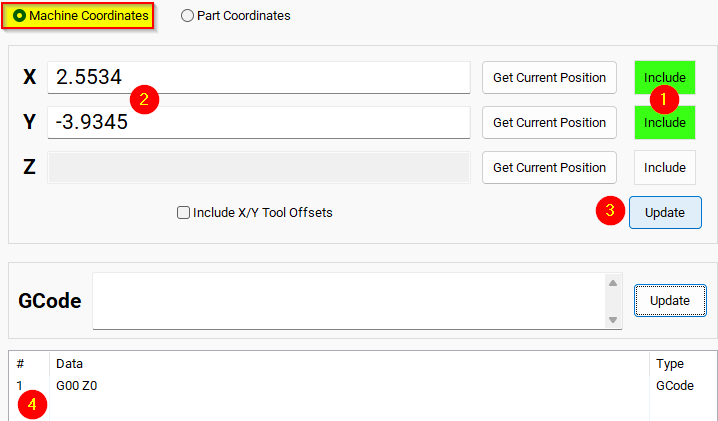
Example: Z-Axis Movement
-
Define the Z-axis movement to run first.
-
Click Add/Update to insert this movement into the Data Box.
-
Add more actions in the next rows.
-
Optionally, add a final Z Rapid Move to bring the tool close to the setter.


I modified the Tool Setter position. Coordinate lines in the Data box will be in Machine Coordinates. This will be used as the Tool Setter position and can be called using the P2 variable.
Tool Changers
Winerack Style Tool Changer Overview
The MachMotion plugin supports a wine-rack tool changing system.
It combines user-defined rack positions with a pre-programmed tool-change sequence to run a reliable tool-change routine.
The plugin includes common safety checks.
Wine-rack tool changer: a fixed array of tool holders arranged in a rack.
Tool-change sequence: predefined machine motions that pick up or return a tool.
Configure the Correct Orientation
The tool rack must be parallel to either the X-axis or the Y-axis.
The plugin works with both orientations.

-
Determine which axis the rack is parallel to (X or Y).
-
Open:
C:\Mach\Profiles\Router\ToolTables. -
Keep the file that matches your rack orientation.
-
Create an archive folder and move the other tool changer files to the archive folder. (this is not necessary but does keep things cleaner)

Select the remaining tool changer config file. it should open in libre office,
If you get this error, macros are not enabled. Follow the procedure below:
Enable Macros


Press the Macro Security button. Set security to Medium.

Restart LibreOffice. When it opens up press Enable Macros.

To confirm macros are working, when you save the file you should see this dialog and "ToolChangerData.csv" should appear or update in C:\Mach\Profiles\[PROFILE]\ToolTables.

Example: Wine-Rack Tool Changer Parallel to X
When the rack is parallel to the X-axis, use the Tool Changer X Parallel to Rack.ods file.
-
Open
C:\Mach\Profiles\Router\ToolTables. -
Keep Tool Changer X Parallel to Rack.ods.
-
Move the other tool changer files to an Archive folder.
-
Archiving is optional. It keeps the folder clean.

Edit the file with LibreOffice. In the file, there is a graphic detailing the sequence and positions.

Keep in mind, all positions are absolute and must be machine coordinate(G53) values, not work offsets. the DRO will be orange when displaying machine coordinates.
Configure the values in the Description section before editing any other parameters. The default settings are placeholders only.
Using them without adjustment can cause incorrect movements or machine crashes.

Setting Tool Pocket Positions
-
Carefully position the tool in each pocket holder.
-
Record the machine coordinate (G53) position for that pocket.
-
Enter each recorded value into the corresponding tool pocket field.
⚠️ Important: Set each pocket position individually.
Do not copy values between pockets.
Even small physical differences can cause broken tool forks.Pro Tip: don't set these up with a tool in the spindle, it is more accurate to put a tool into the tool fork, open the drawbar, and then jog the spindle onto the tool very carefully while watching the gap between the tool taper and the spindle taper and adjusting as needed.
-
Setting a pocket position to “Nil” will disable that pocket.
-
The number of active pocket positions must not exceed the number of physical pockets in the rack.

"Z Pocket (Step 3)" is the tool drop off and pick up height. this should have the tool grooves centered in the forks. If you have ISO tooling then it should work fine.
If you have HSK tooling you will probably find that the tool is picked up more easily if you set the clamp position to be a little lower than the pocket position, you'll want the spindle to be pushing down on the tool slightly. this makes your tool changes more reliable by cutting done on drawbar faults mid tool change. but this creates a problem for drop offs since it will come in little low on the forks. we can solve this by going to "ToolChangerData" tab of the spreadsheet.

This shows you all the raw tool changer positions, these get auto filled from the "configuration" page,

"ZPocketClamp" is the pickup height
"ZPocket" is the drop off height
Adjust the "ZPocketClamp" to be 0.020" or so lower than the drop off. you want some slight down pressure to fully seat the tool into the spindle nose.
After entering any positions you must save the document and the CSV conversion macro must run. You will see this dialog if it is successful in updating the settings:
All positions are exported to a .CSV file at that point. If the macro does not run when you save the file, the changed positions will not have any effect.
MachPro Settings configuration for winerack tool changers
To operate the tool changer it must be enabled in the MachPro settings.
Pull down Configure -> Control and select the Settings tab
Click the Predefined Filters button for Tool Change.

The first group of settings should match this. The number of pockets will vary from machine to machine.

Next you must decide if you want the tool changer to be outside softlimits in the active axis, if yes set "Disable softlimits" to Yes.

This means that the Y softlimits should stop the machine before the spindle reaches the winerack, this protects against crashes if an improper program is loaded. it can cause a little more headache if you get an error mid toolchange. it also means that the Y end position in the spreadsheet should be set to end the tool change back within the softlimit envelope. the yellow line below shows about where the Y softlimit should be in this case.

The next step is the signal mapping for Drawbar, airpurge, etc. there are available settings for 4 spindles. we are going to just use spindle 1 and tool changer 1 for standard single spindle machines.
the general idea is to map what you have and leave everything else blank, use Mach input and output signals, not direct I/O points. this forces everything through mach's logging which improves future troubleshooting

On a winerack tool changer you will probably only have I/O for the drawbar and maybe a dust shroud.
Here are the drawbar settings as an example.

Drawbar clamp output should be mapped to the solenoid that closes the drawbar (most machines rely on a spring stack to lock the tool, this is rarely used)
Drawbar clamped input should be mapped to the input that senses when the drawbar is retracted, usually this is "closed without tool"
Drawbar input settle time is really handy for timing, settle times are used to delay the next action in the tool change sequence, usually the output fires, then we wait for the associated input to come high, then we advance to the next thing. either the next output or a motion command. if no input is mapped the sequence will advance immediately after firing the output.
it goes like this. Output1->Input1->settle timer->Motion->Output2->input2->settle timer and so on.
Settle timers are nice if you want to wait a bit after the input goes high before advancing, or if you have no input available you can use it to wait long enough for the pneumatic action to take place before doing the next thing.
Drawbar unclamp Output should be mapped to the solenoid that opens the drawbar to release the tool virtually every machine will have this.
drawbar unclamp input should be mapped to the input that tells us that the drawbar is open and the tool can drop free.
Most winerack machines will be using these sections.


The tool release input should be mapped to a tool release button if you have one this will allow you open the drawbar manually to take tools in and out without using the tool changer. if you don't have a button then usually the F1 key on the pendant is a good option.
Pro Tip: all tool changes happen at Rapid so before testing your first tool change lower your rapid override so you have more reaction time in case something is configured incorrectly.
Carousel Style Tool Changer
The MachMotion control has built-in support for Carousel Tool Changers. It works by taking user defined positions and a pre-programmed tool changing sequence and combining them into a tool change routine. Common place safety checks are built in.
The tool changer will work with the tool changer parallel to X or Y.
The user should determine which axis the carousel is parallel to and then delete the non-applicable files located in: C:\Mach4\Profiles\Router\ToolTables
Tool Changer X Parallel to Rotary Carousel.ods
Tool Changer Y Parallel to 2 Carousels 1 Spindle.ods
Tool Changer Y Parallel to Rotary Carousel.ods
Enable Macros
If you get this error, macros are not enabled. Follow the procedure below:
In LibreOffice pull down Tools->Options->LibreOffice->Security.
Press the Macro Security button. Set security to Medium.
Restart LibreOffice. When it opens up press Enable Macros.
To confirm macros are working, when you save the file you should see this dialog and "ToolChangerData.csv" should appear or update in C:\Mach\Profiles\[PROFILE]\ToolTables.
Tool Changer Setup
Carousel tool changer example with Tool changer Carousel parallel to X shown below. In this case, you would use the Tool Changer X Parallel to Rotary Carousel.ods file and delete the unused Tool Changer files. The system will run even if the unused files are present, but it will be easier to make future modifications to the configuration without them.

Edit the file with LibreOffice. In the file, there is a graphic detailing the sequence and positions.
Keep in mind, all positions are absolute and must be machine coordinate(G53) values, not work offsets.
Configure the values in the Description section before editing any other parameters. The default settings are placeholders only.
Using them without adjustment can cause incorrect movements or machine crashes.
Set Tool Pocket Positions
-
Carefully position the tool in each pocket holder.
-
Record the machine coordinate (G53) position for that pocket.
-
Enter each recorded value into the corresponding tool pocket field.
⚠️ Important: Set each pocket position individually.
Do not copy values between pockets.
Even small physical differences can cause large alignment errors.Pro Tip: don't set these up with a tool in the spindle, it is more accurate to put a tool into the tool fork, open the drawbar, and then jog the spindle onto the tool very carefully while watching the gap between the tool taper and the spindle taper and adjusting as needed.
-
Setting a pocket position to “Nil” will disable that pocket.
-
The number of active pocket positions must not exceed the number of physical pockets in the carousel.
"Z Pocket (Step 3)" is the tool drop off height. this should have the tool grooves centered in the forks. If you have ISO tooling then it should work fine.
"Z Pocket Clamp (Step 6)" Is the tool pick up height. If you have HSK style tooling you will probably find that the tool is picked up more easily if you set the clamp position to be a little lower than the pocket position, you'll want the spindle to be pushing down on the tool slightly (about 0.02" or so) as the drawbar clamps, this makes your tool changes more reliable by cutting done on drawbar faults mid tool change.

All these entries will autofill the configuration tab which in turn get exported upon save to a CSV which the tool change program uses.
This shows you all the raw tool changer positions, this is where you can modify data for custom applications before saving.
After entering any positions, you must save the document, and the CSV conversion macro must run. You will see this dialog if it is successful in updating the settings:
All positions are exported to a . CSV file at that point. If the macro does not run when you save the file, the changed positions will not have any effect.
MachPro Settings configuration for winerack tool changers
To operate the tool changer it must be enabled in the MachPro settings.
Pull down Configure -> Control and select the Settings tab
Click the Predefined Filters button for Tool Change.
The first group of settings should match this. The number of pockets will vary from machine to machine.

Next you must decide if you want the tool changer to be outside softlimits in the active axis, if yes set "Disable softlimits" to Yes.
This means that the X softlimits should stop the machine before the spindle reaches the carousel, this protects against crashes if an improper program is loaded. it can cause a little more headache if you get an error mid toolchange. it also means that the X end position in the spreadsheet should be set to end the tool change back within the softlimit envelope. the yellow line below shows about where the X softlimit should be in this case.

The next step is the signal mapping for Drawbar, airpurge, etc. there are available settings for 4 spindles. we are going to just use spindle 1 and tool changer 1 for standard single spindle machines.
the general idea is to map what you have and leave everything else blank, use Mach input and output signals, not direct I/O points. this forces everything through mach's logging which improves future troubleshooting
On a Carousel tool changer you will probably have I/O for the drawbar, carousel and maybe a dust shroud.
Here are the drawbar settings as an example.
Drawbar clamp output should be mapped to the solenoid that closes the drawbar (most machines rely on a spring stack to lock the tool, this is rarely used)
Drawbar clamped input should be mapped to the input that senses when the drawbar is retracted, usually this is "closed without tool"
Drawbar input settle time is really handy for timing, settle times are used to delay the next action in the tool change sequence, usually the output fires, then we wait for the associated input to come high, then we advance to the next thing. either the next output or a motion command. if no input is mapped the sequence will advance immediately after firing the output.
it goes like this. Output1->Input1->settle timer->Motion->Output2->input2->settle timer and so on.
Settle timers are nice if you want to wait a bit after the input goes high before advancing, or if you have no input available you can use it to wait long enough for the pneumatic action to take place before doing the next thing.
Drawbar unclamp Output should be mapped to the solenoid that opens the drawbar to release the tool virtually every machine will have this.
drawbar unclamp input should be mapped to the input that tells us that the drawbar is open and the tool can drop free.
Most Carousel machines will be using these sections.
If you have a carousel that moves on an air cylinder then use the section below, in yellow are the commonly used settings.

The tool release input should be mapped to a tool release button if you have one this will allow you open the drawbar manually to take tools in and out without using the tool changer. if you don't have a button then usually the F1 key on the pendant is a good option.
Pro Tip: all tool changes happen at Rapid so before testing your first tool change lower your rapid override so you have more reaction time in case something is configured incorrectly.
Drill Bank Setup and Operation
Other Machine Settings
Pull down Configure -> Control and select the Settings Tab and scroll down to the Machine section
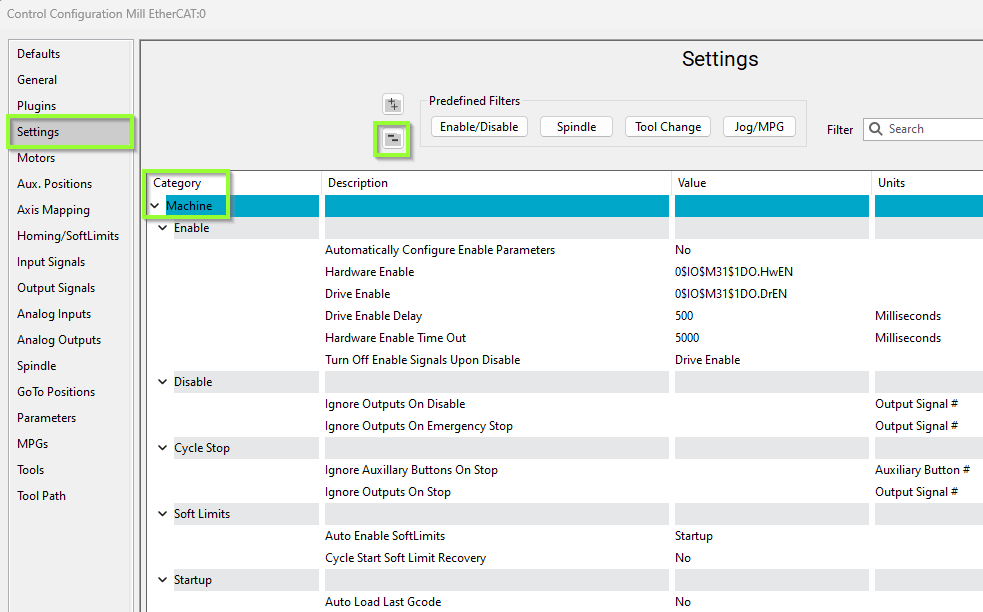
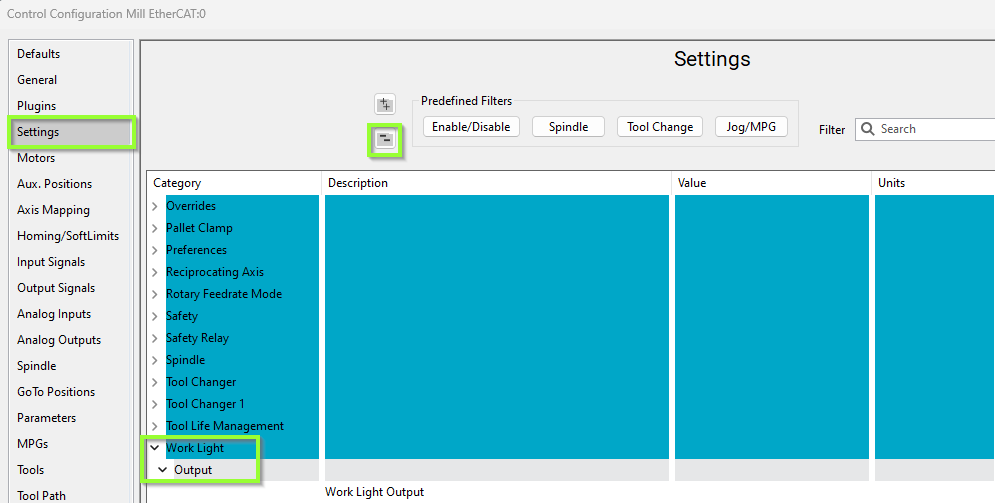
Work Light Output
Pull down Configure -> Control and select the Settings Tab and scroll down to the Work Light section
Additional Information
For information about MachPro Software Operation please see the MachPro Mill/Router Operating Manual
| http://www.mach-labs.com | MachLabs Documentation | support@mach-labs.com |
The MachLabs Team
14518 County Road 7240, Newburg, MO 65550
support@mach-labs.com