
MachPro Mill and Router Setup Manual

Configure Software
Please refer to your motion controller's documentation to:
- Calibrate your axes
- Establish machine zero
- Configure soft limits
- Connect and configure I/O
Spindle Calibration
These instructions apply to all VFDs where the spindle is controlled through the MachPro Control Spindle tab
Why calibrate your spindle?
Does your CNC control need it? Mills and Lathes need to be calibrated while routers typically do not. The spindle speed needs to be accurate enough to meet your tooling specifications.
- The rated speeds and feeds for your tools and materials should perform as expected.
- You should have comparable performance across all your machines when running the same spindle speed.
- Accurate spindle calibration enables you to make cleaner and more accurate cuts – improving the quality of your final product.
- Scheduled preventative maintenance should include verification of the accuracy of the system, including the spindle speeds.
This documentation focuses on knee mills as a common example and is adaptable to other machines.
Prerequisites
- Your spindle needs to be configured according to your motion controller's capabilities for spindles.
- The axes need to be calibrated
- Machine zero and soft limits need to configured
- The I/O, particularly limits, need to be connected and working
Definitions
Machines often have both gears and speed controls.
The control needs to know which physical gear is engaged to control the spindle motor for the correct speed. If you use multiple gears on your machine, there will be gear change buttons on the screen, and you can also
The speed control is a set of variable diameter pulleys that provide a variable speed within each gear. We often set this to the maximum RPM. Then we use the VFD to provide the full speed range within each gear.
Set MaxRPM values for each gear
If you do not have a tachometer use the values from the machine documentation
Pull down Configure | Control | Spindle tab
If your machine only has one range (no pulleys or gears), then enter the minimum and maximum RPM for the spindle in the Range 1 row.
If you have multiple gears, enter the rated maximum RPM for each gear into the MaxRPM column for each gear.

If a tachometer is available, measure the actual maximum spindle RPM for each mechanical gear range.
- Select the gear range.
- Temporarily set MaxRPM approximately 50% higher than the expected maximum spindle RPM.
- Command the spindle to MaxRPM.
- Measure the actual spindle RPM with the tachometer.
- Enter the measured RPM as MaxRPM for that gear range.
- Repeat for each gear range.
The temporary high MaxRPM value does not command the motor or VFD above its configured maximum capability. It makes sure that the motor is running at its full speed.

If it is not safe to run this spindle at its maximum RPM, please contact MachLabs for assistance with calibration.
Do not use the Max Spindle Motor RPM as a gear range MaxRPM unless the motor-to-spindle ratio is 1:1.
Verify that the VFD is sending maximum speed commands to the spindle
You need to know that the VFD is telling the spindle motor to run at full speed. Assuming the motor is configured to run at 60 Hz, then if the VFD is sending 60 Hz, the motor is running at full speed. You just entered the MaxRPM values into the spindle config. Set your machine for one of the gears and run the spindle at the MaxRPM. You can check the VFD output two ways, and both are equally accurate:
|
|
|
|
With the enclosure door open, check the LED on the VFD. This VFD is running at P44.59% of 60 Hz = 26.754 Hz. The "P" prefix on the number indicates the number is a percentage.
|
Open a web browser and enter this IP address in the search bar 192.168.208.90. It will open a welcome page for the VFD with two buttons at the bottom. Click the Monitor button and look for the Output Frequency line. This is the same machine running at the same time, and it also reports 44.59% = 26.754 Hz. |


Adjust feedback ratios for TSpeed
The formula is MaxRPM / Maximum Motor RPM = feedback ratio
Pull down Configure | Control | Spindle tab

Check the ID plate on the spindle motor for RPM values. In this image we are running at 60 hertz; so we use the second value: 1735

MaxRPM from tachometer / Maximum Motor RPM = feedback ratio
4485 / 1735 = 2.5850144092219020172910662824207
You can paste the the full value into the spindle FeedBack Ratio field for this range, or just 2.58501
Note: the feedback ratio only adjusts the value in the TSpeed field. It does not have any effect on the actual RPM of the spindle. If the spindle speed reported by a tach does not match commanded speed, then go here: Set MaxRPM values for each gear
Operating the spindle
Use M-Codes to operate your spindle during production: M3, M4, and M5 (relevant portion of the G-Code and M-Code Reference)
You can manually control the spindle with the buttons on your operator panel.
Changing Gears
The gear ranges can be changed from the control by using M40-M45 in your G-Code file. These macros can be used to just change ranges or they can be used to automatically change gears on the machine if it has an automatic gear changer. To shift the machine range 0, run M40. M41 is range 1, M42 is range 2, and so on. You will be prompted to change the gear manually. M40 P# can also be used where # is the gear range to use.
Special situations
Overspeed a spindle motor
If you want to command your spindle motor or grinding wheel to go faster than the base frequency, command the spindle to go max RPM and use a tachometer to measure the speed. Then use the following formula to calculate your new Max Output Frequency (Hb105):
Desired Max RPM * Current Max Frequency / Current Max RPM = New Max Frequency
For example, if your Current Max Frequency is 60 and you measure the spindle runs 1030 RPM but you actually want it to go 1515 RPM, calculate your new Max Frequency as follows:
1515 * 60 / 1030=88 Hz.
Make sure to recalibrate your RPM feedback and your spindle speed as shown below.
Set a spindle to always run at maximum RPM
In some cases, a machine was originally configured to run the spindle motor at full speed, and the gears and speed controls are used to bring the RPM down to the required value. A motor running this way will always generate its maximum torque, which is very helpful when using large tools.
Pull down Configure | Control | Spindle tab

Set your MinRPM and MaxRPM for each gear to the same value.
Set your Max Spindle Motor RPM to the rated value listed on the spindle motor plate.
Leave the FeedBack Ratio values alone as they are no longer meaningful.
The spindle section of you screen can now be ignored. You will adjust your spindle speed entirely through the gears and speed control.

The rest of the spindle configuration above is not needed when it is configured to run maximum RPM.
Auxiliary Spindle MaxRPM
If your VFD is enabled as an Auxiliary spindle (under MachPro settings), set the Auxiliary Control Max RPM to the max RPM of the tool or table. Use this value both in the VFD configuration, and in the sub spindle configuration. Also see this section on sub spindle configuration

| http://www.mach-labs.com | MachLabs Documentation | support@mach-labs.com |
The MachLabs Team
14518 County Road 7240, Newburg, MO 65550
support@mach-labs.com
Spindle Settings
These are the settings for the most commonly used Spindle features.
- Pull down Configure -> Control -> Settings tab
- Click the
 button to flatten the full settings tree, then expand the Spindle section


Gear shifter
Before configuring the gear shifter, you need to configure your gear ranges. Use this portion of the Spindle Calibration document for gear range configuration. Set MaxRPM values for each gear
The default settings will work for a machine with a manual gear shifter.
You may use M-codes to run the gear change cycle during a job. M40 - M45 change ranges from 0 to 5. M40 P# can also be used where # is the gear range to use
Load
Connect your encoder to an analog input and map the Spindle Load Meter Register to that input
Orient
MachPro uses M19 to run the orient sequence.
The two primary ways to use it are in Manual or Automatic mode
For Manual mode, the default configuration will work without any changes

For Automatic mode configure:
- Spindle Orient Type Auto
- Spindle Orient Style Macro
- Spindle Orient Output
- Spindle Orient Input

You may change the other parameters according to what your system needs.
Sub Spindle
The minimum settings that need to be configured for the subspindle are:
- Sub Spindle Enabled
- Sub Spindle CW output
- Sub Spindle CCW output
- Sub Spindle Max RPM

Use M-codes to control the sub spindle
- M013 CW start
- M104 CCW start
- M105 stop
Lube System Setup
If your system has an oiler edit the lube settings. Pull down Configure -> Control, and select the Settings Tab. Scroll down to the Lube System settings. Enable the lube system, and adjust the settings:
- choose an action trigger
- set the lube output
- set the time run time of the oiler
- set the time between cycles
Adjust the values according to your machine's needs. Note that lube pumps vary widely in their output. Start conservatively and increase the values to achieve proper lubrication.
In the example below:
- The lube system is enabled
- It runs on software timer settings
- But only when MachPro is enabled
- It does not run a cycle on startup
- The lube output is the MachPro software signal mapped to the pump output
- There is an option for a pressure sensor feedback input
- When the pump runs, it will run for 8 seconds
- It will remain off for 5 minutes between lube cycles
- This system is not using a PLC for the lube system

| http://www.mach-labs.com | MachLabs Documentation | support@mach-labs.com |
The MachLabs Team
14518 County Road 7240, Newburg, MO 65550
support@mach-labs.com
Tool Setters and Offsets
Modifying GoTo Positions
If you are setting up the GoTo position for a tool setter, jog the tool to the correct position over the tool setter.

Position Setup Instructions
-
Use the Add or Remove buttons at the bottom to manage positions.
-
When adding a new position, choose Machine Coordinates or Part Coordinates at the top.
-
To change an existing position, select it and edit as needed.
-
Each position builds a movement list in the Data Box. Use Delete to remove a movement.
- To add a custom G-code line, write it and click Add to include it in the Goto list.
⚠️ Do not use M Codes here.
This helps move the tool safely before other operations.

Add Movement Instructions
-
Click Include for each axis you want to move.
-
Click Get Current Position to copy the current coordinates, or type the coordinates manually.
-
Click Add/Update to save the movement in the Data Section.
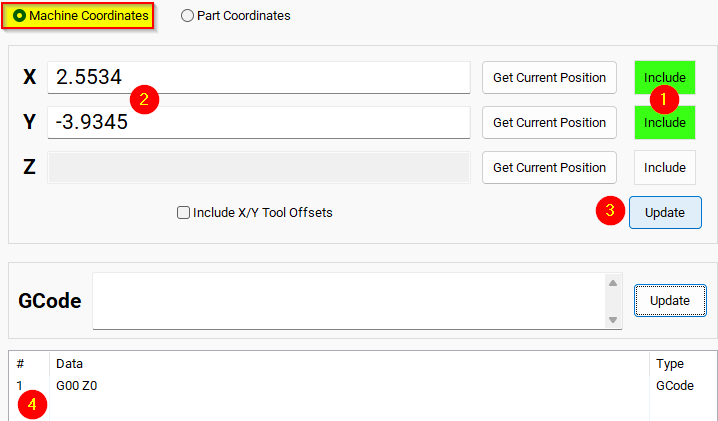
Example: Z-Axis Movement
-
Define the Z-axis movement to run first.
-
Click Add/Update to insert this movement into the Data Box.
-
Add more actions in the next rows.
-
Optionally, add a final Z Rapid Move to bring the tool close to the setter.


I modified the Tool Setter position. Coordinate lines in the Data box will be in Machine Coordinates. This will be used as the Tool Setter position and can be called using the P2 variable.
Additional Information
For information about MachPro Software Operation please see the MachPro Mill/Router Operating Manual
| http://www.mach-labs.com | MachLabs Documentation | support@mach-labs.com |
The MachLabs Team
14518 County Road 7240, Newburg, MO 65550
support@mach-labs.com