
PoLabs Motion Controllers
{{@2007#bkmrk--1}}
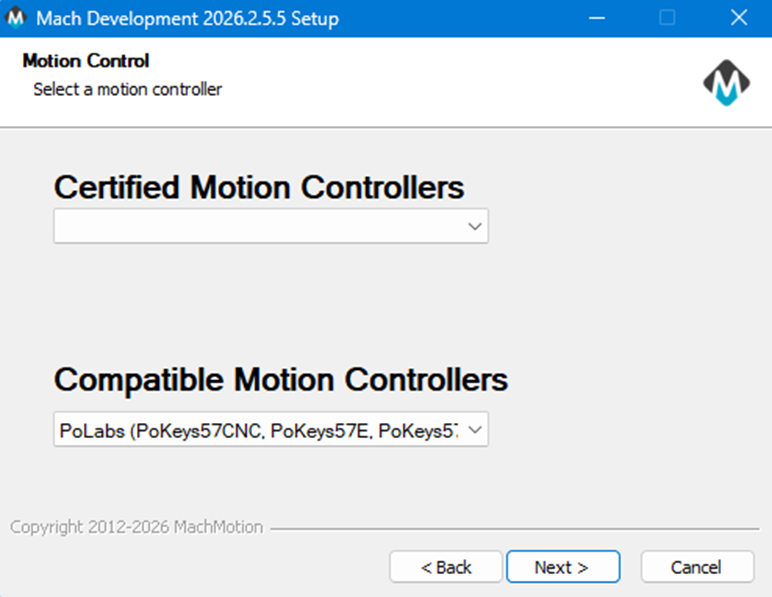
Select Motion Controller and complete MachPro installation |
|
|
|
Choosing Pokeys controller in the installer setup. The MachPro installation will complete without any further actions needed for the PoLabs motion controller. That installation will be completed when MachPro is started for the first time. |
|
|
There should be a new MachLabs icon on your screen with the machine type as its label. Double click that to start MachPro. |
|
|
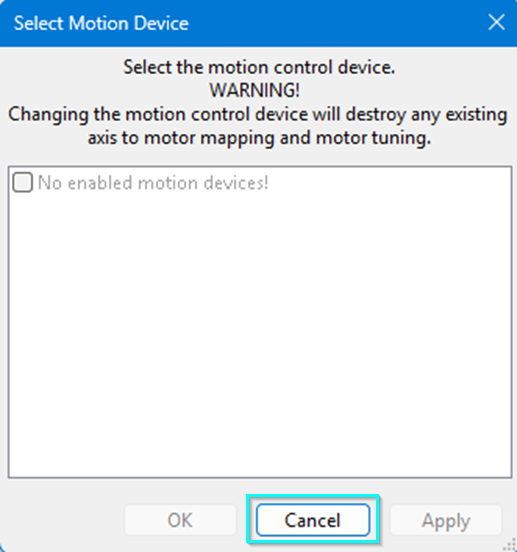
This window may popup for selecting the motion controller. Click the Cancel button so that it does not select a motion controller, but MachPro will load to completion. |
PoKeys plugin installation |
|
|
|
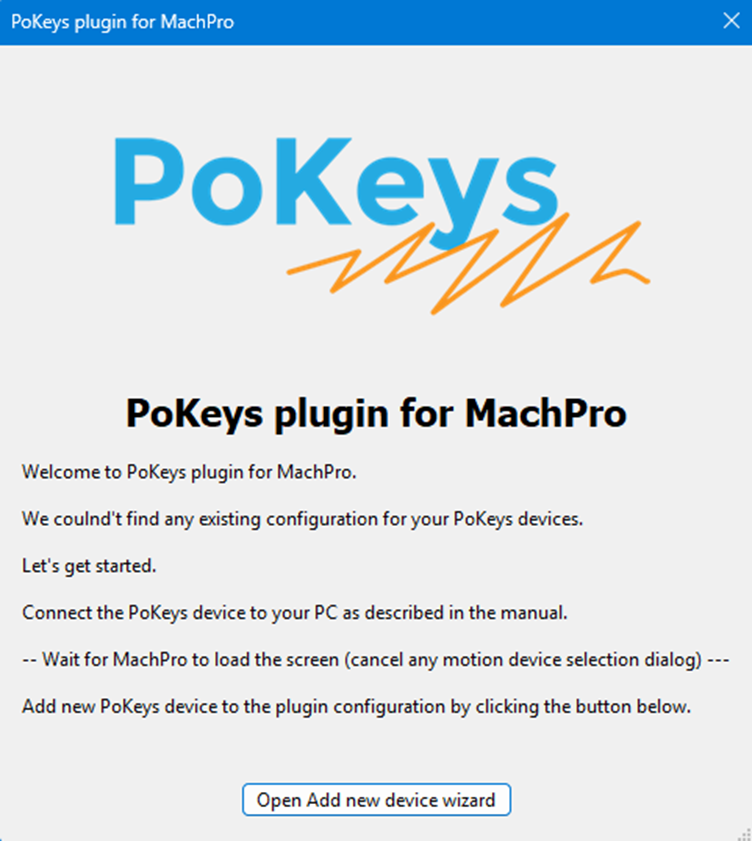
After MachPro has loaded completely, click the button on this window to continue the PoKeys plugin installation. |
|
|
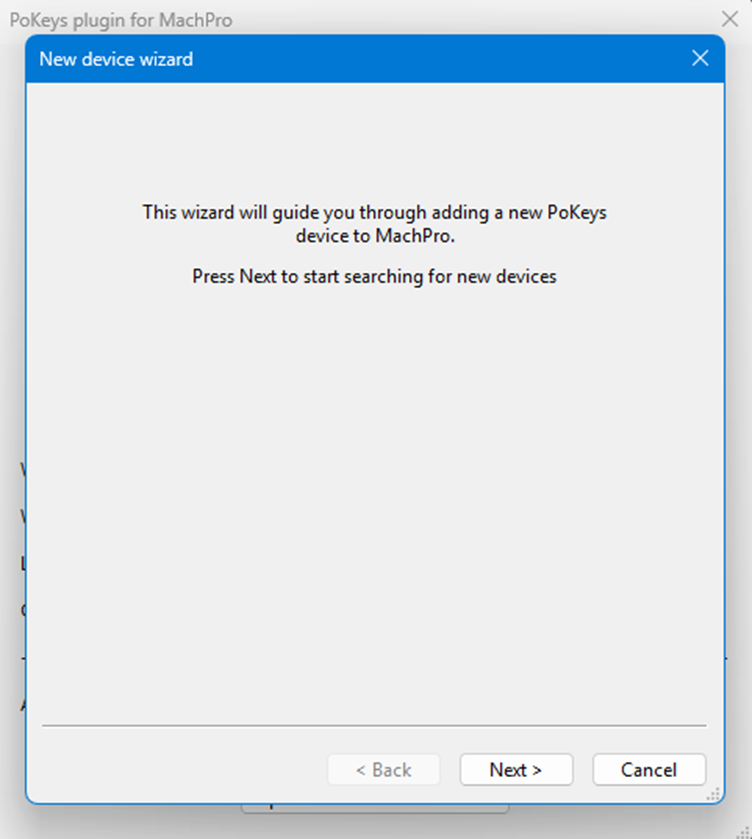
This window will open so the PoKeys plugin can search for compatible devices. |
|
|
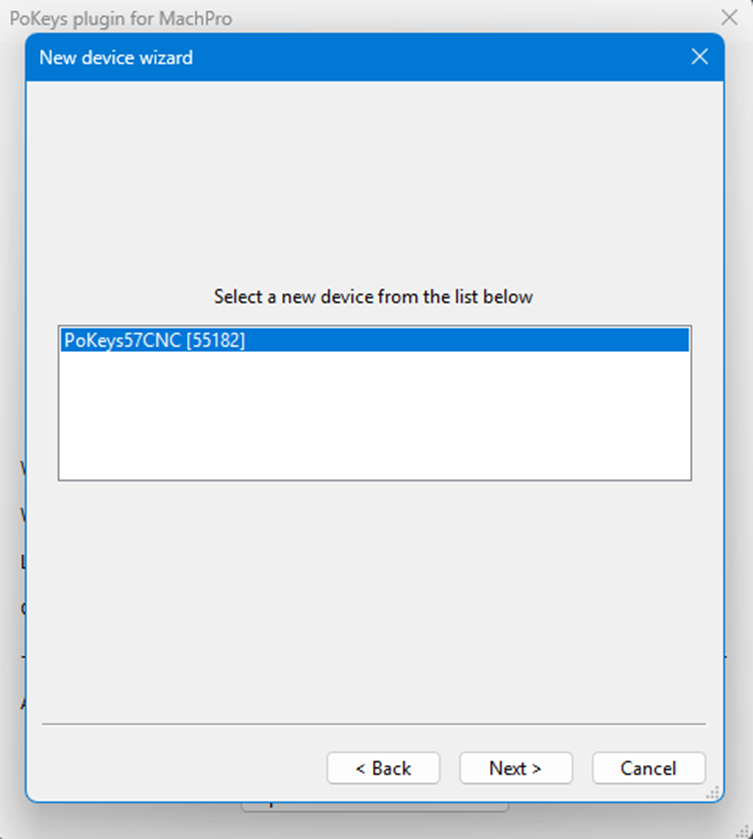
It located this device. |
|
|
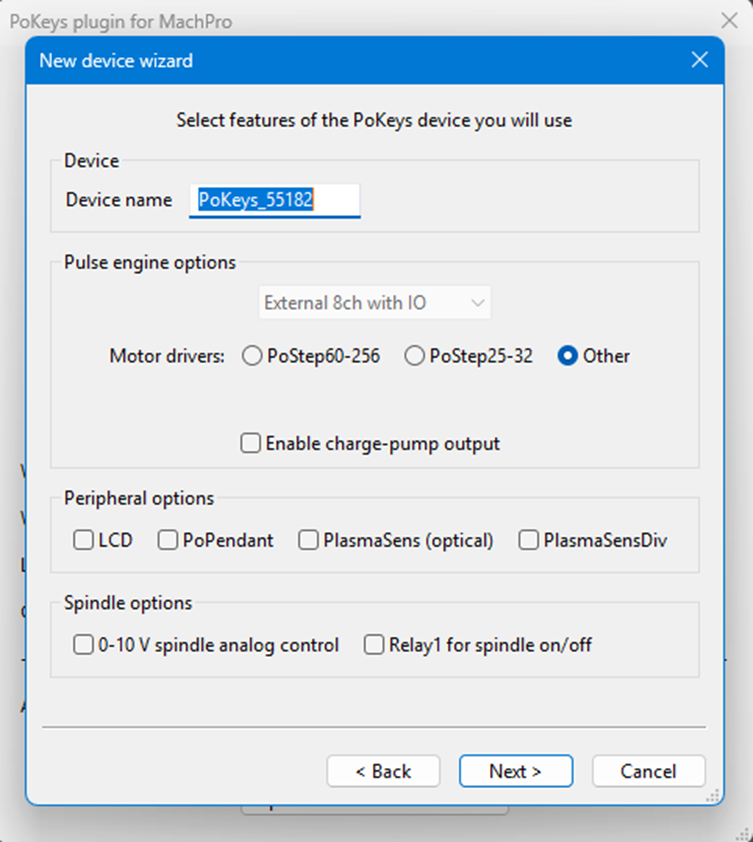
Select the features that you will be using with your PoKeys motion controller. |
|
|
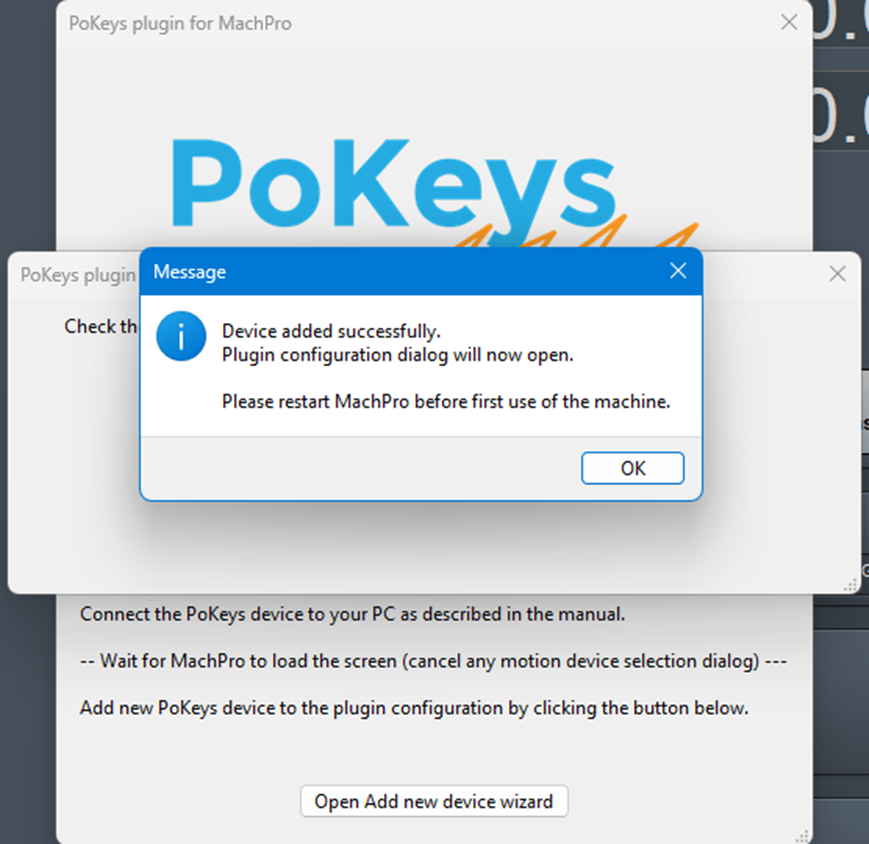
After you have selected the features, and completed the PoKeys plugin installation:
|
PoKeys Plugin configuration |
|
|
|
From MachPro's menu:
|
|
|
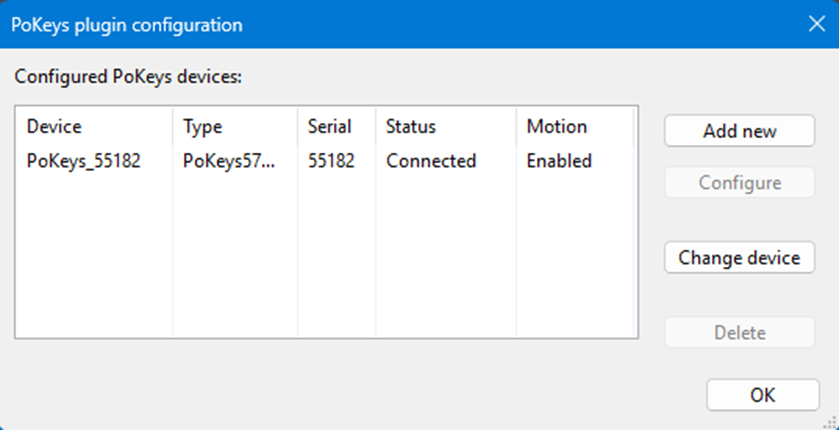
If the Pokeys Plugin sees your motion controller, you may safely close this window if it comes up. |
|
|
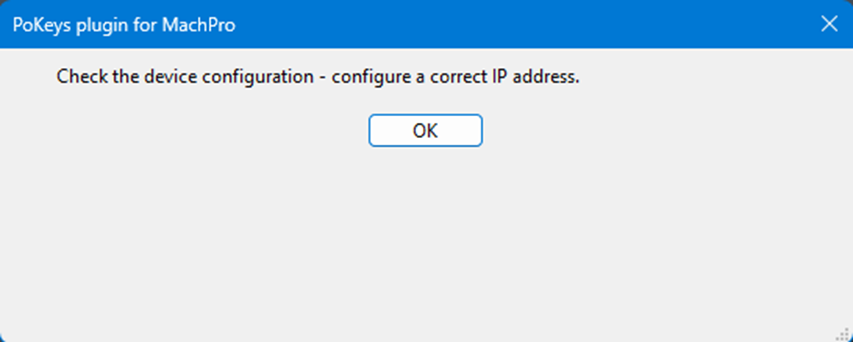
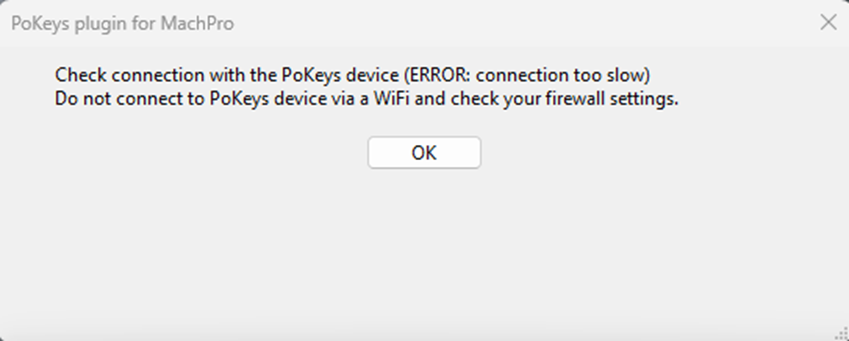
If there is a connection issue this window will open. Follow the PoKeys troubleshooting documentation for your motion controller. If you continue to have problems please open a ticket with PoLabs support.
|


Motion Controller completion steps
- Please refer to the PoLabs manual (Available here) to complete the setup of your motion controller.
- You need to integrate MachPro with your PoKeys motion controller. Use this manual to complete those steps: MachPro Compatible Motion Controller Configuration Settings
{{@2016}}