
ESS Motion Controllers

MachPro 26 CNC Software Roadmap
Plan your network configuration
At times a CNC computer has a very heavy resource load while it is running. We recommend you set this computer to be used primarily for CNC control. The network communication with the motion controller should be protected from internet traffic, which is why we recommend you use 2 network adapters.
- You should use a wired Ethernet port to connect to the ESS motion controller. If you are using a laptop that does not have a wired Ethernet port, you will need to use a USB to wired Ethernet adapter to connect to the ESS motion controller.
- Most laptops have WiFi, which you should use for Internet access.
Select the Motion Controller |
|
|
|
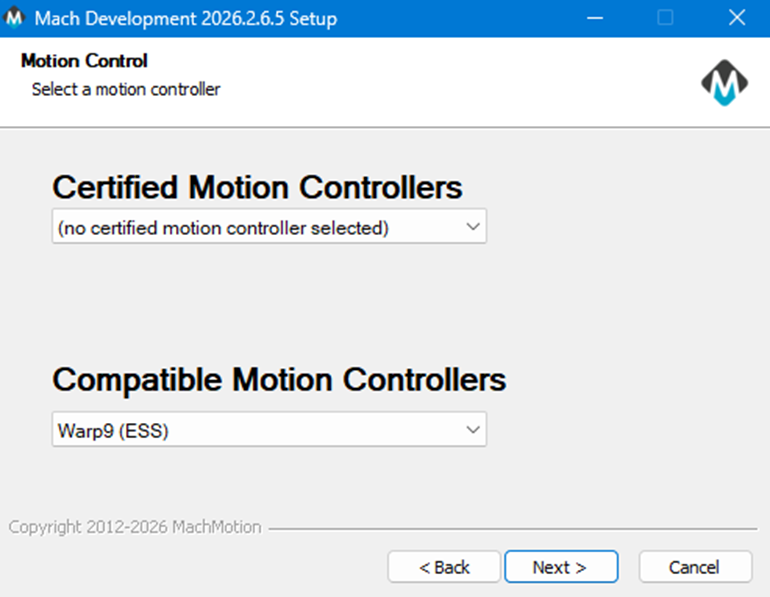
During the MachPro package installation, you selected the motion controller, and the correct Ethernet SmoothStepper (ESS) plugin has now been installed. |
|
|
Look for the MachLabs Icon on your Windows desktop. It will have your machine type as a label. Double click to start MachPro. |
|
|
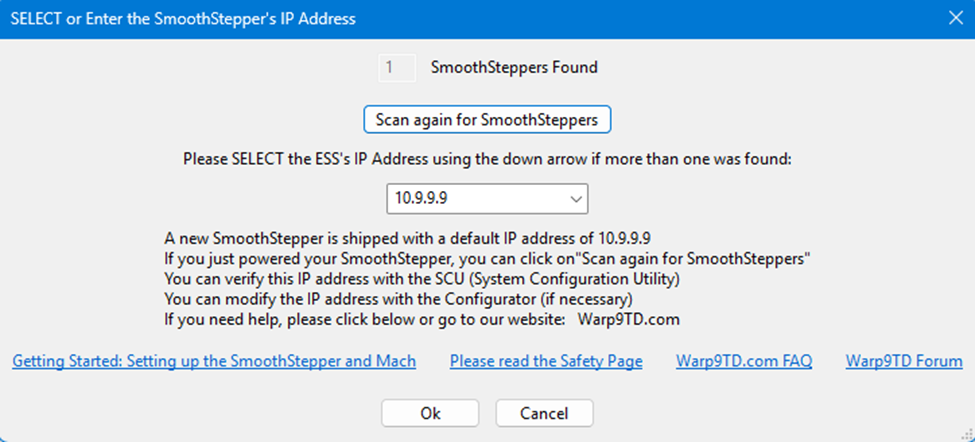
This window will open, but it may open behind MachPro
|
|
|
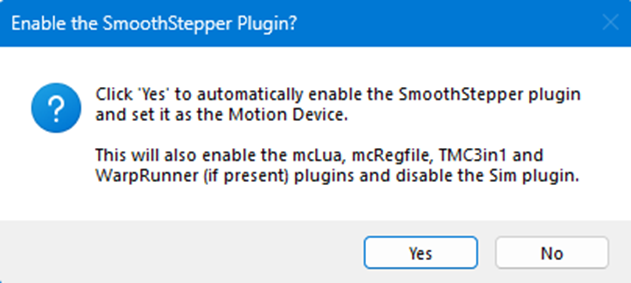
This window will open to confirm that you want to configure MachPro to run with the SmoothStepper motion controller. Click Yes |
|
|
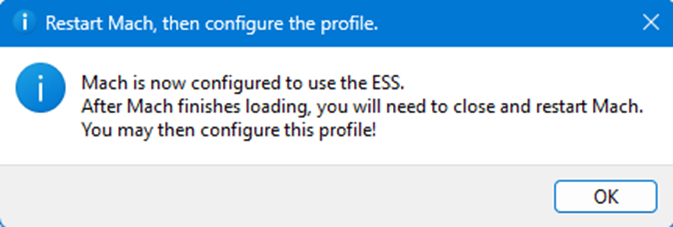
This confirmation window will open. You will need to close and restart MachPro Click OK to close the window |
|
|
This error report will come up before you restart MachPro. It is telling the truth:
|

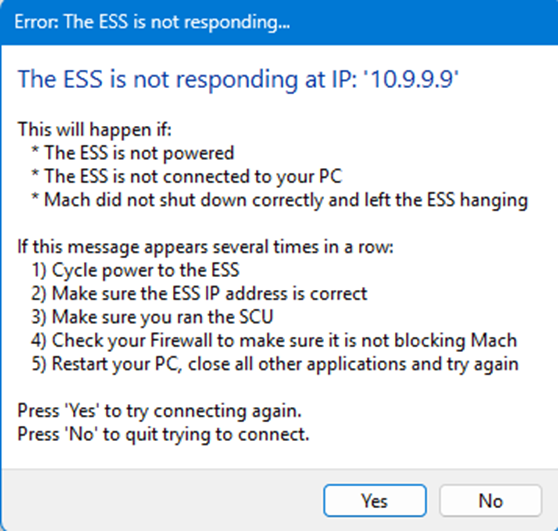
Use the SCU to Configure Windows
Warp 9 SCU site
- Download and run the SCU Lite or Application Only version.
- Follow the SCU documentation using the Easy Mode.
- If you have difficulty installing your SmoothStepper, please register at Warp9, and post your questions to their support forum.
Integrate MachPro with the ESS
You need to integrate MachPro with your ESS motion controller. Use this manual to complete those steps: MachPro Compatible Motion Controller Configuration Settings
Troubleshooting
Advanced SCU
If you have trouble connecting to the ESS, the most likely reason is the firewall. When Windows presents a dialog that asks if it is OK for Mach to access the Internet, be sure to say yes, and to check both the Public and Private network check boxes. "Accessing the Internet" is Microsoft's language for "accessing the Ethernet adapter". It is generally unlikely you will need to open specific ports in the firewall to allow the ESS to communicate with Mach. But if your firewall is blocking them, these are the ports the ESS uses:
- UDP 9: The Discard Port (Used for initial presence detection)
- UDP 67: BOOTP (This is for when the configuration jumper is on).
- UDP 68: BOOTP (This is for when the configuration jumper is on).
- UDP 69: TFTP.
- UDP 4096: Normal runtime communications.
- UDP 4097: Normal runtime communications with multiple ESSs
- UDP 5020: Normal runtime communications.
- UDP 5021: Normal runtime communications.
- UDP 5022: Normal runtime communications with multiple ESSs.
- UDP 5023: Normal runtime communications with multiple ESSs.
The SCU opens up ALL the incoming UDP ports for the Mach4, Mach3 and Configurator applications. It ensures that Mach will be able to talk with the SmoothStepper now and in the future. Since this is only opening up these UPD ports for these specific applications, and not your whole PC, it is secure.
https://documentation.warp9td.com/Software/SCU/04_FAQ.htm
When these steps are completed, the computer and SmoothStepper motion controller will connect
| http://www.mach-labs.com | MachLabs Documentation | support@mach-labs.com |
The MachLabs Team
14518 County Road 7240, Newburg, MO 65550
support@mach-labs.com