
Private MachPro Planner Reference: Development Version

MachPro build covered: This is documentation for the development version of MachPro. The full release is planned before the end of 2026. All prior MachPro releases are covered in the M31 Motion Control Setup Manual: Open Document
1 Using This Reference
1.1 Purpose and scope
This reference focuses on mill, router, waterjet, and plasma installations.
Use this reference when you change motion-planner configuration. It assumes that the machine is configured and that you have reached Configure > Control > Planner.
The sections follow the configuration screens: Main, PureMotion G38.1, and Trapezoid G38.2/Tangential G38.3. Related settings elsewhere in Control Configuration are described in Other configuration screens.
All current planner options use configuration screens. No planner parameter-change commands are available. G38 commands select a planner; they do not edit its settings.
The screenshots are from a development release. Additional tabs visible in the captures are outside this reference’s scope. Displayed values are examples, not confirmed factory defaults or operating limits.
Motor acceleration and jerk configuration procedures remain in the M31 setup manual. This reference explains their effect on planner choices without repeating those procedures.
M31 Motion Control Setup Manual: Open Document
2 Planner — Main
2.1 Planner choices
Open Configure > Control > Planner > Main to view the planner overview.
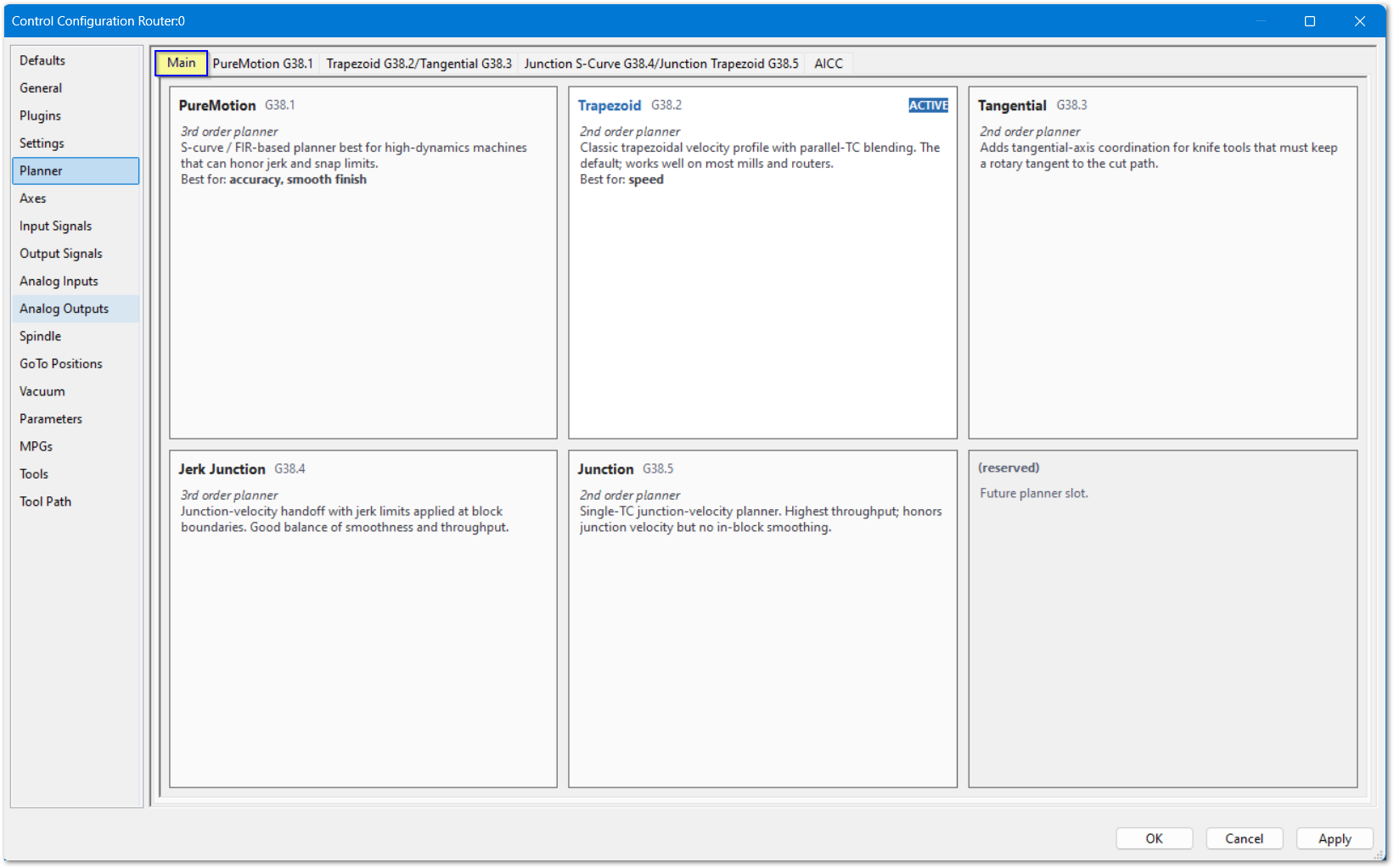
A motion planner calculates the commanded trajectory and its velocity and acceleration changes. MachPro calculates planner trajectories. Its planner commands work with every compatible motion controller.
| Planner | Selection in a G-code file | Use |
|---|---|---|
| PureMotion | G38.1 | S-curve motion with gradual acceleration transitions and configurable path tolerances. Use it when accuracy and smooth finish are required |
| Trapezoidal | G38.2 | Motion with direct acceleration transitions. Its constant-velocity path control gives an approximation and it is best for speed. |
| Tangential Knife | G38.3 | Tangential-axis coordination for a knife tool. Uses the shared Trapezoidal/Tangential settings |
Choose the planner for the required path accuracy and machine response. If both PureMotion and Trapezoidal meet the requirements, either is suitable. First establish reliable motor velocity and acceleration settings. Do not use a planner change to compensate for incorrect machine configuration.
For the default planner and program selection behavior, see Defaults and G38 selection.
2.2 Acceleration smoothing and path smoothing
Acceleration smoothing changes how acceleration begins and ends. Path smoothing permits deviation from the commanded path. These are separate controls:
- Motor Constant Acceleration Time and Jerk Time control the PureMotion acceleration profile. See Motor Units.
- PureMotion path-tolerance controls are on the PureMotion tab.
- Trapezoidal and Tangential corner feed rates use the shared CV controls.
3 Planner — PureMotion G38.1
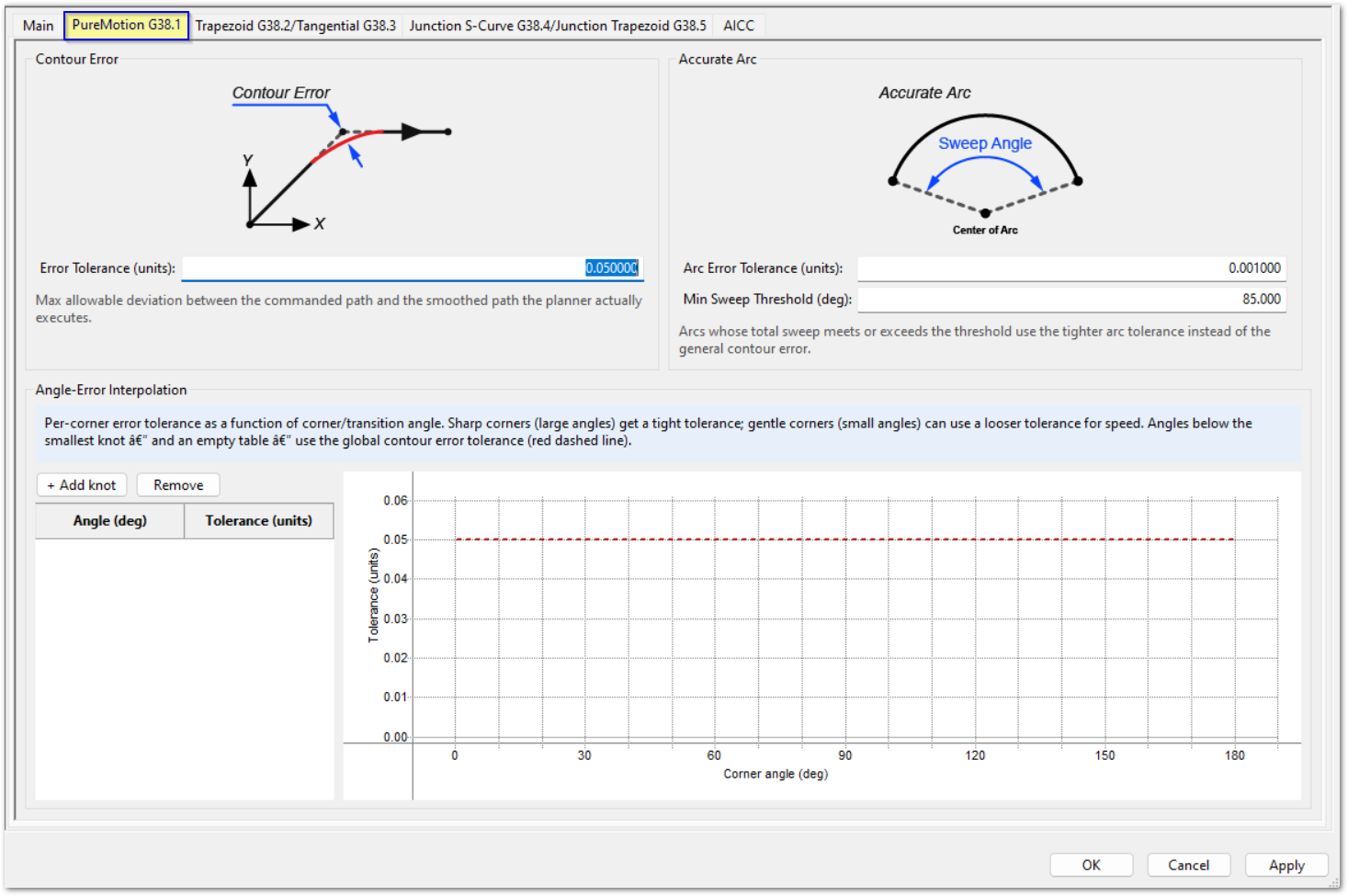
Open Configure > Control > Planner > PureMotion G38.1.
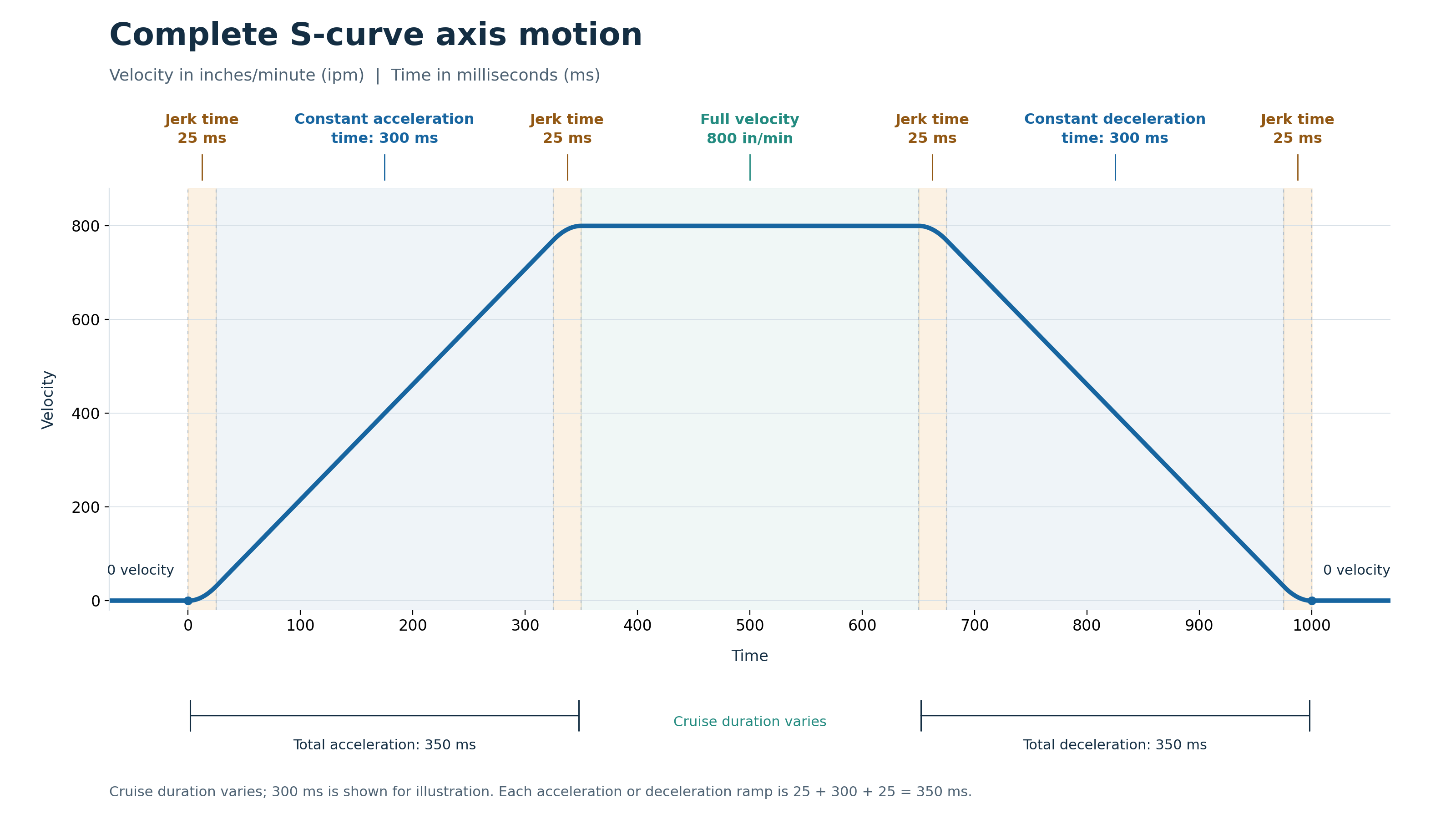
A single PureMotion move, from exact stop to exact stop is illustrated below. When multiple motions are combined in a normal production cycle, Contour Error, Accurate Arc, and Angle-Error Interpolation are also applied to control the tool path.
3.1 Contour Error
Error Tolerance (units) sets the maximum deviation between the commanded path and the smoothed path that the planner executes. This is the global contour-error tolerance.
Choose a value that meets the machining accuracy requirement in the configured machine units. A larger tolerance permits more path deviation. Measure actual machining results after a change; see Verify setting changes.
PureMotion follows all configured tolerance and error limits, including across transitions and junctions between moves.
3.2 Accurate Arc
Use Accurate Arc to apply a much tighter error tolerance when cutting circles, without adding G-codes around those operations. A circle commonly consists of four 90° arcs. Set the sweep threshold so that those arcs qualify for the tighter tolerance. Other moves use their applicable tolerances.
| Control | Function |
|---|---|
| Arc Error Tolerance (units) | Tighter tolerance used for qualifying arcs instead of the general contour-error tolerance |
| Min Sweep Threshold (deg) | Minimum total arc sweep that qualifies for the tighter arc tolerance. This is arc sweep, not the corner direction-change angle |
An arc qualifies when its total sweep meets or exceeds Min Sweep Threshold (deg). Select the threshold and tolerance for the arc accuracy required by the job.
3.3 Angle-Error Interpolation
Use Angle-Error Interpolation to tighten error tolerances at larger direction changes, such as 90° corners or near reversals. Smaller direction changes can use looser tolerances where the job permits, to maintain speed. Select tolerances for the required machining accuracy.
The angle measures the change from the incoming to the outgoing commanded direction. It is not the inside angle between the two path segments. Straight ahead is 0°; a right-angle turn is 90°; a full reversal is 180°.
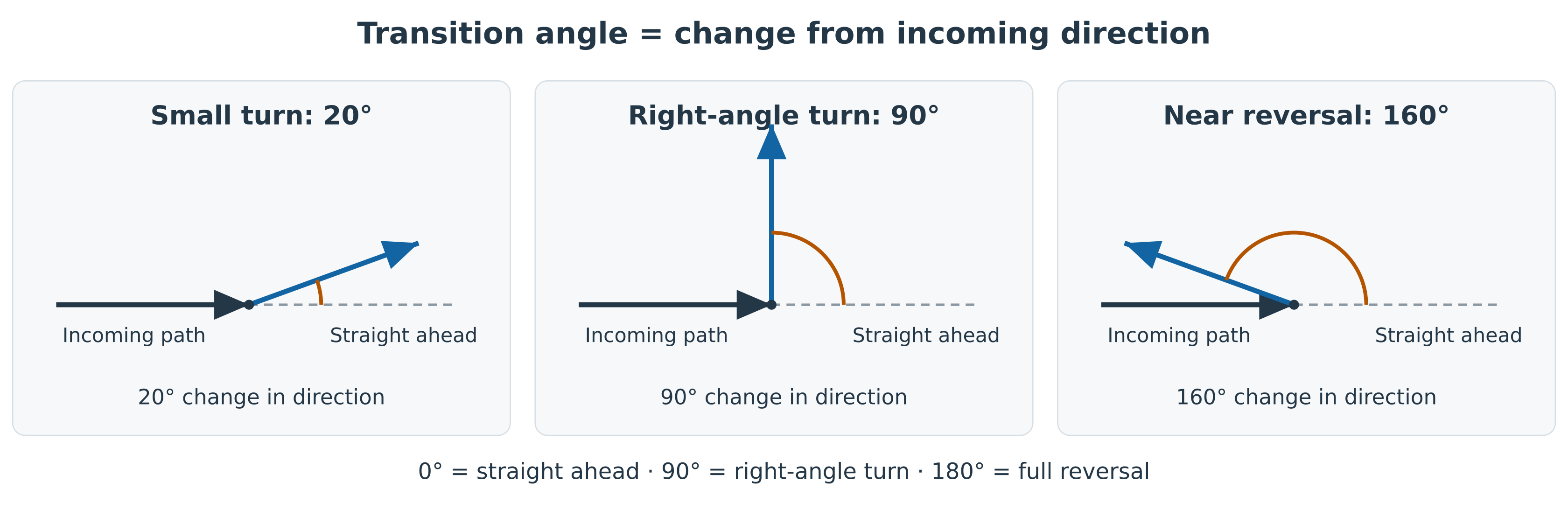
The dashed line continues the incoming direction. The orange arc shows the change to the outgoing blue path. These are commanded-path illustrations, not smoothed paths or suggested tolerance settings.
Each table knot is an Angle (deg) and Tolerance (units) pair.
| Control or display | Function |
|---|---|
| Angle (deg) | Corner or transition angle for the knot |
| Tolerance (units) | Allowed error at that knot |
| Chart | Shows the resulting tolerance by corner angle. The red dashed line shows global Error Tolerance |
The chart determines behavior during program execution:
- An empty table uses global Error Tolerance (units).
- An angle below the smallest knot also uses the global tolerance.
- At a knot, the planner uses that knot’s tolerance.
- Between adjacent knots, the planner interpolates tolerance linearly.
- Above the largest-angle knot, the planner uses that last knot’s tolerance.
Examples
The current capture has an empty knot table and global Error Tolerance (units) of 0.050000. The red dashed line is therefore flat at 0.050000 across the displayed angles.
| Angle (deg) | Tolerance (units) |
|---|---|
| 45.000 | 0.030000 |
| 70.000 | 0.015000 |
| 80.000 | 0.010000 |
| 95.000 | 0.009000 |
This sample configuration uses 0.050000 below 45° and 0.009000 above 95°. Between 45° and 70°, tolerance changes linearly from 0.030000 to 0.015000. These examples explain the controls; they are not defaults or recommended settings.
3.4 Related motor settings
PureMotion incorporates configured velocity, acceleration, and jerk values. Its path-tolerance controls do not replace these motor limits.
For Constant Acceleration Time, Jerk Time, and the effect on machine response, see Motor Units. For an axis with multiple motors, also check Motion Limits.
4 Planner — Trapezoid G38.2/Tangential G38.3
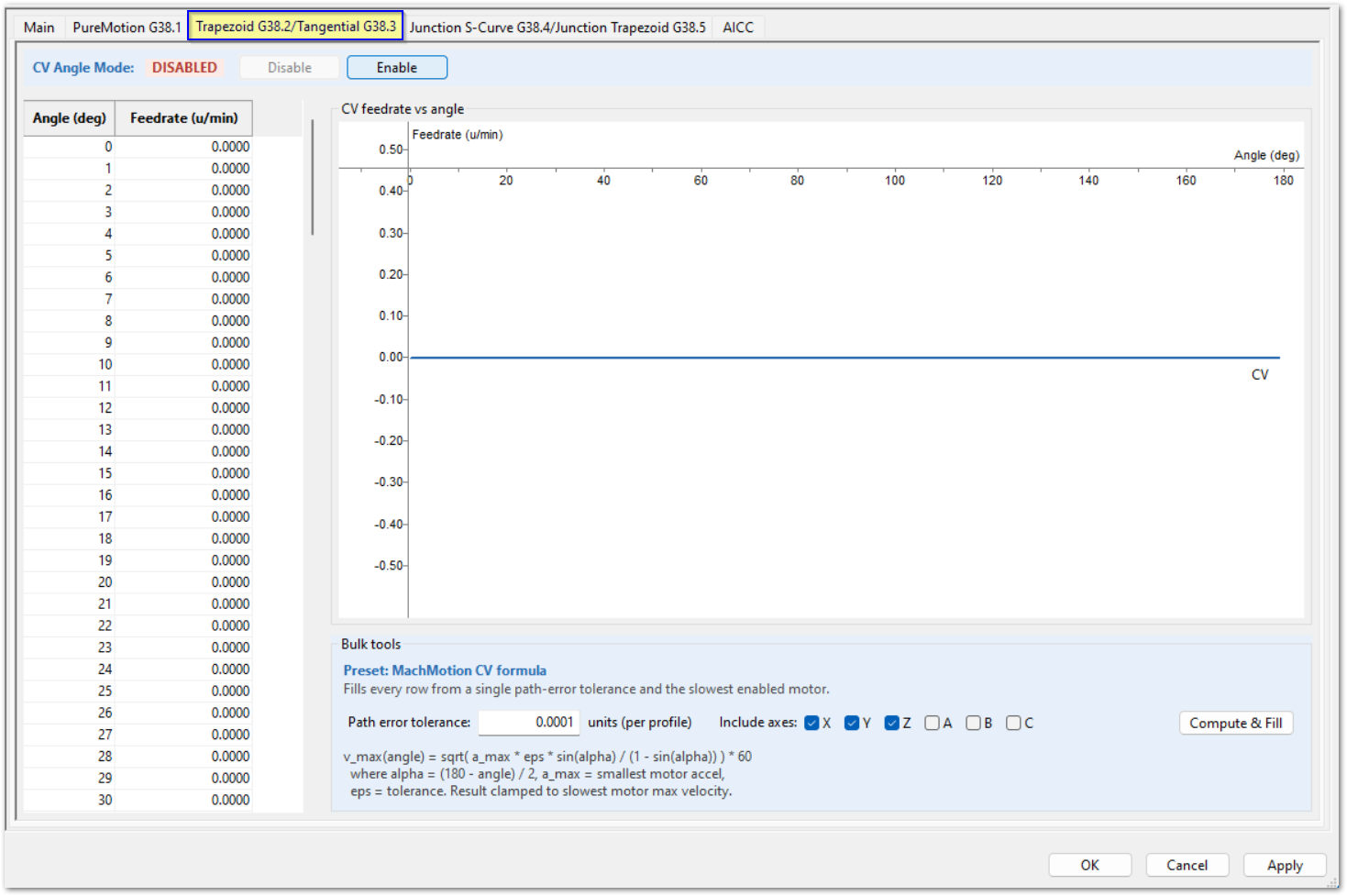
Open Configure > Control > Planner > Trapezoid G38.2/Tangential G38.3. Every setting on this tab applies to both planners. Tangential has no additional settings.
4.1 CV Angle Mode
CV means constant velocity. The Enable and Disable buttons control CV Angle Mode. The status at the top shows its current state.
When CV is disabled in Trapezoidal mode, every angle uses exact stop. The shared settings also apply to Tangential moves.
Trapezoidal CV is not a precise path-control tool. The table approximates feed rate at different angles. Other motion behavior follows the configured Trapezoidal settings. Use PureMotion when precision is required.
4.2 Angle/feedrate table and graph
| Field or display | Function |
|---|---|
| Angle (deg) | Direction-change angle for the table row |
| Feedrate (u/min) | Approximate feed rate at that angle, in configured units per minute |
| CV feedrate vs angle | Graph of the table values |
Use the table and graph to examine corner feed rates. The supplied capture shows zero values and a flat graph. It does not show a populated machining configuration or establish recommended values.
4.3 Preset: MachPro CV formula
The preset fills the table from a single tolerance and the included axes.
| Control | Function |
|---|---|
| Path error tolerance | Input to the table calculation, shown as units per profile |
| Include axes | Selects X, Y, Z, A, B, and C for the preset calculation |
| Compute & Fill | Calculates feed rates and fills the table |
Use the axes that apply to the intended motion when you select Include axes. The formula uses the smallest motor acceleration and limits feed rate to the slowest motor’s maximum velocity.
Path error tolerance is a calculation input. It does not guarantee that actual machining stays within that error. Measure accuracy and cycle time after a change; see Verify setting changes.
CV tolerance example
Earlier supplied examples used CV enabled, X/Y/Z included, and a maximum feed rate of 300 u/min:
| Angle (deg) | Feed rate at 0.001 tolerance (u/min) | Feed rate at 0.0001 tolerance (u/min) |
|---|---|---|
| 2 | 300.0000 | 217.4084 |
| 10 | 137.2915 | 43.4154 |
| 30 | 45.1778 | 14.2865 |
Reducing tolerance from 0.001 to 0.0001 lowers the calculated corner feed rates while retaining the 300 u/min maximum. The first example reaches that maximum at 0–4°; the second reaches it at 0–1°. These are calculated examples, not measured machining results or defaults.
5 Other Configuration Screens
5.1 Defaults — Trajectory Mode
Configure > Control > Defaults > Trajectory Mode sets the default planner. Initialization Codes on the Defaults screen set other startup modes. Use G38 commands only in G-code files; do not put them in initialization strings.
Include the applicable G38 command in each file that needs a planner other than the default. The selection stays active until another G38 command selects a different planner within the open file.
Closing a file that contains a G38 command restores the default Trajectory Mode. MachPro also restores the default after shutdown and restart. This behavior applies to all planners.
Each planner retains its settings until you change them. Planner changes do not require a restart.
Default-planner selection procedure: Open Document
5.2 Axes — motor — Units
Use Configure > Control > Axes > selected axis > selected motor > Units for motor velocity, acceleration, and jerk settings. These configuration procedures remain in the M31 setup manual.
Calibration establishes units and initial motion values. If the units are incorrect, correct calibration. An Auxiliary axis is outside coordinated toolpath motion and does not limit it. Rotary (degrees) on the axis Identity tab changes linear units to degrees. Mixed rotary and linear feed is interpreted the same as linear feed; the setting does not establish a rotary radius.
Axis identity and calibration: Open Document
Velocity and Acceleration Entry
MachPro provides separate settings for Feed, Rapid, and Jog motion.
| Setting | Trapezoidal | PureMotion |
|---|---|---|
| Native acceleration setting | Acceleration rate, units/s² | Constant Acceleration Time, ms |
| Alternate display | Related Time (ms) | Related Units/s² |
| Jerk Time | Not used | Separate Feed, Rapid, and Jog values |
Acceleration Entry switches between Units/s² and Time (ms). MachPro converts the value automatically. This changes the display and entry representation, not the selected planner.
Velocity and acceleration must work reliably together. For tuning, operating margins, and copying values to other motors, use the M31 procedure: Open Document
PureMotion acceleration and jerk
Jerk is the rate of change of acceleration. Jerk Time controls the transition into and out of constant acceleration. Constant Acceleration Time controls the duration of the constant-acceleration portion.
Total acceleration time = Constant Acceleration Time + (2 × Jerk Time).
For example, 250 ms plus two 25 ms jerk transitions gives 300 ms total. Deceleration uses the reversed profile. MachPro does not provide separate acceleration and deceleration settings.
For a given velocity change, a shorter Constant Acceleration Time increases acceleration. A longer Jerk Time makes transitions more gradual. A value of 0 ms removes the PureMotion smoothing effect for that motion type.
PureMotion does not directly tune a vibration frequency. Both acceleration rate and acceleration transitions can excite the machine. Examine position accuracy, drive stability, machining quality, and cycle time as well as vibration.
Jerk-time tuning procedure: Open Document
Rapid and Jog settings
Rapid and Jog have no cutting load, so their reliable limits can differ from Feed limits. Use Jog settings that keep starts, stops, and manual control predictable. Jogging stops exactly with the configured acceleration/deceleration profile.
Motor Units graph
The graph shows commanded Rapid and Feed profiles for one axis. There is no Jog graph or coordinated multi-axis graph. Its timeline extends until the profile reaches maximum velocity. It does not predict the duration of a specified-distance machine move.
Use machine tests to establish actual move time and reliability. The M31 comparison graphics use red for Rapid, green for Feed, velocity vertically, and time horizontally.
5.3 Axes — Motion Limits
Use the read-only Motion Limits tab to examine the effect of motor settings. It lists assigned motors, including master and slave motors, and the Effective (minimum) values that control the axis. Feed and Rapid columns show velocity, acceleration, and jerk values.
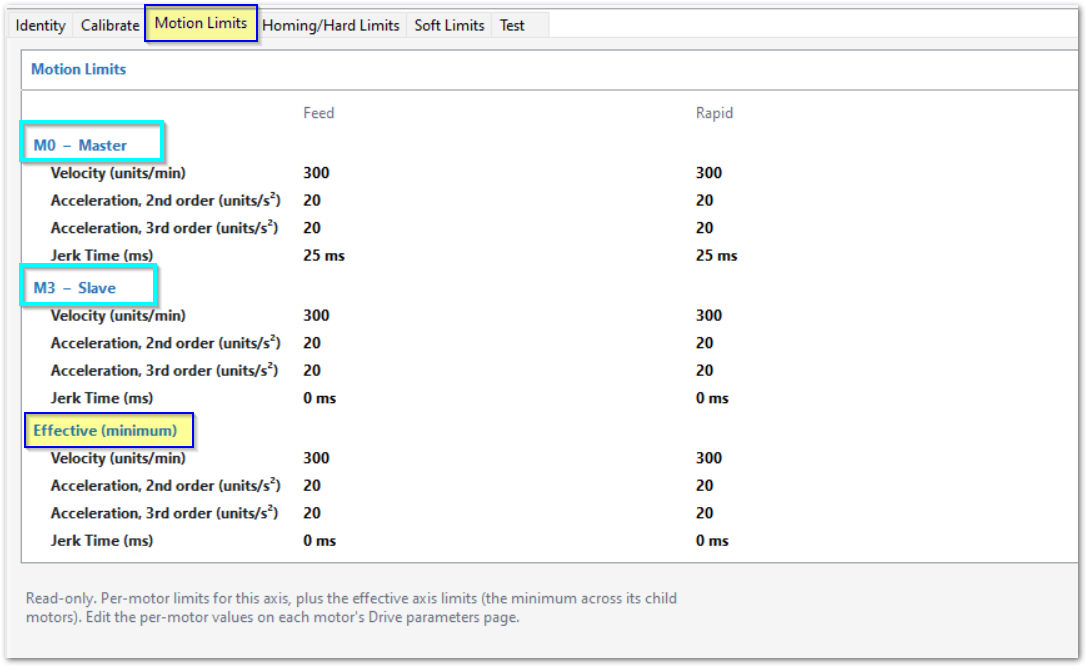
Different motors can supply different effective limits. If one assigned motor has Jerk Time set to 0 ms, every motor on that axis uses 0 ms. A nonzero setting on another motor does not override it.
During coordinated motion, participating-motor limits can constrain the complete move. Higher stable acceleration can reduce cycle time, particularly on short moves that cannot reach maximum velocity. Do not lower Feed Velocity solely because short moves do not reach it.
Coordinated-motion tests: Open Document
5.4 Program cutting-mode selection
G09, G61, and G64 select cutting behavior above the motion planner. They do not select the planner or change its configured values. They apply with Trapezoidal and PureMotion; PureMotion still follows its configured tolerance limits.
| Command | Behavior |
|---|---|
| G09 | Non-modal exact stop for the current movement block |
| G61 | Modal exact stop at each commanded move; remains active until G64 |
| G64 | Modal constant velocity; remains active until G61 |
Exact stop uses the acceleration/deceleration profile of the selected planner. Repeated stops can increase cycle time and leave witness marks. CV can permit corner rounding; see CV Angle Mode.
For standard MachPro command syntax, use the MachPro G-Code and M-Code Reference: Open Document
If planner parameter-change commands become available, the software developers will document them separately.
6 Verify Setting Changes
Use tests that match the machine, job requirements, and material. No universal test program establishes path error, vibration, accuracy, or cycle time for every machine.
Accept settings only when tests meet position accuracy, drive stability, machining quality, and cycle-time requirements. Use air cutting for initial checks and representative cutting for final Feed settings. Repeat the applicable tests after significant setting changes.
Final machine-test procedure: Open Document
For position and communication checks, open Diagnostic > M31. Following Error is displayed in counts. GCode Message Cntr changes continuously while MachPro is connected to the M31, even without a running program. Full diagnostic information is in the M31 setup manual: Open Document
7 Troubleshooting
7.1 Vibration or oscillation
Compare motor Constant Acceleration Time and Jerk Time with the explanations in Motor Units. PureMotion can reduce response to sudden acceleration transitions. It cannot correct mechanical defects or every cause of cutting chatter.
Before further tuning, use the M31 diagnostic procedure: Open Document
7.2 Programmed feed rate is not reached
Examine the selected planner’s path controls, the CV table when applicable, motor acceleration, move length, and Motion Limits. A short move can end before the axis reaches programmed feed rate.
Single-axis tuning: Open Document
7.3 Cycle time increases with PureMotion
Longer jerk transitions can increase move time. Smoothing can also permit higher stable velocity or acceleration and reduce overall cycle time. Review motor acceleration and jerk, the path tolerances, and measured machining results before changing a value.
8 Application Notes
8.1 Vibration and motor settings
Use vibration as one indication of machine response. Changes to motor acceleration and jerk can alter reaction forces, structural deflection, and drive load. Correct wear, looseness, backlash, lubrication problems, or damaged components before final tuning. See Vibration troubleshooting.
8.2 Cutting load and planner choice
Choose the planner and tolerances for the job’s accuracy and finish requirements. Use representative cutting results to establish final Feed limits. Rapid and Jog limits can differ because those moves have no cutting load. See Rapid and Jog settings and Verify Setting Changes.
| http://www.mach-labs.com | MachLabs Documentation | support@mach-labs.com |
The MachLabs Team
14518 County Road 7240, Newburg, MO 65550
support@mach-labs.com