
MachPro Package Installation
{{@2007#bkmrk--1}}
MachPro 26 CNC Software Roadmap
{{@2210}}
Prerequisites
- A Windows computer that will function as the MachLabs CNC control PC for your system
- Windows version 11 (only versions supported by Microsoft)
- 2.5Ghz processor, or faster
- 2GB of disk space
- 8GB of RAM
- Local administrative rights on the computer
- Internet access so that the current software packages can be downloaded
- A supported or compatible motion controller
Run the Mach Package Installer
The Mach Package Installer will download and install the software and tools necessary to run MachPro. This includes the plugin for your supported or compatible motion controller.
Download and run this installer: https://pkgcdn.machmotion.com:8765/static/Mach_Package_Installer.exe.
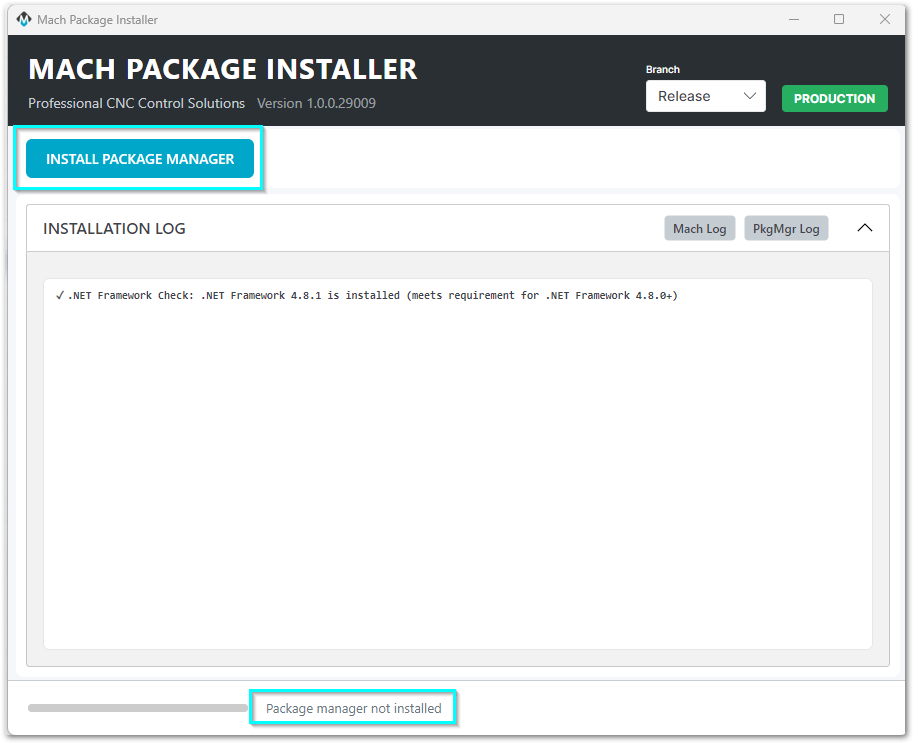
Install the package manager by clicking on the Install Package Manager button.
If you have already run the Mach Package Installer, then you will not see this button. Skip this step and move to Install MachPro packages below.
Infrastructure software requirements
The package manager needs specific versions of infrastructure software.
For example, it may require certain versions of .NET (Microsoft runtime library).
- If the control lacks these packages, the installer adds them automatically.
- During installation, a window may open with instructions to restart the computer.
Follow these instructions and restart the computer. - After the restart, the new infrastructure software will load.
It then runs for all package manager operations.
When the package manager has finished installing, the menu will show the packages that are available for you to install.
Install MachPro packages
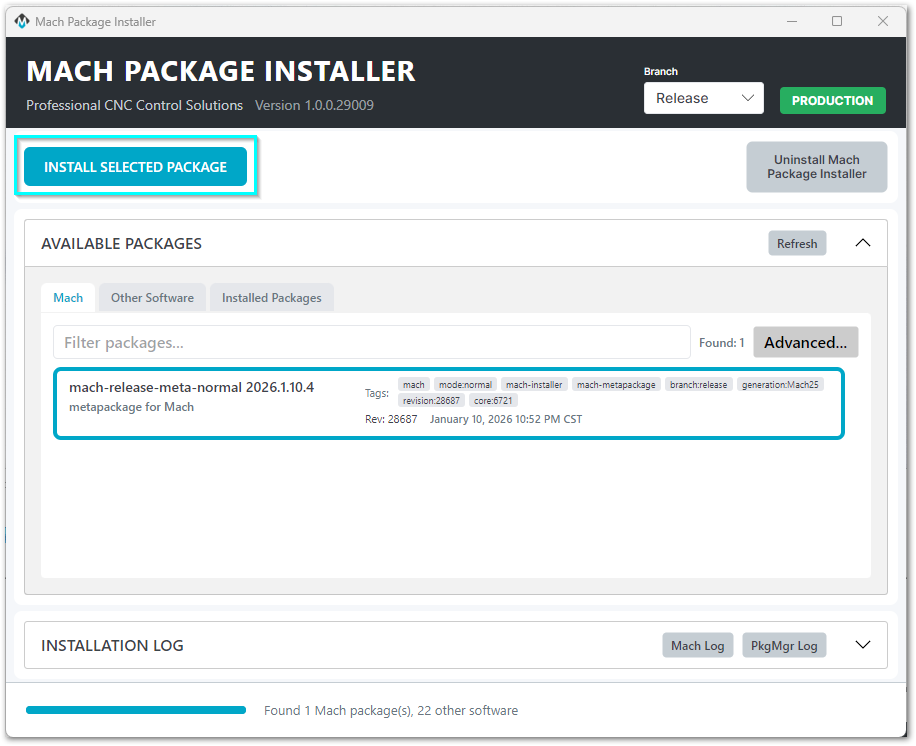
1. Set Branch to to Release
2. Unless instructed otherwise, select the package at the top of the list
4. Click the Install Selected Package button to begin.
If this is the first time you've installed MachPro, be patient as it installs all the back-end libraries needed.
Once all of the prerequisites packages have been installed, the progress panel will show "Installing mach-(version)" and you will be presented with the MachPro install window.
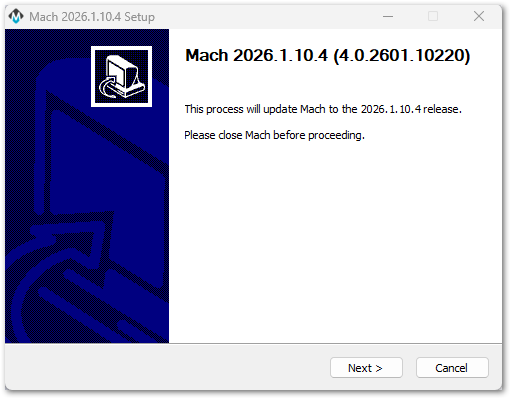
Take the default menu options throughout the install process. Exceptions will be noted below.

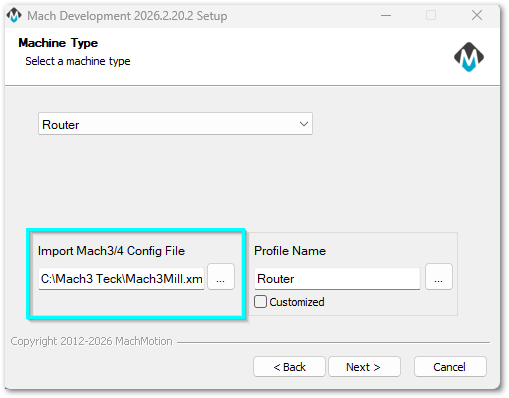
Select the Machine Type that you are installing and click Next
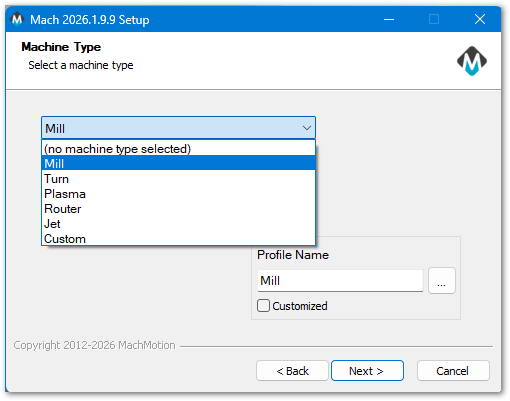
If you are installing MachPro on a control that has a working Mach3 or Mach4 install, please read MachPro Import Mach3 or Mach4 Configurations for further instructions.
Select the motion controller that you will be using, then press Next.
|
|
|
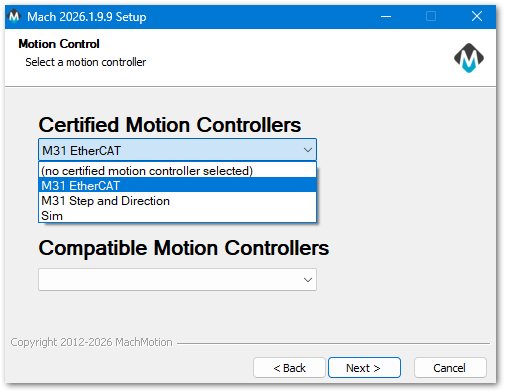
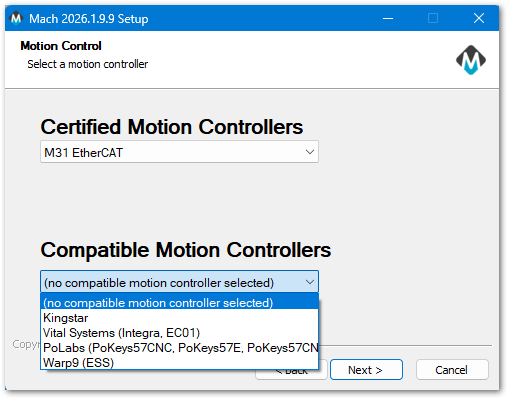
The MachPro package installer will load the plugin for the motion controller that you specified. The plugin configuration will be completed when MachPro runs the first time. Please refer to the linksMotion atController the end of this documentdocuments for that configuration documentation.information.
Select Your Own PC and click click Next

Choose Components: Accept the defaults and click the the Install button. You will have a progress window with the details of your installation. Selecting additional options will cause undesired results.
|
|
|


When the MachPro Setup installation process is completed, click the Close button on the Mach setup window.

Wait for the Installer to show Install Completed at the bottom of the Installer screen. Then you can close the Mach Package Installer window.

Languages
{{@2205}}
Configure your motion controller
{{@2210}}
{{@2016}}