
PRIVATE MachPro Cut Recovery

There are many scenarios when you will need to stop a running job, and there are different ways to gracefully resume the job so that you do not have to scrap the work piece.
- A cutting tool breaks
- A plasma cutter lost the arc
- A water jet tip needs to be replaced
File Resume
Configured on Mill, Router, Plasma, and Turn machine types
Mode Options
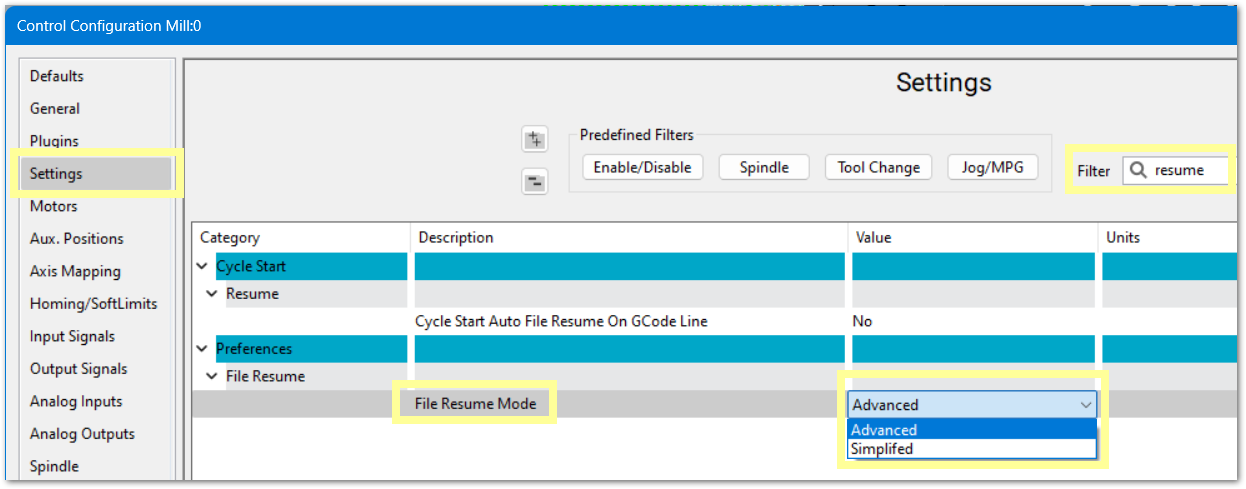
Simplified mode is the default, and it is typically faster to work with. If you want to have more control over the steps, change to Advanced mode. You can switch between modes by pulling down the Configure menu -> Control -> Settings Tab - filter for resume
Simplified
 or E-Stop
- Fix the problem. You may jog the machine to change a tool/tip and touch off to get the new tool length
- Ensure the correct tool is loaded for the section of G-Code you will be resuming from
- Move the Z axis up out of the way for repositioning
- Scroll back in the G-code file to where you what the job to resume from, and click on the re-start line
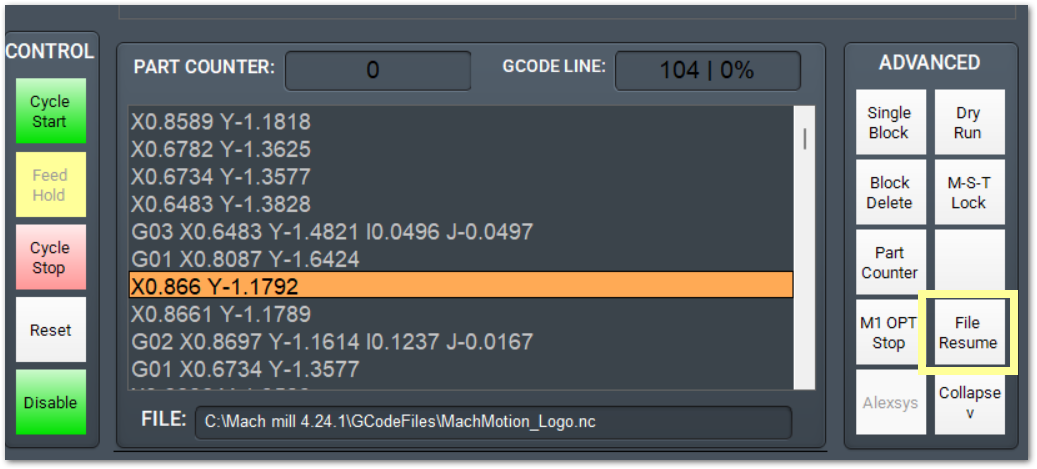
You will be prompted several times to press  while it safely positions the machine to resume the cut
Advanced
 or E-Stop
- Fix the problem. You may jog the machine to change a tool/tip and touch off to get the new tool length
- Move the Z axis up out of the way for repositioning
- Scroll back in the G-code file to where you what the job to resume from, and click on the re-start line
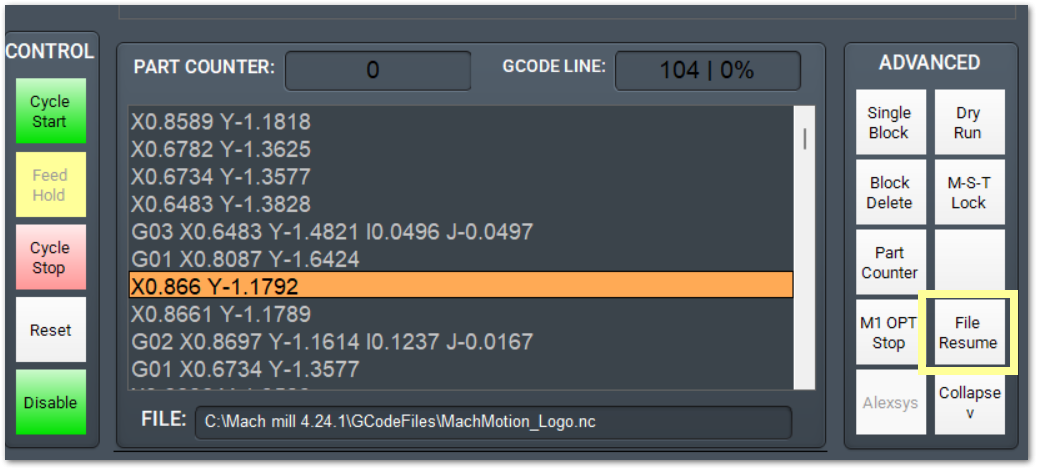
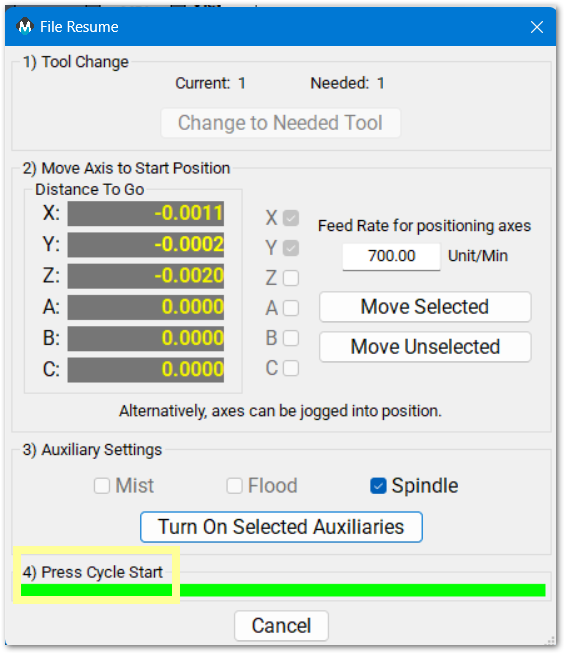
- Click File Resume and follow the numbered steps in the new window
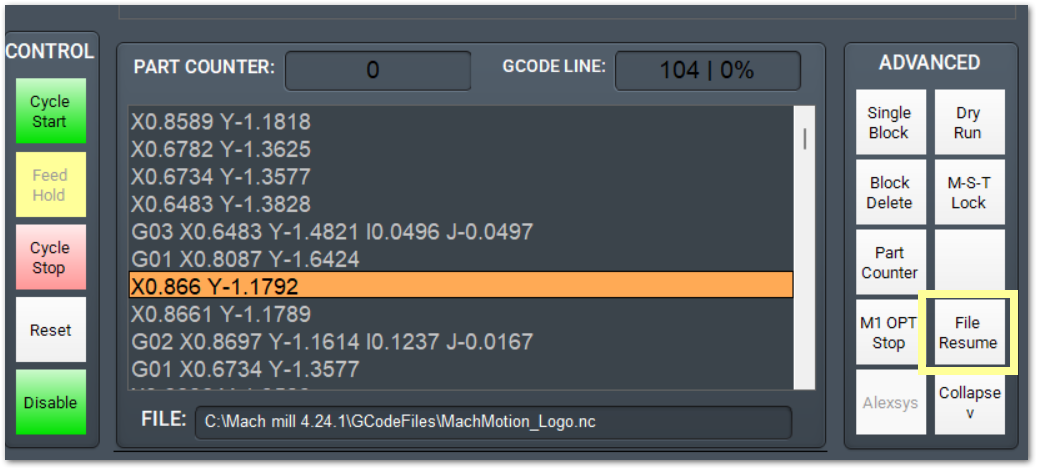
1. If there was a tool change in the G-code file, you may need to change to a previous tool, and this button will be active to run a tool change cycle
2. Select the axes you need to move and click the Move Selected button. Typically Z will be the last axis to reposition. The feedrate defaults to 10 Units/Minute and you may change it to an appropriate value for your machine
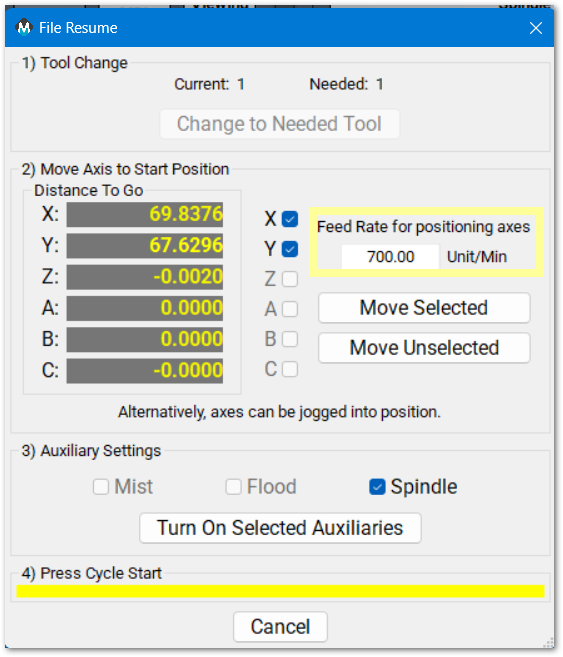
3. Turn on Auxiliaries that were turned off when you stopped the job
4. Press 
Cut recovery
Configured on shape cutting machine types: Router, Plasma, Waterjet
or E-Stop
Fix the problem. You may jog the machine to change a tool/tip and touch off to get the new tool length
Jog the machine to a good position for resuming the job before clicking Cycle Start. It needs to be close to the cut path, but it does not need to be exact. If the head is too far away from the resume location, a notice will popup. It is possible to move to a location further along the cut path and skip a portion of the cut.
Click  and a new window will open with your options
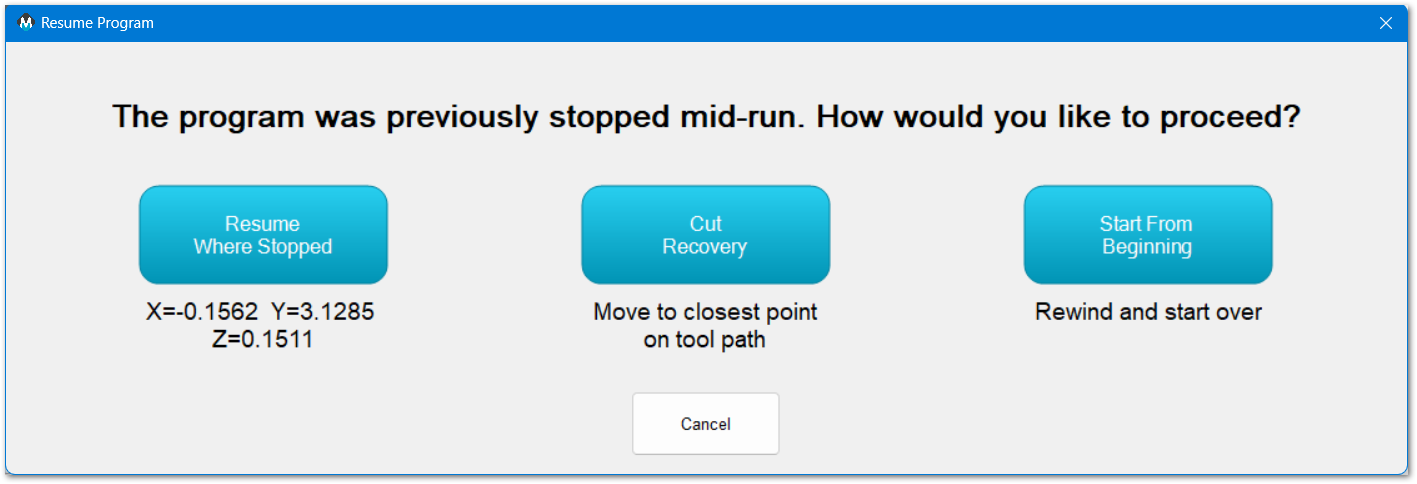
Resume where stopped
- moves back to the coordinates listed below the button and restarts
Cut Recovery
- will resume from the current location - moving to the closet point on the cut path if it is not already there.
Start From Beginning
- will do as it says - rewind to the beginning of the file and re-start.
Alternately, you may use the OPS buttons
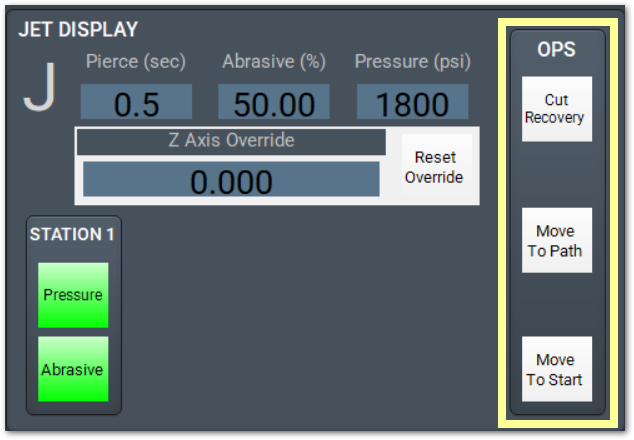
The Cut Recovery and Move To Start functions are described above.
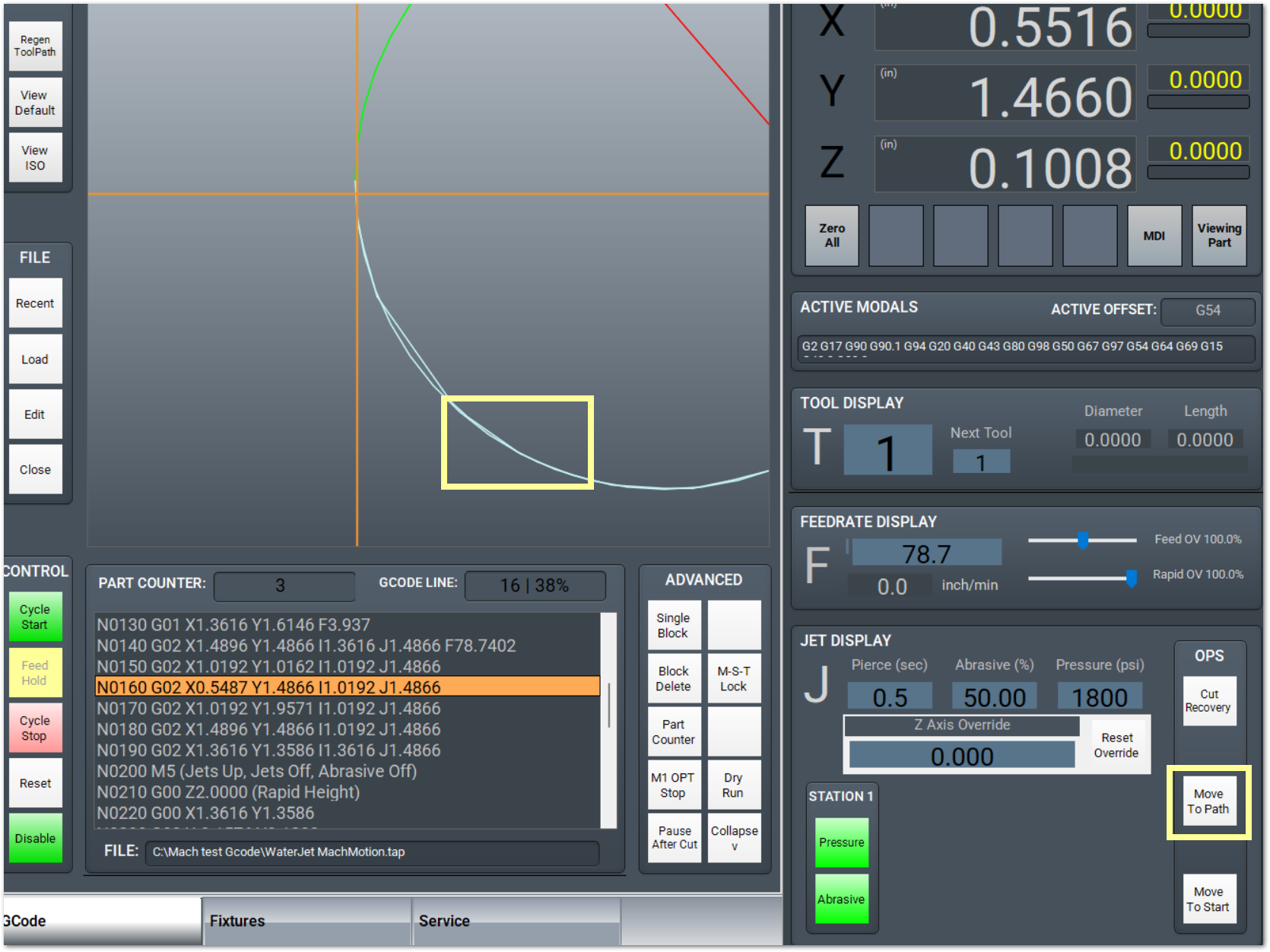
Move to path
- You will be clicking the location on the cut path screen where you want the cut to resume. Before clicking Move to Path, reposition the image on the screen by clicking and dragging with the mouse. Zoom in using the mouse scroll wheel.
- When your resume location is clearly visible, click the Move to Path button and it will turn green
- Click the location on the cut path where you want the job to resume.
- The machine will first move the head to that position, and then resume the job.
| http://www.mach-labs.com | MachLabs Documentation | support@mach-labs.com |
The MachLabs Team
14518 County Road 7240, Newburg, MO 65550
support@mach-labs.com