
PRIVATE MachPro Configuration
MachPro is used for multiple machine types. Some of this documentation will be useful for all machine types, and some is only for certain machine types. Much of the software is already configured with values that that work well for most people. There are some portions of the software that will be most useful if you have additional details.
Tool table offsets

Open the Tool Table

Open the Tool Table Editor
-
In the tool table window, click Edit → Table Fields.

Add the X and Y Offset Fields
-
Click the Optional Field tab.
-
Find the field name XOffset, select it, and click Move Pri.
-
Do the same for YOffset.
-
Click OK to save.
-
You should now see X and Y offset columns in your tool table.
Set the Master Tool
-
Choose one tool to be your master tool.
Measure and Enter Offsets
- For each other tool, measure the distance from the master tool in both X and Y directions.
-
Enter those distances into the XOffset and YOffset fields for each tool.
Tool Spindle Rotation Options
Open the Tool Table
-
Click View → Tool Tables.
Open the Tool Table Editor
-
Click Edit → Table Fields.

Add a User Field for Spindle Options
-
Click the User Field tab.
-
Click Add.
-
Set up the new field exactly as shown in the example image.
-
Click OK when done.

View and Use the User Field
-
Click View → User Fields.
-
The new user field will now appear for each tool.

Set Rotation for Each Tool
-
For every tool, choose the correct spindle rotation option.
-
Example: For a probe tool, select No Rotation.
-
When you select a tool with “No Rotation,” you cannot turn on the spindle.
-
If you try, you will see an alarm message instead.


| http://www.mach-labs.com | MachLabs Documentation | support@mach-labs.com |
The MachLabs Team
14518 County Road 7240, Newburg, MO 65550
support@mach-labs.com
Tool Setters and Offsets
Jet Setup
Configure the number of jets you need and your default delays. Pull down Configure -> Control - Settings.
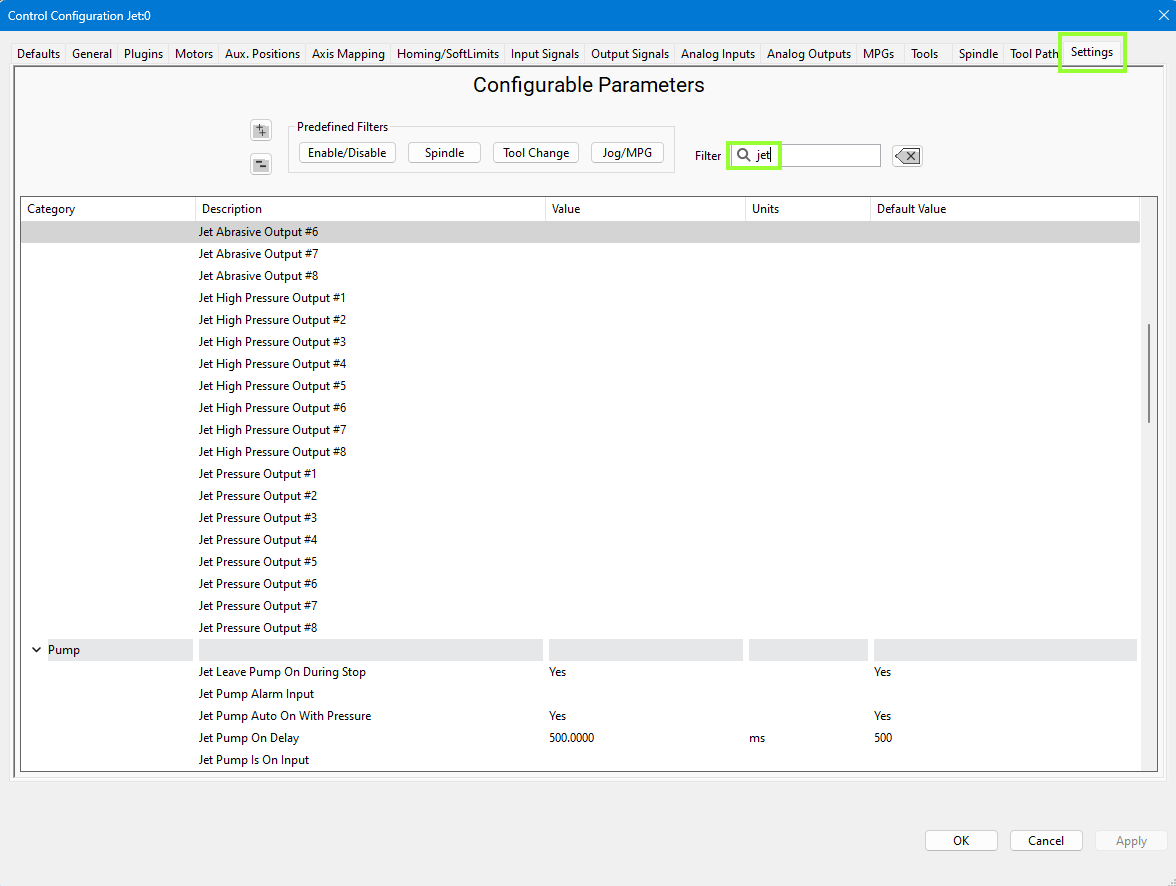
We set the Jet Abrasive Purge Line Delay at 1250 ms which allows the abrasive to stop flowing just before the water turns off. The Jet Off Delay is set to 250 ms which gives us a slight pause after the water turns off and before it starts moving to the next cut. You may adjust these values to appropriate values for you machine.
IO Setup
Virtually every waterjet will need some of following signals. Map each of the ones you need to the correct output. That is done in the Control screen. Configure -> Control - Output Signals. This example is using the simulator. In operation, the device will be the M31, and the Output Names will be EtherCat device names. (1DO.01.0n). Here we have mapped 3 output signals to specific electrical outputs. From this point forward in the configuration, we will use the signals.
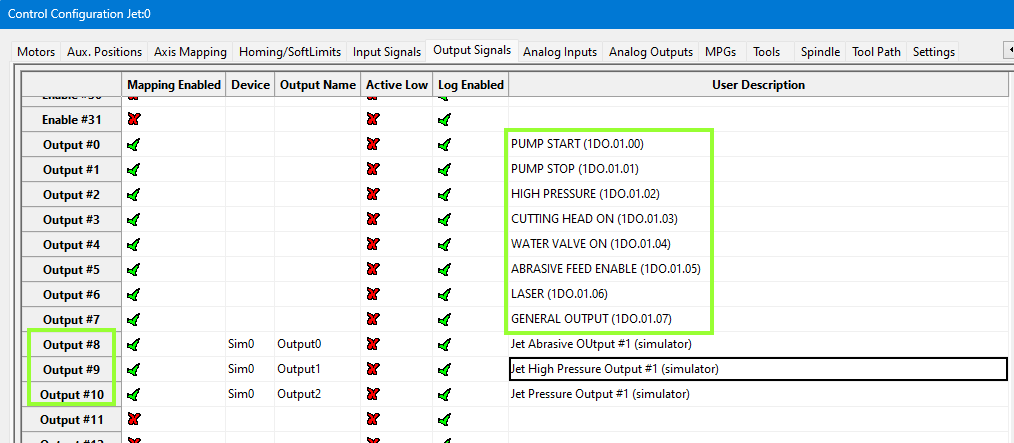
Note that MachPro has a set of pre-defined outputs for your convenience. During configuration of the system, these pre-defined signals need to be mapped to the electrical outputs.
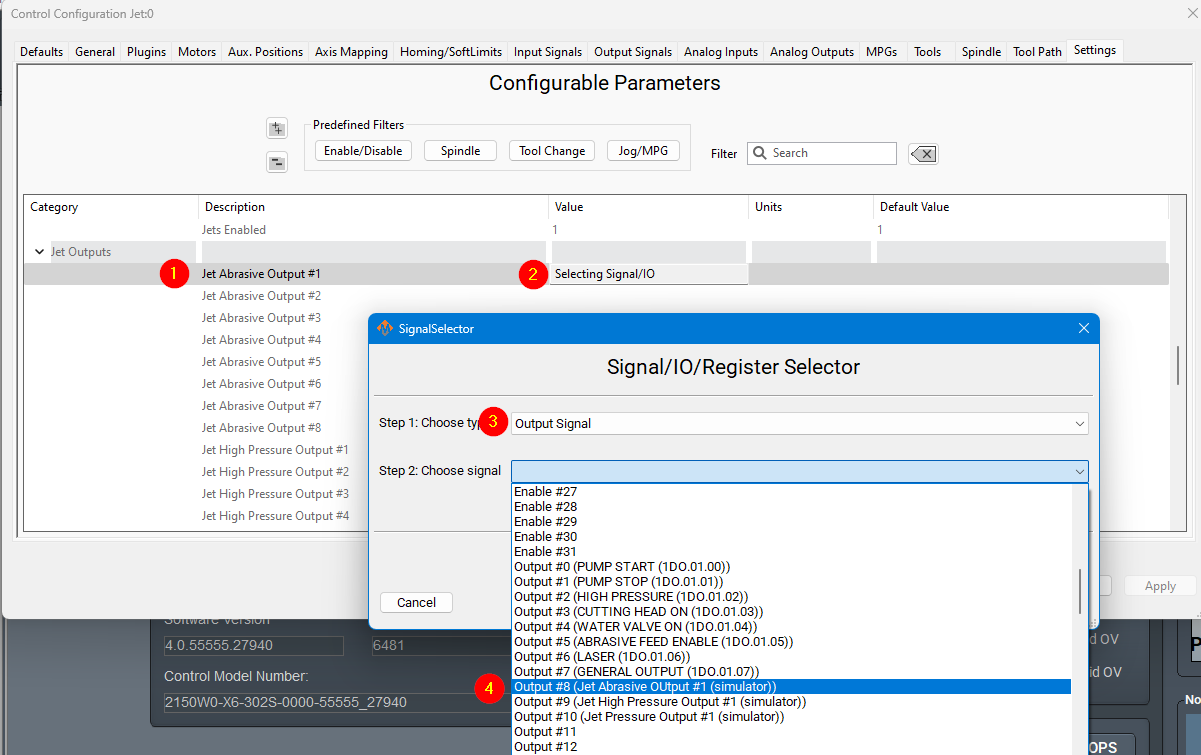
This jet abrasive output is now mapped to a software signal (Output #8). As a software signal, it is now fully accessible to the MachPro software.
| Name | Function | Configuration |
| Jet Abrasive Output(s) | Turns on and off abrasive for the corresponding jet. | Map it to the correct output signal in Mach. |
| Jet High Pressure Output(s) | Turns on and off high pressure for the corresponding jet. Also called things like UHP On/On valve. | Map it to the correct output signal in Mach. |
| Jet Pressure Output(s) | Turns on and off the actual jet. Often called Water On or Jet On. | Map it to the correct output signal in Mach. |
| Jet Pump Output | This turns on the actual intensifier pump. If using a PLC this should trigger the PLC to start the intensifier. Often called Intensifier. | Map it to the correct output signal in Mach. |
For example, Jet Pressure Output #1 here is set to Jet On/Off Solenoid.

Delete everything below this?
The M31 doesn't have enough outputs, but might have enough inputs
The general description of how the PLC would be used might be helpful?
Leave the GMS section?
Remove Analog I/O
Remove PLC setup
Leave cut recovery
Some waterjets may have some of these more advanced IO. This is more for when the intensifier is controlled inside the Mach PLC.
The main sequence to power on the intensifier is as follows:
- Turn on water (Filtered water shutoff valve). This allows water to go to the intensifier.
- Turn on the Bleeddown Valve to prepare the intensifier to run.
- Turn on Boost / Water Inlet Motor. This brings the incoming water up to a low PSI (like 50PSI)
- Wait until INLET WATER PRESSURE SHUTDOWN is active so we know the water pressure is above the base PSI. Often 3-5 seconds to build pressure.
- Turn on the intensifier. Turn on Cooling Water Shutoff valve to keep the water cold.
To turn off the intensifier, the following sequence is used:
- Turn off Intensifier and Cooling Water Shutoff.
- Turn on Bleeddown Valve to let the pressure out of the lines.
- Turn off the boost motor and the water.
Outputs
| Name | Function | Configuration |
| HP Bleed Down Valve |
When the pump turns off this valve must open to let the pressure out of the line. |
By default should be wired to the PLC. |
| Cooling Water Shutoff Valve |
This function keeps the pump cool. Should always be on when the pump is on. |
By default should be wired to the PLC. |
| Filtered Water Shutoff Valve | Allows water to go to the intensifier. It must be on before the intensifier is turned on or it could blow it up. | By default should be wired to the PLC. |
| INTENSIFIER LEFT SHIFT SOLENOID | Moves the hydraulic cylinder to the left. | Must be wired to the PLC and programmed in the PLC. |
| INTENSIFIER Right SHIFT SOLENOID | Moves the hydraulic cylinder to the right. | Must be wired to the PLC and programmed in the PLC. |
| Boost Pump / Water Inlet Motor | A boost pump is used to pressurize the water pressure being fed to the intensifier. It must be on and up to pressure before turning on the intensifier. | By default should be wired to the PLC. |
Inputs
| Name | Function | Configuration |
| Garnet Empty | Tells the operator when to refill the garnet |
Setup in GMS. |
| INTENSIFIER LEFT CHECK VALVE OVERTEMP |
Setup in GMS. | |
| INTENSIFIER RIGHT CHECK VALVE OVERTEMP |
Setup in GMS. |
|
| INTENSIFIER LEFT SHIFT SENSOR |
Must be wired to the PLC and programmed in the PLC. |
|
| INTENSIFIER RIGHT SHIFT SENSOR |
Must be wired to the PLC and programmed in the PLC. |
|
| INLET WATER PRESSURE WARNING |
Setup in GMS. |
|
| INLET WATER PRESSURE SHUTDOWN | This input measures the water pressure at the intensifier after the water inlet motor or pump is on. It must be up to pressure before the intensifier can turn on. |
Setup in GMS. AND must be wired to the PLC to prevent the Intensifier from turning on until this input is off. |
| HP BLEEDDOWN OVERTEMP WARNING |
Setup in GMS. |
|
| HYDRAULIC OIL OVERTEMP WARNING |
Setup in GMS. |
|
| HYDRAULIC OIL OVERTEMP SHUTDOWN |
Setup in GMS. |
|
| HYDRAULIC OIL LEVEL SHUTDOWN |
Setup in GMS. |
For example, a HYDRAULIC OIL OVERTEMP WARNING GMS would be setup as follows:

Some waterjets have a servo controlled Abrasive. For that use these settings:

Cut Recovery
You can configure the axes to move.

