
2000 Series - Tool Setters
Creating a Tool Setter
Open the Calibrate Tool Setters window. Found on the Tools page.

Creating a Manual Tool Setter

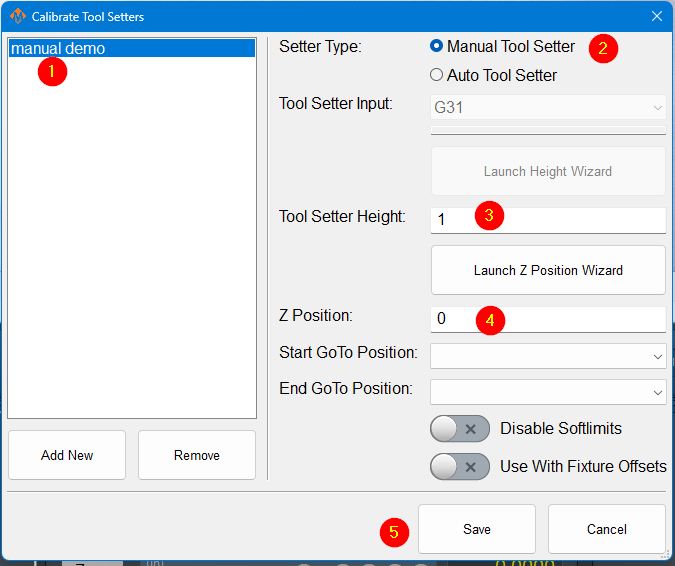

- To create a new manual tool setter, press 'Add New'. All tool setters must have a unique name. After naming the tool setter, select it from the list. Settings for that tool setter will be shown on the right-hand side.
- Select the setter type to be manual.
- Measure the height of your setter, and enter it into the Tool Setter Height field.
- The Z position for the tool setter should be the machine coordinate for the surface the tool setter is sitting on.
- If the tool setter is permanently mounted and the Z position does not change, the Z position wizard can be used to determine this number if it is not known. Once it is set correctly, it will not need to be changed. Set a GoTo position so that the spindle will always go to the setter before touching off. If the setter is mounted outside of soft limits, turning on 'Disable Softlimits' will be needed to reach the position.
- If the tool setter is used in random locations, not permanently mounted, then leave the GoTo positions blank. You will position the spindle and the tool setter where you want them before starting the probe move. Before you measure your first tool, use the Set Position button.
- Remove all tools from the spindle, and touch off the manual setter.
- Now click the Set Position button. It will add the position of the tip of your spindle, and the height of your setter, and enter the resulting value as your Z height.
- Insert and measure each of the tools you need for this job.
- Click Save
Creating an Auto Tool Setter
Select the setter type to be auto and select which probe input the setter is wired to. There is an indicator bar that will show the current state of the selected probe signal. It will be green if the probe signal is currently active.
If the tool setter height is known, its height should be entered. If the tool setter height is not known, launch the height wizard and follow the instructions for measuring. This will require the tool setter to be wired to the control.
The Z position for the tool setter should be the machine coordinate for the surface the tool setter is sitting on. The Z position wizard can be used to determine this number if it is not known. If the tool setter is random position, not fixed, then this value will be managed later.
Optionally, select a go-to position to be associated with this tool setter. Selecting a position will cause the machine to go to that position before touching off on this setter. Otherwise, the control will not move before interacting with the tool setter. If the position is outside of soft limits, turning on 'disable softlimits' will be needed to reach the position.
Creating a Tool Setter Go-To Position
Potential tool setter go-to positions are created in the go-to positions configuration. Any position can be used as a tool setter position. A go-to position can be set as the default tool setter position by checking the "Use as Tool Setter Position (P2)" check box in the go-to position configuration. Only one position can be checked in this manner.
Align Tool Edge to Center of Tool Setter
This feature will position the edge of the tool to the center of the tool setter. To begin using this feature set the parameter Tool Setter Align Tool Edge To Setter to Yes. Next configure the parameter "Tool Setter Align Tool Edge Offset" and choose between using "Tool Radius" or "Tool Setter Offset" as the source for the offset needed to align the tool edge to the center of the setter. Lastly choose which direction to offset when aligning the tool edge to the center.
Configure the following Parameters:
| Parameter Name | Value | Optional Values | Default Values |
| Tool Setter Align Tool Edge To Setter | Yes | No | |
| Tool Setter Align Tool Edge Offset | Tool Setter Offset | Tool Radius, Tool Setter Offset | Tool Radius |
| Tool Setter Align (X or Y) Axis To Setter | X Positive | X Positive, X Negative, Y Positive, Y Negative | X Positive |
Parameter "Tool Setter Align Tool Edge Offset" must be set to "Tool Setter Offset" before the Tool Setter Offset column will show up in the tool table.