SOURCE - Dual Table
Dual Table
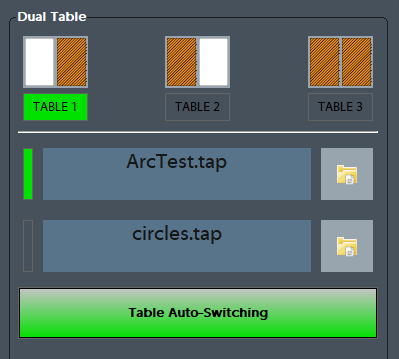
Dual Table is a feature that can used on machines with an overhead axis that normally holds the spindle and Z axis. The machines have the capability to run a program on ether table or link both tables together to make one large table. There is a second feature Table Auto-Switching that can be used to select two programs one for the right table and one for the left table and at the end of the program the control will park the table that was just being used and auto load the program for the other table.

Table Layout
The control supports three configurations for the tables, Table 1, Table 2 and Table 3. Each mode will reconfigure the motors so that the same axis will control all three configurations. Most commonly the Y axis is used for the table, the example below uses the Y axis for all three options.

Table 1 and Table 3 use Work Offset G54, Table 2 uses G55. The Work Offsets are activated along with the tables.
Enable and Setup - Enable Dual Table Feature
Setup Machine Parameters
First turnTurn on the Dual table feature from the Machine Parameters. Search for 'dual' and set the following parameters:
- Dual Table Enabled = Yes
- Dual Table Master Axis ID = 0-5 This is the Axis that you plan to use in the program to move the tables. (X = 0, Y = 1 ect.)
- Dual Table Slave Axis ID = 3-5 This is a un-used axis that the machine needs when aligning the tables. (A = 3, B = 4 ect.)
- Dual Table Master Motor ID = 0-31 This is the motor that controls Table 1. See Table Layout.
- Dual Table Slave Motor ID = 0-31 This is the motor that controls Table 2. See Table Layout.
When the control switches from Table 1 to Table 2 the tables need to move to a park position before swapping the motors around. Enter the Machine Coordinate position for this park position into the Dual Table EnabledAxis Park Position to Yes.parameter.

Work Offset Setup
We need to make sure that when reset is pressed we are not activating a work offset. When Dual Table is enabled we want to allow the Table selection to select G54 for Table 1 and Table 3 and G55 for Table 2.

When done press Save to close the window.
You will still need to setup Work Offset G54 and Work Offset G55 by first selecting a table and then going to the Fixtures page at the bottom of the screen and jogging the machine to the corner you want to use as zero and zeroing there.
Dashboard Setup
We are ready to add the Dual Table widget to the side bar dashboard. To learn more about dashboards see Dashboards