
MachPro RapidChange Tool Changer and Tool Setter

| MachPro Version | 2026.5.13.1 and greater |
RapidChangeATC provides a family of tool changers that work with a wide range of machines that do not have a traditional tool changer option.
RapidChangeATC Resources
- RapidChange ATC Website
- RapidChange Documentation Portal
- RapidChange Web App (profile configuration)
- RapidChange Discord Community
Configure a RapidChangeATC Tool Changer on MachPro
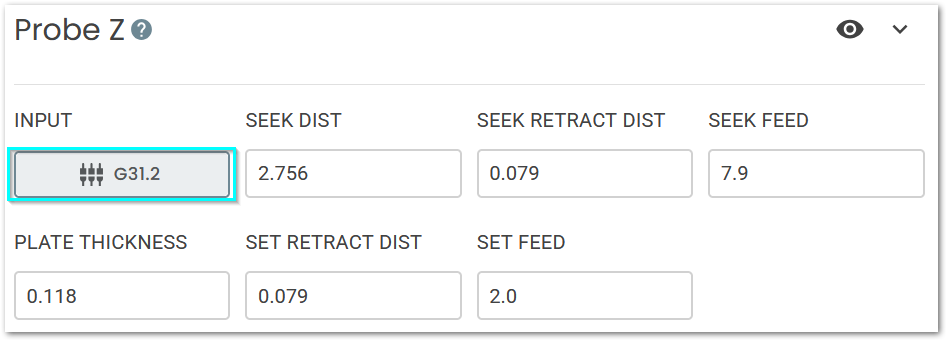
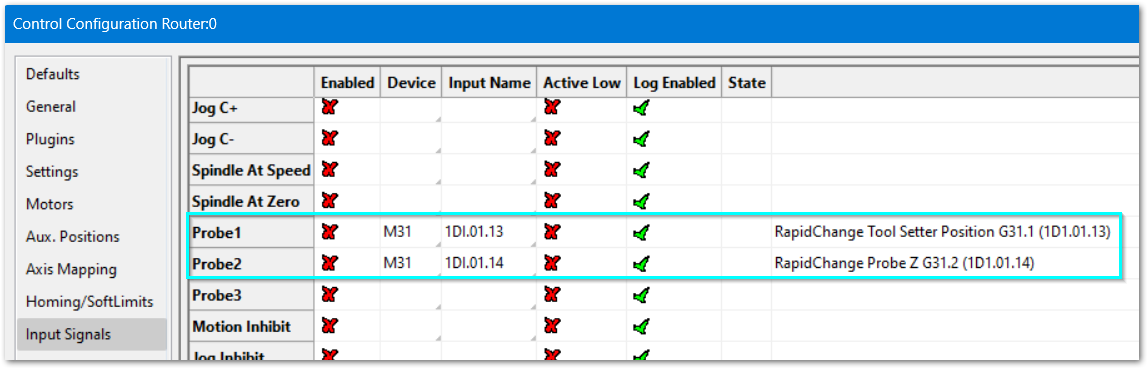
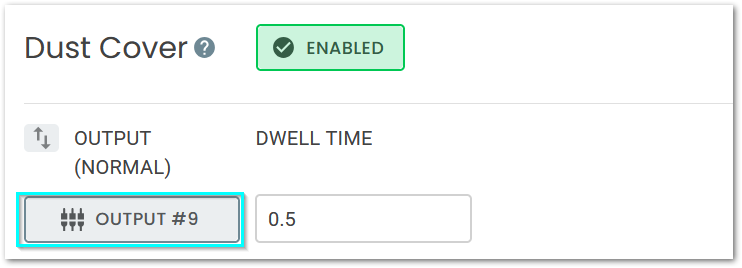
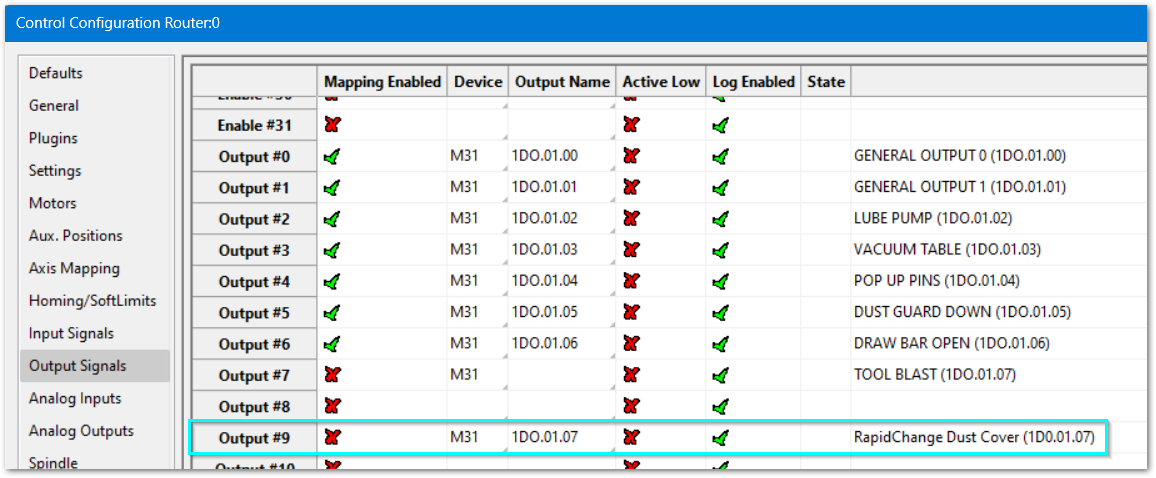
Use the RapidChange Documentation Portal and your motion controller documentation to install and wire your RapidChange ATC product. You will need to wire 3 inputs and 1 output, then map them to software signals in the MachPro configuration. Then create your profile on the RapidChange web app using those software signals.
Inputs
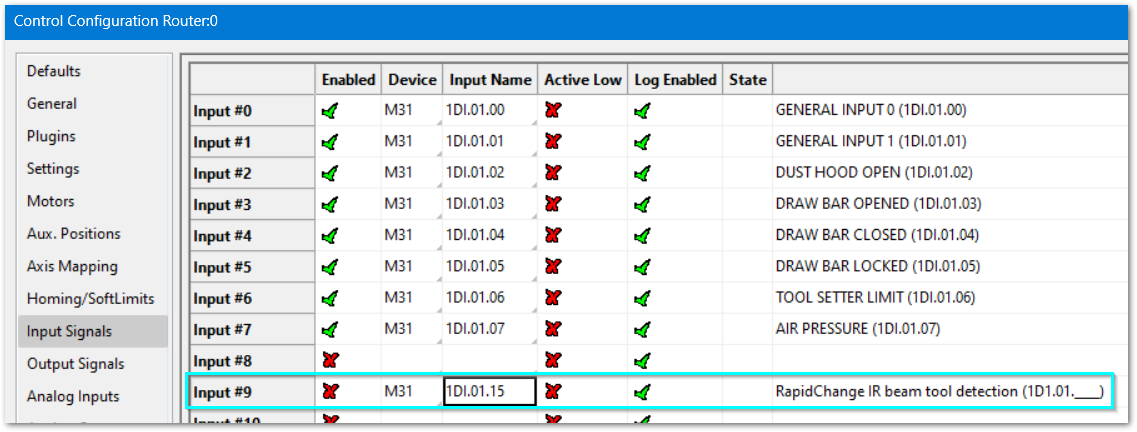
Configure -> Control ->Input Signals tab
MachPro has commonly used signals pre-configured to make your configuration process quicker.
Please update the device and input for the signals that you will be using. Then disable and clear all signals that you will not be using.
|
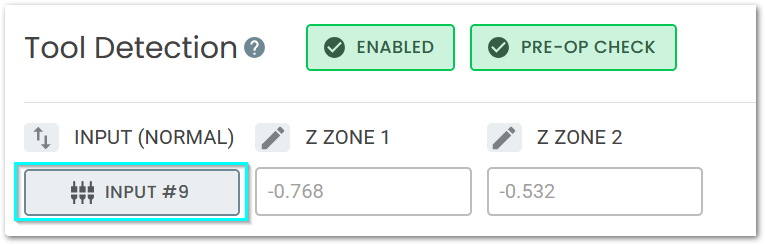
Tool Detection (IR beam
RapidChange Profile Setup screen
|
|
|
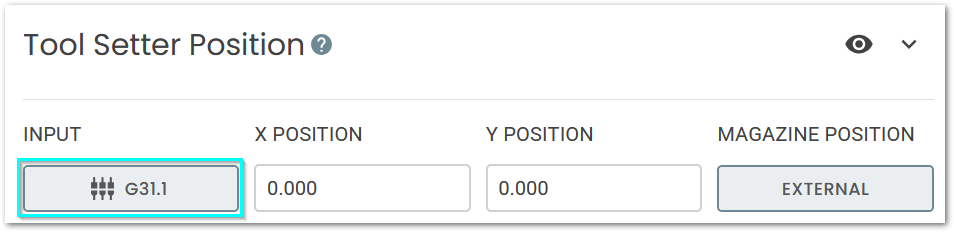
Tool Setter Position
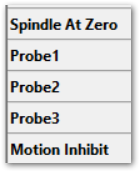
Probe Z
|
|
Outputs
Please update the device and output for the signals that you will be using. Then disable and clear all signals that you will not be using.
|
Dust Cover (optional)
|
|
Set MachPro to use your RapidChangeATC
Set the Tool Changer to RapidChangeATC.
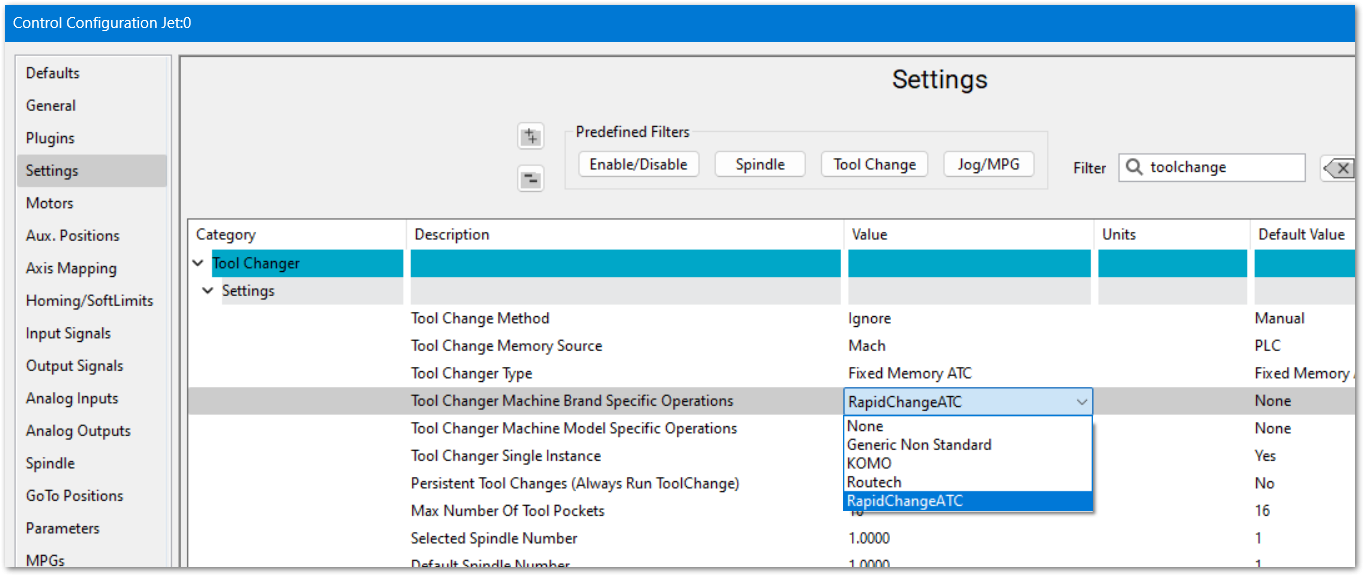
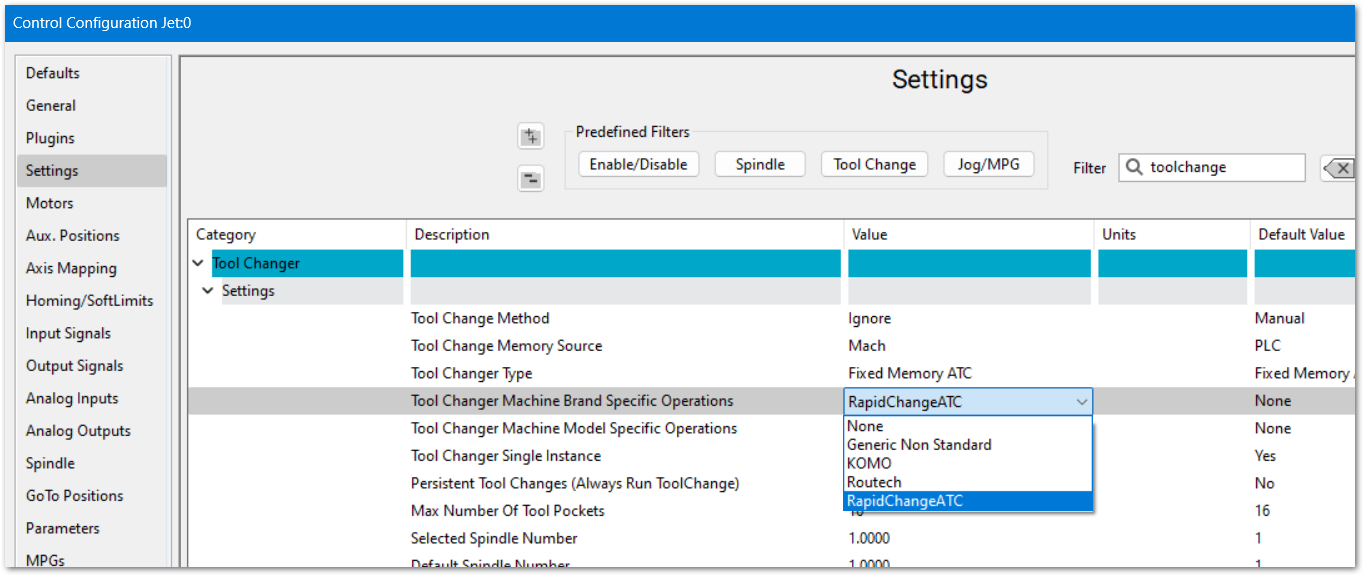
- Pull down the MachPro menu Configure -> Control -> Settings tab. Filter for Toolchange
- Change Tool Changer Machine Brand Specific Operations to RapidChangeATC and click OK to save your changes
Create and install a RapidChangeATC profile
- Go to the RapidChange Web App (profile configuration) to configure a RapidChangeATC profile for your machine. Use the MachPro documentation section at RCATC Docs for the details on each section of the profile.
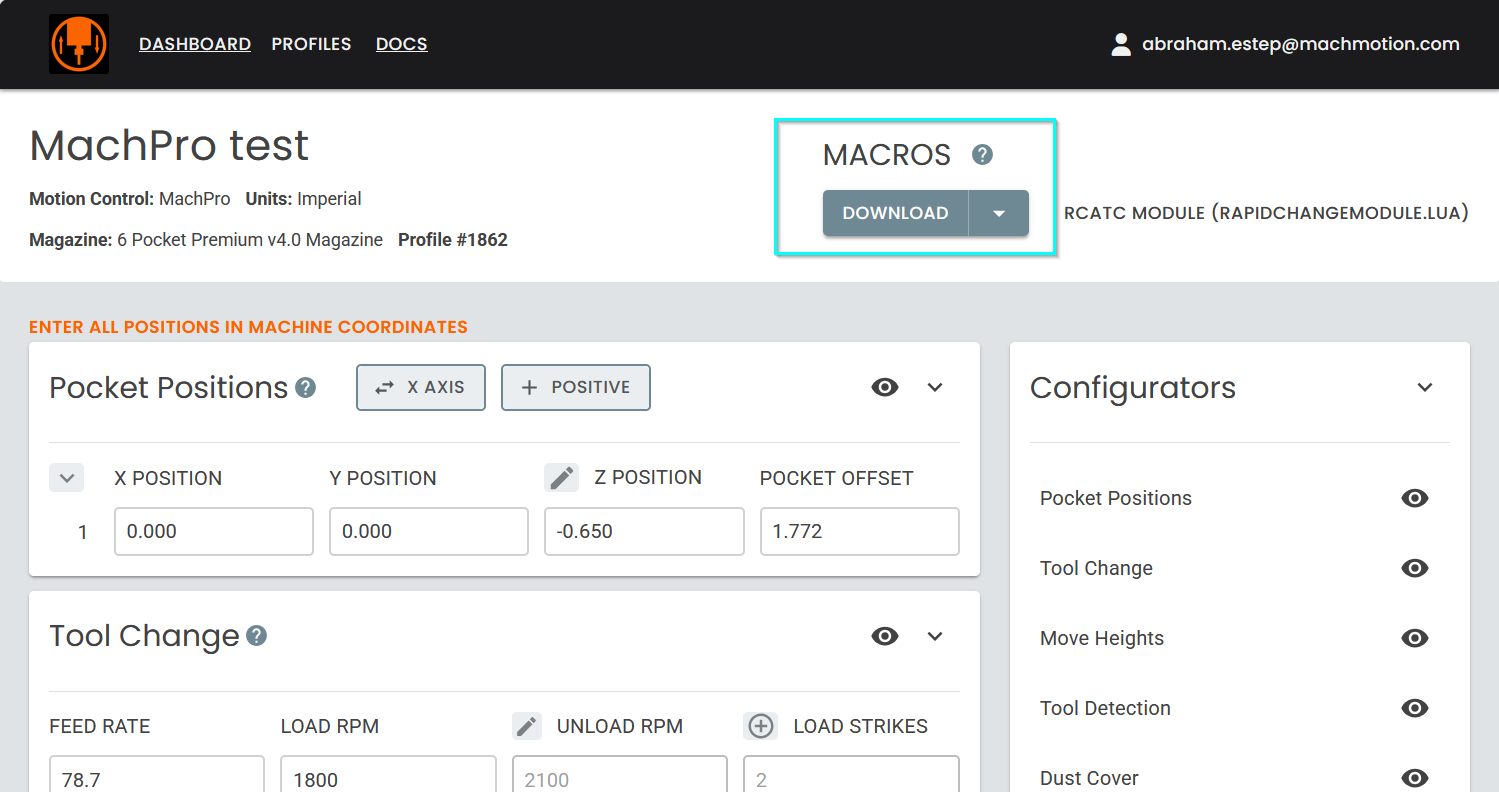
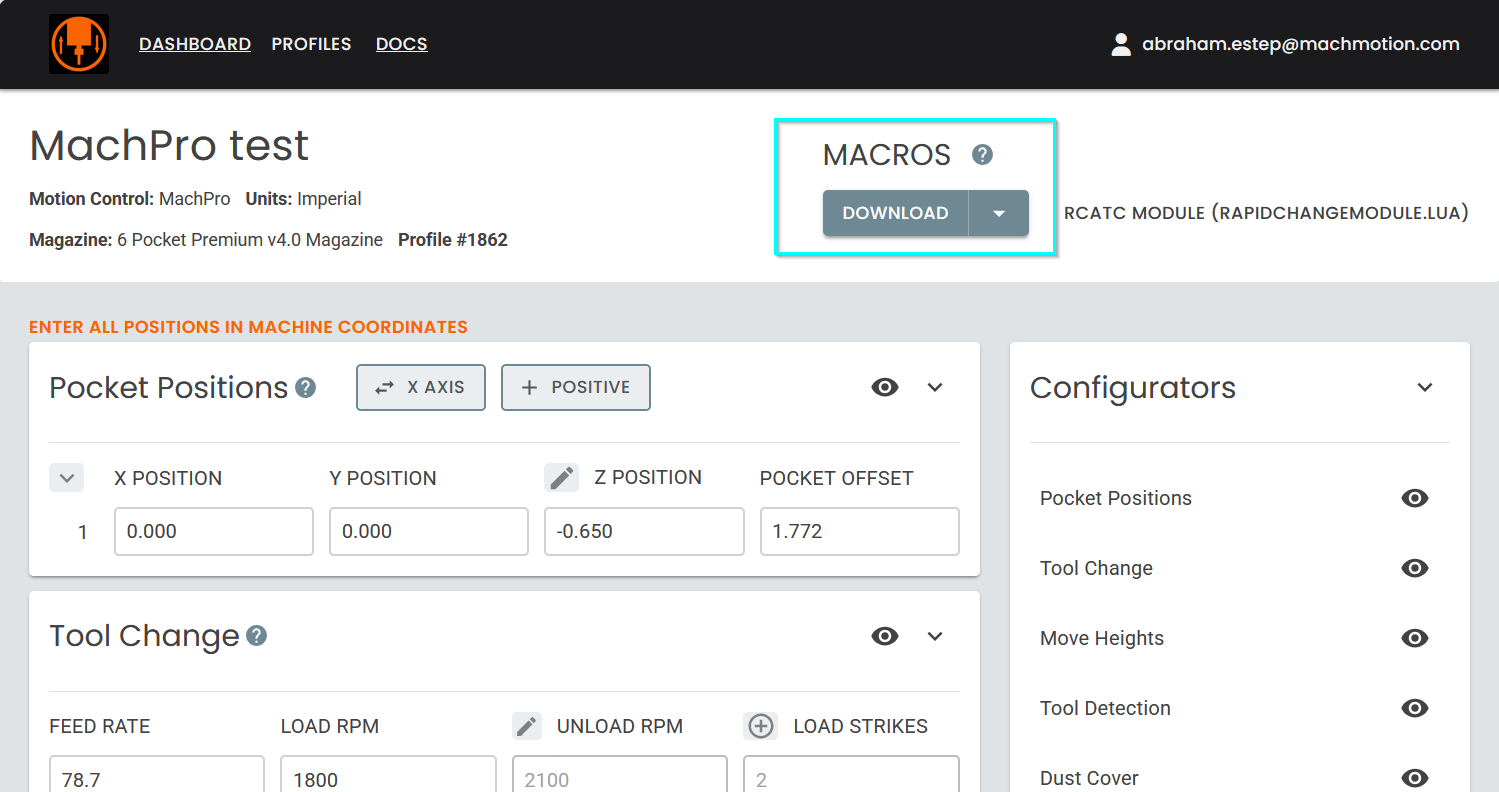
- At the end of the setup you can download the RapidChangeModule.lua file to your computer
- At the top of the page is an Export/Download button.
-
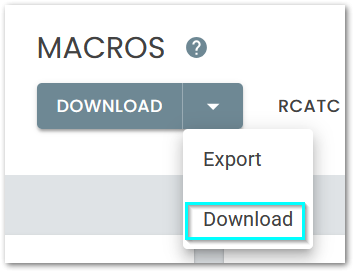
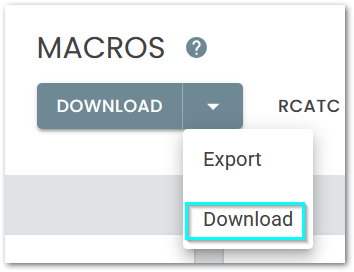
- Click the pull-down arrow and select Download function, and then click the Download button.
- Close MachPro and copy the downloaded LUA file into your Mach modules folder: C:\Mach\Modules.
- If you are updating an existing profile, first delete your previous C:\Mach\Modules\RapidChangeModule.lua before downloading your new profile.
- Rename the file to remove version numbers (example (2).lua) from the file name after copying it into the Modules folder.
How it works
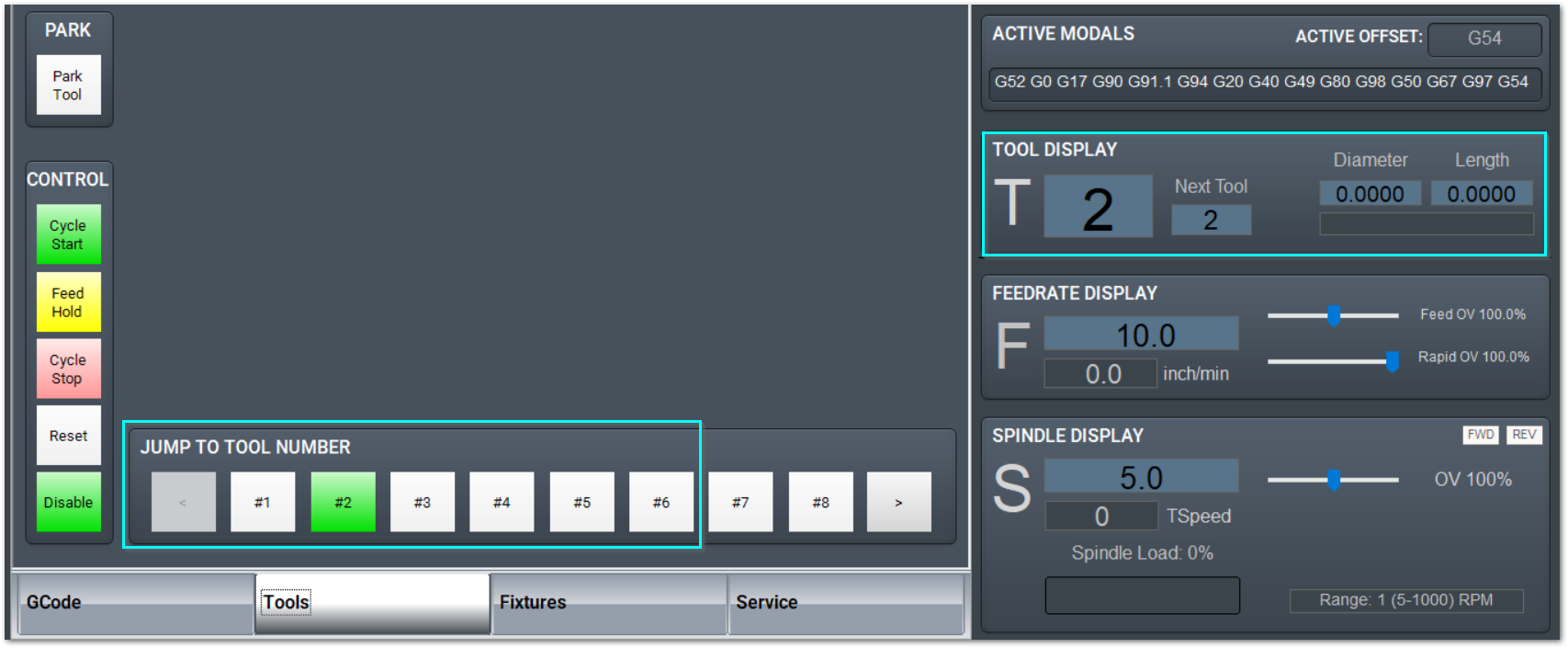
Switch to the Tools tab and click the tool number that you want to switch to.
The RapidChangeATC will now control all of the motions of the machine while it switches tools and touches off the tool setter to set the tool length. All of the coordinate moves, locations, and rates are determined by the values in the RapidChangeModule.lua file. Refer to RCATC Docs for the specific details.
Optional
You can configure a RapidChangeATC tool setter to be used outside of the normal tool change sequence. This is optional, and not necessary for normal tool changes.
Use the instructions at MachPro Tool Setters and Offsets. You will need to re-enter some of the machine coordinate locations, and you should use the values you entered when configuring your RapidChangeModule.lua profile.
| http://www.mach-labs.com | MachLabs Documentation | support@mach-labs.com |
The MachLabs Team
14518 County Road 7240, Newburg, MO 65550
support@mach-labs.com