
Global Messaging - Mach4
Global Messaging Version 3
1. Access Global Messaging
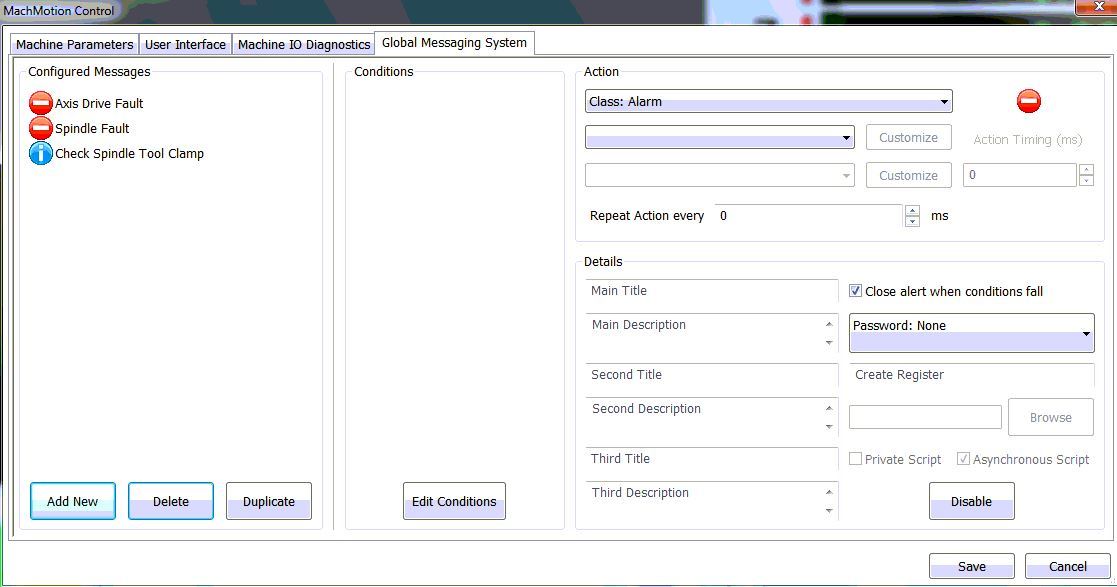
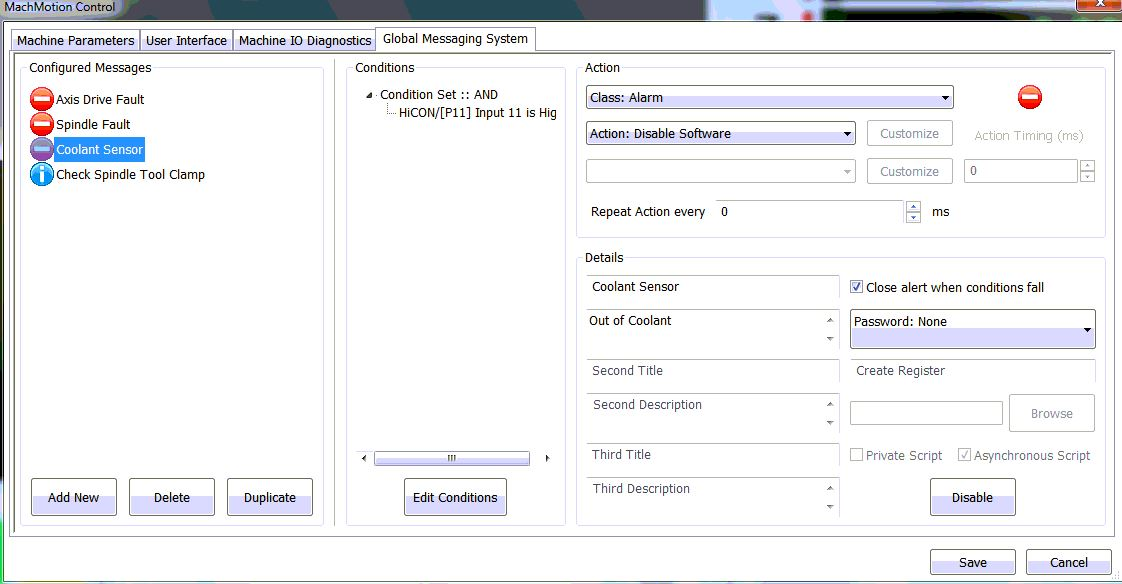
To setup Global Messaging go to Configuration=>Plugin=>MachMotion=>Global Messaging Tab.
2. Add Condition
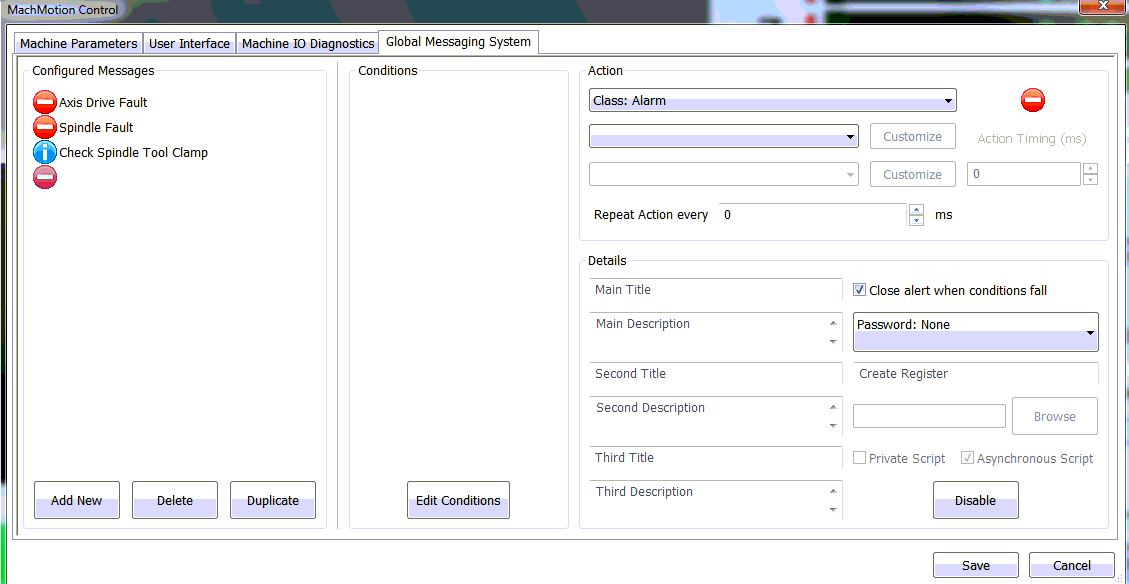
To add a new condition you can click on "Add New"
3. Configure Action
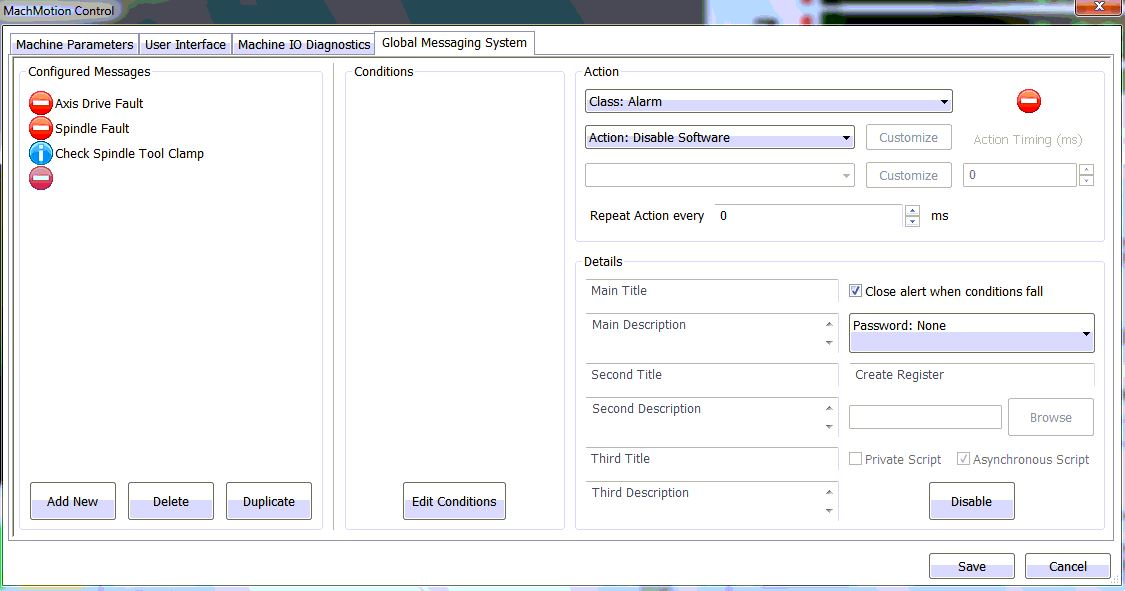
Now you can select the "Class" that you want it to perform. For example an "Alarm" will have the ability to disable the software but a "Warning" will just send an alert.
Also, you can select the "Action" that you want the control to perform. For example I have selected "Class: Alarm" and now I want the "Action: Disable Software"
4. Setup Details
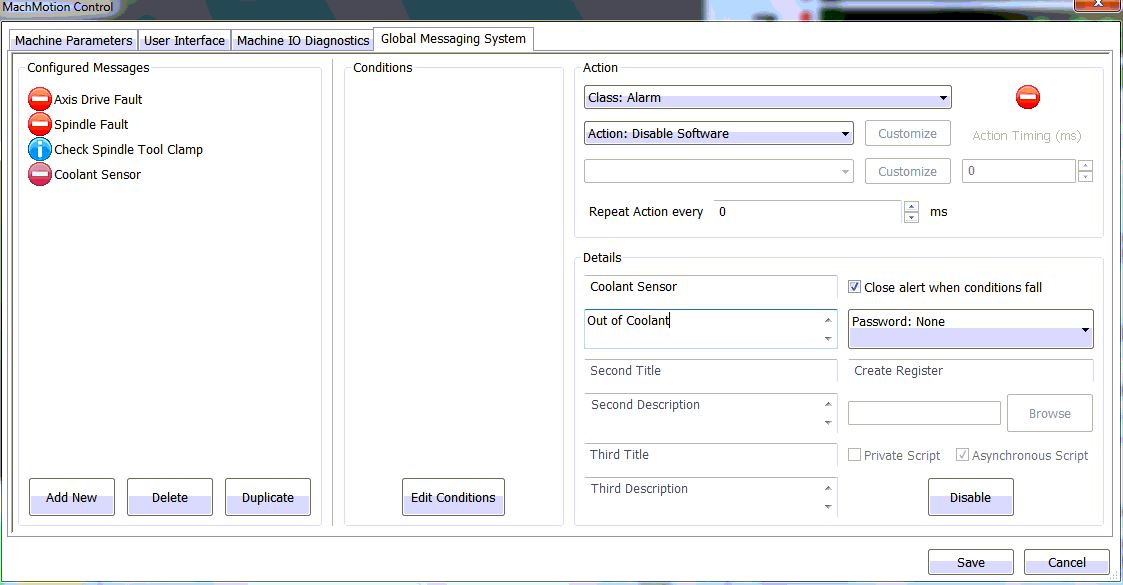
After you have selected the "Action" you will need to add a title to the Message and a description that will display when the message triggers.
5. Set Conditions
Next, you will need to select edit conditions button. The following window will be displayed.
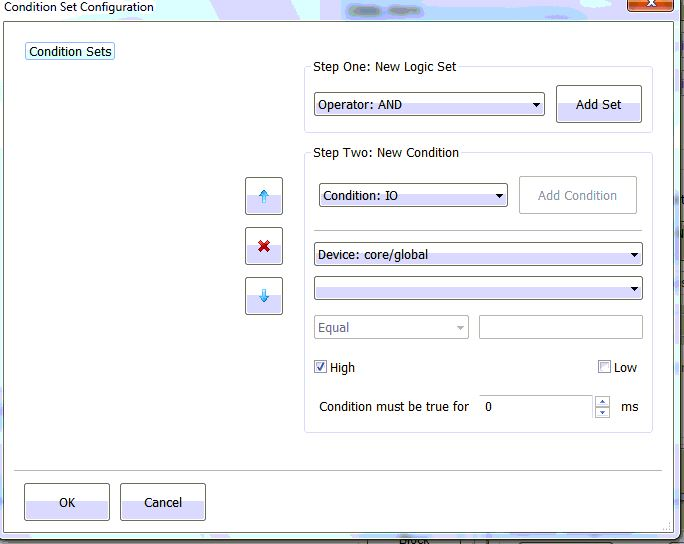
This window you will be able to set IO and and other "Conditions" for the message to trigger.
Start with step one as shown in the GUI by selecting the logic set and click "Add Set" (Typically an "Operator: AND" is used).
Next, setup the condition in step two as shown in the GUI by selecting the conditions. Click "Update Condition" when done.
You can also setup a condition where the machine has to be enabled. Just set the "Device" to "Output Signals" and set it to be "Machine Enabled". (shown below)
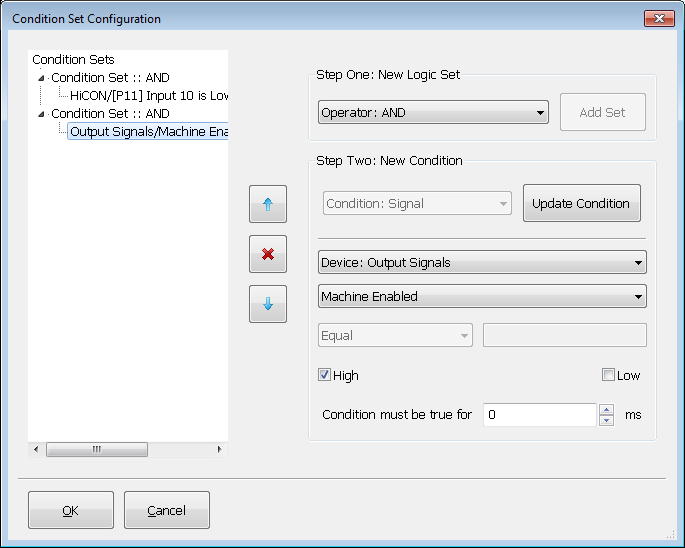
Before adding anymore condition sets or closing the window be sure to click "Add Set" and "Add Condition".
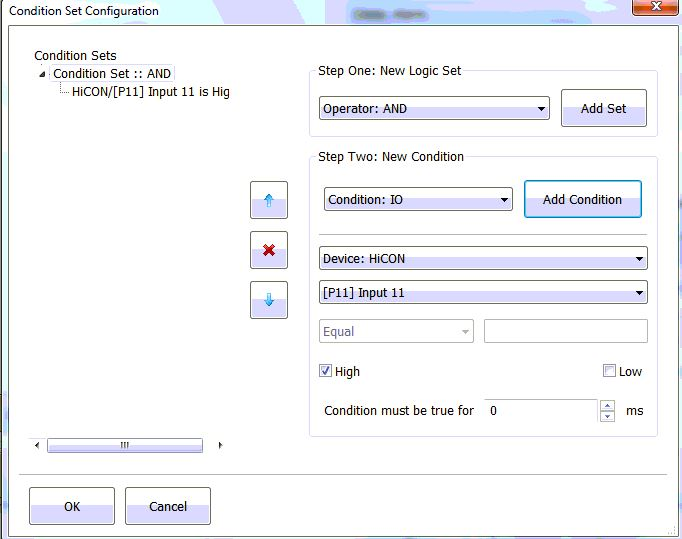
Once you have set the "Conditions" you can click "Ok"
6. Save Changes
Now click "Save"
Keywords: 14530