
Copy Mach4 Folder to New Control
This document describes how to copy a Mach4 folder from one machine to another machine. This is useful when you are powering up a similar machine to one you've done previously. It is also used for installing a replacement control.
Prerequisites: Mach4/MachMotion Version must be the same between the Source Control and Target Control
Source Control = the Control/Mach4 folder that you want to copy over.
Target Control = the Control/Mach4 folder that you are overwriting.
TakeRenameathefullTarget Control Mach4 folder to something other than Mach4 (Mach4_Original for example).-
- Copy over the Source Control Mach4 folder onto the Target Control.
- If this is an application backup, you will have to unzip the application backup. Then open it up and rename the folder with all the files Mach4.
-

- So the application backup should look like this:
-

- Then copy that Source Control Mach4 folder into the C directory of the Target
ControlControl.using -

- Delete the
MachMotionLicensesBackupfolderSoftware.inside the Target Control Mach4 folder. Take a full application backup ofCopy theSourceLicensesControlfolderusing the MachMotion Backup Software.Movefrom the Source Control Mach4 folder toatheFlashnewDriveMach4orfolder.othermemory-
and
copy- Select
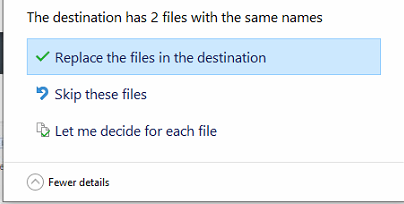
toReplace theTarget Control desktop. Open the Source Control Mach4 folder on the Target Control and copy all of the files inside of the folder.Open the Target Control Mach4 folder and paste what you have copied over. Overwrite all files that have been modified.Open the Target Control Mach4 Application Backup folder which is locatedFiles in theC:/MachMotion Backupsdestination.Copythe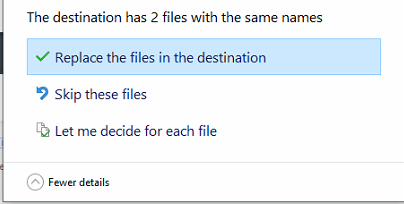
Licenses folderOpen
itthe Target Control Mach4 License folder which is located in the C:/Mach4 - Select
Paste
deviceand overwrite the Licenses folder-
- Open Target Mach4 using the Desktop shortcut
- For Apollo III systems only: After Mach4 is loaded to go to Configure -> Plugins ->HiCon and change the serial number for the HiCon to 0.
- Click on update and close the HiCon window
- For Rapidpath systems only
- Restart the CNC control
- Open RapidSetup.
-

- You may have to reload the RapidSetup license.
- Press Generate ENI file
-
- Press start Network and confirm you have no errors.
-
- Click on Configure -> Plugins -> MachMotion and select the User Interface tab
- Select the X15-14-21 operator panel and then select the refresh tab. Select the Pokeys device that populates
- Select the x15-41-01 Wireless MPG Pendant and then press save at the bottom of the MachMotion Plugin window.




Troubleshooting
- EtherCAT XML Missing
- When opening up RapidSetup, if you get the error EtherCAT XML Missing, it's likely because the Source Control was running an older software with other EtherCAT devices.
-

- To fix this, run the original installer version from the Target Control on the Source Control to get the latest version.
- For example, for this system download 20039-25244 and run it on the Source Control.
-
- For example, for this system download 20039-25244 and run it on the Source Control.


