
Copy Mach4 Folder to New Control
This document describes how to copy a Mach4 folder from one machine to another machine. This is useful when you are powering up a similar machine to one you've done previously. It is also used for installing a replacement control.
Prerequisites: Mach4/MachMotion Version must be the same between the Source Control and Target Control
Source Control = the Control/Mach4 folder that you want to copy over.
Target Control = the Control/Mach4 folder that you are overwriting.
- Rename the Target Control Mach4 folder to something other than Mach4 (Mach4_Original for example).
-
- Copy over the Source Control Mach4 folder onto the Target Control.
- If this is an application backup, you will have to unzip the application backup. Then open it up and rename the folder with all the files Mach4.
-

- So the application backup should look like this:
-

- Then copy that Source Control Mach4 folder into the C directory of the Target Control.
-

- Delete the Licenses folder inside the Target Control Mach4 folder.
- Copy the Licenses folder from the Source Control Mach4 folder to the new Mach4 folder.
-

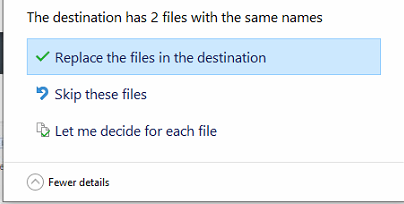
- Select Replace the Files in the destination.
-
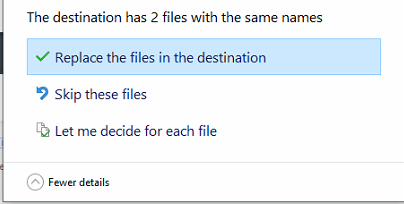
-
- Open Target Mach4 using the Desktop shortcut
- For Apollo III systems only: After Mach4 is loaded to go to Configure -> Plugins ->HiCon and change the serial number for the HiCon to 0.
- Click on update and close the HiCon window
- For Rapidpath systems only
- Restart the CNC control
- Open RapidSetup.
-

- You may have to reload the RapidSetup license.
- Press Generate ENI file
-
- Press start Network and confirm you have no errors.
-
- Click on Configure -> Plugins -> MachMotion and select the User Interface tab
- Select the X15-14-21 operator panel and then select the refresh tab. Select the Pokeys device that populates
- Select the x15-41-01 Wireless MPG Pendant and then press save at the bottom of the MachMotion Plugin window.




Troubleshooting
- EtherCAT XML Missing
- When opening up RapidSetup, if you get the error EtherCAT XML Missing, it's likely because the Source Control was running an older software with other EtherCAT devices.
-

- To fix this, run the original installer version from the Target Control on the Source Control to get the latest version.
- For example, for this system download 20039-25244 and run it on the Source Control.
-
- For example, for this system download 20039-25244 and run it on the Source Control.


