
Yaskawa Auto Tuning
Prerequisites
- Have a tuning cable. USB Micro b connector to fit the servo drive.

- Download and install SigmaWin+
- https://www.yaskawa.com/products/motion/sigma-5-servo-products/software-tools/sigmawinplus/-/content/_6c2e204d-20bc-475d-84a3-8f471d3ccaf7_DownloadSoftware
- Copy over USB folder (M:\Production\Products\Drives-Servo\Yaskawa\Software\SigmaWinPlus570a)
- Check device manager in the usb section or unrecognized device section to find the yaskawa drive. update the driver manually, looking in the USB folder copied over.
- Open SigmaWin+ and connect to drive
- If drive is not showing, go to device manager and find the yaskawa drive and update drivers (found on server: M:\Production\Products\Drives-Servo\Yaskawa\Software)
- Default drive parameters are on the server: M:\Production\Products\Drives-Servo\Yaskawa\Drive Parameters, and you should not assume that the drives ship with correct default parameters.
Leave the drives in tuning less mode if running under 200ipm or if precise profiling is not needed.
Basic Auto-Tuning
Note: To tune a gantry mode using auto tuning, you can decouple one of the motors on the gantry.
Tuning Setup
- Search and connect to the drive
- Keep hardware enable on, but turn off drive enable. Do that with one of the following methods:
- For rapidpath systems, enable the machine. Then press the Disable button under the Service -> Maintenance page.
- Set "Turn Off Enable Signals upon Disable" to "Drive Enable" in Interface Config or Configure->Plugins->MachMotion.
Press Save and disable the software.
- Or if necessary, pull the control cable out from the drive.
- Set In Position Parameter Pn522
- For RapidPath calculate (PnB02) x (Steps Per) x (Resolution) = Pn522
- For Apollo III calculate (Steps Per) x (Resolution)= Pn522
"Resolution" = Max Position Error that you want to see. Maybe 0.001 Inch
- Select Tuning --> Tuning to begin the tuning process
- Click the Execute Button.

- If it isn't in tuning mode already, you will have to enter tuning less mode. Press OK and then cycle power on the drive.

- Click the Execute button to calculate inertia. NOTE: If worse than 400% (4:1 ratio), your motor will likely not work. Call MachMotion for engineering.

- Select the No Reference Input Option in the Autotuning Area and then click the Autotuning
Button.

- Configure Conditions


-
- Choose "1: A moment of inertia is not presumed" (We already calculated the inertia above)
- Choose "1: Standard"
- Choose appropriate mechanism. Default use Belt Mechanism even for ball screw unless you need very rigid tuning.
- Edit distance if necessary (3 revs is default)
- Select "Start tuning using the default settings" (can be done without this option, but this is the typical way to do your first tune).
- Select "Next"


Tuning Process
- Turn the "Servo ON"
- Select "Start Tuning"
- Software will run the motor through it's pre-programmed moves
- Click "Finish"
- The drive is tuned
- Click "Finish" again to exit tuning mode
If tuning fails it could be caused from one of the following reasons:
The position tolerance is too small. Increase Pn522 to allow for more position error.
Final Parameter Setup
- Turn off model following by setting Pn140 digit 0 to 0.
- Set feed forward gain Pn109 to 0%. unless you are trying to work around very High inertia, then try 75%
- Check the following parameters on all axis that drive the tool usually X, Y and Z, (Exclude things like tool changers).
- Pn100 (Speed Loop Gain)
- Pn101 (Speed loop integral time constant
- Pn102 (Position Loop Gain)
- Pick the Highest value for Pn101 and the lowest for Pn100 and 102 from all axes values.
- Then make all included drives match each parameter.
Pn100- Lowest
Pn101- Highest
Pn102- Lowest
System Tuning
System Tuning for Gantry
- Manually calculate the inertia (Pn103)
- Use the excel calculator to calculate it based on steady state torque.
- Do a system tune. Ramp up till it gets noisy.
- Example values: FF 170, FB 48.
- Pull back the tune till it sounds good.
- Try to minimize following error.
- Graph following error.
- Check the following error both axes.
- Increase the FF gain by 10s on the non gantry axis to make the following errors match.
Custom Tuning
- Enable Tuning Mode
- Run Auto Inertia test (Pn103)
- Custom Tuning
- Make following errors match
Advanced Tuning
If additional tuning is required, you can run through the same procedure above but modify selections on Mode Selection and Mechanical Selection.
You may have to play with Pn100-Pn102. But MachMotion strongly recommends keeping the parameters matching in both drives.
- Pn100 (Speed Loop Gain)
- Increase to help make the machine more smooth.
- Pn101 (Speed loop integral time constant
- Increase to reduce rigidity and noise.
- Pn102 (Position Loop Gain)
- Increase till following error stops decreasing.
You can also go through Chapter 8 (Tuning) of the attached manual ("Sigma-7 Manual Analog-Pulse.pdf").
If auto tuning does not work, you may have to try manual tuning.
Manual/Automatic Gain Switching (Sigma X)
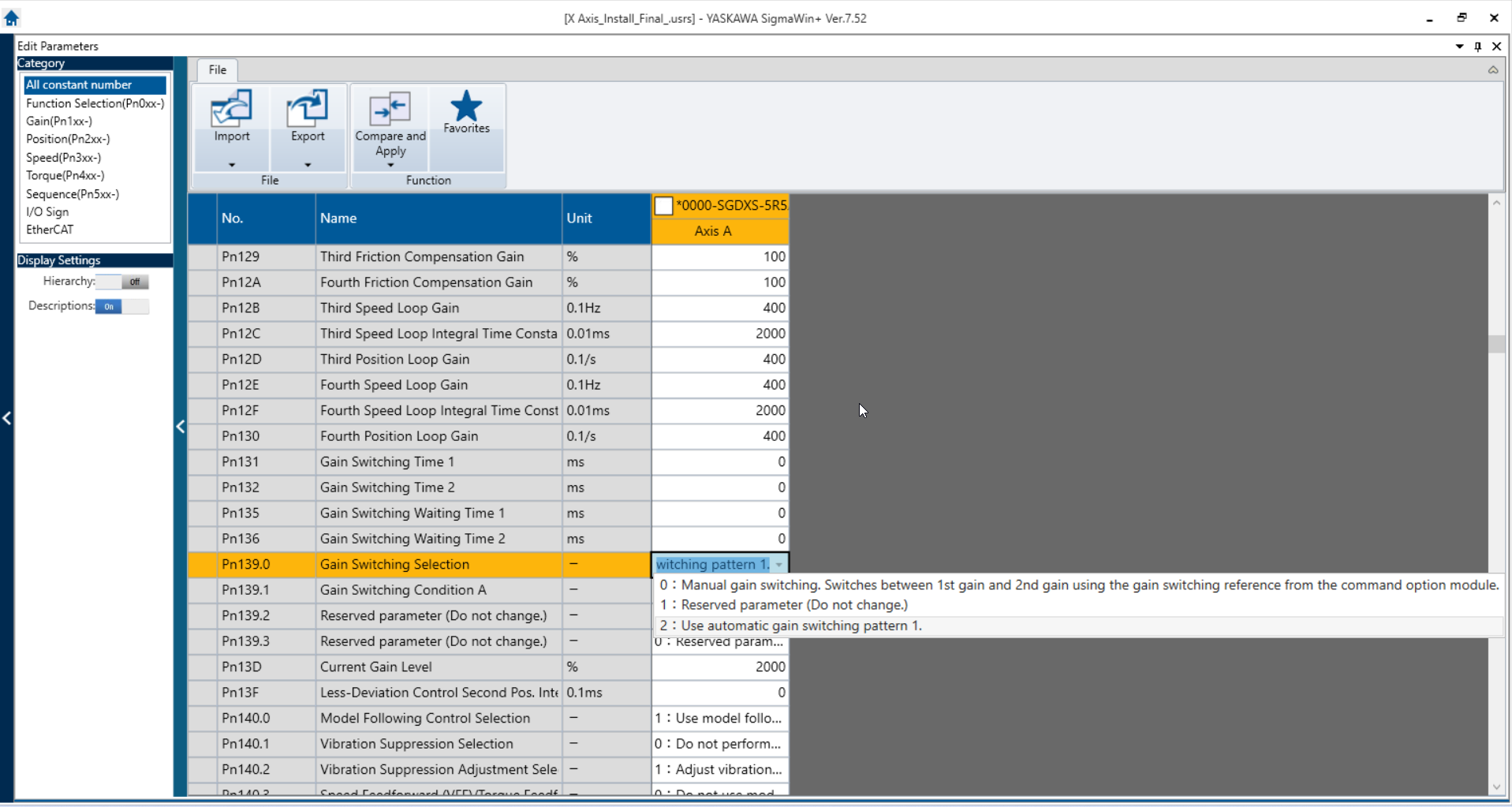
Manual Gain Switching
Pn139.0 dictates which type of, if any, Gain Switching is active.
Option "0: Manual Gain Switching" allows Mach to send an EtherCAT signal to the drive that can swap between the 4 Gain parameter sets:
Gain Set 1: Pn100, Pn101, Pn102
Gain Set 2: Pn104, Pn105, Pn106
Gain Set 3: Pn12B, Pn12C, Pn12D
Gain Set 4: Pn12E, Pn12F, Pn130
This allows Mach to swap to different Gain values on the fly to get different response and performance behaviors for different operations. (EX. Rigid Tapping, Laser Etching, Smooth Shape-Cutting, etc.). Mach will be able to do this with M-Codes (TBD by Andy).
Automatic Gain Switching
Option "2: Use automatic Gain Switching pattern 1" will automatically cycle the active Gain Set between 1 and 2 when the condition set in Pn139.1 is true.
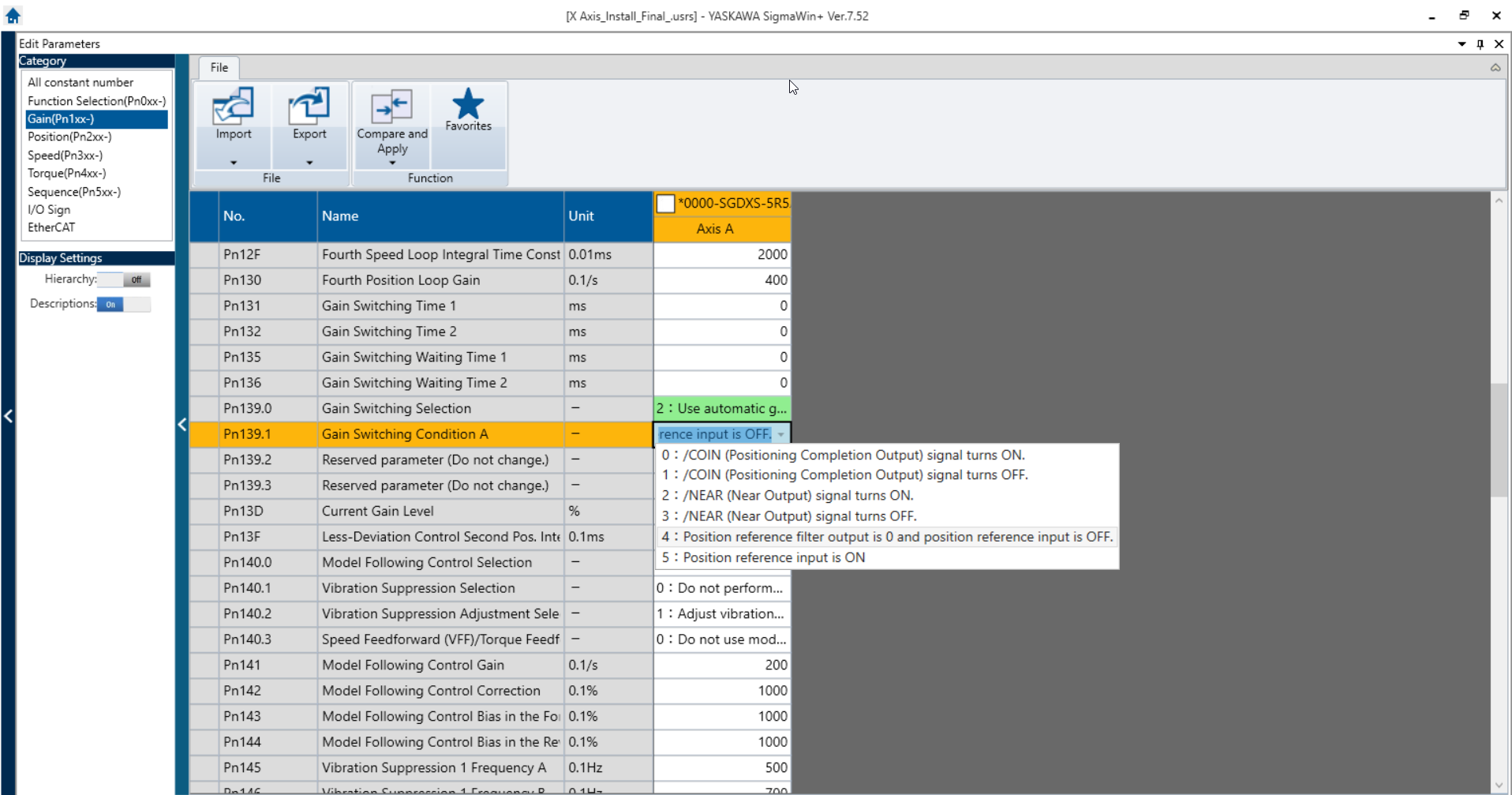
Pn139.1 dictates the condition that needs to be true in order for Automatic Gain Switching to take effect. We currently plan to use "4: Position Reference output is 0 and position reference input is off". This will allow us to swap to a softer set of gains when the motors are not in motion and eliminate the harmonic hum.
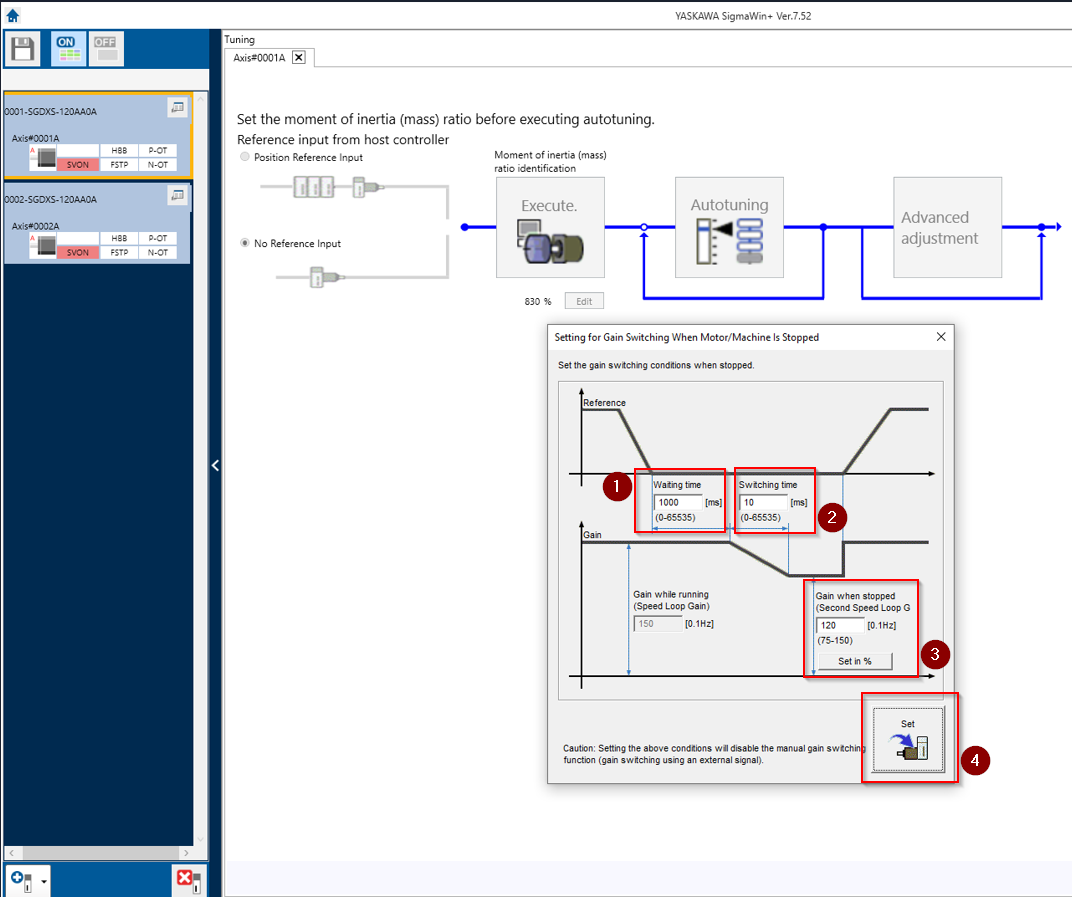
There are settings for the specific conditions of Automatic Gain Switching that can be accessed through Tuning>Advanced Adjustment>Gain Switching. This will bring you to the dialog below. There are 4 fields to input data into:
- "Waiting Time" dictates how long the condition of Pn139.1 must be true before the gain switching activates.
- "Switching Time" dictates how gradually the changes in between Gain Sets 1 and 2 ramp down. (This may need adjust if the process of switching gains causes a clunk or a hum)
- "Gain When Stopped" dictates a percentage of Gain Set 1 that will be applied to Gain set 2 when the switch happens. (Usually this is will be obsolete because Gain Set 2 will be manually changed to desirable values).
- "Set" will modify the Pn139.0 to value "2: Use Automatic Gain Switching" and adjust the value of Pn106 to be the percentage that you selected in field 3.
9103