
Delta VFD MS300 Installation


1. Wiring
Apollo III: Please see installation process in the Appendix.
Control Cable: The VFD Control cable is the Ethernet cable (Green) that runs from the Delta VFD to the Control as shown in Figure 1 and Figure 2.

Figure 1 Ethernet Connection to VFD

Figure 2 Ethernet Connection to Control
Spindle Motor: Connect your spindle motor to the terminals labeled U/T1,V/T2, and W/T3 as shown in Figure 4. If your spindle moves the wrong direction when you turn it on, just swap any three of the (U,V,W) leads.

Figure 3 Spindle Motor Connections
Brake Resistor: Connect your brake resistor by placing the two wires on the +2/B1 and B2 terminals as shown in figure 4.
(Note: If needed to extend the wires use High Temp rated wire.)
Mount Resistor: Mount the resistor to the cabinet.

Figure 4 Delta VFD MS300 Resistor Connections
2. Programming
Spindle Calibration: Calibration will not be needed for this specific control.
To program the VFD you will need to utilize the Mach4 software. While the control is disabled follow the next few steps.
Step 1: Click on Configure -> Plugins -> MachMotion

Step 2: While in the MachMotion Plugin Type "Delta" in the search field.

Step 3: This will populate the Parameters for the Delta VFD MS300.

Please utilize these default parameters but you can always adjust these parameters based on the spindle motor. Be sure to scroll down to see more of the parameters.
Appendix
Apollo III
If you have an Apollo III board you will need to connect the Ethernet cables in a specific way.
1. Install the communication card on the Delta VFD. Place the Black Connection harness to the communication card and place the green PE wire into the green connection.

2. Connect Ethernet cable coming from the Delta VFD to the Network Switch.
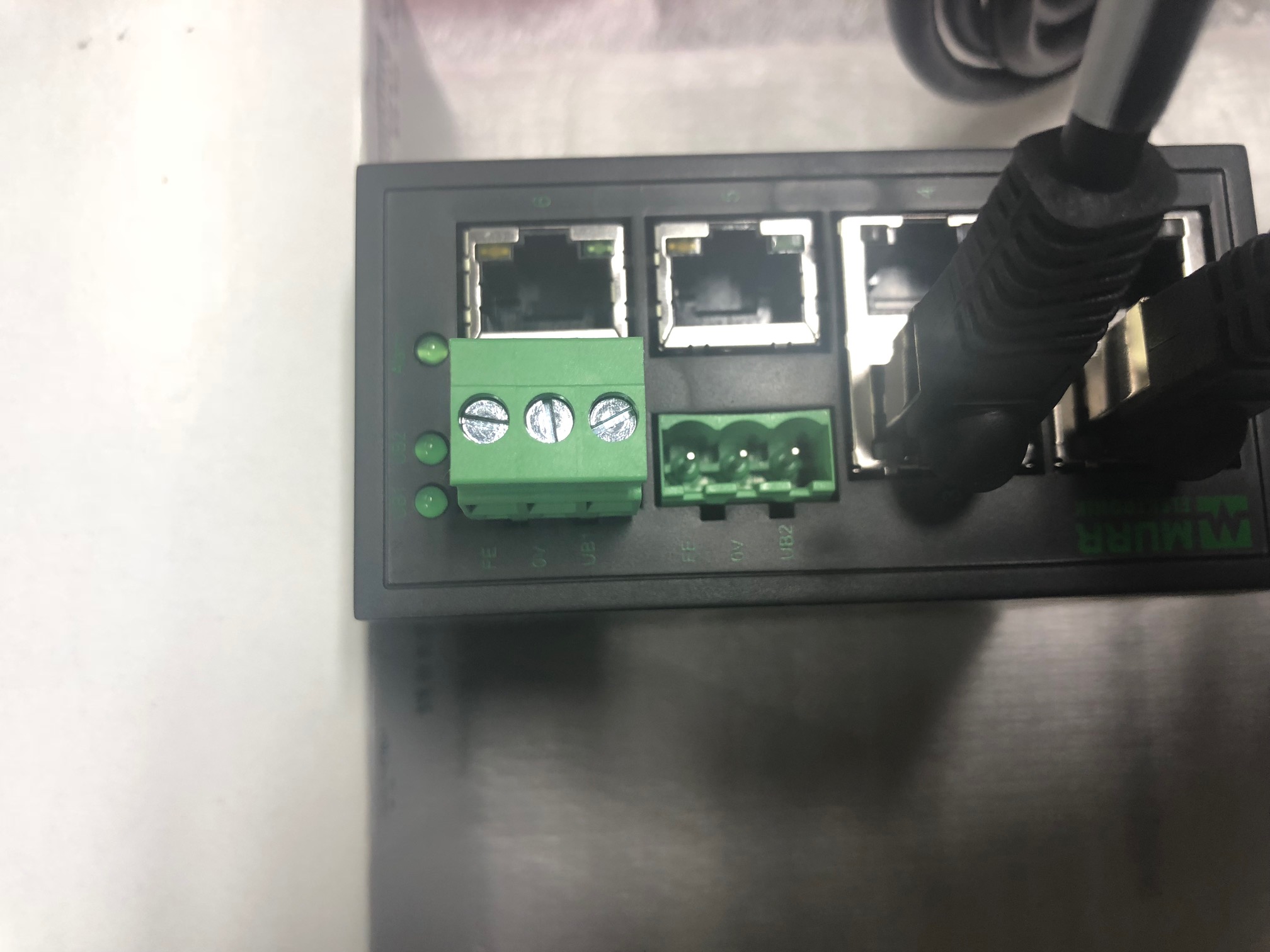
3. Connect the Apollo III Ethernet cable to the Network Switch.
4. Bring in 24v to the green phoenix power connection.
5. Connect the Computer Ethernet cable into the switch.
6. Refer back to Step 1 for motor wiring and incoming power wiring.
Delta VFD MS300 Parameters
| Parameters | Description | Standard | Range |
| 01-00 | Max Operation Frequency | 60 | 00.00~599.00 Hz |
| 01-01 | Base Output Frequency | 60 | 00.00~599.00 Hz |
| 01-02 | Max Output Voltage | 220 | 110 V / 230 V series: 0.0 V~255.0 V 460 V series: 0.0~510.0 V |
| 01-07 | Min. Output Frequency | 0 | 0.00~599.00 Hz |
| 01-08 | Min. Output Voltage | 0 | 110 V / 230 V series: 0.0 V~240.0 V 460 V series: 0.0 V~480.0 V |
| 01-12 | Accel. Time | 5 | 0.00~600.00 sec. |
| 01-13 | Decel. Time | 5 | 0.00~600.00 sec. |
| 05-00 | Motor Parameter Auto Tuning | 0 | 0, 1, 2, 13 |
| 05-01 | Full-Load Current of Induction Motor | 1 | 10~120 % of drive’s rated current |
| 05-02 | Rated Power of Induction Motor | 1 | 0~655.35 kW |
| 05-04 | Pole Number of Induction Motor | 4 | 2~20 |
| 06-01 | Over-Voltage Stall Prevention | 360 | 0: Disabled 110V / 230V: 0.0~450.0 Vdc 460V: 0.0~900.0 Vdc |
| 07-00 | Software Brake Level | 390 | 110 V / 230 V: 350.0~450.0 Vdc 460 V: 700.0~900.0 Vdc |
Alarms
If you were to get an alarm on the VFD you will receive a message on the computer screen from the Global Message System. For example, the figure below shows a communication alarm. In the description of the alarm it will describe the necessary steps to try to resolve the alarm.

Changing IP Address
The IP address of the VFD must be set to 192.168.208.80 to communicate with Mach4. This has to be done on the drive. After communication with the drive is set up all other programming and modifying parameters can be done over the network from the MachMotion Parameters page in the MachMotion Plugin.
| Parameter | Desc | Value |
| 09-76 | IP address -1 | 192 |
| 09-77 | IP address -2 | 168 |
| 09-78 | IP address -3 | 208 |
| 09-79 | IP address -4 | 80 |
| 09-84 | Default gateway -1 | 192 |
|
09-85 |
Default gateway -2 | 168 |
|
09-86 |
Default gateway -3 | 208 |
|
09-87 |
Default gateway -4 | 80 |
Warranty
MachMotion warranty policy is subject to change. Updated information is available at our website:
https://machmotion.com/warranty
The MachMotion Team
14518 County Road 7240, Newburg, MO 65550
(573) 368-7399 • Fax (573) 341-2672