
MachPro M31 Absolute Encoder
{{@2007#bkmrk--1}}
Initial doc: 2026-05-08-T15-55
testing and revision:
- Ran rough text through STE processing 2026-05-11-T14-44
- Paste-n-edit STE doc into bookstack
- Existing headers in m31 doc are already tiny headers
release to public:
Explanation
BothThe servosMachPro andM31 steppersmotion controller can beuse supportedan asabsolute longencoder asto theykeep have:an axis position after the machine is powered off. An absolute encoder is a feedback device that reports a fixed position value, not only a change in position. In motion-control systems, the controller can save an absolute encoder offset in non-volatile memory so the position is not lost after power is cycled.
The M31 can use a servo motor or a stepper motor if the motor system has these features:
encodersAn encoder, which is a feedback device that reports axis position.aAwaymethod to retain the encoder count when power is off.- EtherCAT communication with the M31. EtherCAT is an Industrial Ethernet fieldbus for machine control and drive communication.
An encoder count is the numeric position value from the encoder. The Absolute Enc Offset (Counts) field stores the count offset that aligns the encoder position with the machine zero position.
Homing is the procedure that sets the machine zero/home coordinate reference position. A home switch is a sensor used to find a repeatable home position. A machine can be homed with switches, encoder index signals, absolute encoders, or visual alignment marks, but operation without home switches reduces the repeatable accuracy provided by home switches.
Reference
Use absolute encoder mode only when all required hardware is installed and configured.
Required hardware and communication:
- Servo motor or stepper motor with encoder feedback.
- Encoder count retention when the system is powered
downdown. EtherCatEtherCATcommunicationdrivewithor device connected to the M31.- Home switch or a known machine zero position.
Required M31 configuration fields:
- Control Output: Set these fields to the correct EtherCAT drive or device. SubID should be set to 0.
- Feedback Source: Set this field to ECAT Feedback. Index should be set to 0.
- Homing Method: Select the correct homing method for the machine.
- ECAT Absolute Encoder: Select this checkbox to enable absolute encoder mode.
- Absolute Enc Offset (Counts): This field stores the encoder-count offset for the axis.
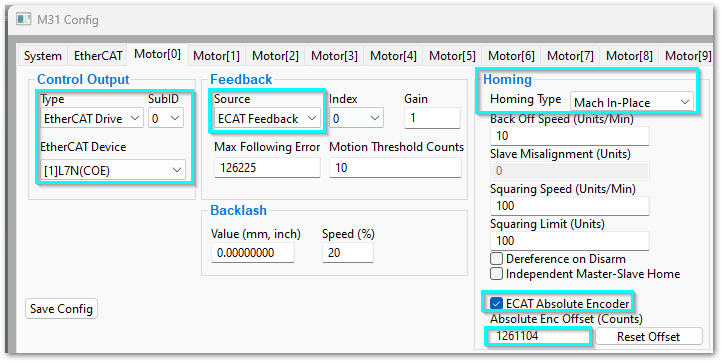
Recalibrate the absolute encoder offset after encoder replacement, motor replacement, mechanical repair, coupling movement, belt slip, lost encoder memory, or other work that changes the mechanical relationship between the motor, encoder, and axis.
How-to guide: Configure an axis for an absolute encoder
- Open the M31 Config Plugin.
- Select the motor to configure.
- Set Control Output to the correct EtherCAT drive or device.
- Set Feedback Source to ECAT Feedback.
- Set Homing Method to the correct method for the machine.
- Select ECAT Absolute Encoder.
- Click OK to save the changes and close the M31 Config Plugin.
- Open the Service tab.
- Home the axis that you configured.
CAUTION: If the homing method is not Home in Place, the axis will move to the home switch. Make sure that the axis path is clear. Unexpected machine movement can cause machine damage.
When the homing cycle is complete, MachPro writes the correct encoder count to Absolute Enc Offset (Counts) on the M31 Config tab.
How-to guide: Recalibrate the offset when the machine has home switches
Use this procedure if the machine has home switches and you must set a new absolute encoder offset.
- Open the Service tab.
- Click CMDS.
- Filter the command list for Deref.
- Select the axis to recalibrate.
- Click OK.
The Deref command clears the Absolute Enc Offset (Counts) value for the selected axis.
- From the Service tab, home the same axis again.
When the homing cycle is complete, MachPro writes the new encoder count to Absolute Enc Offset (Counts).
How-to guide: Set the offset when the machine does not have home switches
Use this procedure only if the machine does not have home switches.
CAUTION: Without home switches, the offset depends on how accurately you move the axis to machine zero. An incorrect machine zero position can cause incorrect soft-limit positions and machine damage.
- Jog the axis to the machine zero position.
- Stop all axis motion.
- Disable the MachPro control software.
- Open M31 Plugin Config.
- Select the motor that was modified.
- Click Reset Offset.
The Reset Offset button writes the current encoder count to Absolute Enc Offset (Counts).
--------------
First configure
- Control output as a specific EtherCat Drive/device
- The Feedback source as ECAT Feedback
- The homing method
- Check the box next to ECAT Absolute Encoder at the bottom of the homing column
- Click OK to save your changes and close the M31 Config Plugin
- Go to the service tab and home the axis using the motor you just configured. Caution - unless you have set the homing method to home in place, the axis will move to the home switch. When the system has homed that axis, the homing process will enter the correct encoder count into the Absolute Enc Offset (Counts) field on the M31 Config tab.
If you have home switches (good for you!) then you'll need to de-reference, home, and it should input the new value when it completes the home cycle.
- Go to the service tab and click on the CMDS button
- Filter for Deref, select your axis and click OK. That will clear the Absolute Enc Offset value
- Now rehome that axis from the service tab
If you do not have home switches (gasp!) then you need to do your best to move that axis back to its home position and then click the reset button. If you have had hardware changes or repairs, you may need to re-calibrate your Absolute Enc Offset.
- Jog the axis to the machine zero position and disable the software
- Open the M31 Plugin Config
- Click the motor that has been modified and click the Reset Offset button. That will insert the current encoder count into the Absolute Enc Offset field
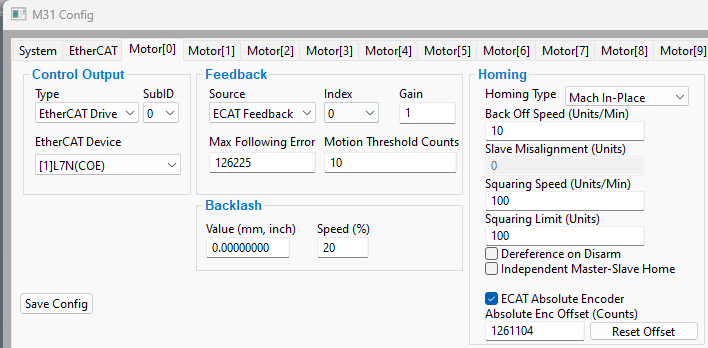
{{@2016}}