
How to Use Documentation Library
NOTE: A new version of our documentation software has been installed which has changed some of the layout of the pages. The idea of the content below applies, but some screens may not appear as shown. We are working to make the necessary updates.
Welcome to the MachMotion Support Documentation Library.
Here is a quick overview of certain screens you may see and various functions available on each screen.
NOTE: When performing a search, it is often helpful to use quotation marks. For example searching for M222 may not produce any search results, while searching for "M222" will. Quotation marks are not generally helpful if searching for longer strings of text because it tries to find an exact match and the word order can be different. Generally shorter, more precise searches, with quotation marks yield better results. Start with that and if not finding anything, then search without the quotation marks.
Library Screen:
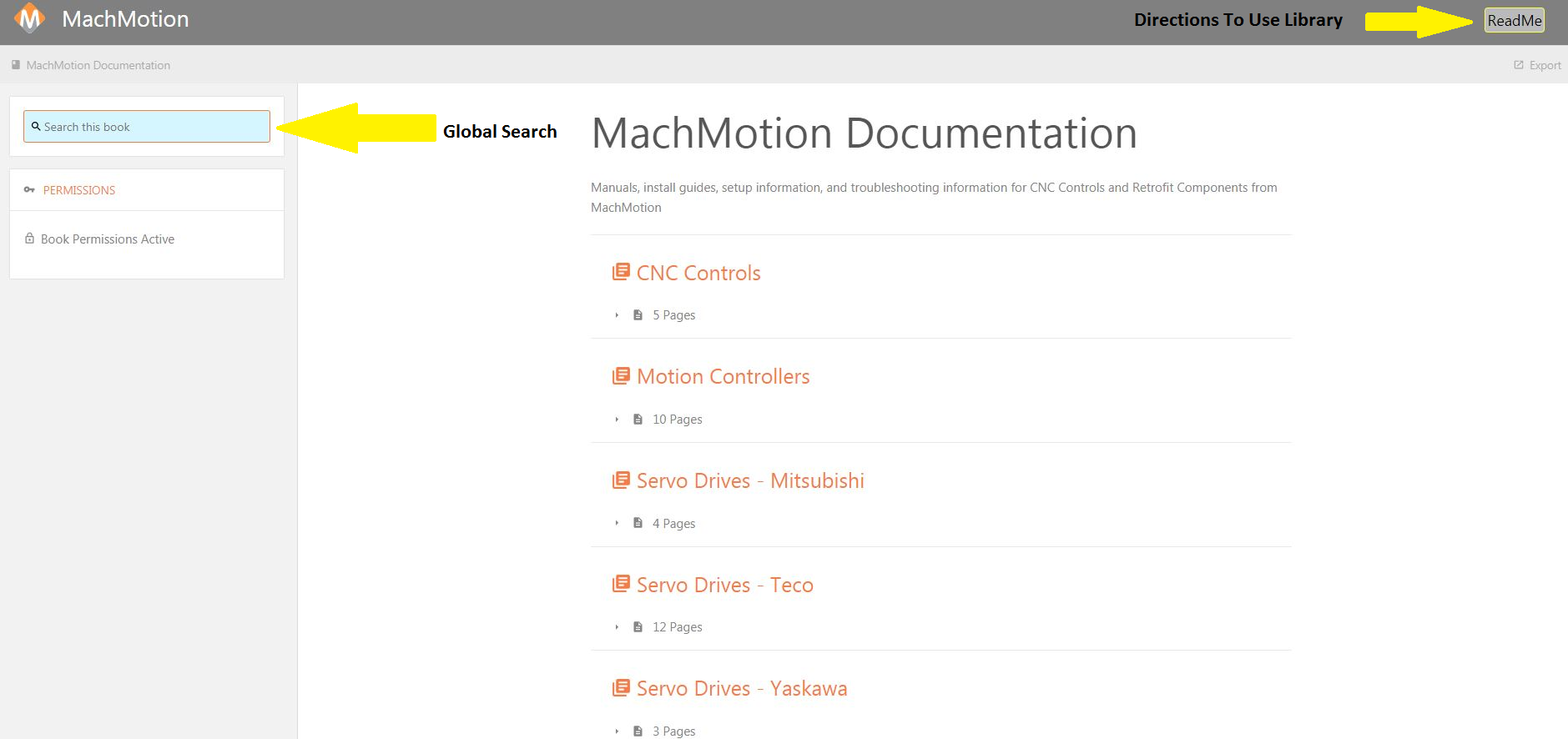
Global Search: You are able to search throughout the entire MachMotion Document Library
ReadMe:Directions to Use Library: Learn how to view the MachMotion Document Library (ReadMe)
Book Screen:
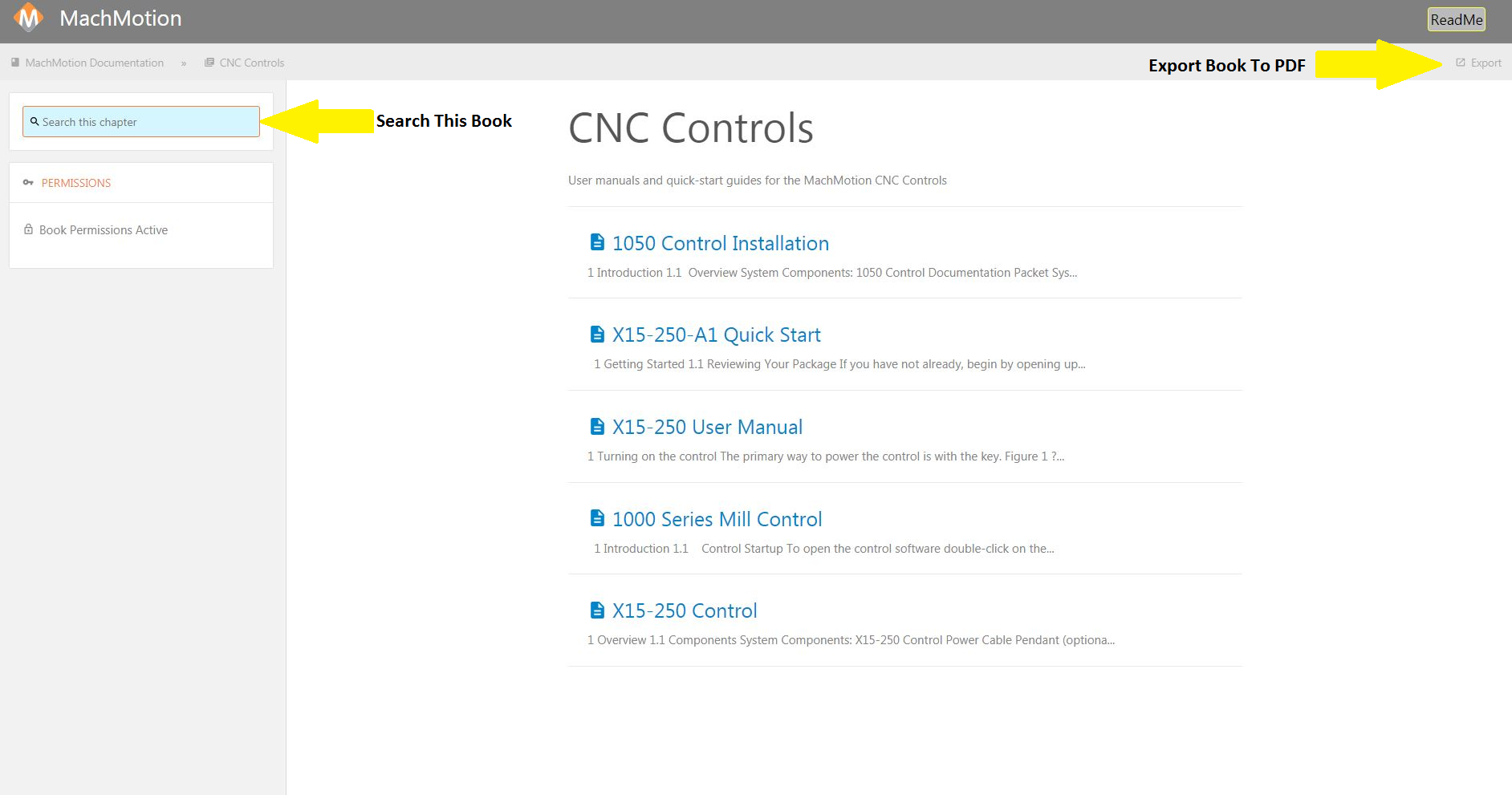
GlobalExport Search:Book to PDF: You are able to searchdownload throughoutthis theBook entireand MachMotionView/Print Documentin Librarya PDF Viewer. (Due to different size of documents download time may vary.)
CurrentSearch BookThis Search:Book: You are able to search throughout this current book
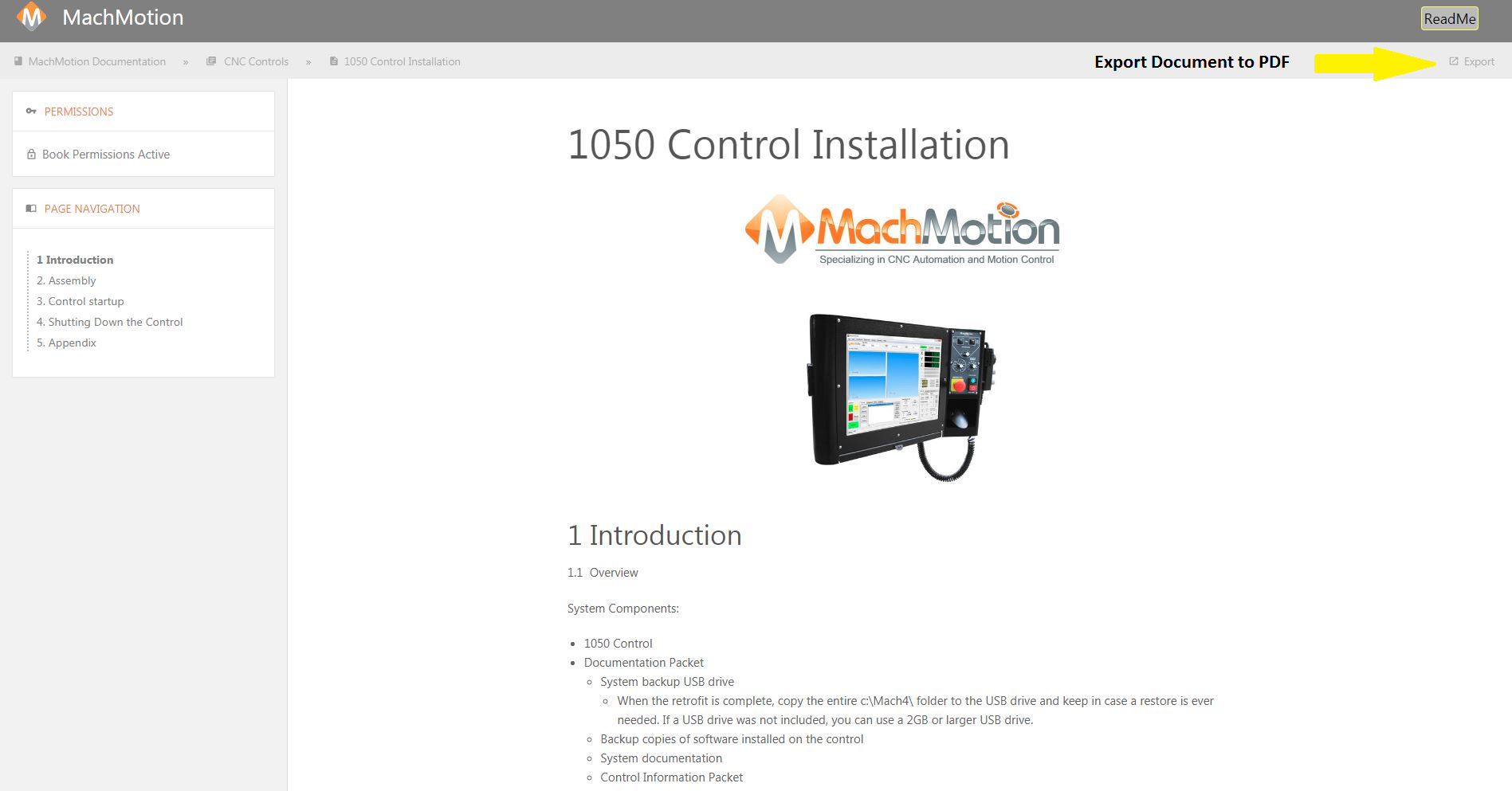
Document Screen:
Global Search: You are able to search throughout the entire MachMotion Document Library
Export Document to PDF: You are able to download this document and View/Print in a PDF Viewer. ( Due to different size of documents download time may vary.)
Attachments: You are able to download or view files that are attached to the document
Key Search Terms: These are key search terms for the search engine to assist in finding the best document for you.
Search the Page: If you press the "Ctrl" and the "f" keys at the same time it will populate a search field for you to search the page.
Attachments: You are able to download or view files that are attached to the document
Key Search Terms: These are key search terms for the search engine to assist in finding the best document for you.
Keywords: help, readme