
Private MachPro Planner Reference
==MachPro build covered: add the build number here when the software is released.==
==There are no screen captures or graphics included in this doc yet.==
1 Introduction
1.1 Purpose and scope
A motion planner calculates the commanded trajectory and controls changes in velocity and acceleration. MachPro calculates all planner trajectories. All commands from its planners work with every compatible motion controller. The motion controller calculates and runs homing and tapping motion. This reference gives information about Trapezoidal, PureMotion, and the confirmed selection command for Tangential Knife.
PureMotion is an S-curve motion planner.
This reference uses the M31 setup sequence. It includes axis configuration, motor motion settings, final machine tests, advanced behavior, parameter reference, troubleshooting, and application notes. Wiring and installation procedures stay in the setup manual.
M31 Motion Control Setup Manual: Open Document
2 Axis Configuration
2.1 Identity and calibration
An Auxiliary axis performs a machine function outside coordinated toolpath motion, such as an automatic tool changer. It does not limit coordinated toolpath velocity or acceleration.
Rotary (degrees) on Configure > Control > Axes > selected A/B/C axis > Identity changes axis units from linear units to degrees. Mixed rotary and linear feed is interpreted the same as linear feed. The unit setting does not establish a rotary radius or a degrees-to-distance conversion.
Axis calibration establishes units and initial motion values. Those values are starting points, not verified operating limits for the installed machine.
Axis type and calibration setup: Open Document
2.2 Motion Limits
The axis Motion Limits tab is read-only. It lists every motor assigned to the axis, including master and slave motors, followed by Effective (minimum) values that control the axis motion. The supplied screen shows separate Feed and Rapid columns.
| Displayed value | Units |
|---|---|
| Velocity | units/min |
| Acceleration, 2nd order | units/s² |
| Acceleration, 3rd order | time (ms) |
| Jerk Time | ms |
PureMotion’s native acceleration setting is Constant Acceleration Time in ms. Acceleration can also be displayed in units/s²; see Acceleration Entry.
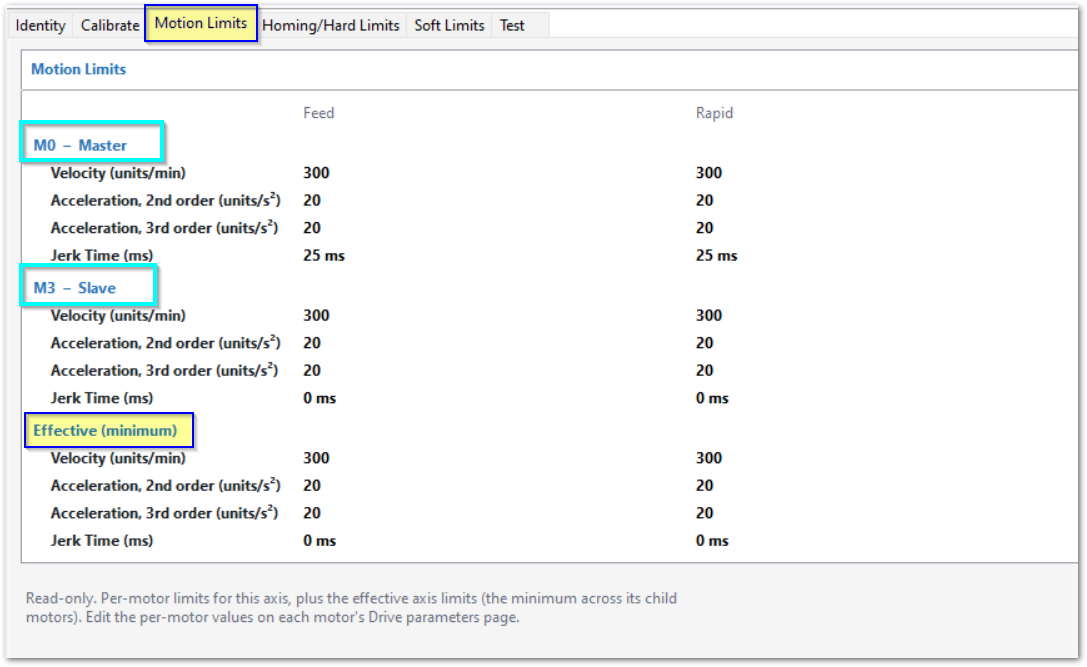
In the supplied example, M3 (Motor 3 - Slave) has Jerk Time set to 0 ms. This limits the axis to 0 ms. A nonzero value on another motor does not override this limit. These are example settings, not defaults.
Compare each motor with the effective values to identify which settings constrain that axis. Different motors can supply different minimum values.
During coordinated motion, MachPro synchronizes the participating axes. Their applicable motor limits can constrain the complete move. Auxiliary axes are excluded. Use this tab to identify configured limits for an individual axis.
Coordinated-motion tests: Open Document
3 Motor Configuration
3.1 Units
Before you start
Calibration sets Units. If the displayed units are incorrect, correct the calibration. Motors, drives, transmissions, structure, load, lubrication, and mechanical condition set practical motion limits.
MachPro gives separate limits for:
| Motion type | Function |
|---|---|
| Feed | Commanded machining motion |
| Rapid | Non-cutting positioning |
| Jog | Operator-commanded manual motion |
Velocity and acceleration
Velocity is the maximum commanded axis speed. A move needs sufficient distance to reach this speed. Short moves can end before they reach maximum velocity.
Acceleration Entry switches between Units/s² and Time (ms). MachPro converts the displayed and entered value automatically when you select either button. This does not change the selected planner.
The actual acceleration settings are defined in the planner comparison. Velocity and acceleration must operate reliably together.
Single-axis tuning and operating margins: Open Document
Coordinated Feed motion
Higher stable acceleration decreases move time for both long and short moves. Short moves can stay below target velocity and still finish sooner with higher acceleration. Feed acceleration can thus affect cycle time more than maximum Feed Velocity.
For PureMotion, a shorter stable Constant Acceleration Time increases acceleration for the applicable velocity change. Do not lower Feed Velocity solely because short moves do not reach it.
Participating-motor constraints are described in Motion Limits. For tests, use the setup link there.
Rapid and Jog motion
Rapid and Jog have no cutting load. Their reliable limits can differ from Feed limits. Higher Rapid velocity is most useful with sufficient travel. Acceleration can limit short positioning moves. Use Jog settings that give predictable starts, stops, and manual control. Jogging comes to an exact stop using the configured acceleration/deceleration settings.
Configuration procedures: Open Document
Motor Units motion graph
The graph shows commanded Rapid and Feed profiles for one axis. It does not show coordinated motion between axes. There is no Jog motion graph. The displayed timeline extends until the profile reaches configured maximum velocity. An actual move can be too short to reach that velocity. It does not predict the duration of a specified machine move.
Trapezoidal shows the acceleration-rate profile. PureMotion includes both jerk transitions and its constant-acceleration part. See PureMotion Jerk Time.
The setup comparison graphics use red for Rapid, green for Feed, velocity vertically, and time horizontally. The graphs use the same scales for comparison. Use machine tests to measure speed and move time and to examine reliability. See Final machine test.
Select the motion planner
Configure > Control > Defaults sets startup modes, including Trajectory Mode and Initialization Codes. Configure > Control > General contains related control options. The supplied screens show current settings, not factory defaults.
Trajectory Mode sets the default planner. Include the applicable G38 command in each G-code file that needs a different planner. Use G38 commands only within G-code files. Do not enter them in Initialization Codes.
The following G-codes select the planner for subsequent motion. This is a modal selection.
| Planner | Modal selection | Configuration tab |
|---|---|---|
| PureMotion | G38.1 | PureMotion G38.1 |
| Trapezoidal | G38.2 | Trapezoid G38.2/Tangential G38.3 |
| Tangential Knife | G38.3 | Trapezoid G38.2/Tangential G38.3 |
Each command stays active within the open file until another G38 command selects a different planner. Closing a file with a G38 command restores the default Trajectory Mode. MachPro also restores the default trajectory mode after shutdown and restart.
This G38 selection and file-close/restart behavior applies to all planners. Each planner’s configuration settings remain in effect until changed. Planner changes do not require a restart.
G38.3 turns on Tangential Knife mode. There are no additional Tangential-specific parameters. For shared CV behavior, see Trapezoidal CV Angle Mode. The shared configuration-tab label is retained in the table. See Path blending and exact stop for the documented PureMotion and Trapezoidal controls.
| Characteristic | Trapezoidal | PureMotion |
|---|---|---|
| Planner order | 2nd Order | 3rd Order S-curve |
| Actual acceleration setting | Acceleration rate, units/s² | Constant Acceleration Time, ms |
| Alternative display | Related Time (ms) | Related Units/s² |
| Acceleration transitions | Direct changes between zero and the configured rate | Gradual transitions controlled by Jerk Time |
| Jerk Time | Not used | Separate Feed, Rapid, and Jog settings |
| Acceleration/deceleration | Same setting | Same settings, reversed profile |
| Typical application | Required performance when accurate CV path control is not necessary | Precision applications, or smoother transitions that improve machine response |
For a long Trapezoidal move, the velocity profile has acceleration, constant velocity, and deceleration. A shorter move can have a triangular profile because deceleration starts before maximum velocity is attained.
PureMotion can decrease excitation caused by sudden acceleration transitions. Use path-control requirements and machine response to select the planner. If both planners give the required results, either planner is suitable.
Planner selection and retesting: Open Document
PureMotion Jerk Time
Jerk is the rate of change of acceleration. Jerk Time controls the transitions into and out of constant acceleration and deceleration. Constant Acceleration Time specifies the constant-acceleration part.
The complete acceleration profile is:
Jerk transition → Constant Acceleration Time → Jerk transition
Total acceleration time = Constant Acceleration Time + (2 × Jerk Time)
For example, 250 ms of Constant Acceleration Time and 25 ms of Jerk Time give 300 ms total. Deceleration uses the reversed profile, with no separate acceleration/deceleration settings.
PureMotion uses the configured settings across transitions and junctions between moves. It incorporates velocity, acceleration, and jerk values. A shorter Constant Acceleration Time produces a higher acceleration rate for the applicable velocity change. A longer value produces a lower rate. Increasing Jerk Time makes transitions more gradual. 0 ms removes smoothing for that motion type.
PureMotion does not directly tune a vibration frequency. Jerk Time changes acceleration transitions that can excite vibration. Constant Acceleration Time affects acceleration rate, which can also excite mechanical resonance.
Longer transitions can increase move time. If smoothing permits higher stable velocity or acceleration, overall cycle time can decrease. Examine the complete machine cycle.
The M31 setup manual gives 10 ms as an initial tuning value and describes 50 ms as high. These are tuning guidance, not a factory default or a permitted maximum.
Jerk-time tuning: Open Document
Copy settings to other motors
Use copied values as starting points until tests confirm that the motors have equivalent operating limits. The copy-control procedure is in Motor Units setup: Open Document
3.2 Final machine test
There is no universal test program or validation code for path error, vibration, accuracy, or cycle time. Tests and acceptance criteria depend on the machine, job specifications, and material properties.
Accept settings when production-motion tests meet position accuracy, drive stability, machining quality, and cycle-time requirements. There must be no position loss, faults, too much vibration, or mechanical instability.
Use air cutting to establish initial settings. Use representative cutting to establish final Feed limits. Machine response can change with travel position, direction, axis combination, tooling, workholding, and load. Significant changes require renewed verification.
Final testing and limiting-axis diagnosis: Open Document
4 Advanced Options and Information
4.1 Path blending and exact stop
Acceleration smoothing controls changes in acceleration. Path smoothing permits deviation from the commanded path. These settings serve different purposes. See PureMotion Jerk Time for acceleration smoothing.
The supplied configuration screens show the controls below. Displayed values are current settings, not verified factory defaults or limits.
PureMotion path tolerance
| Control | Function |
|---|---|
| Error Tolerance (units) | Maximum deviation between the commanded path and the smoothed path the planner executes |
| Arc Error Tolerance (units) | Tighter tolerance used instead of general contour error for arcs whose total sweep meets or exceeds Min Sweep Threshold |
| Min Sweep Threshold (deg) | Minimum total arc sweep that qualifies for the tighter arc tolerance. Equality qualifies |
| Angle-Error Interpolation | Corner-angle/tolerance table. Each knot is a specified angle and tolerance pair |
Angle-Error Interpolation sets per-corner tolerance by corner or transition angle.
Sharp corners have larger angles and use tighter tolerances. Gentle corners have smaller angles and can use looser tolerances for speed. + Add knot and Remove manage the table entries.
The chart generated from the knots controls motion during program execution:
- An empty table, or an angle below the smallest knot, uses global Error Tolerance, shown by the red dashed line.
- At a knot, use its specified tolerance.
- Between adjacent knots, interpolate tolerance linearly.
- Above the largest-angle knot, use that knot’s tolerance.
PureMotion follows all tolerance and error limits configured by the customer. Select tolerances from the permitted machining deviation. Then measure the path and examine machining quality.
These are sample configuration values, not defaults or recommended settings. Tolerance uses the configured machine units.
| Control | Sample value |
|---|---|
| Error Tolerance | 0.050000 units |
| Arc Error Tolerance | 0.001000 units |
| Min Sweep Threshold | 85.000° |
| Angle (deg) | Tolerance (units) |
|---|---|
| 45.000 | 0.030000 |
| 70.000 | 0.015000 |
| 80.000 | 0.010000 |
| 95.000 | 0.009000 |
Below 45°, this example uses 0.050000 units. Above 95°, it uses 0.009000 units. Arcs with a total sweep of at least 85° use 0.001000 units instead of general contour error.
Trapezoidal CV Angle Mode
Trapezoidal CV is not a precise path-control tool. Its preset Path error tolerance is an input to the feedrate calculation, not a guarantee of actual path accuracy. Use PureMotion when precision is required. Its path-tolerance controls are described above.
CV means constant velocity. The Trapezoid G38.2/Tangential G38.3 tab contains CV Angle Mode, with Enable and Disable controls. Its table pairs Angle (deg) with Feedrate (u/min), where u/min means configured units per minute. The CV feedrate vs angle graph plots those entries.
When CV is disabled in Trapezoidal mode, every angle uses exact stop. When CV is enabled, it also applies to Tangential planner moves.
The CV table gives a close approximation of feedrate at different angles. Other motion behavior follows the Trapezoidal planner’s configured settings.
Preset MachMotion CV formula fills every row from a single Path error tolerance, the included axes, and the slowest enabled motor. The screen identifies tolerance as units per profile. Its displayed formula uses the smallest motor acceleration and clamps the result to the slowest motor's maximum velocity. Include axes selects X, Y, Z, A, B, and C. Compute & Fill populates the table.
CV tolerance example
The supplied graphs use CV Angle Mode enabled, X/Y/Z included, and a maximum feedrate of 300 u/min. Reducing Path error tolerance from 0.001 to 0.0001 units produces lower table feedrates at the same angle:
| Angle (deg) | Feedrate at 0.001 tolerance (u/min) | Feedrate at 0.0001 tolerance (u/min) |
|---|---|---|
| 2 | 300.0000 | 217.4084 |
| 10 | 137.2915 | 43.4154 |
| 30 | 45.1778 | 14.2865 |
The 0.001 example reaches the 300 u/min cap at 0–4°. The 0.0001 example reaches it at 0–1°. Tighter tolerance decreases the generated corner feedrates while retaining the same maximum. These are configuration examples, not defaults or measured machine results. Measure machining accuracy and cycle time. See the Final machine test.
Exact stop and constant velocity
G09, G61, and G64 control cutting behavior above the motion-planner layer. They apply with Trapezoidal and PureMotion. PureMotion contour-error tolerance remains the maximum allowed planner path error. The published reference documents Trapezoidal behavior: Open Document
| Command | Scope | Function |
|---|---|---|
| G09 | Non-modal. Current movement block only | Decelerates to the endpoint and stops before the next block |
| G61 | Modal. Stays active until G64 | Stops at the end of each commanded move |
| G64 | Modal. Stays active until G61 | Constant velocity mode. Attempts to maintain feedrate through direction changes |
Exact stop keeps commanded corners but repeated stops can increase cycle time and leave witness marks. G64 permits corner rounding. Deviation depends on feedrate and machine acceleration. See Trapezoidal CV Angle Mode for its configuration and precision limitations.
Exact stop uses the acceleration/deceleration profile of the selected motion planner. Trapezoidal uses its configured acceleration rate. PureMotion uses its configured Constant Acceleration Time and Jerk Time.
PureMotion runtime parameter changes
No planner parameter-change commands are currently available. There is no documented method to change planner parameters during runtime. If commands become available, the software developers will supply a separate document.
4.2 Look-ahead and special motion
Look-ahead examines a variable time interval in future blocks. It examines enough future motion to stay on path or make a controlled stop. Look-ahead has no exposed command or queue-synchronizing commands.
Threading, spindle motion, and arc motion follow the trajectory of the active planner.
Feed Hold and Cycle Stop are controlled stops. E-Stop disables all drives at the MachPro software level. For hardware E-Stop protection, use a safety relay to stop all motion safely. The M31 setup manual also documents the J6 jumper option for machines operated without E-Stop devices: Open Document
5 Reference Information
5.1 Parameter locations and definitions
This table is AI deduced and does not include all parameters that will be available
| Setting | Location or owner | Definition |
|---|---|---|
| Trajectory Mode | Configure > Control > Defaults | Planner selection |
| Units | Axis calibration. Displayed in Motor Units | Axis calibration |
| Feed, Rapid, Jog Velocity | Motor Units | Velocity and motion types |
| Acceleration Entry | Motor Units | Display/entry representation |
| Trapezoidal acceleration | Motor Units, by motion type | Planner comparison |
| PureMotion Constant Acceleration Time | Motor Units, by motion type | PureMotion profile |
| Feed, Rapid, Jog Jerk Time | Motor Units | PureMotion Jerk Time |
| Effective axis limits | Axis Motion Limits, read-only | Motion Limits |
| PureMotion path tolerances | PureMotion G38.1 tab | PureMotion path tolerance |
| Cutting behavior: G09/G61/G64 | G-code program | Exact stop and constant velocity |
| PureMotion runtime parameter commands | Not currently available | Runtime parameter changes |
| Motion diagnostic displays | Diagnostic > M31 | M31 motion diagnostics |
| CV Angle Mode and angle/feedrate table | Trapezoid G38.2/Tangential G38.3 tab | Trapezoidal CV Angle Mode |
==Add release-specific factory defaults, permitted ranges, and increments when supplied. The example and tuning values are not those specifications.==
5.2 M31 motion diagnostics
Open Diagnostic > M31 to view the M31 Status window supplied with the M31 software.
MachPro’s Machine I/O diagnostics show the names entered in User Description. For EtherCAT I/O slices, the leading address number identifies the device coupler. The fully qualified physical-port address uses that coupler number. Output addresses and router installation mappings are described in Output Setup (J10) in the M31 setup manual: Open Document
| Display or control | Information available |
|---|---|
| Encoder, Feedback, StepGen, Command Pos, Following Error | Indexed position and error displays. Command Pos is commanded position. Following Error is the displayed error indicator in counts |
| Properties | M31 plug-in version, Target Mach Build, device connection status, transmit/receive frequencies, and configuration polling rate |
| GCode Message Cntr | Communication activity. Stays at 0 in the disconnected capture; changes continuously while MachPro is connected to the M31, even without a running G-code file |
| Buffer Transfer Size, Ethernet Compression, FIFO MilliSec Vectors, Buffer Fill Level | Communication and queued-motion indicators. FIFO means first in, first out |
| Inputs, Outputs, Analog Input (mV) | Digital signal indicators and the selected analog channel in millivolts |
| Motion Planner, EtherCAT Status | Buttons shown in the supplied window |
The window also has an axis selector and Clear Position control. Output indicators are interactive: the screen states that clicking an output LED activates it. These indicators are controls.
Use the position and following-error displays to find motion errors, and communication/buffer indicators when investigating interrupted motion. The supplied captures show no connection to a physical M31 board. The latest annotated capture highlights Properties on the left and GCode Message Cntr in the middle. Use connected-machine readings for diagnosis.
5.3 Unresolved questions
| Topic | Status or remaining information |
|---|---|
| Software build | Add the covered build at the top when the software is released |
| Parameter specifications | Release-specific defaults, ranges, and increments are pending in Parameter locations |
| PureMotion short moves | Developers are working on improved short-move handling. No further algorithm specification is supplied. Moves across transitions and junctions follow configured settings |
| Motion limits | Use Motion Limits for motor values and effective axis limits |
| Diagnostics | All currently available diagnostics are shown or described in M31 motion diagnostics |
| Probing | ==Probing behavior was not specified in the current clarification; add details only when supplied== |
| Publication | Recheck published M31 anchors after importing revised content |
6 Troubleshooting
6.1 Vibration or oscillation
Vibration can indicate too much motion demand, sudden transitions, mechanical defects, resonance, drive instability, or cutting-condition problems. Definitions and physical effects are in Mechanical response.
PureMotion addresses acceleration-transition excitation. It does not correct every cause of chatter. Cutting-only vibration can originate in tooling, workholding, spindle condition, or cutting parameters.
Diagnostic steps: Open Document
6.2 Programmed feed rate is not reached
Possible constraints include move length, acceleration, participating-motor limits, direction changes, and path control. A short move can end before the machine reaches the programmed feed rate. See Short moves, Motion Limits, and M31 motion diagnostics.
Diagnosis and machine tests: Open Document
6.3 Cycle time increases with PureMotion
See PureMotion Jerk Time for the transition-time/performance tradeoff. The tuning and testing procedures are linked there.
7 Application Notes
7.1 Vibration, oscillation, and mechanical condition
Oscillation is repeated motion about an equilibrium position. Vibration is unwanted oscillatory motion, such as shaking, buzzing, chatter, or ripple.
Mechanical looseness, wear, too much backlash, unsatisfactory lubrication, damaged components, and unstable drives can produce vibration that planner tuning cannot correct. Correct known defects before optimizing motion.
Vibration does not change physical inertia or moving mass. For linear motion, force = mass × acceleration. Acceleration and oscillatory motion make reaction forces that can increase structural deflection, drive load, position error, or following error.
Mechanical response also depends on stiffness, load, position, direction, spindle operation, tooling, workholding, and cutting forces. Reduced vibration is one test result. Apply all acceptance criteria.
7.2 Cutting load and planner choice
Use the distinctions in Rapid and Jog motion, the criteria in Final machine test, and the comparison in Select the motion planner. Use the path-precision distinction when selecting a planner for precision machining.