
PRIVATE SOURCE Plate Alignment
Plate alignment provides a simple way to accurately align your work fixtures with the work piece on your table. Often large work pieces are not perfectly square on the table, and this tool solves that problem.
First steps
Remove G69 (Coordinate System Rotation Cancel) from the MachPro initialization codes
- Disable MachPro
- Pull down Configure -> Control and select the Defaults tab.

- If the G69 code is in the initialization codes, remove
itit.and clickClick OK to close this configuration window.You - Remove G69
is not infrom the safe startlinelines of your G-Code files.

The plate alignment function asks you for two points along one edge of your work piece. The greater the distance between those two points on that edge, the more accurate the angle measurement will be. When the alignment function has those two points, it will then rotate the G-Code by that angle for this job. While that rotation is active, the Plate Alignment button will remain green. Clicking it again will allow you to turn off the current rotation, or revert to the previous rotation.
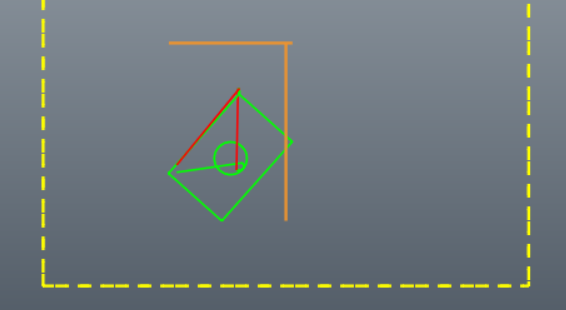
MachineThis needsis toan beextreme homed,example orof itusing needsplate toalignment beon runninga withwork absolute encoderspiece that retainwas therotated homealmost location45 when the machine is powered down.
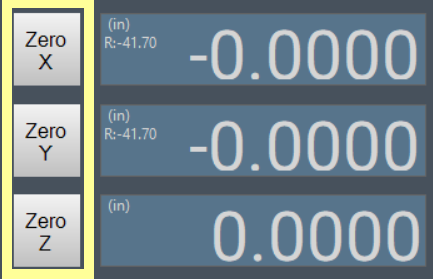
Set your part or fixture zero.
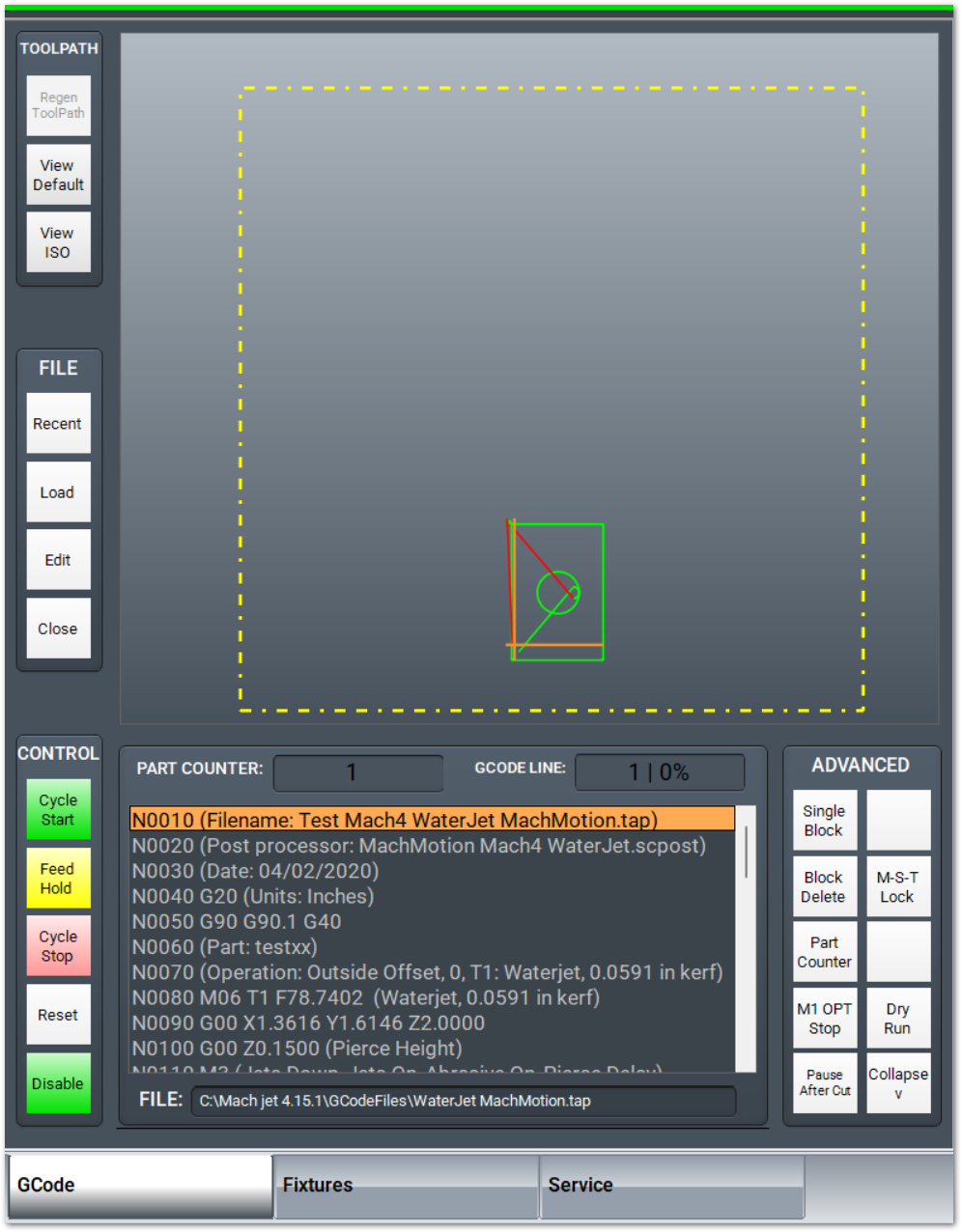
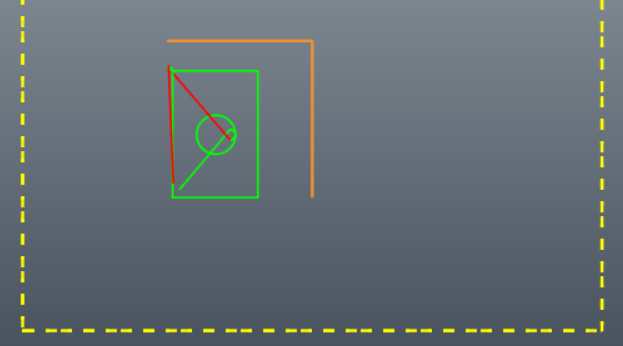
Verify the tool pathdegrees on the G-Code screen to ensure it will cut the entire part from that work piece - not wander off the edge.
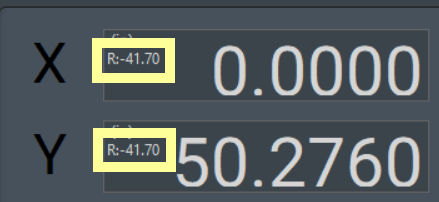
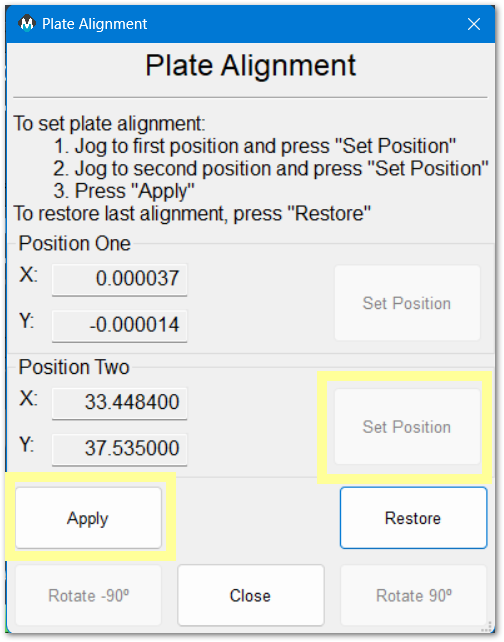
Run Plate Alignment process. You may load the G-Code file before or after the plate alignment process. The G68 rotation angle will be displayed in the upper left corner of the DRO axes.
|
|
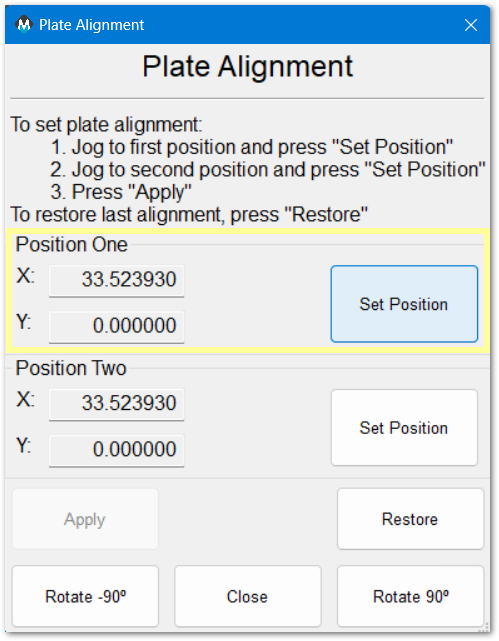
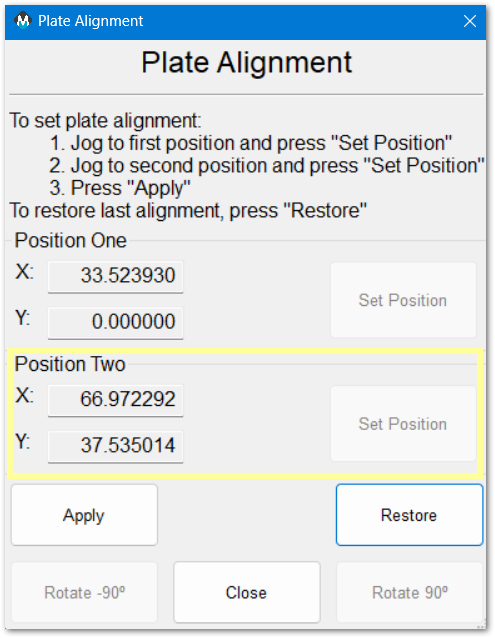
Then click Applytable. or Restore
Apply will apply the values and close the window
Restore will load the previous values
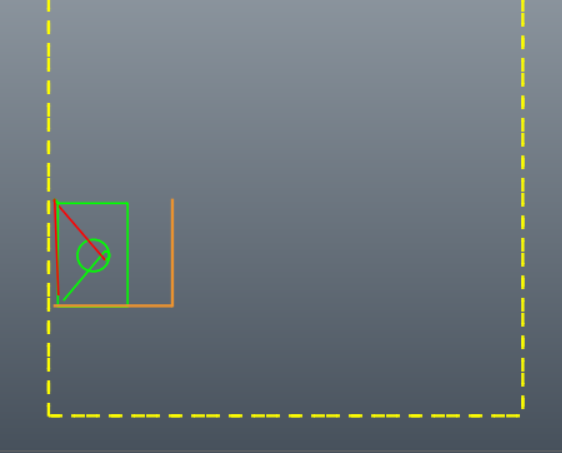
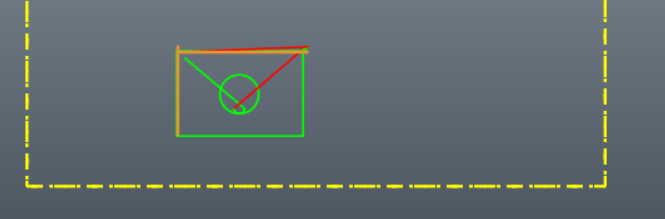
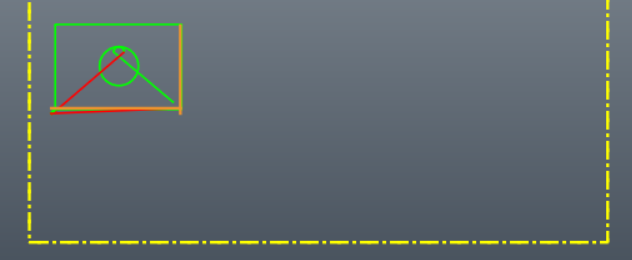
In my simulation I put my second point at approximately 45 degrees to make the rotation very obvious.
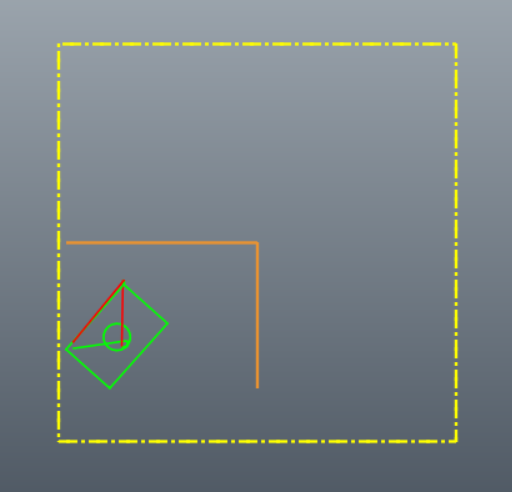
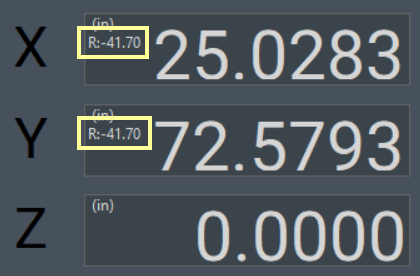
Run your G-Code file. While plate alignment is active, the button will be green. 
When you click the green Plate Alignment button, it will turn off the plate alignment.
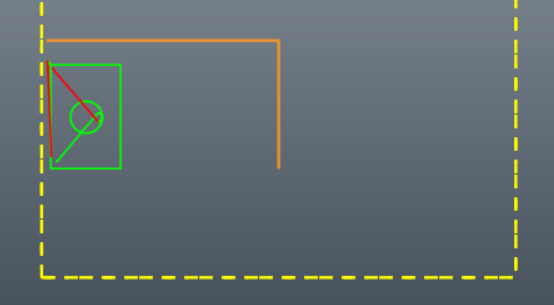
|
|
|
|
Using Plate Alignment
- Ensure that the machine has been homed, either through absolute encoders, or your startup homing process. Your DRO will show black axes labels.
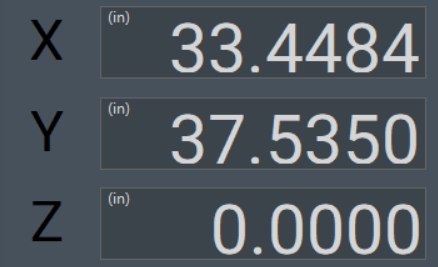
- Load your G-Code file
- Enable the machine and jog to a position along one edge of the work piece - near the one end. Touch your tool to the edge of the work piece
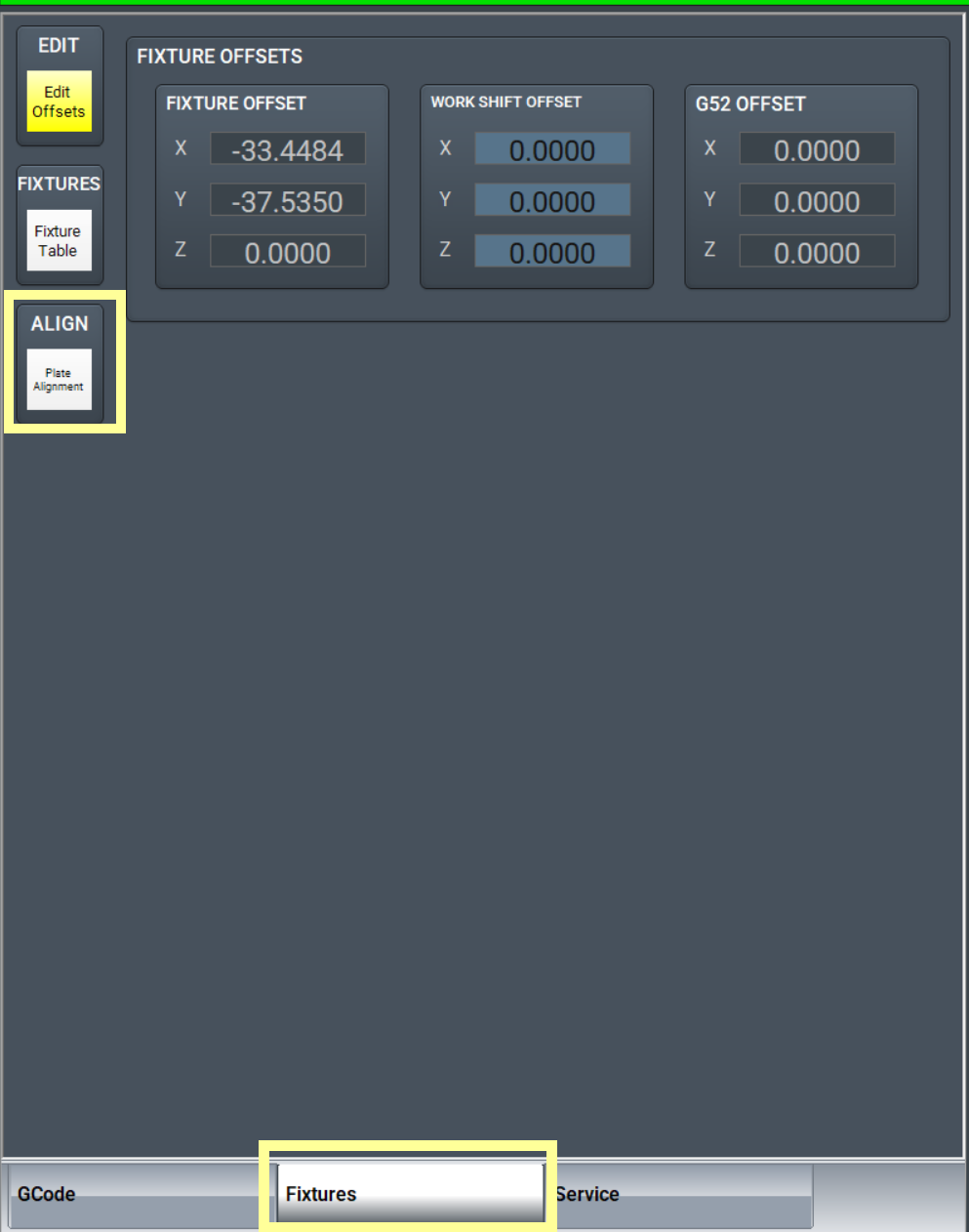
- Go to the Fixtures tab, and click the Plate Alignment button.
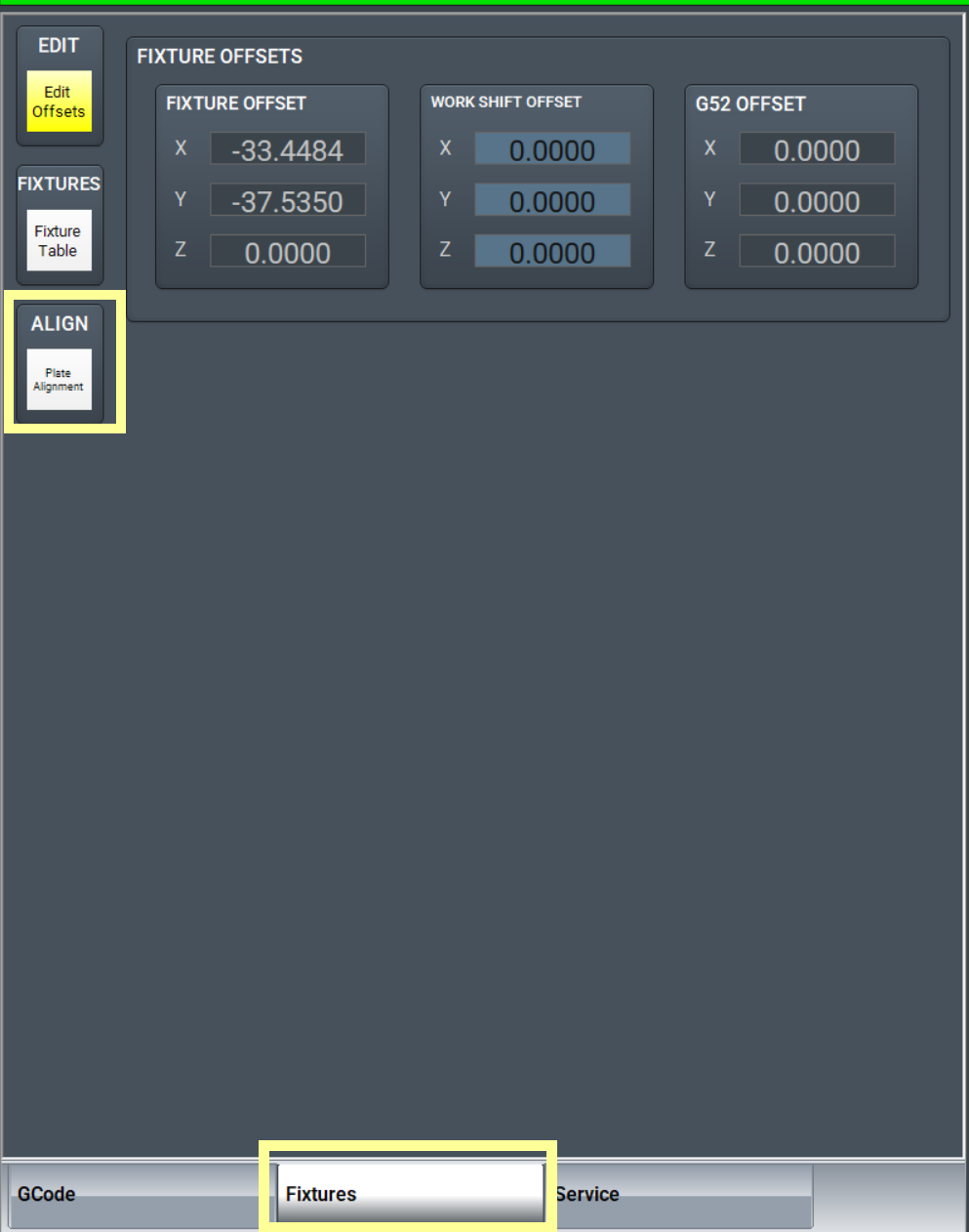
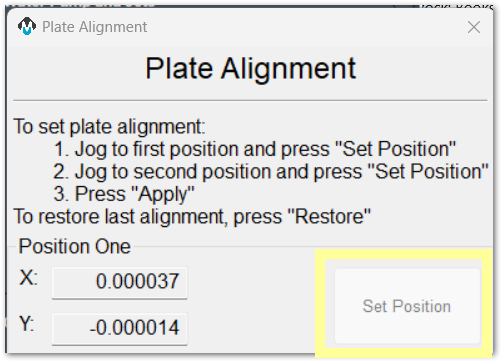
- Click the first Set Position button
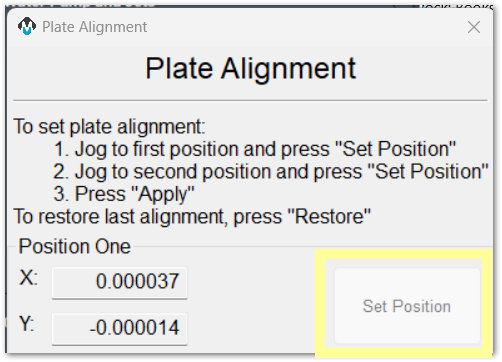
- Jog to a second position further along the same edge of the work piece, and again touch the tool to the edge of the work piece. Moving 1 yard or 1 meter from the first position should provide good angle measurement accuracy.
- Click the second Set Position button
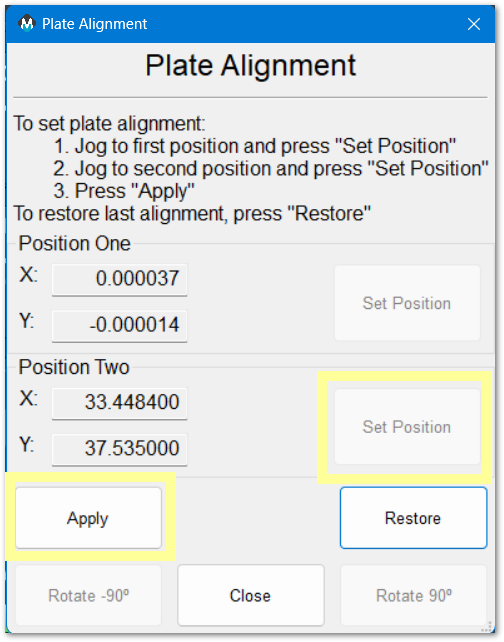
- Click Apply. The rotation will be applied to your part offset. Your tool path on the screen will be updated, and the DRO will indicate the angle of rotation that has been applied.
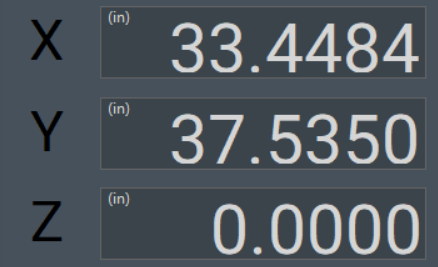
- Set your part zero on the Fixtures tab
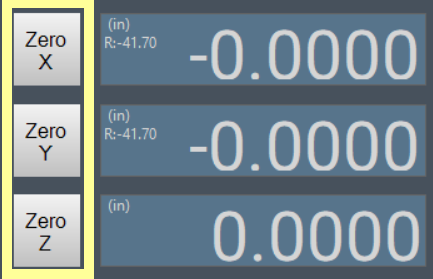
- Run your job normally. The MachPro has rotated the cut path to match the angle of the edge of the work piece.
Cancel Plate Alignment
Click the green Plate Alignment button and the rotation will be removed.
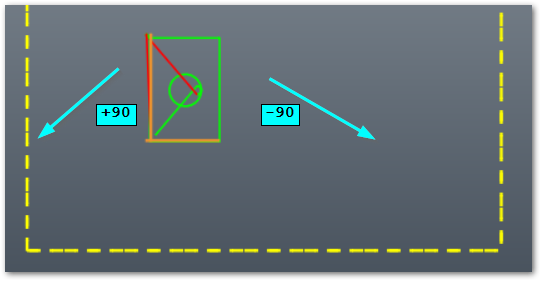
90 Degree Rotation
|
Rotate -90 degrees
|
No rotation
|
Rotate
|
Application notes
Both G68: Coordinate System Rotation and G69: Coordinate System Rotation Cancel are modal commands, and can interfere with each other. It is best to only use them at the beginning of the blocks where they are to take effect. The G68 command is used as part of the plate alignment process and a G69 command in the initialization or safe start codes can cause the plate alignment to not work.