
MachPro Package Installation

Configure Windows Defender Antivirus
To confirm that anti-malware scans do not affect the CNC motion in MachPro, add an exclusion to the the a Mach folder.
- From the Windows Start menu, select Settings

- At the top of the Settings window is a search box. Search for exclusions. It will offer Virus & threat protection. Click on that choice.

- In Virus & threat protection, scroll down to Exclusions and Add an exclusion - specifically a Folder

- It will open Windows Explorer to your local disk. In the upper left portion of the window, click the New Folder button, and create a folder named Mach

- Add a second exclusion folder using the same process, and call the second folder Mach Backup
- Close the Settings window.


Run the Mach Package Installer
Download and run this installer: https://pkgcdn.machmotion.com:8765/static/Mach_Package_Installer.exe.
When you run the installer, you may see these warnings. Select Yes and Run anyway.
 |
|

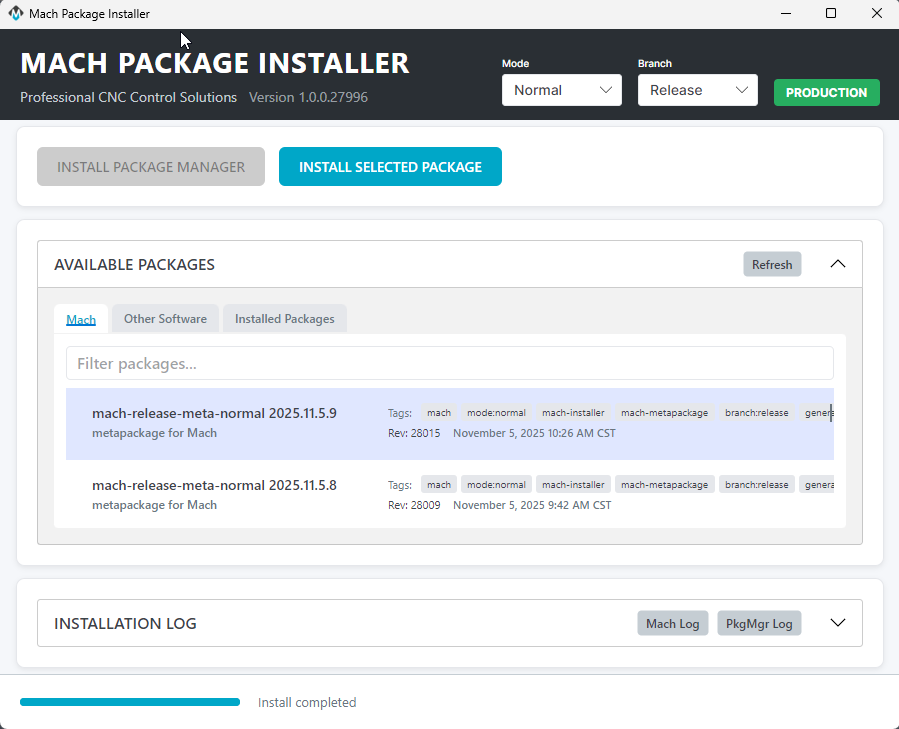
Set the Mode to Normal and the Branch to Release. Install the package manager by clicking on the Install Package Manager button.

Throughout the install process, the progress will be displayed in the bottom panel

When the package manager has finished installing, the menu will show the software versions that are available for you to install. Unless instructed otherwise, select the release at the top of the list and click the Install Selected Package button to begin.

If this is the first time you've installed MachPro, be patient as it installs all the backend libraries needed.
Once all of the prerequisites packages have been installed, the progress panel will show "Installing mach-(version)" and you will be presented with the MachPro install window.

You will take the defaults throughout the menu screens. Exceptions will be noted below.

Select the Machine Type that you are installing and click Next

Select the M31 type of motion control that you will be using: either EtherCat or Step and Direction, then press Next

Accept the defaults for VFD and Modbus PLC, then click Next

Accept the Control Model defaults and click Next

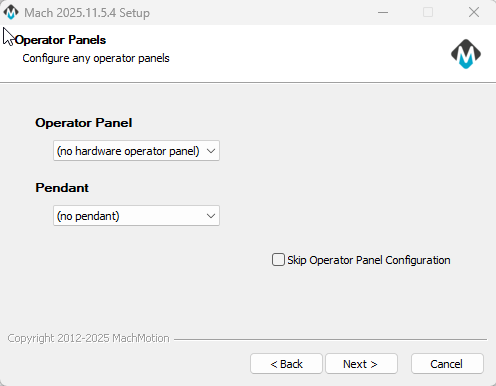
Accept the defaults for the Operator Panel and click Next
Production Options

- Perform network interface configuration. De-select this option. It currently only supports a several specific hardware options. Network setup details are at the beginning of the M31 Motion Control Setup Manual.
- Start MachPro on login. This is a convenience feature that can make morning startup less complicated for the operators.
- Disable UI WIndows Update Notifications. We recommend that you select this option. Note that it is disabling the Notifications, not the updates themselves. Microsoft still allows some updates to be held, but security related updates will be installed on all Windows computers.
Choose Components: Accept the defaults and click the Install button. You will have a progress window with the details of your installation.
|
|
|


|
|

When the Mach Setup installation process is completed, click the Close button on the Mach setup window,window.

Wait for the Installer to show Install Completed at the bottom of the Installer screen. Then you can close the Mach Package Installer window.
Your next step is to configure the M31 Motion controller.