
MachPro installation
Reset chocolaty here: C:\ProgramData\Mach to do an install on a clean~ish computer
Run the installer and get the first windows warning. Hopefully this will go away as the signing process on the software works its way through the internet.

Select the Release branch
Install the package manager by clicking on the orange Install Package Manager button, which will in turn install everything else

When the package manager has finished installing, the menu will show the MachPro versions that are available for you to install in the Release branch. Click the orange Install Selected Package button to begin.

The bottom of the package manager window will show the current status.

Once all of the necessary prerequisites have been installed, you will be presented with the MachPro install window.

You will generally take the defaults throughout the menu screens
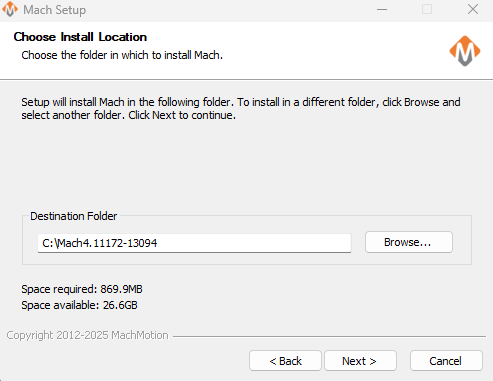
Select the machine type that you are installing and click Next

Select the M31 type of motion control that you will be using: either EtherCat or Step and Direction, then press Next

Accept the defaults for VFD and Modbus PLC, then click Next

Accept the Control Model defaults and click Next

Accept the defaults for the Operator Panel and click Next

Production Options

- Perform network interface configuration. If this is the first time you have installed MachPro on this computer, then select this option. If you already have successfully run MachPro on this computer, then deselect this option.
- The network configuration will require you to connect to a physical network port on your computer that was previously not being used. Connect a network cable between the M31 and this port on your computer. This port will be reconfigured with a static IP address of 192.168.208.10 and will be used on a dedicated internal network with the M31 motion controller. This port will not be available for internet use.
- Start MachPro on login. This is a convenience feature that can make morning startup less complicated for the operators
- Disable UI WIndows Update Notifications. We recommend that you select this option. Note that it is disabling the Notifications, not the updates themselves. Microsoft still allows some updates to be held, but security related updates will be installed on all Windows computers.
Choose Components: Accept the defaults and click the Install button.
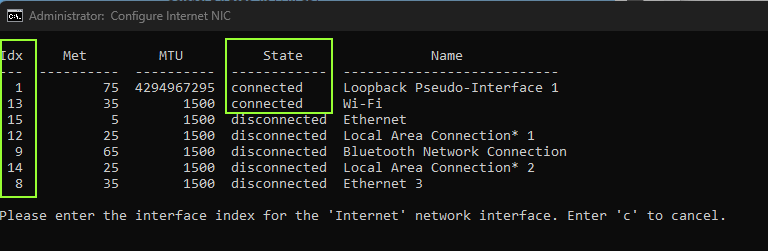
If you are configuring your network interface, you will be given a menu to select the newly connected port on your computer. Its state needs to be connected. Use the number in the first column to select the interface to be configured.
You will have a progress window with the details of your installation.
 |
|


When the installation process is completed, click the Close button